Learn how you can control your iPad pointer with the keyboard keys or number pad via a cool new accessibility feature called Mouse Keys.
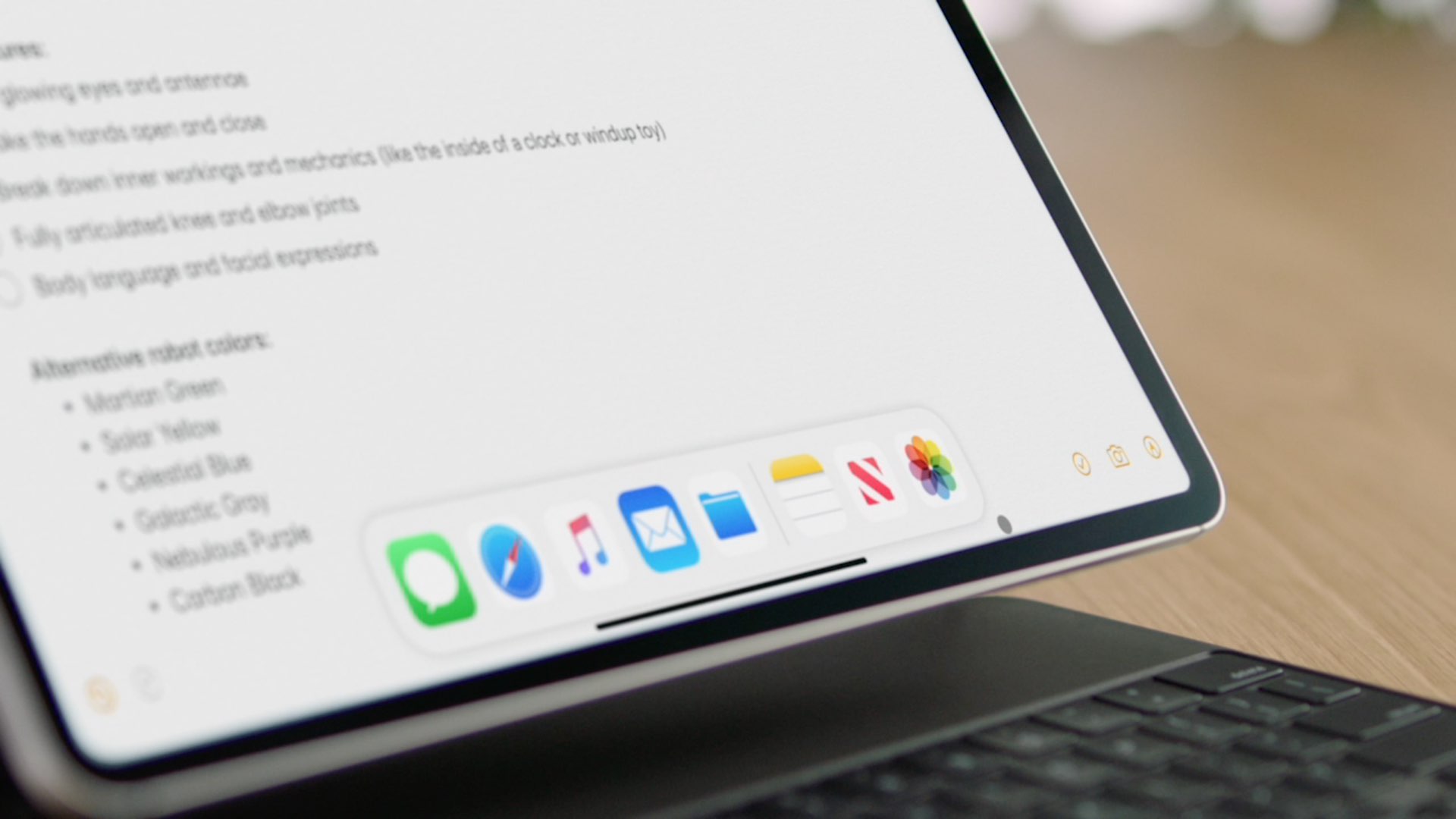
While moving the pointer with your connected mouse or trackpad trumps using the keyboard, sometimes you need high movement precision, such as when doing some pixel-perfect editing in apps like Pixelmator or Adobe Photoshop.
Aside from moving the pointer left, right, up, down, and diagonally, the keys on the connected keyboard simulate mouse actions like clicking, releasing, or holding the button.
Note that the Mouse Keys feature is also in macOS, which lets you move and control the mouse pointer using your Mac keyboard.
About Mouse Keys
Controlling the pointer with the keyboard is made possible thanks to the cool Mouse Keys feature.
Mouse Keys for macOS, iPadOS, and iOS serve the same purpose. As an assistive technology, it is primarily designed for people with motor skill issues who may find it challenging to control the pointer by moving their fingers across the trackpad.
It’s also a great option for folks who simply need precise pointer control when working in complex creative apps.

Control the iPad pointer using the connected physical keyboard
Note that you can use Mouse Keys with Apple’s official Magic Keyboard for iPad, third-party keyboards, or even if you’re using your Mac’s keyboard on iPad via Universal Control.
Enable Mouse Keys
- Open the Settings app on your iPad and go to Accessibility > Touch > AssistiveTouch.
- Enable the switch for AssistiveTouch at the top.
- Tap Mouse Keys underneath the Pointer Devices heading.
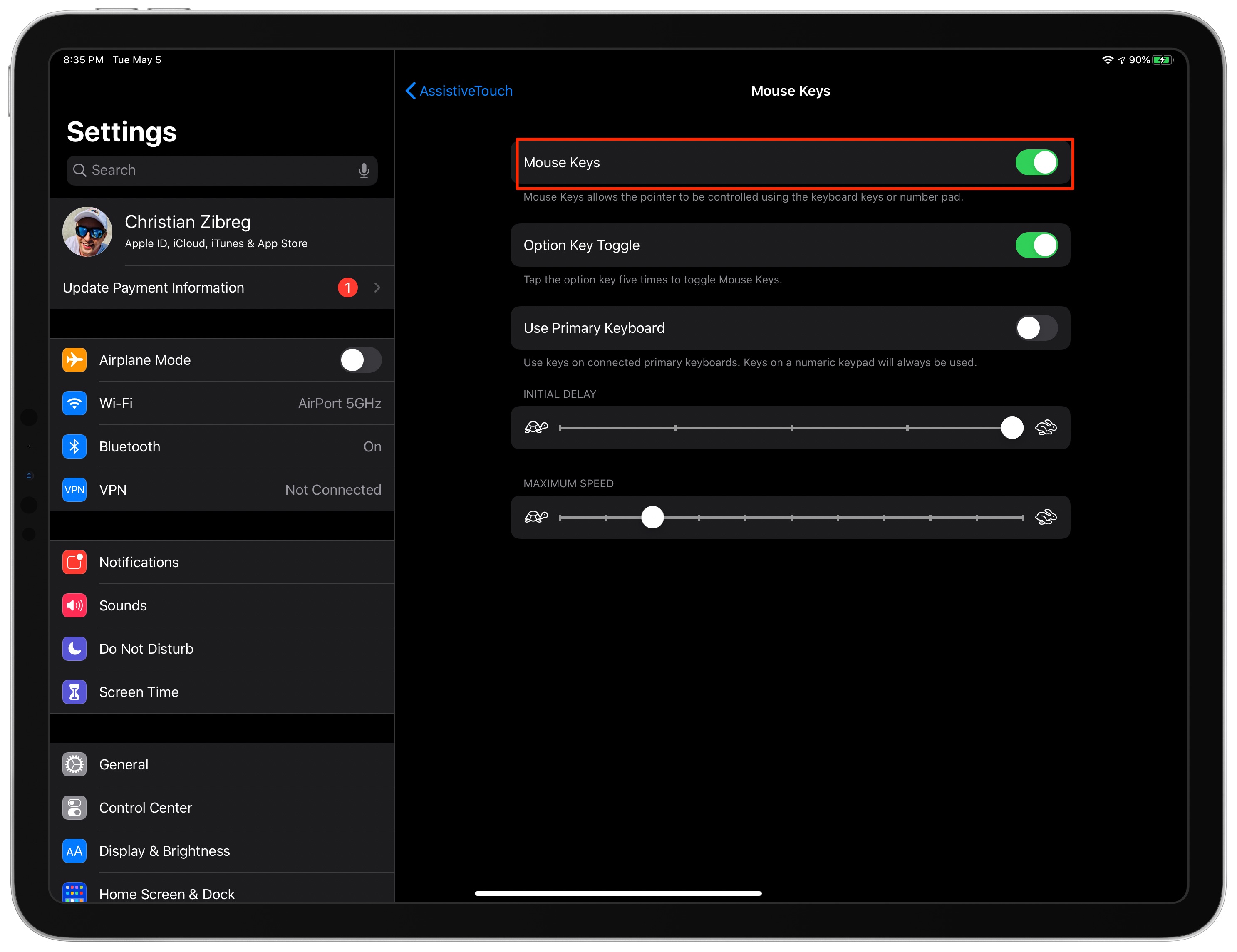
- Finally, turn on the toggle for Mouse Keys to enable the feature. Note that you can also turn on the switch for Option Key Toggle to enable Mouse Keys on the fly by pressing the Option (⌥) key five times in quick succession on the connected keyboard.
Note: You can also disable the Always Show Menu option in the Pointer Devices section. Doing so tells the operating system to hide the AssistiveTouch’s special onscreen menu when a pointer device like a trackpad or mouse is connected. Alternatively, you can set the Idle Opacity to its lowest value, which is 15%.
How to use Mouse Keys
With Mouse Keys enabled, you can control the mouse pointer with keys on your Mac’s keyboard or a numbered pad. Using just the regular keys, you can move the pointer left, right, up, down, and diagonally for as long as the Mouse Keys feature is active.
Once it’s off, the keys switch back to their normal functions.
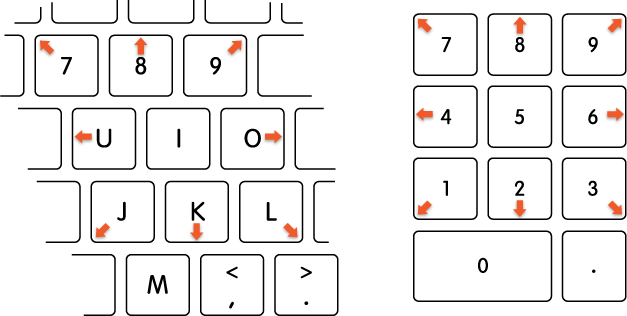
Here’s the full list of the Mouse Keys keyboard shortcuts for your convenience:
Move the mouse pointer:
- Numeric keypad: 7, 8, 9, 4, 6, 1, 2 and 3
- Keyboard: 7, 8, 9, U, O, J, K and L
Click the mouse button:
- Numeric keypad: 5
- Keyboard: I
Hold the mouse button:
- Numeric keypad: 0 (zero)
- Keyboard: M
Release the mouse button:
- Numeric keypad: “.” (period)
- Keyboard: “.” (period)
Note that you may also be able to move the pointer using all four arrow keys.
Change Mouse Keys settings
Apple allows you to customize the Mouse Keys feature to your liking, including enabling the built-in global keyboard shortcut, adjusting how Mouse Keys moves the pointer, controlling whether the onscreen keyboard appears and more.
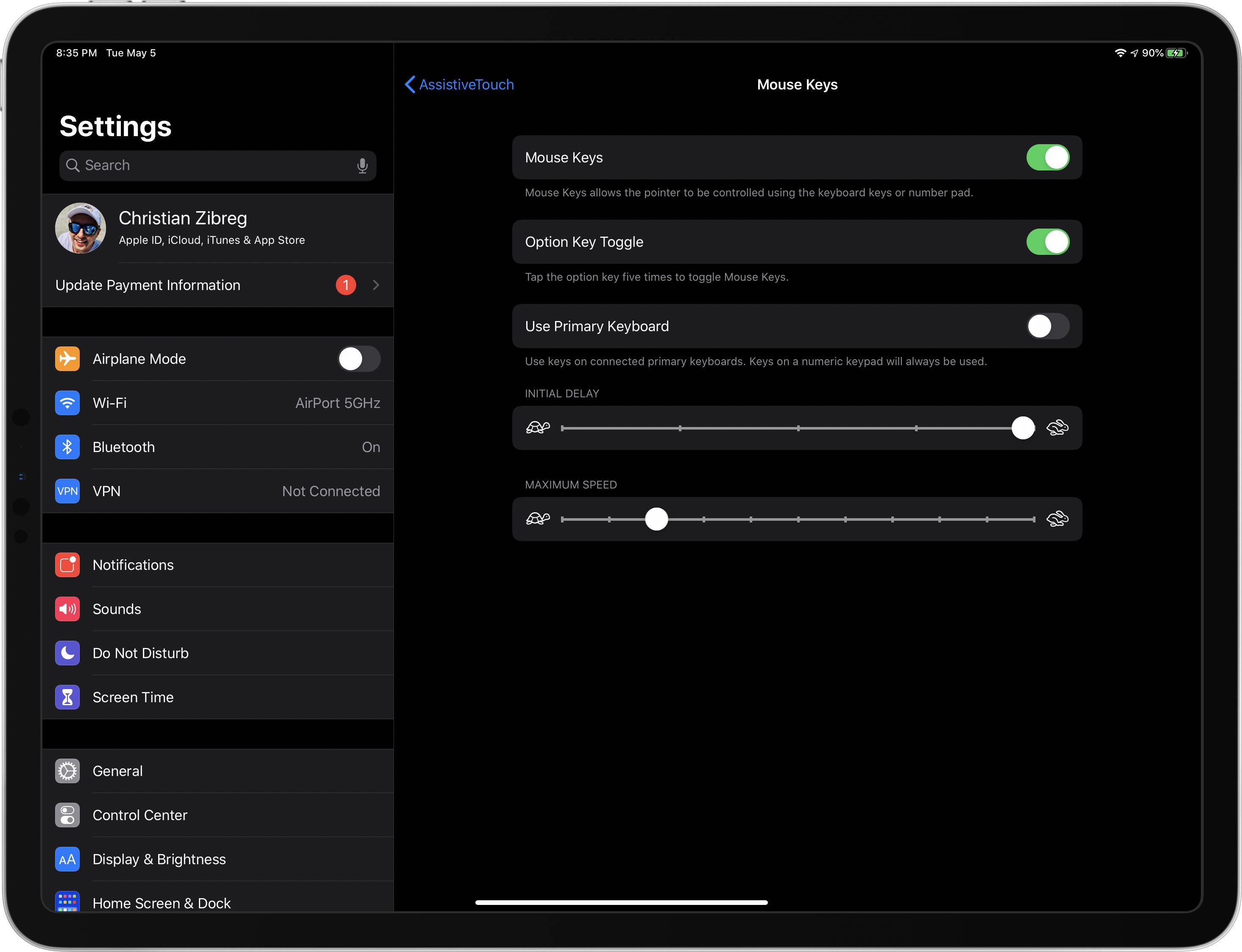
Open iPad Settings and head to Accessibility > Touch > AssistiveTouch > Mouse Keys to customize the following settings:
- Option Key Toggle: Save yourself from having to tap your way to the Mouse Keys settings every time you want to turn the feature on or off. When this is on, quickly press the Option (⌥) key on your physical keyboard five times to toggle Mouse Keys.
- Use Primary Keyboard: Enabled by default, this determines whether you can control Mouse Keys with your primary keyboard, in addition to a numbered keypad that always gets used. If your physical keyboard has a numeric keypad, disabling this feature lets you type normally on the keyboard (the 7, 8, 9, U, I, O, J, K, and L keys won’t pass input to Mouse Keys) while being able to control the pointer with a number pad.
- Initial Delay: Choose the initial delay before the pointer starts moving by pushing the slider closer to the right to shorten the delay (move it all the way to the right for no delay) or to the left if you’d like to increase the delay.
- Maximum Speed: Moving this slider to the left or right side determines how fast the pointer moves when being controlled with the keyboard keys.
Unfortunately, there’s no option to use inertia with Mouse Keys.
Typing on the onscreen keyboard with Mouse Keys
iOS automatically hides the stock onscreen keyboard when a physical one is connected. You can easily switch between your hardware and software keyboards on the fly or choose to always show the onscreen keyboard when using Mouse Keys.
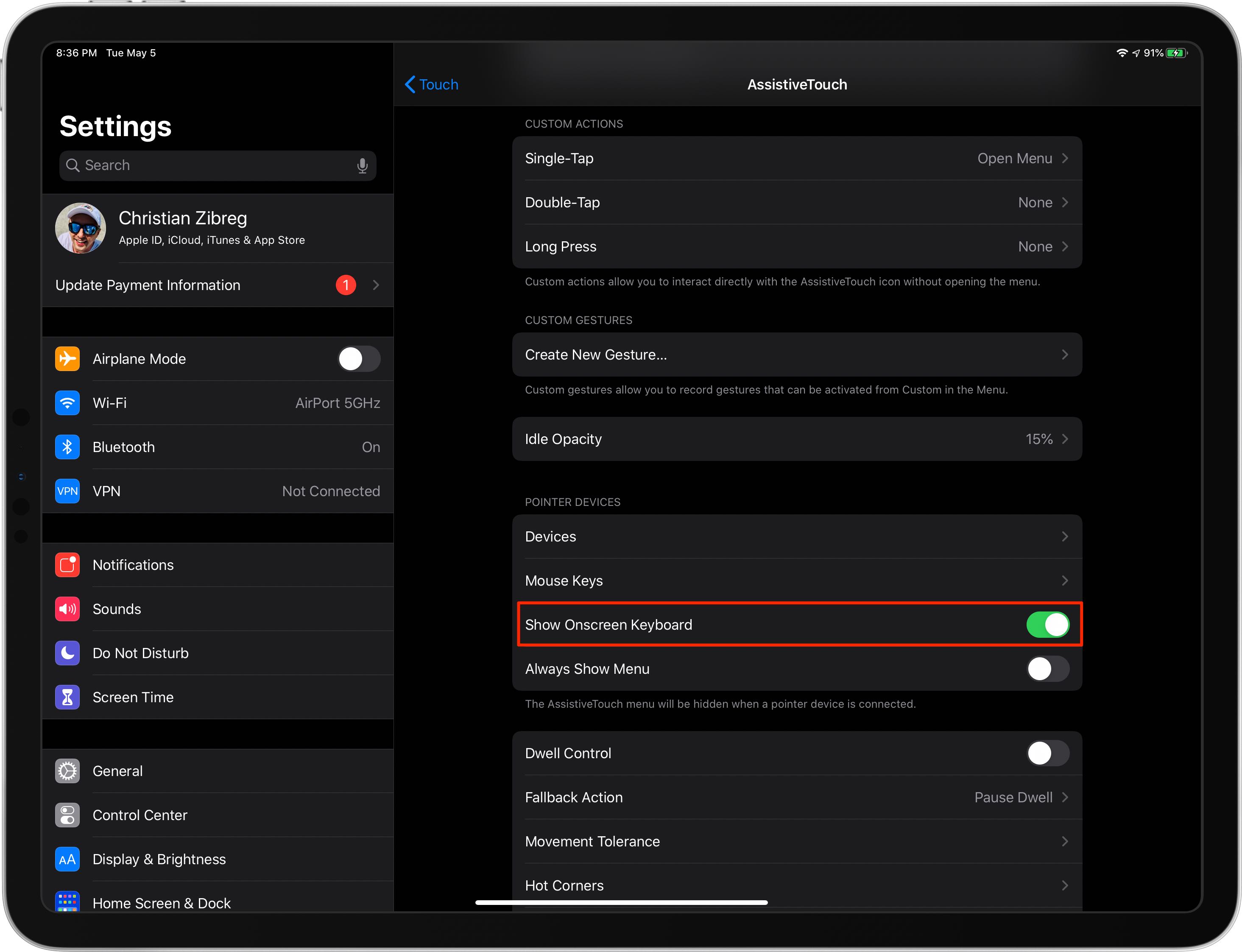
To do the latter, go to iPad Settings > Accessibility > Touch > AssistiveTouch and enable Show Onscreen Keyboard underneath the Pointer Devices heading. Now, you can use the Mouse Keys keyboard shortcuts or a pointer device to type on the onscreen keyboard while a physical keyboard is connected to the device.
Switching between software and hardware keyboards
By default, connecting a hardware keyboard to your device disables the stock onscreen keyboard provided by the operating system. As explained in our separate tutorial, you can switch between the software and hardware keyboard on the fly.
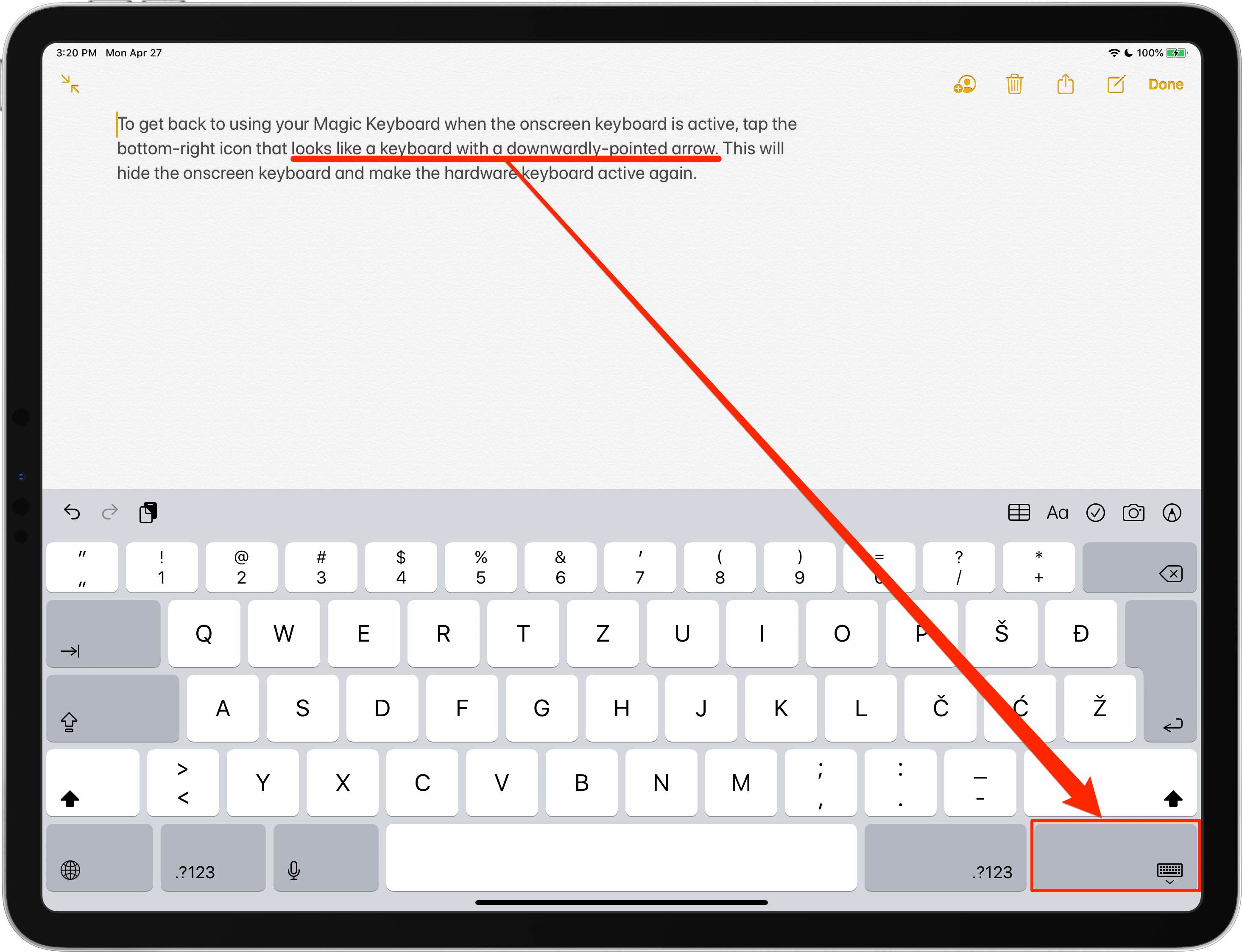
If you need to use the onscreen keyboard when the physical keyboard is connected to the device, tap the keyboard button from the bottom of the iPad screen and select Show Keyboard.
Check out next: How to control and navigate your iPad using just a physical keyboard