Learn how to name people that Photos for Mac has recognized in your images to quickly identify your favorite people and organize your media library.

You can quickly name people in photographs on your iPhone by adding them to the People album. You can do the same on your Mac, but there’s actually a faster way to identify and name people in macOS.
Identify and name people in Photos for Mac
1) Launch the Photos app on your Mac, then double-click the picture with faces you’d like to name.
2) Click the Info button ⓘ in the toolbar’s top-right corner.
3) Click the plus sign in the Add Faces section.
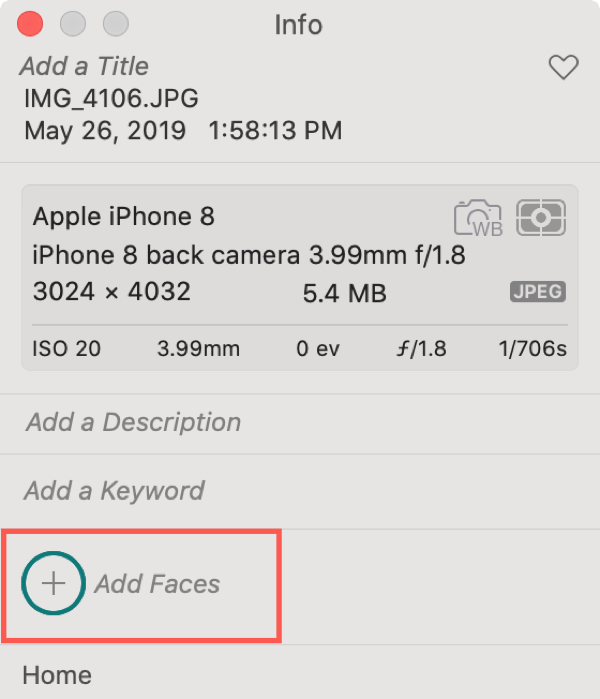
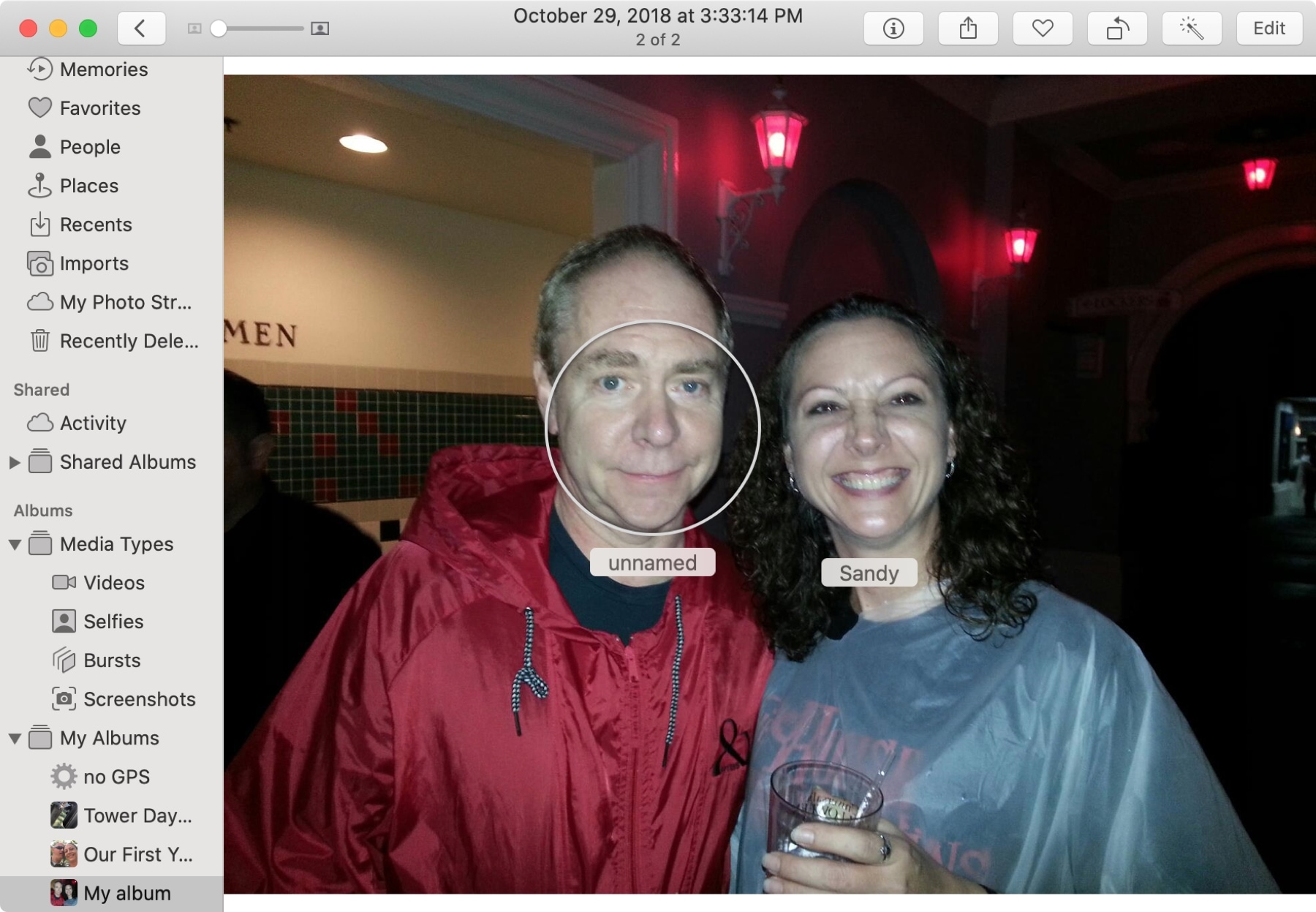
4) When the circle appears on the photo, type a person’s name in the text box.
If you’d like to show all unrecognized faces in Photos so you can quickly name them, follow the steps below:
1) Open an image in Photos for Mac and click View > Show Faces Names in the menu at the top. You can also choose this option first and then double-click an image to open it.

2) Click the Unnamed text box on the image, type the person’s name, and hit the return / enter key.
Assigning people’s names to faces recognized in your photos is a great way to group images of people you care about. It can also help identify coworkers or acquaintances so you don’t forget them. Are you going to use these methods to quickly name people in your pictures?
Do more with Photos: