Learn how to send an existing email as an attachment using the Apple Mail app on your Mac, iPad, and iPhone to retain the original message instead of forwarding it.
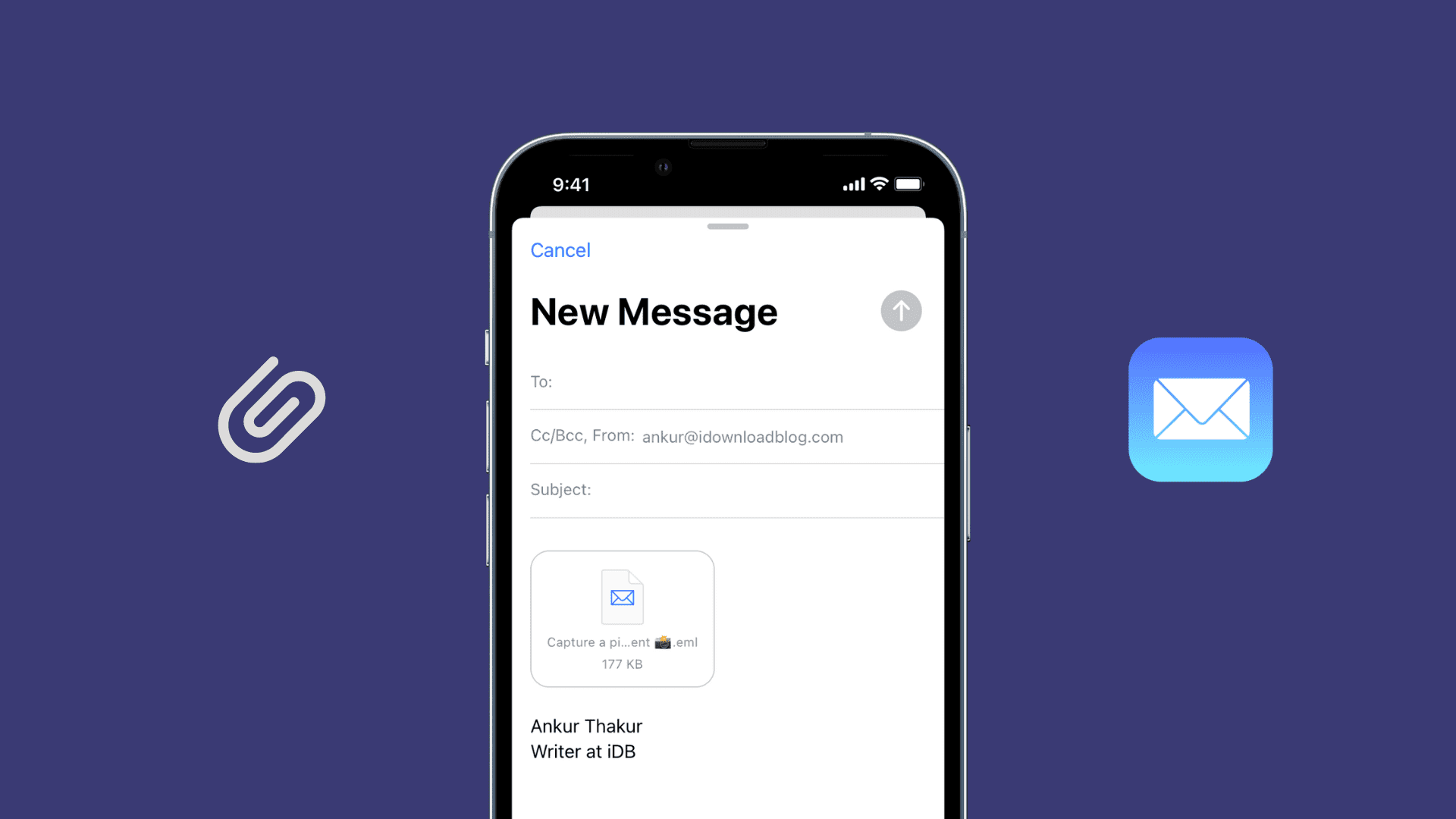
When the recipient opens the attachment, they will see the original email message with the styling, formatting and everything else appearing unaltered.
Mac
- Open the Mail app on your Mac and create a new email message or reply to an existing one.
- With the main Mail window and the composer window both open, drag an existing email message and drop it onto the composer window.

Attach a saved email
If you saved an email to your computer (File > Save As), drop it on your new message or click the Attach button, locate the saved email, and click Attach Files.

Dragging-and-dropping attaches the email message in its original format. When saving an email message to your Mac, choose Raw Message Source from the Format menu in order to save it in the original message format.

iPhone
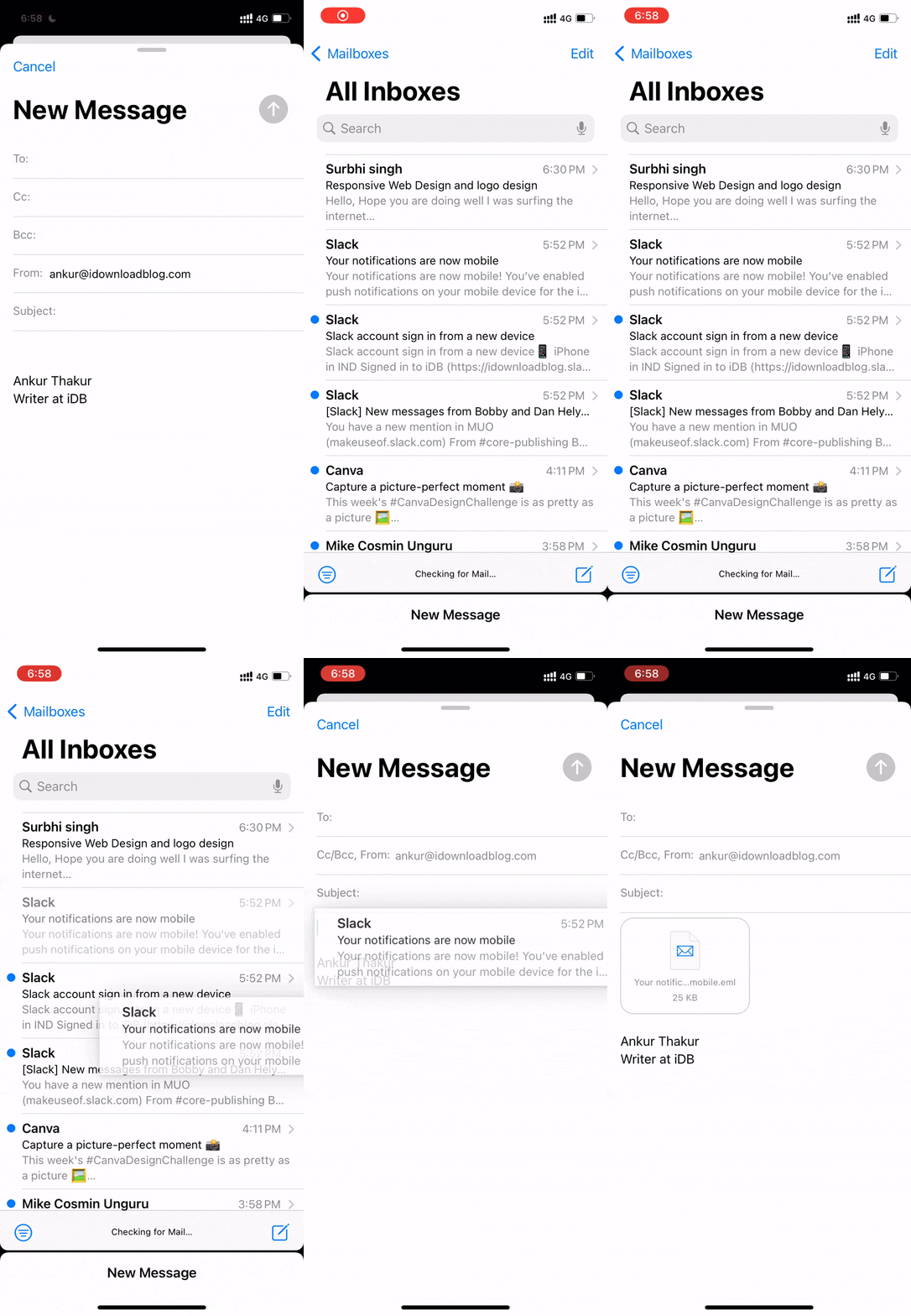
1) Open the Mail app on your iPhone and create a new message or start replying to an existing one.
2) Now pull down the compose sheet to minimize it and reveal the message list, then hold the email you’d like to attach and drag a little.

3) Without letting go, use another finger to hit the minimized compose sheet at the bottom and drop your email attachment there.

Here’s a GIF showing this in action.
iPad
1) Open the Mail app on your iPad.
2) Touch and hold the email you’d like to send as an attachment, then drag a little, tap the compose or reply button with another finger, and drop your attachment there.

Alternatively, you can open two Mail app windows in side-by-side view or Slide Over mode and drop an existing email message on the compose or reply window.

You don’t often need to attach whole emails. But when the time comes, peruse this tutorial to remember just how easy it is to do on an iPhone, iPad, and Mac.
Also, check out: