Learn how to sketch in Mac documents with Apple Pencil or your finger by using the Continuity Sketch feature on your iPad or iPhone.

The Continuity feature lets you use your iPhone or iPad as a wireless drawing board for your Mac.
After that, anything you sketch there will appear on your Mac. Just make sure your Mac and iOS device have Wi-Fi and Bluetooth turned on and are signed in to iCloud with the same Apple ID (with two-factor authentication).
Note that if all you need to do is sketch in Apple Notes, the new macOS 27 Golden Gate lets you do that with a trackpad or mouse. But for Pages and other apps, you still need to follow the steps below.
Sketch on Mac using your iPhone or iPad
1) Open Notes, Pages, Numbers, Keynote, Mail, Messages, TextEdit, or another Apple/third-party Mac app designed to work with Continue Sketch.
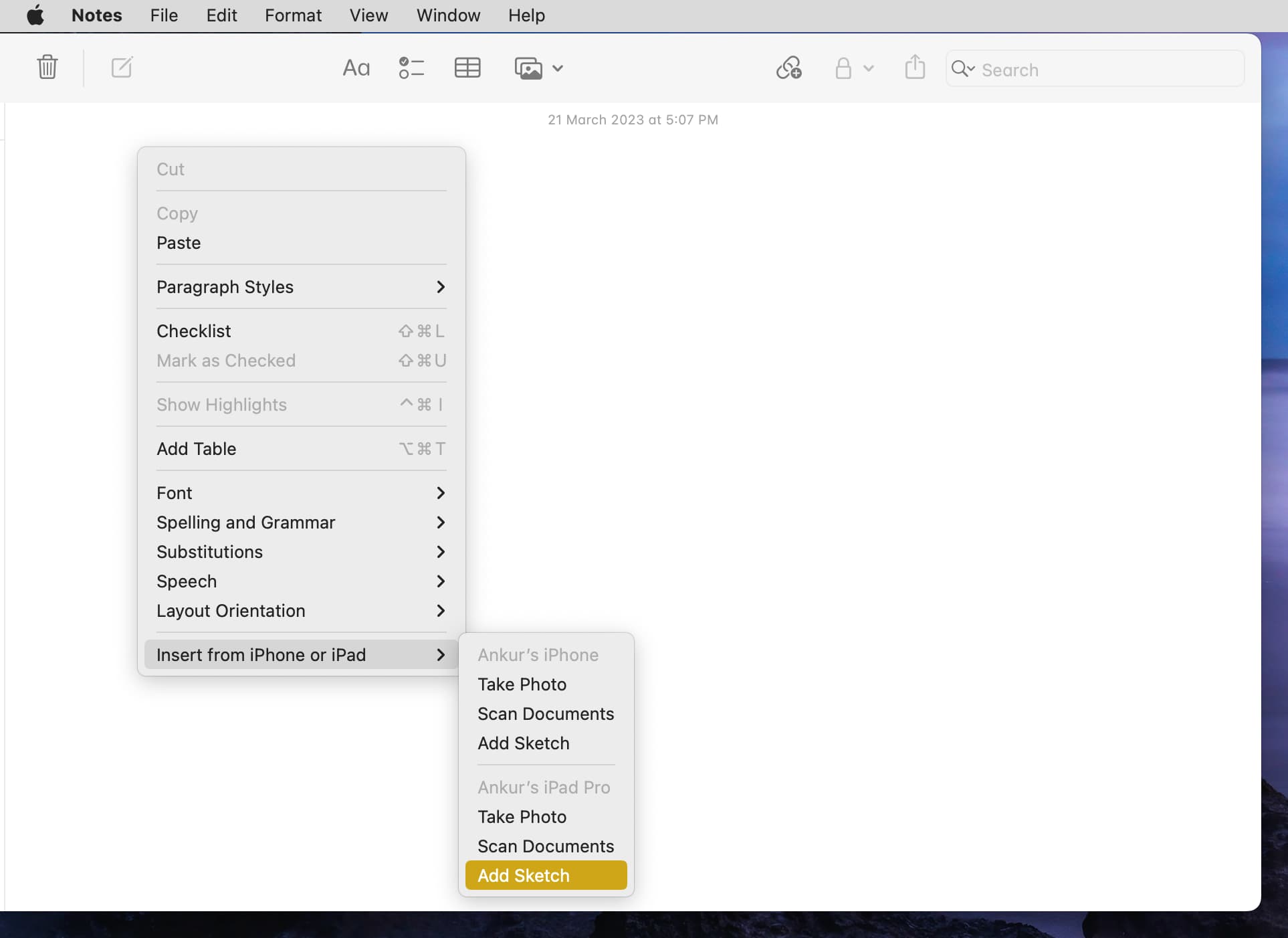
2) Right-click in the empty canvas and choose Insert from iPhone or iPad. In apps like Pages, you can also do this by clicking the paperclip icon.

3) Choose Add Sketch for either your iPhone or iPad. For comfortable drawing and precision, select your iPad or foldable iPhone Duo, as they support Apple Pencil.
4) A drawing board will open on your iPad or iPhone. Use your Apple Pencil or finger to draw. Take full advantage of pressure drawing to create a more natural sketch with line width and style reacting to stroke pressure.
5) Once you finish, tap the checkmark or the “Done” button.
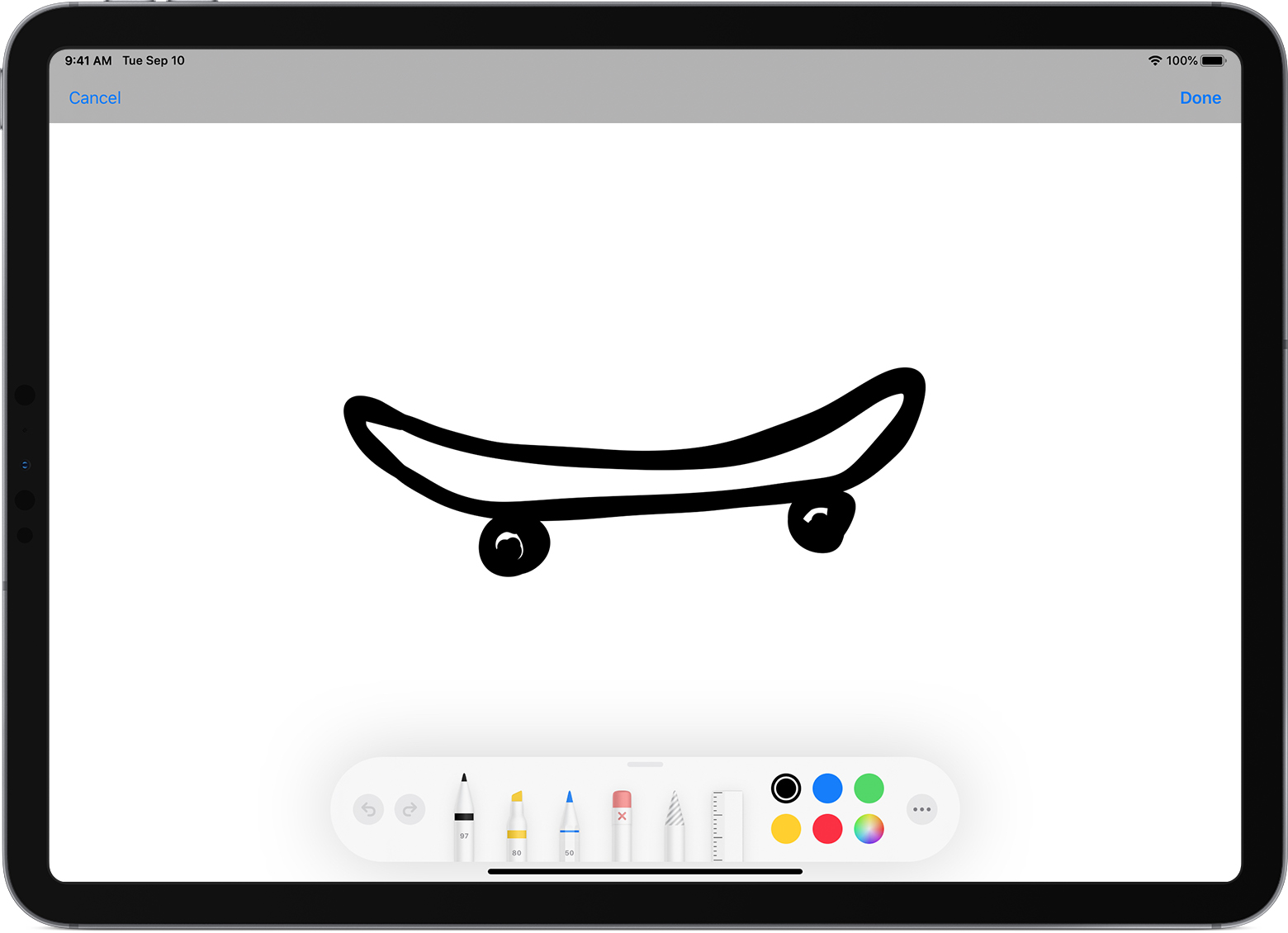
The sketch will immediately appear inserted into the notes or the document on your Mac.

And just like that, you’ve created a vector drawing on your iPad using your pressure-sensing Apple Pencil stylus! As mentioned, it gets automatically inserted where you want it without you having to do anything, no apps needed, no setup required, no nothing; it just works.
Also, check out: