Safari iCloud tabs enable you to access and view open tabs across your Apple devices, so you can continue your browsing sessions across your iPhone, iPad, Mac, and Vision Pro. Follow along with us as we show you how to set up and use iCloud tabs in Safari.
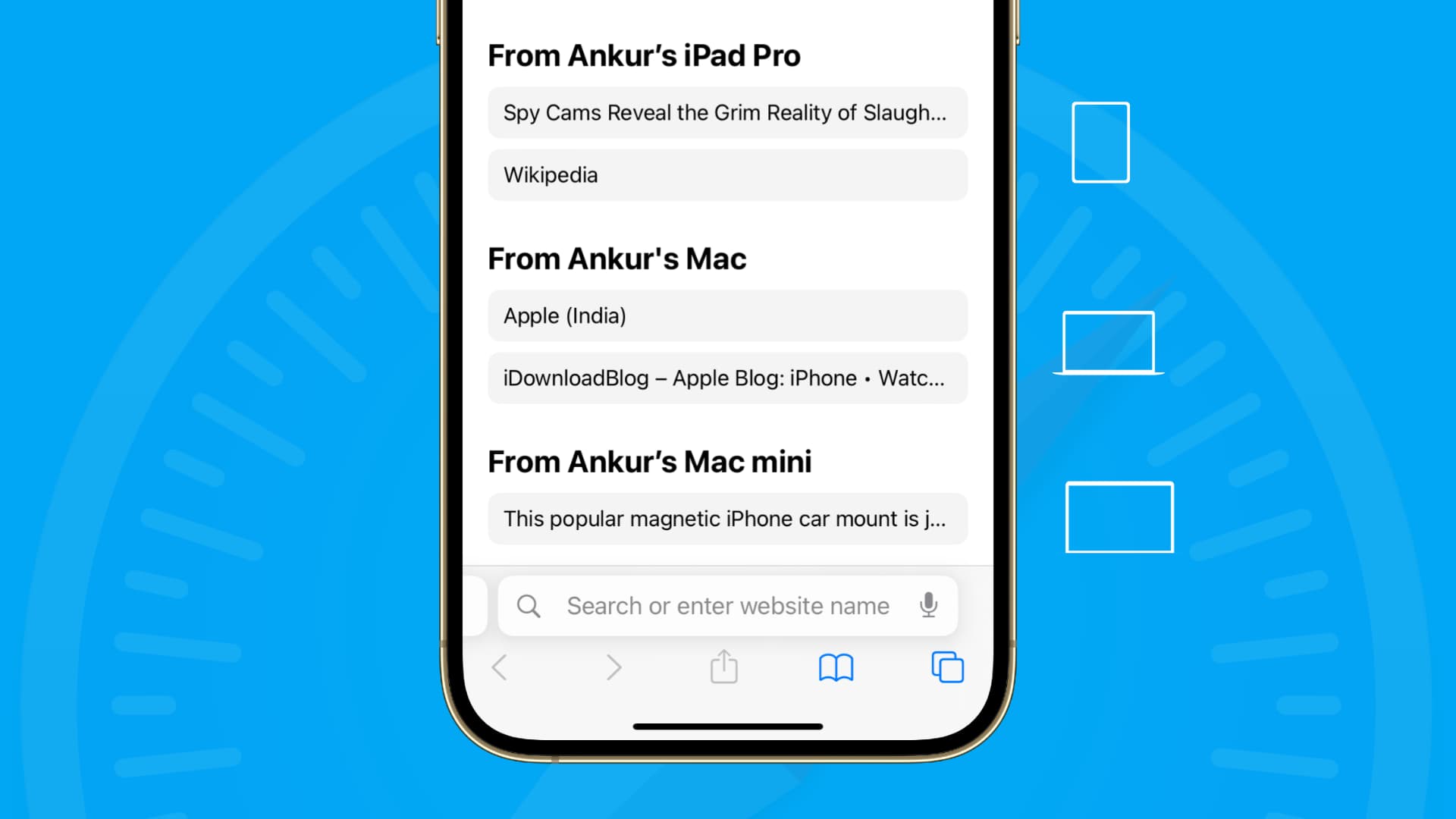
You’ll need to separately enable it on each device you want by following the instructions below.
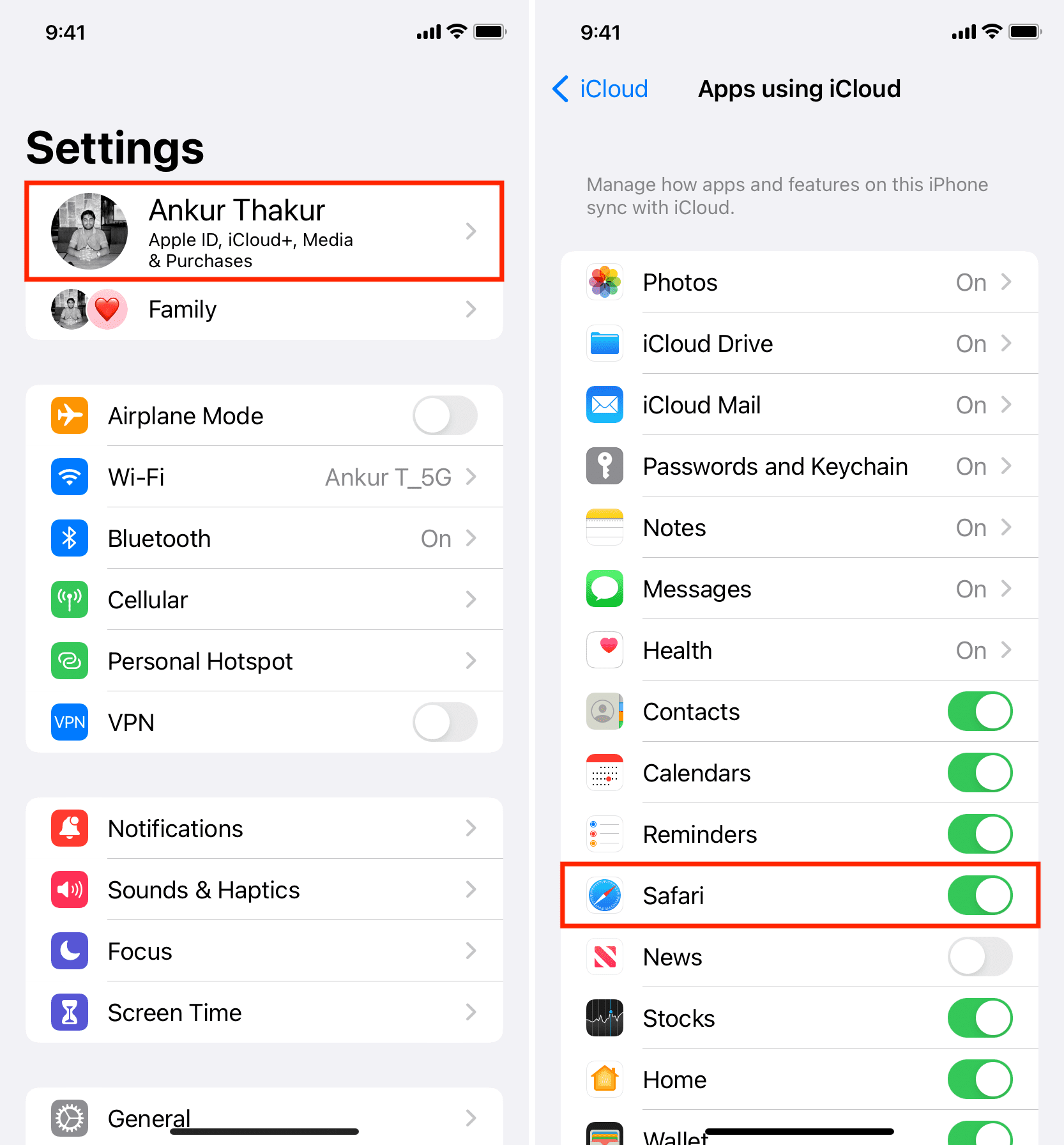
On iPhone, iPad, and Vision Pro
- Open the Settings app and select your Apple Account at the top.
- Tap iCloud > See All.
- Turn on the switch for Safari if it’s off.
On Mac
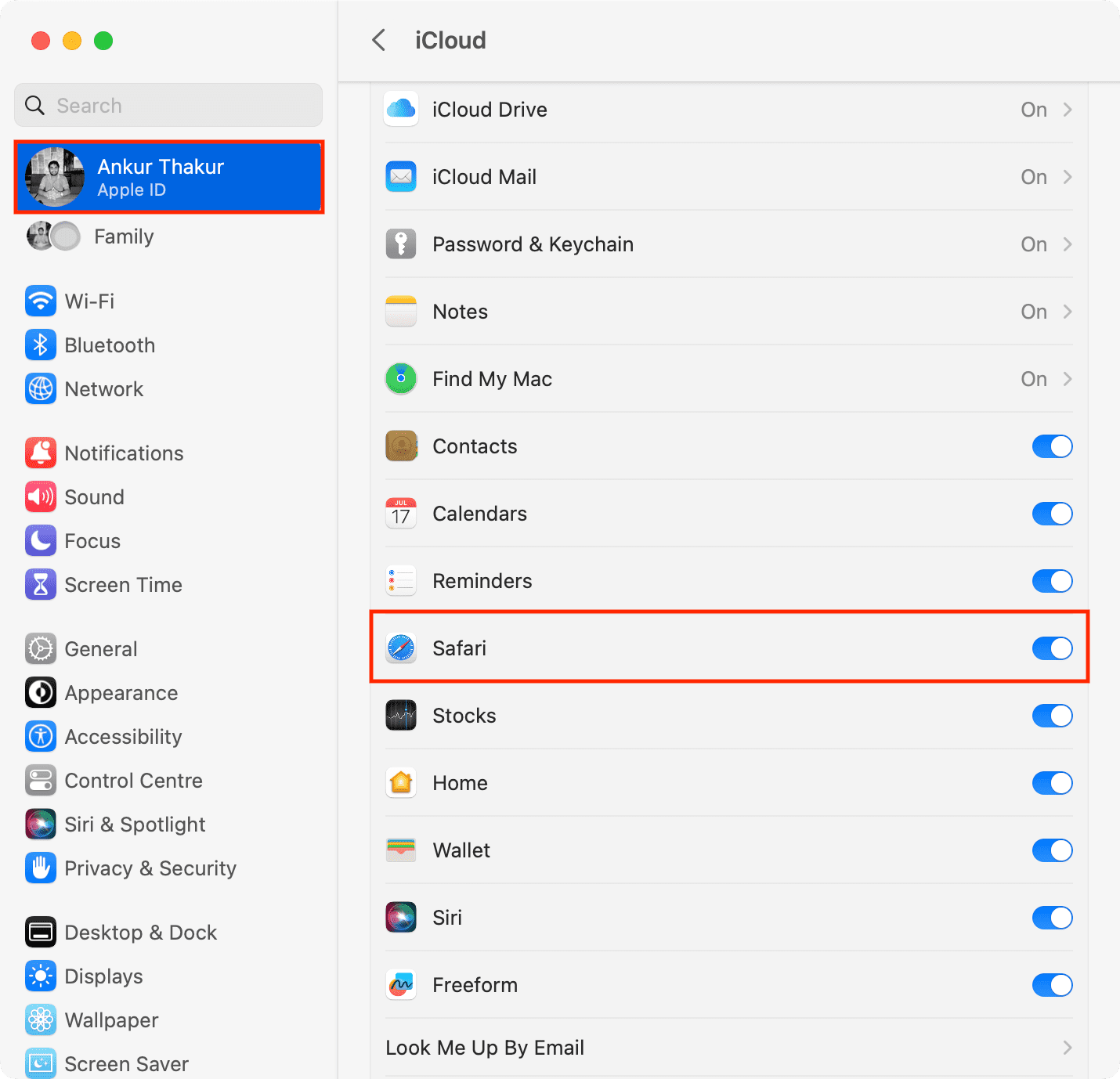
- Open System Settings on your Mac.
- Click your Apple Account at the top left corner.
- Go to iCloud > See All and turn on the toggle for Safari, then click Done.
Note:
- If your computer is running macOS Monterey or earlier, go to System Preferences > Apple ID > iCloud and enable Safari.
- On macOS Mojave or earlier, go to System Preferences > iCloud.
Access iCloud Tabs in Safari
Once you’ve turned on iCloud tabs by following the above steps, you’ll be able to jump to any synced Safari tab from any device.
On iOS
Open Safari on your iPhone, and go to the Start Page. The open Safari tabs synced from other devices should appear under the “iCloud Tabs” heading. Each synced tab is accompanied by the name of the device it originated from. Just tap any listed tab to open it on your current device.

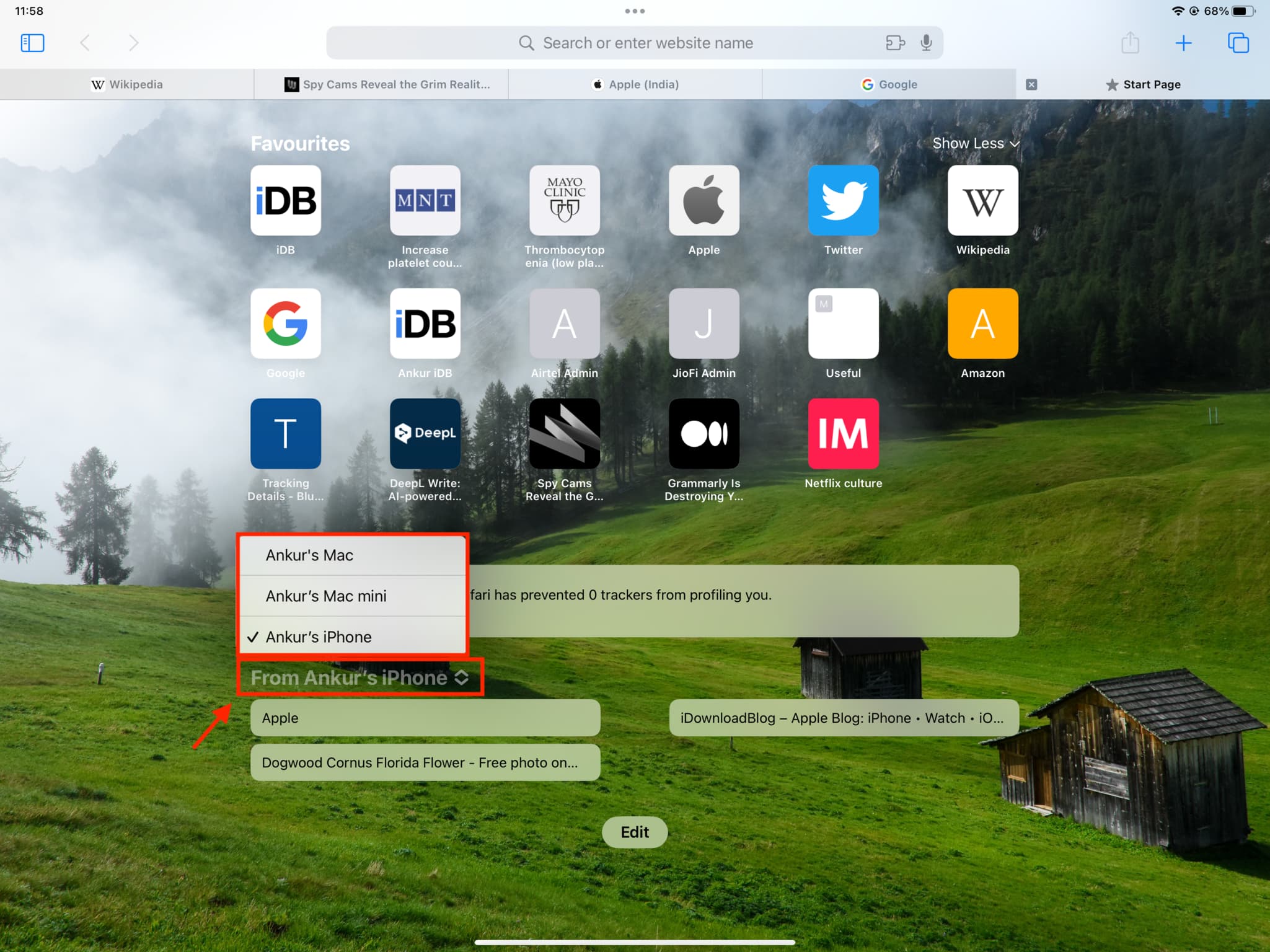
The steps for iPad are similar, but folks on older versions of iPadOS should tap the name of the current device on the Start Page to select another device.
On macOS
Open Safari on your Mac, and you should see tabs synced from your iPhone, iPad, and other Macs listed on the Start Page under the “iCloud Tabs” section.

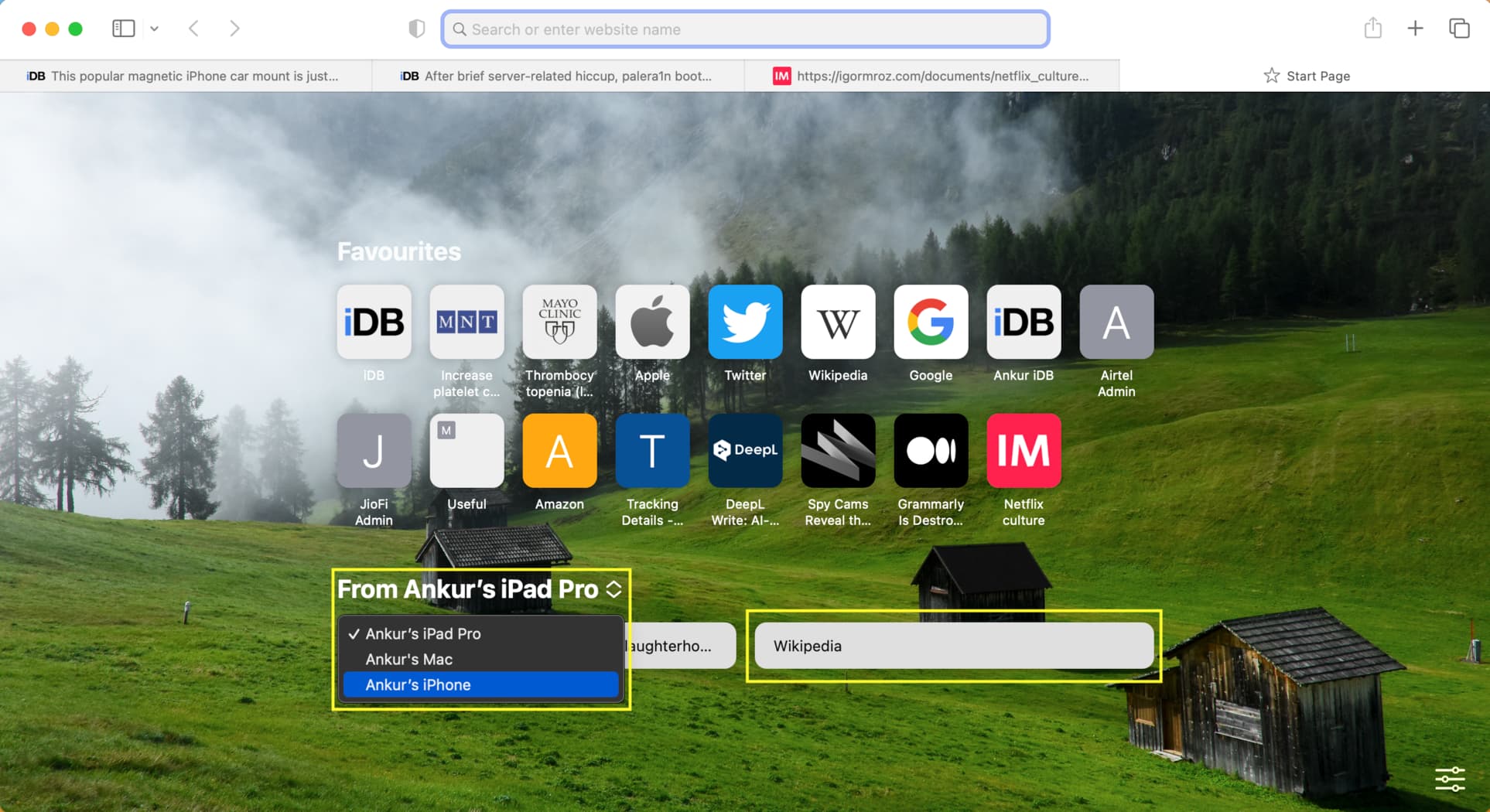
If you’re on an older version of macOS, click the name of the device to choose another one from the menu, as shown in the screenshot below.
If iCloud Tabs from other devices don’t show in Safari
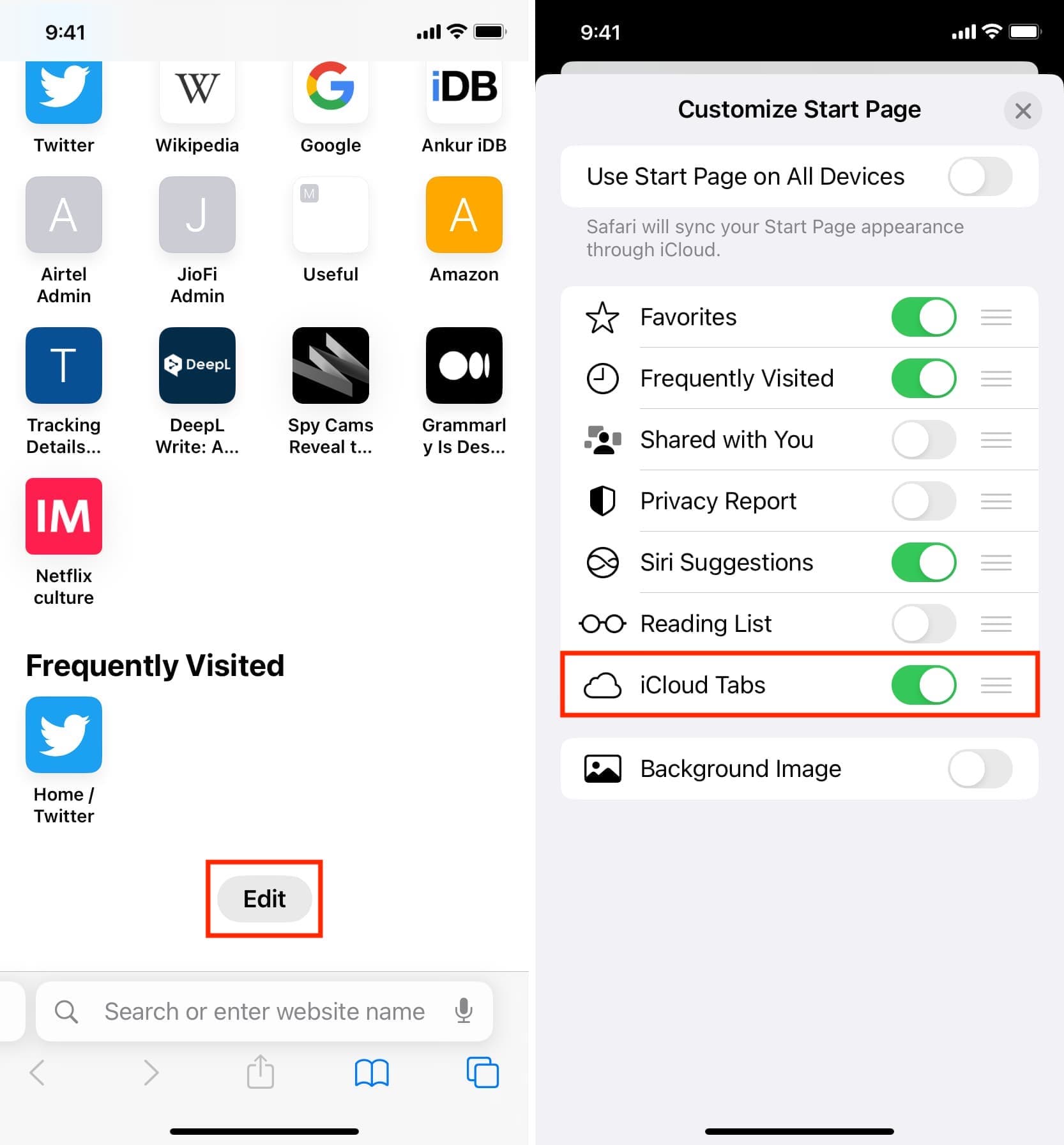
- Hit Edit on Safari’s Start Page (or the settings cog icon on older macOS versions) and turn on iCloud Tabs
- Force-quit the Safari app and reopen it
- Make sure your iPhone, iPad, or Mac is connected to the Internet
- Restart your device
Do more in Safari: