Learn how to pinpoint the exact dates and times you updated Mac apps or installed macOS updates to figure out when an issue first started occurring.

Knowing when a problem on Mac first raised its ugly head is among the first troubleshooting steps you should take. You’ll want to figure out if the culprit is that app update you installed the other day or a recent macOS update.
To help with that, macOS lets you check when you last installed a particular app update or a macOS update. Follow along with us for step-by-step instructions.
See dates of the last app and macOS updates
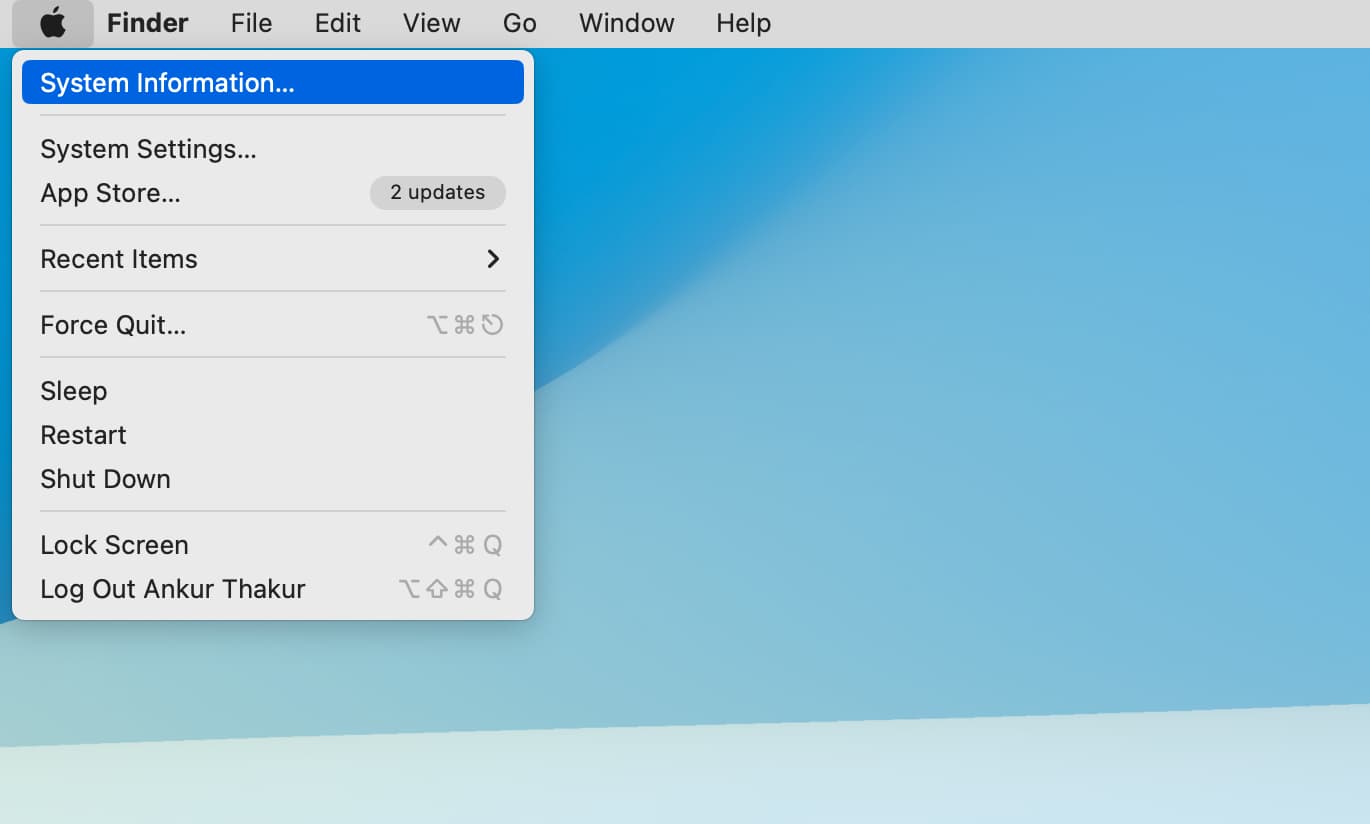
1) Click the Apple menu while holding the Option key and select System Information. You can also open this app from the Applications folder.
2) Click the arrow next to Software on the left side to expand the section, then select Installations.
3) You’ll see a list of apps on the right side, along with details like Software Name, Version, Source, and Install Date. To find a specific timeframe or app, click the corresponding column to sort the view. In the screenshot right ahead, I’ve sorted the view by install date. You can see that the most recent GarageBand and TickTick updates were installed on January 10, 2019.

The following screenshot displays app and macOS updates sorted by Software Name.

If your Mac has no issues that require troubleshooting, you may still want to know the exact installation dates of particular app or macOS updates. Maybe you just want to confirm the version number of an app update. Or, perhaps you’d like to review other installations that happened behind the scenes. Either way, be sure to let us know in the comments down below if you find these installation dates helpful.
Related tutorials: