Find out how to securely send an account login username and password from your iPhone, iPad, or Mac to another Apple device using AirDrop.

Apple Passwords app is the built-in password manager on iOS and macOS that stores your login credentials and keeps them updated across your iPhone, iPad, Mac, and even Windows PC. So, you don’t need to share them manually unless you’re not using iCloud Keychain on one of your devices or a new password has not synced to it for some reason.
From time to time, you may have to send or receive account details and passwords from a family member, friend, or office colleague. If this is a regular affair, a better way is to use the built-in option to share your iCloud passwords with trusted contacts. This creates a shared folder in the Apple Passwords app where you and your family members can store passwords for the common accounts you all share.
But in case you want to send or receive a one-off or a few login details, here’s how to use the trusted AirDrop feature to do that. Just make sure you know the basics of using AirDrop, such as turning on Wi-Fi and Bluetooth, and asking the receiver to set their AirDrop’s visibility to everyone or contacts only.
AirDrop login passwords
- Open the Apple Passwords app on your iPhone, iPad, or Mac.
- Go to the All section to see all saved credentials.
- Touch and hold an account on iOS or right-click on macOS and select Share with AirDrop. Then, authenticate with Face ID, Touch ID, or device passcode.
- Select an available nearby device to send the saved username/email address, password, and two-factor authenticator code setup.

The AirDrop should be completed in mere seconds, provided the recipient accepts it. After that, the Passwords app will open automatically on the receiving iPhone or Mac. They will have to authenticate with Face ID or Touch ID to see this AirDropped account password.
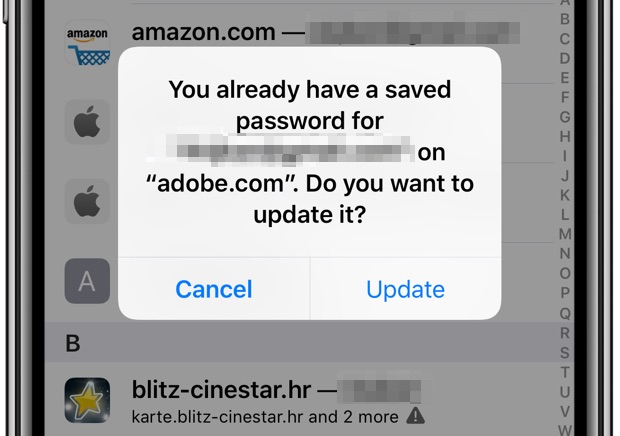
Note that the incoming password is saved automatically on the receiving device and requires no manual action. However, on some versions of iOS, if the device already has a saved entry for this website or app, the receiver will be asked whether they’d like to update it. They can tap Update to have the AirDropped entry replace their own saved password.
If your iPhone, iPad, or Mac is running an older version of iOS or macOS, go to Settings/System Settings > Passwords to share an account password over AirDrop.
If you experience issues using AirDrop, be sure to consult our AirDrop troubleshooting guide.
Also, check out: