Learn how to pause iCloud Photos updates to save battery and bandwidth on your iPhone, iPad, or MacBook and stop your images, videos, and other media from synchronizing across devices.

iCloud Photos synchronizes content across devices through iCloud, so all your devices have the same library with all the same images, videos, edits, and more. But if you’re low on battery or your internet connection is slow, you can pause iCloud Photos updates easily, and we show you how.
iPhone and iPad
Turning on Low Power Mode automatically reduces background activity, including iCloud Photos updates. When you exit Low Power Mode, the sync continues.
That said, this isn’t an ideal solution because iOS automatically turns off Low Power Mode when the battery charge goes past the 80% mark, which will resume iCloud Updates. Also, Low Power Mode makes other compromises to conserve power, like turning off the 120Hz ProMotion feature.

To pause iCloud Photos updates without engaging Low Power Mode, go to the Collections tab, tap your profile icon in the top-right corner of the Photos app, and hit Pause. You should see a “Syncing paused” message. To continue uploading, tap the Resume button.

You can also visit Settings > iCloud > Photos and tap Pause Syncing.

Mac
Like with the iPhone, turning on Low Power Mode on your Mac pauses background tasks such as iCloud Photos updates, but you can also pause updates manually.

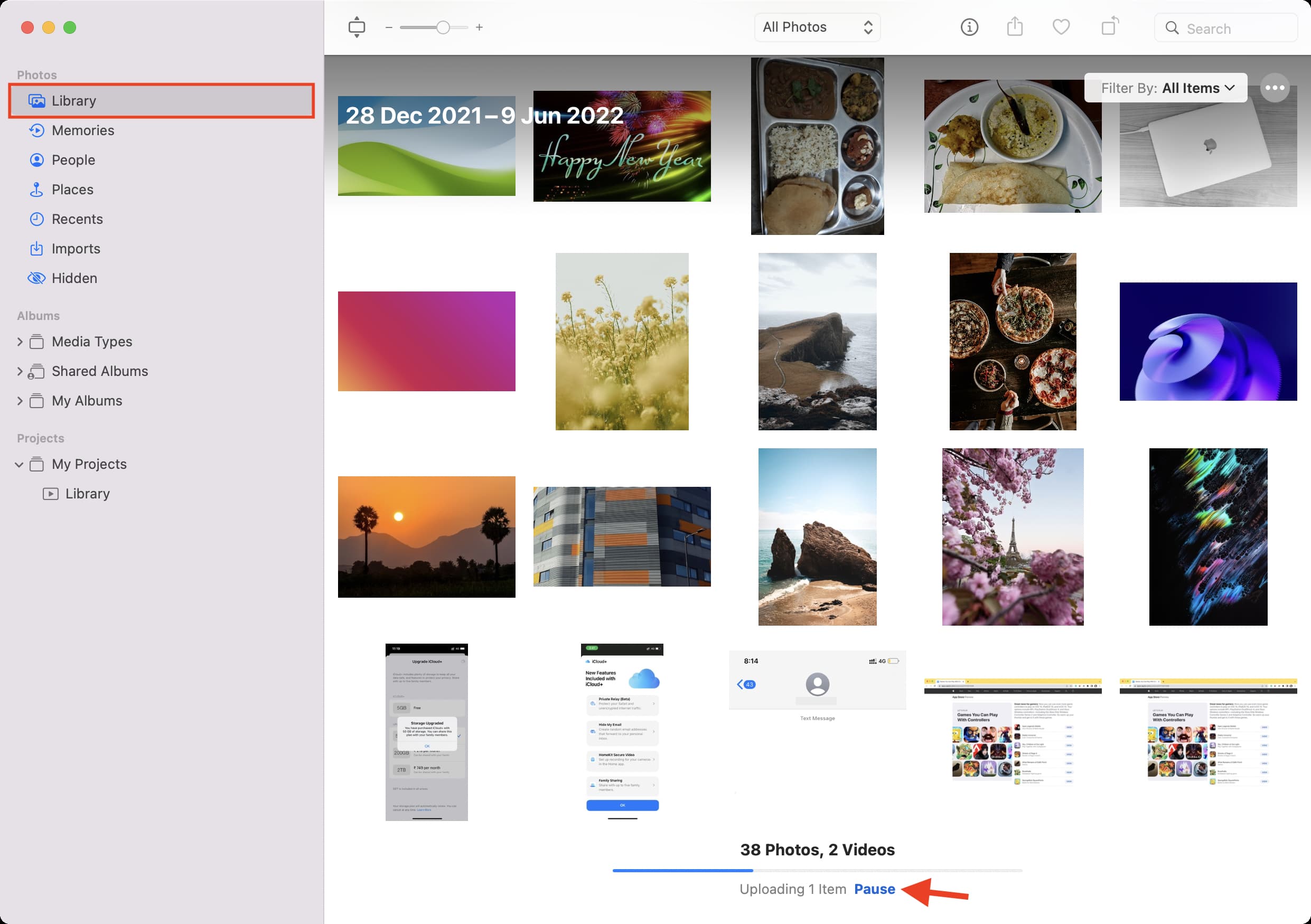
Open the Photos app on your Mac, select the Library tab in the sidebar, and click the “Pause” button at the bottom of the library view on the right. This will temporarily suspend sync until tomorrow. To resume iCloud Photos updates at any time, click the Resume button.
Also, check out: