In this brief tutorial, we’ll show you how to see the current firmware version of your Apple Pencil using the Settings app on your iPad.
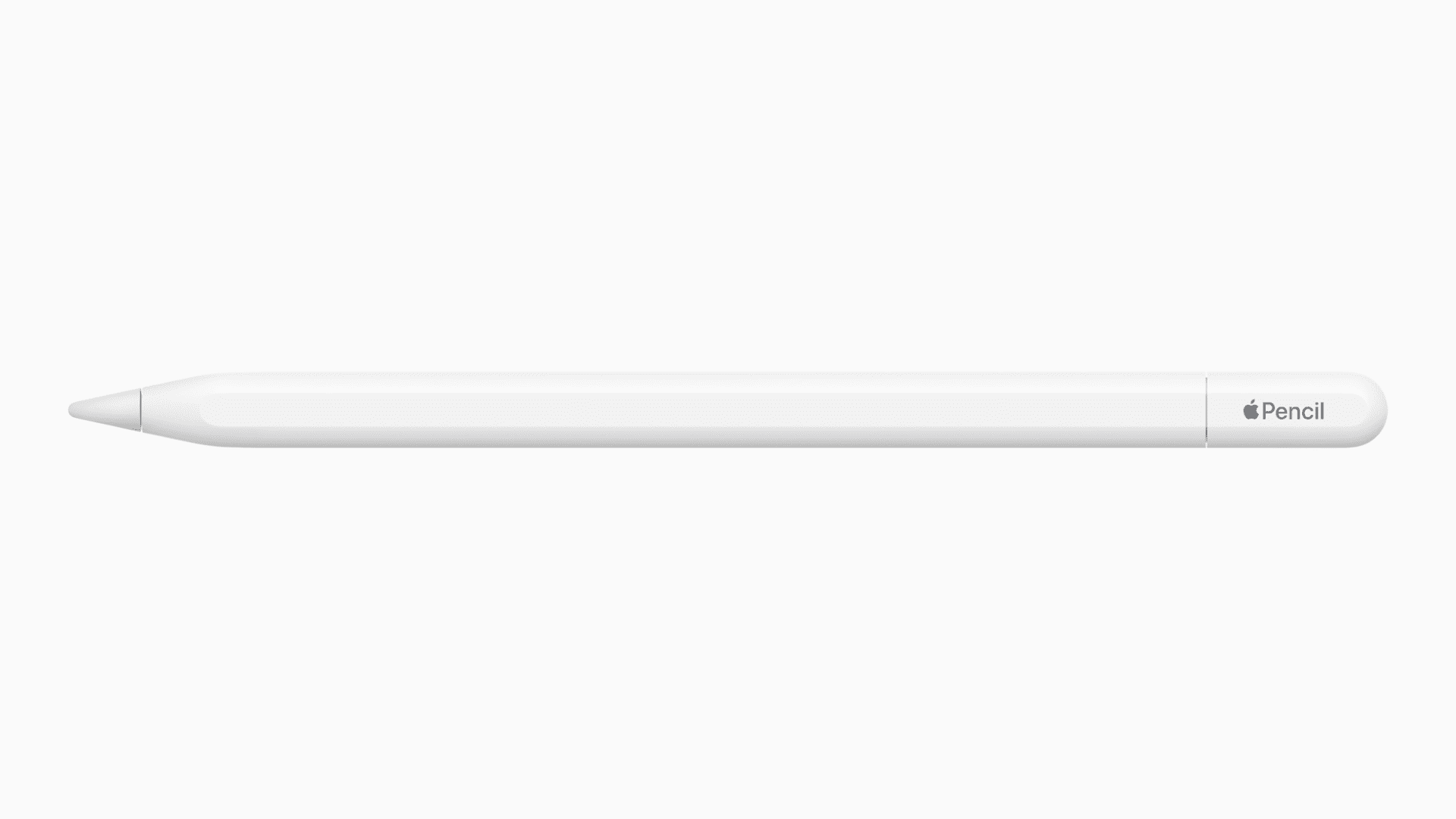
Apple Pencil is probably the smartest pencil available on the market, and this is only possible because of Apple’s legendary integration of software and hardware. While the hardware of an Apple Pencil cannot be upgraded, its software can, and the device’s firmware is periodically updated in the background.
If you’re wondering what firmware your Apple Pencil is currently running on, here’s where to look for that piece of information.
This tutorial applies to all Apple Pencil models.
Find your Apple Pencil firmware version
- Make sure your Apple Pencil is charged and connected to your iPad via Bluetooth.
- Open the Settings app on your iPad and go to General > About.
- Scroll down, and you’ll see a field for Apple Pencil; tap it.
- You’ll see the Firmware Version number for your Apple Pencil here, along with other handy information like Model Number, Serial Number, and Hardware Version.
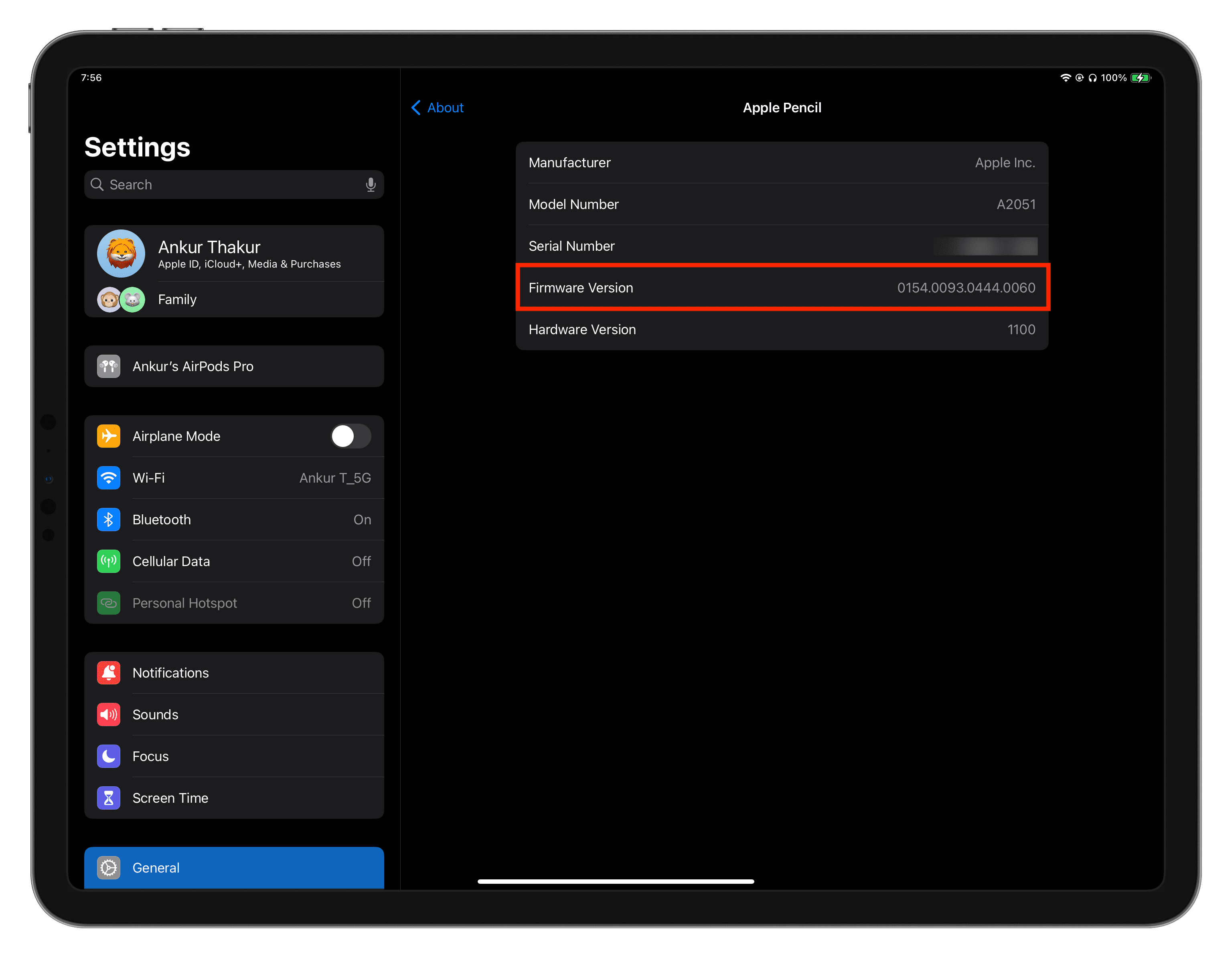
Unfortunately, that’s all you can do about it. To my knowledge, there is no way to force a firmware update or see the changelog of what’s included in a newer firmware version. In contrast, you can force AirPods to update and even see what’s new.
If you don’t see your Apple Pencil in iPad Settings, double-check it’s connected to the iPad via Bluetooth. You can do that by going to iPad Settings > Bluetooth and seeing the word “Connected” next to your Apple Pencil. In case that doesn’t help, stick your Apple Pencil 2nd generation or Apple Pencil Pro to your iPad’s Magnetic side. If you have an Apple Pencil with a Lightning or USB-C port, connect it to your iPad’s charging port.
Also, check out: