Learn about this quick tip that shrinks the iPhone keyboard onto the left or right side, making it easy to type while holding your phone with one hand.
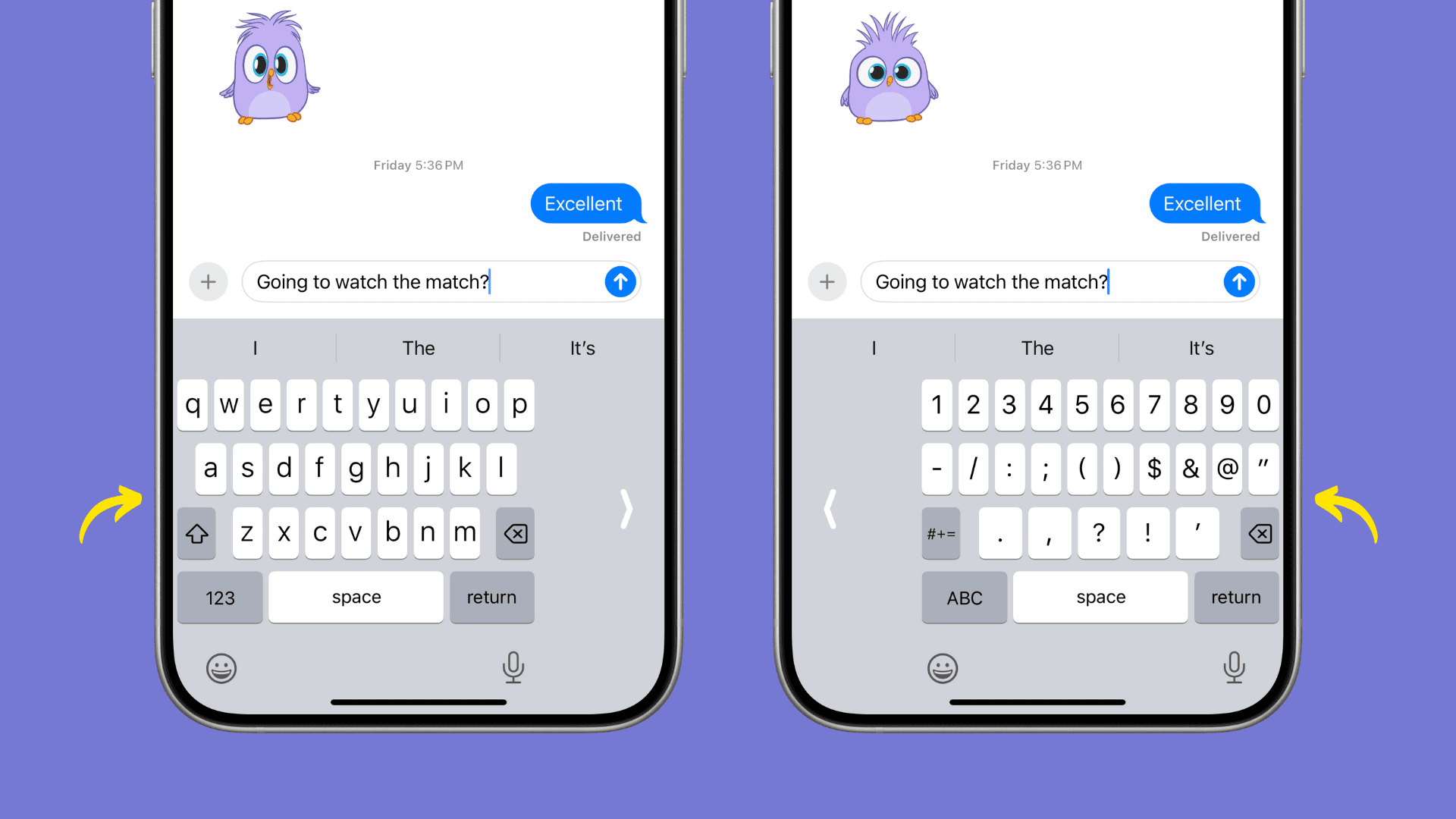
Apple’s stock keyboard provides a special mode designed to make thumb-typing with larger iPhones easier without worrying about losing grip, which can be hazardous when walking down the sidewalk. This special typing mode shrinks the keys and moves them closer to your thumb so you can reach all keys of the keyboard comfortably when holding your phone with one hand or during QuickPath swipe typing.
So, whether you’re holding a coffee in one hand and your iPhone in the other or have smaller hands, making it cumbersome to type with a larger-screened iPhone, you’ll find the one-handed keyboard practical to use.
Plus, this cool typing mode caters to both left and right-handed users!
Type comfortably on iPhone with one hand
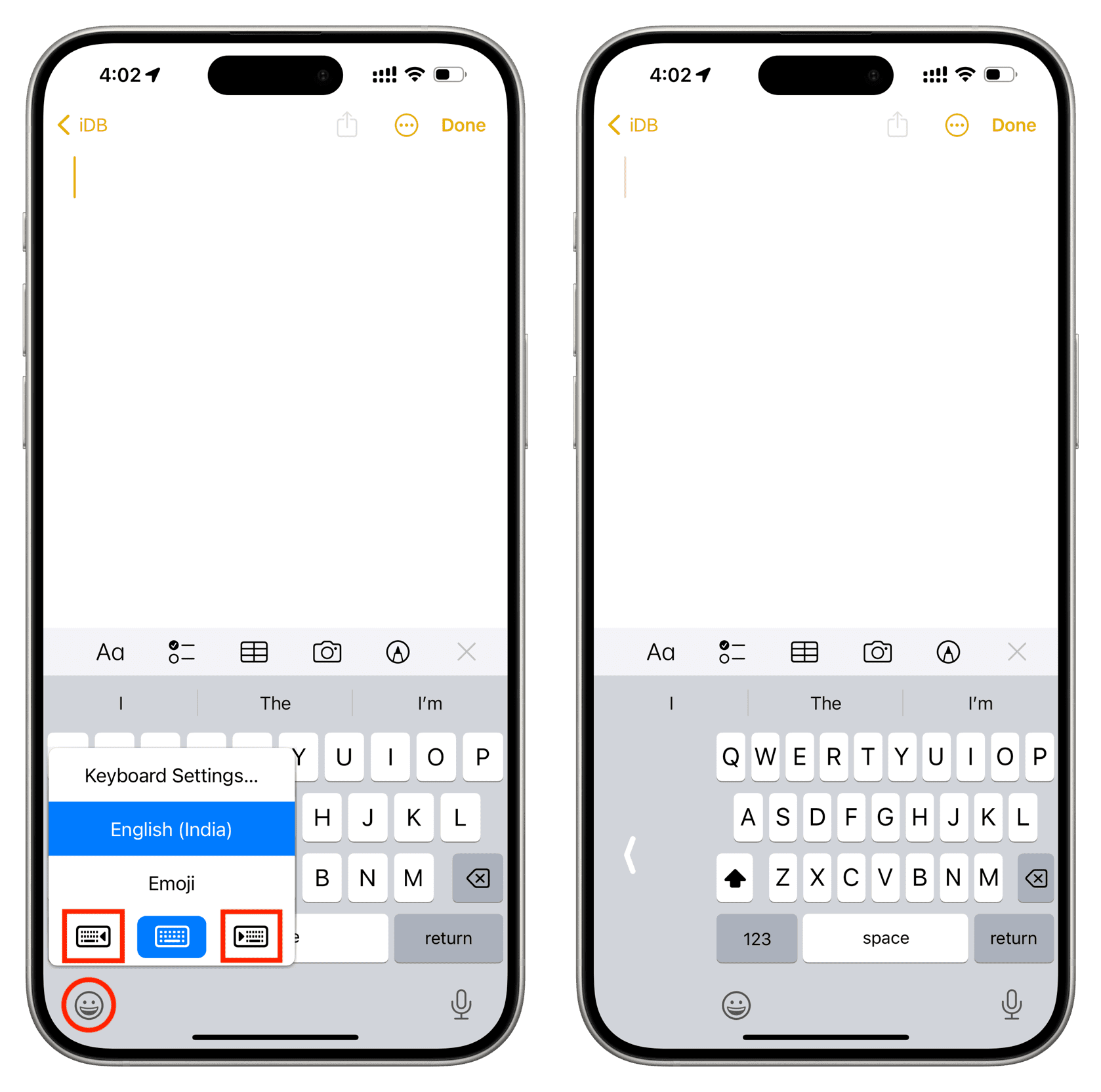
1) Bring up the keyboard on your iPhone in an app like Notes or Messages.
2) If you have just one keyboard installed, tap and hold the emoji icon in the bottom-left corner of the keyboard to bring up the input switcher. If you have multiple keyboards or keyboard languages enabled, tap and hold the globe icon instead.
3) Use the orientation icons at the bottom of the input switcher menu to shrink and snap the keyboard to either side of the screen or to revert back to the standard full-width keyboard. Here’s what the orientation icons do, from left to right:
- Snap the keyboard to the left: Tap the leftmost orientation icon
- Snap the keyboard to the right: Tap the rightmost orientation icon
- Re-center the keyboard and make it full-width: Tap the middle orientation icon
Tip: Tap the arrow icon (< or >) present on the side of the one-handed keyboard to quickly re-center and enlarge the keyboard.
Note: If you’re currently using a third-party keyboard, you’ll need to choose the built-in iOS keyboard from the input switcher menu before one-handed typing can be enabled.
Make a one-handed keyboard the default on iPhone
You can choose the left or right one-handed keyboard as the default option in order to avoid having to bring up the switcher menu every time you want to type something in one-handed mode.
1) Open the iOS Settings app and tap General.
2) Tap Keyboard > One-Handed Keyboard and choose a style:
- Off: Always launch the stock keyboard in full-width mode
- Left: Always launch the stock keyboard in left-handed mode
- Right: Always launch the stock keyboard in right-handed mode
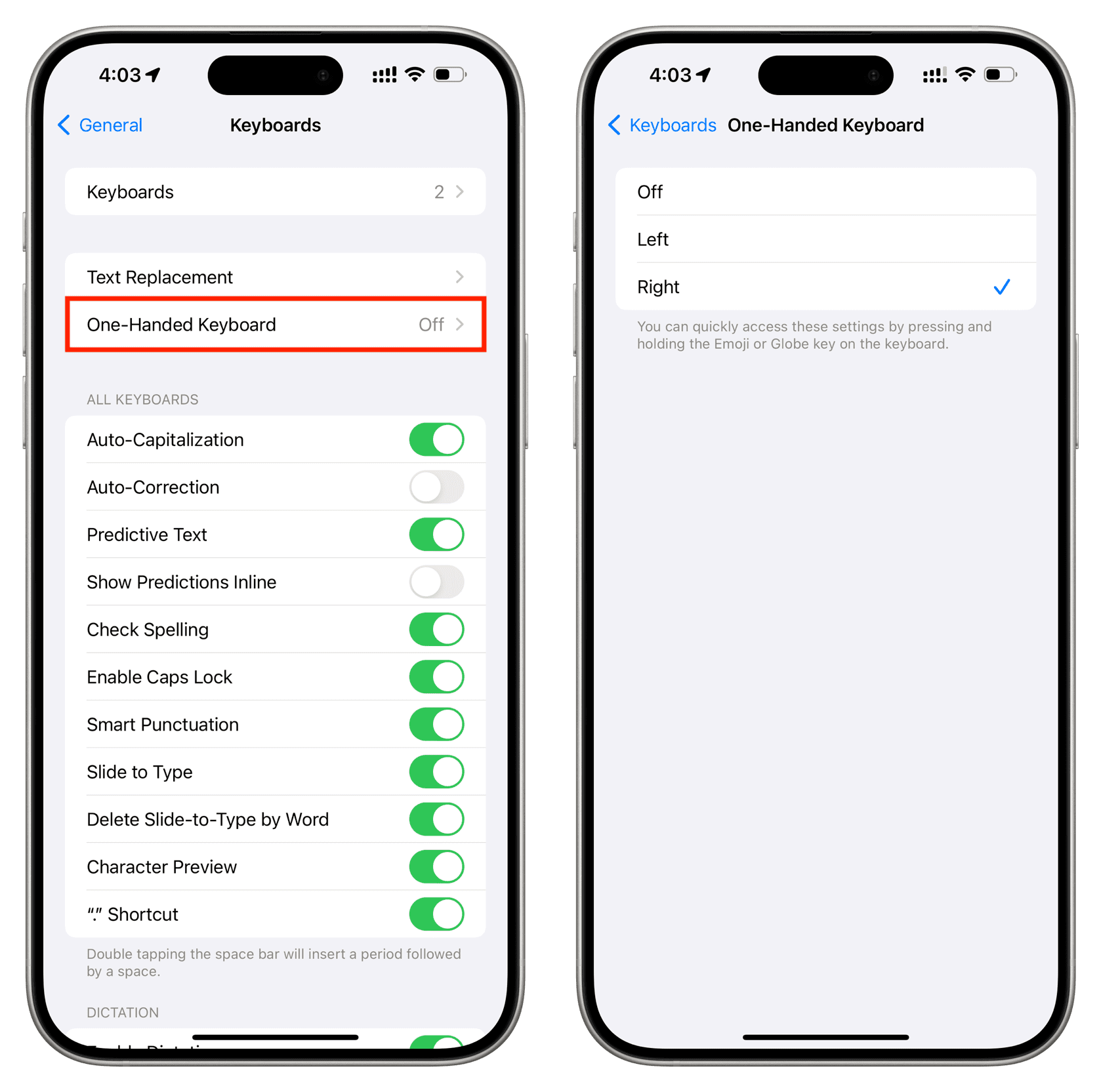
After selecting either a Left or Right option, your iPhone will remember it as the default option. Of course, you can always use the orientation icons in the input switcher menu to override your defaults and switch between left- and right-handed keyboards on the fly.
Also, check out: