In this brief tutorial, we’ll show you how to change the behavior of the TV button on your Apple TV Siri Remote to either open the TV app or take you to the Home Screen.
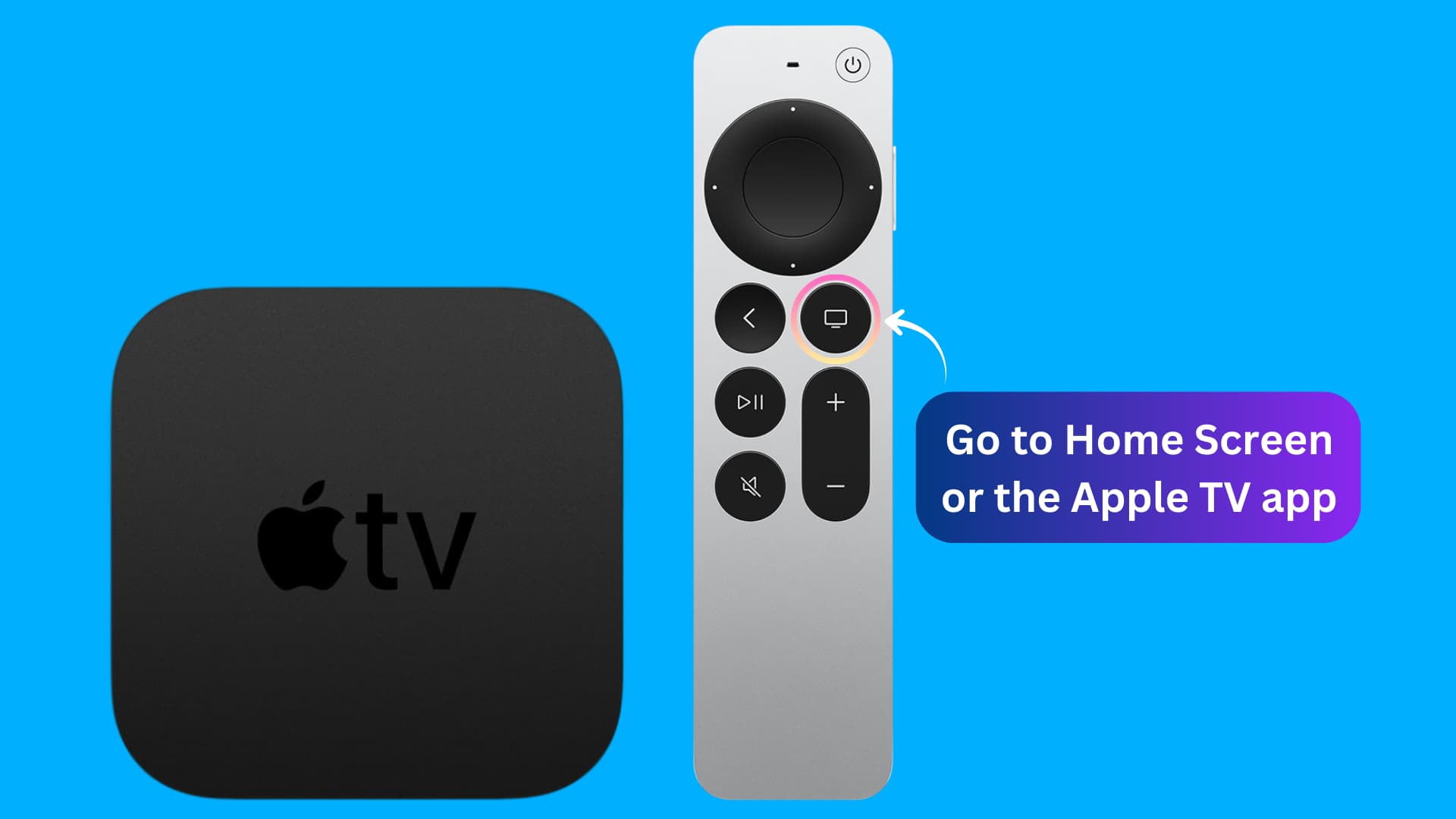
Remember that, irrespective of what you set the TV button to do on a single press, pressing and holding it will always open tvOS Control Center.
Change TV button behavior on Siri Remote
1) Open the Settings app on your Apple TV.
2) Select Remotes and Devices.
3) Scroll down and highlight the TV Button option.
3) Press once on the remote touchpad to have the TV button map to your:
- Home Screen: After this, pressing it once will take you back to the TV Home Screen.
- Apple TV app: If you select this, pressing the TV button once will take you to the Apple TV app (the application where you find shows like Ted Lasso). And if you press this button again, it will take you to the Home Screen. Tip: If you select the Apple TV app option, you can press and hold the back button (<) to go to the Home Screen.
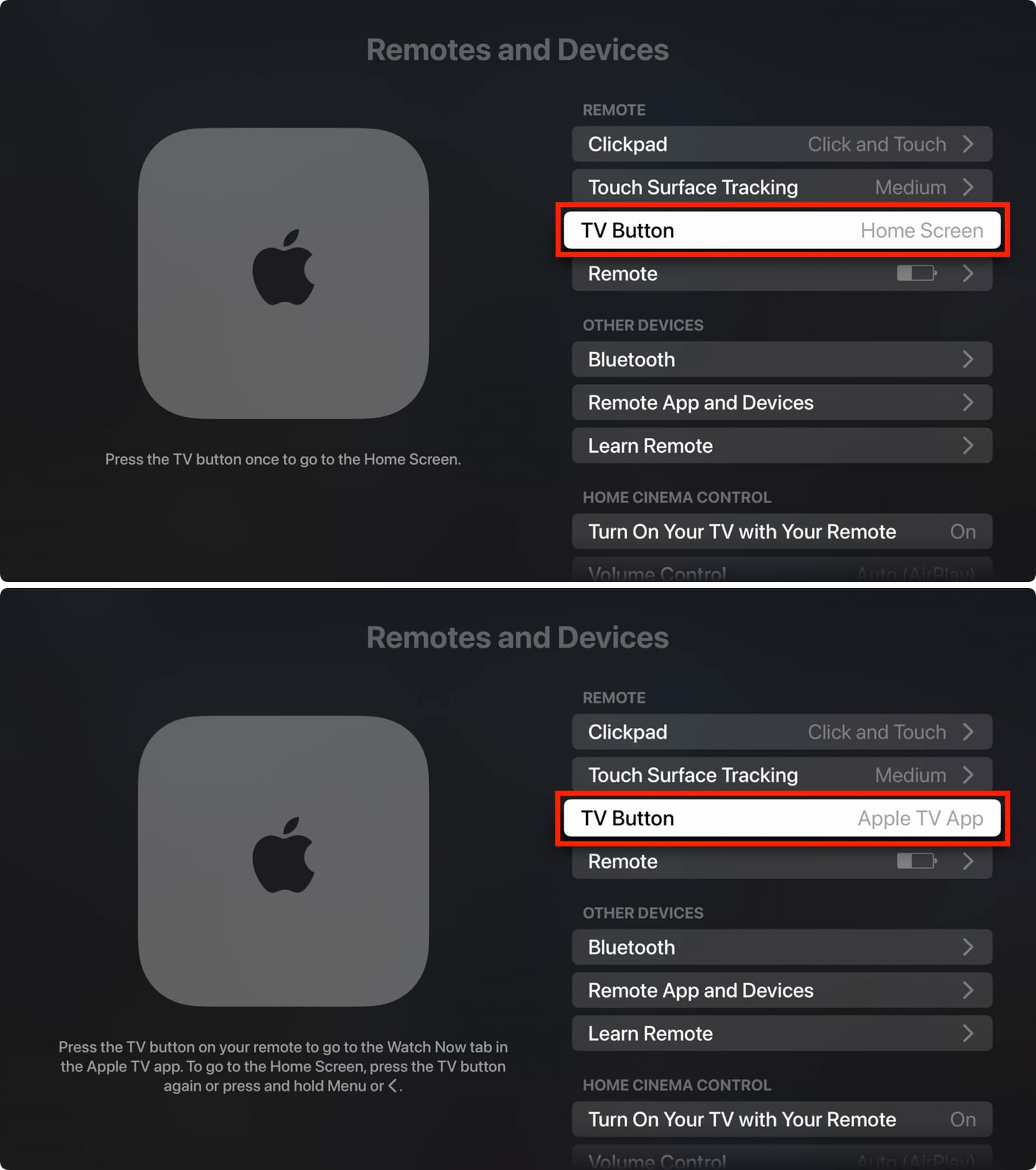
Because I don’t watch Apple TV+ much and prefer Netflix, I don’t want the TV button to always open Apple’s own streaming app. Instead, I like having it take me to the Home Screen, from where I can decide where to go next.
At the end of the day, there isn’t really a best way to go about it. It really depends on how you use the Apple TV, specifically the TV app.
So, what have you mapped it to do?
Check out next: