Learn how to export Safari bookmarks from your iPhone or iPad to save as a backup or import them to Google Chrome, Firefox, or Safari on Mac or Windows PC.
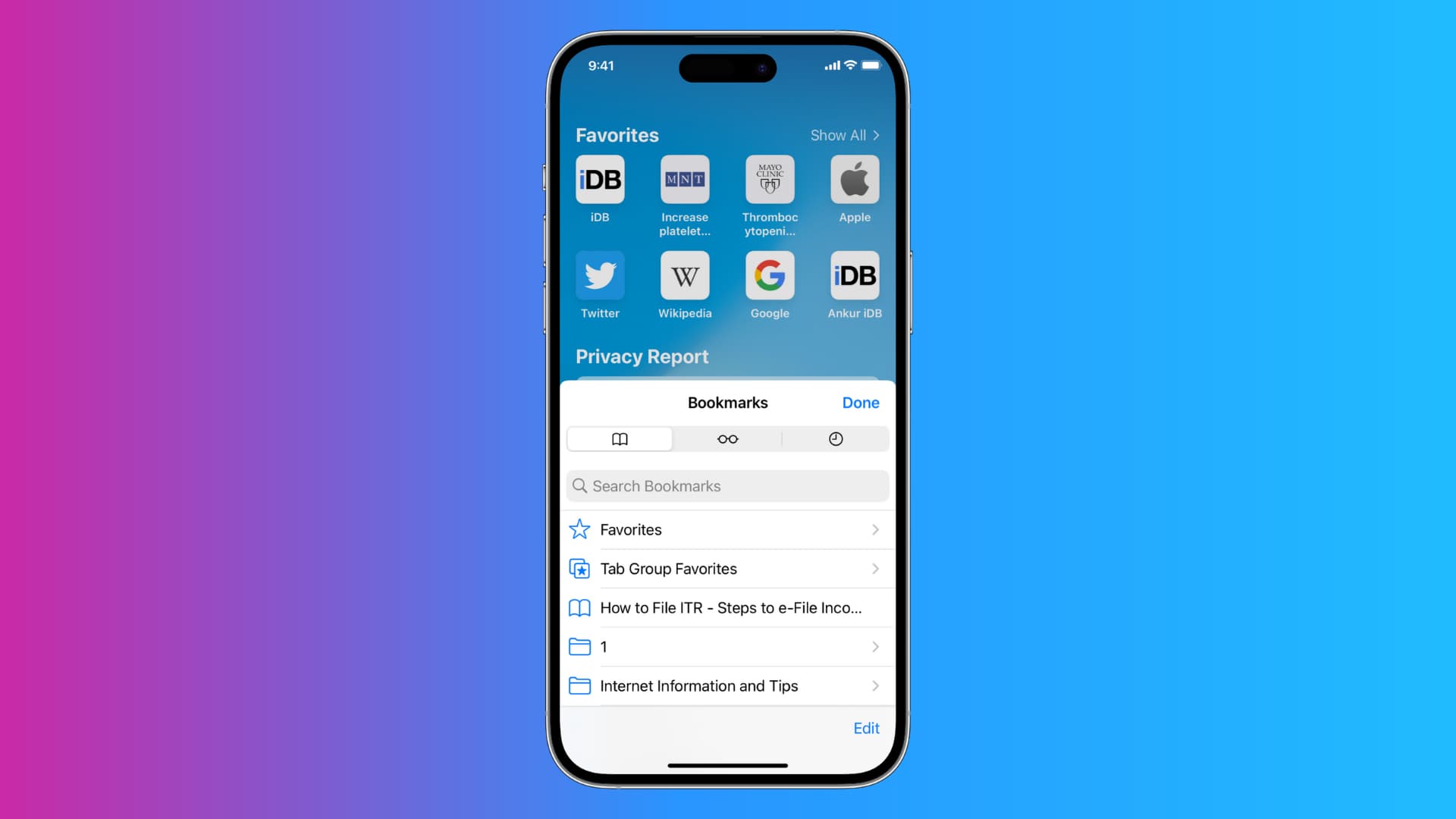
Bookmarking web pages in Safari lets you revisit them without typing the address again. If you’ve painstakingly saved your favorite websites in Safari on your iPhone or iPad, you can easily import those bookmarks into other browsers, such as Google Chrome, Mozilla Firefox, or Safari on a Mac or Windows PC.
Export Safari bookmarks on iOS
1) Open the Settings app on your iPhone or iPad.
2) Tap Apps from the bottom of the screen and select Safari from the list of applications.
3) Scroll down to the “History and Website Data” section and tap Export.
Note: If you see the “No Compatible Web Browsers” screen, tap Export to Files.
4) Untick all options except for Bookmarks, tap the Save to Downloads button, and authenticate with Face ID or Touch ID.
Note: If you have multiple Safari profiles, you can export bookmarks from all profiles or just those from a particular profile by tapping the profile selector at the bottom of the screen.

5) Tap the “Show Safari Export in Files” button to open the ZIP file in the iOS Files app. You can then back up your Bookmarks.html file to external storage or transfer it to a computer to import into a desktop browser.

Import Safari bookmarks to a browser on Mac or Windows PC
Transfer your Bookmarks.html file from iPhone or iPad to a Mac or Windows PC using AirDrop, Mail, iCloud Drive, or other methods available in the share menu. Then, import the file by following the steps for all popular browsers below.
Safari
- Open Safari.
- Click File in the top menu bar and select Import Browsing Data from File or Folder.
- Click Choose File or Folder.
- Select your Bookmarks.html file to import it.

Chrome
- Open Google Chrome.
- Click the triple-dotted menu in the window’s top-right corner, and choose Settings.
- Select You and Google in the sidebar.
- Click Import bookmarks and settings on the right.
- With ‘Bookmarks HTML file’ selected, click Choose File, and select the Bookmarks.html file to import everything to Chrome.

Firefox
- Open Firefox and go to its settings.
- Make sure you’re in the Account and sync section.
- Click Import data.
- Set ‘Import browser data’ to Bookmarks from HTML file and click Select file.
- Select your Bookmarks.html file to import them to Firefox.

Sync Safari bookmarks across devices
Turn on iCloud syncing for Safari on your iPhone, iPad, Mac, and PC to have the same set of bookmarks and other browsing data across devices.
iPhone and iPad
- Open the Settings app and tap your Apple account name at the top.
- Select iCloud, followed by See All.
- Turn on the Safari switch and choose Merge, if prompted. Safari will upload your bookmarks to iCloud, and they’ll appear across your other devices that use the same Apple account.

Mac
- Open System Settings and click your Apple account at the top.
- Select iCloud > See All.
- Turn on the switch for Safari and click Done. Open Safari, and all bookmarks from Safari on your iPhone will appear on your Mac in a few minutes, and vice versa.

Windows
Set up the iCloud app on your Windows PC and turn on the Bookmarks option there to import your synced bookmarks from iCloud to Chrome or Edge on your PC.

Also, check out: