Use the Optimized Storage recommendations on your Mac to free up local space by removing unwanted files or moving infrequently used files to iCloud.
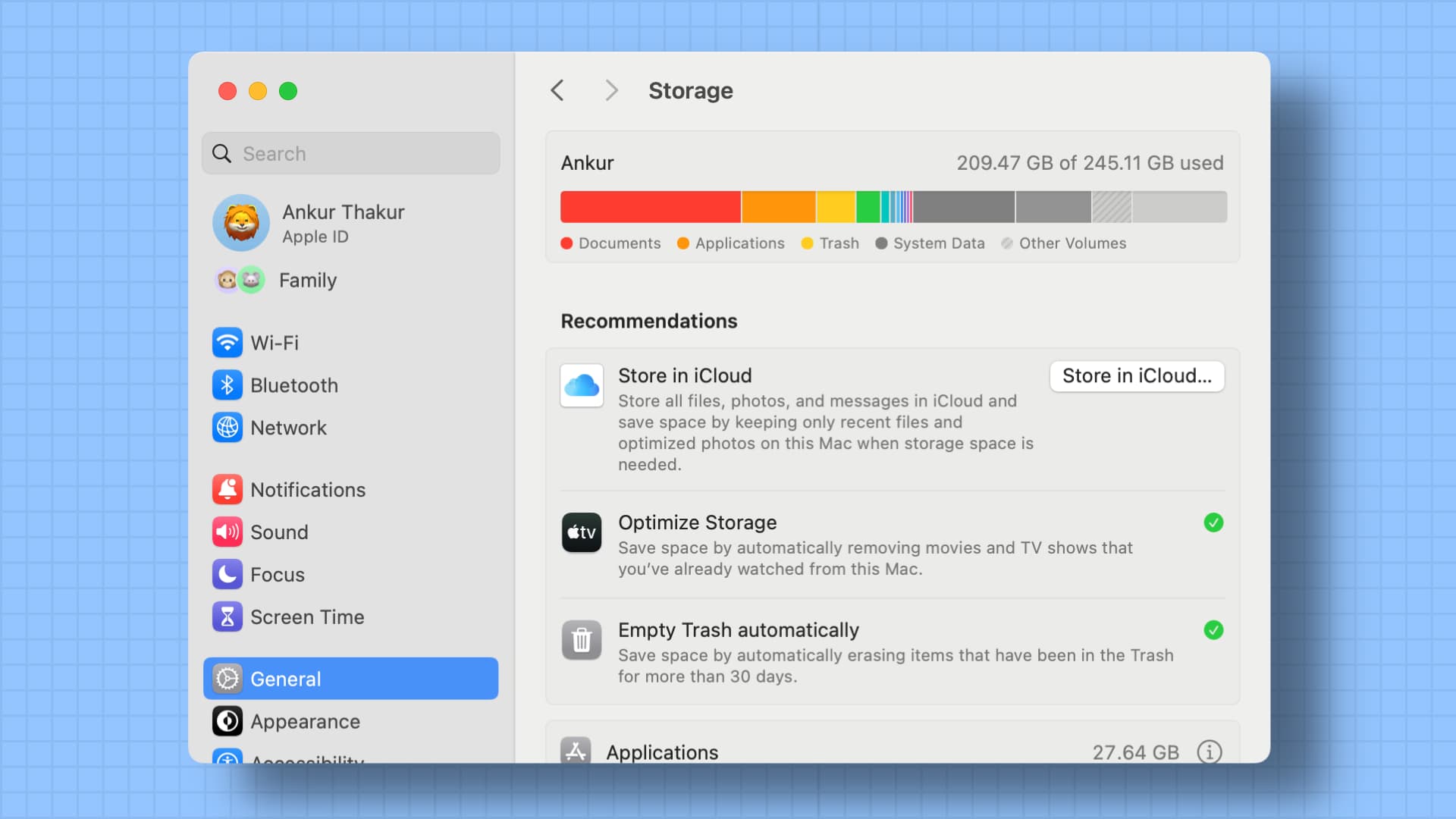
Optimized Storage on macOS Sierra and later helps manage your local space in four main ways:
- It stores your files in iCloud and only keeps frequently used items on your Mac
- It automatically removes watched movies and TV shows from your Mac
- It regularly deletes items that have been in your Trash for more than 30 days
- It also lists all the large files and displays the sizes of files stored on your Mac for you to manually review and delete
Each of these can be individually used or not used when freeing up space on your Mac, meaning users have the ability to turn one utility on while leaving another off.
Important:
- Storing files in iCloud Drive will not be helpful if you’re on the free 5 GB option, as it will fill up any remaining space without providing real benefits.
- You may want to leave this option off if you’re uncomfortable with the idea of not being able to access certain files offline or if you don’t want to trust iCloud’s sometimes unreliable syncing with the contents of your Mac.
Optimize your Mac’s storage
- Open System Settings on your Mac.
- Select General > Storage.
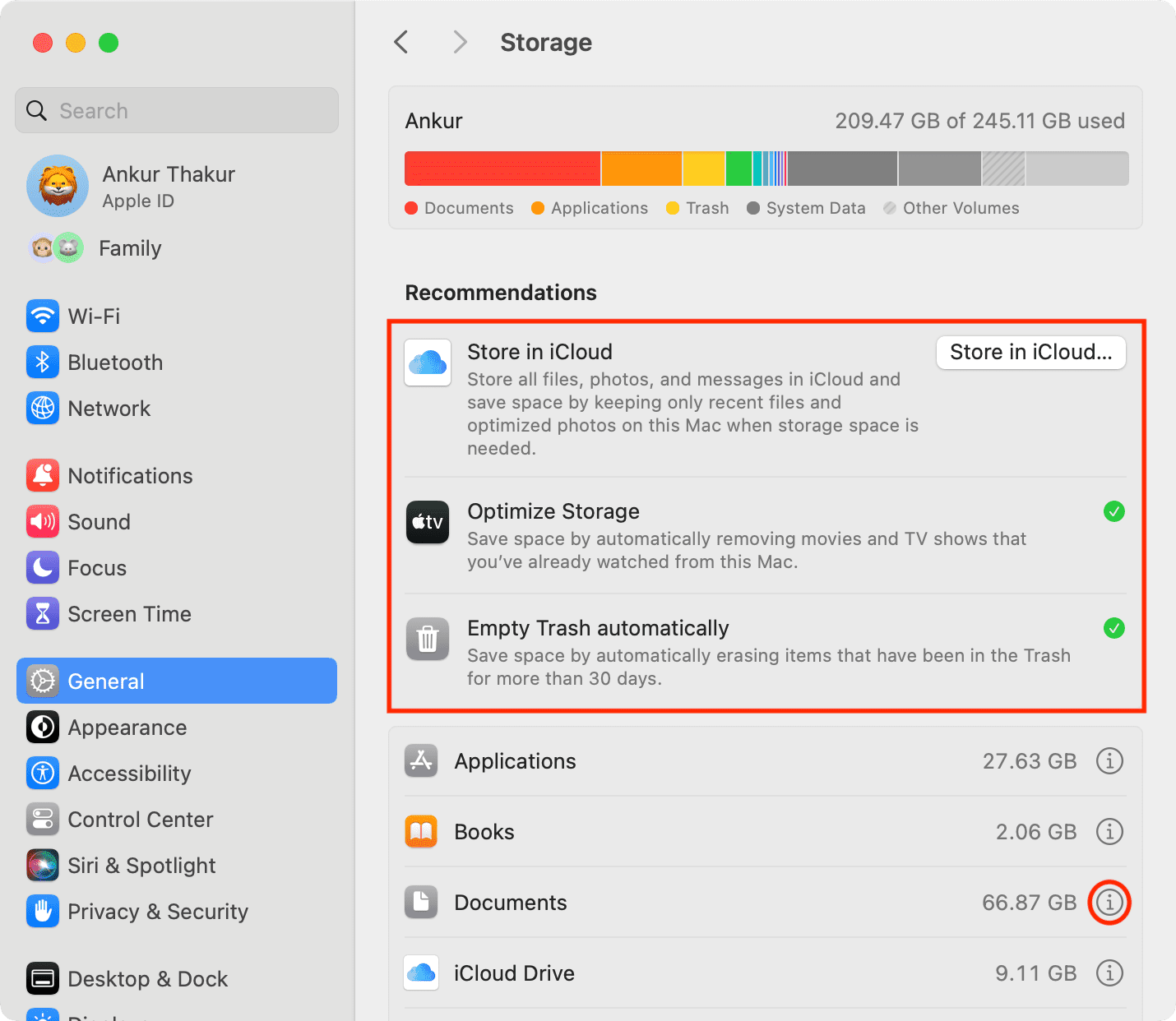
- You’ll see a Recommendations heading that has helpful options to manage your storage. We’ve explained the options below.
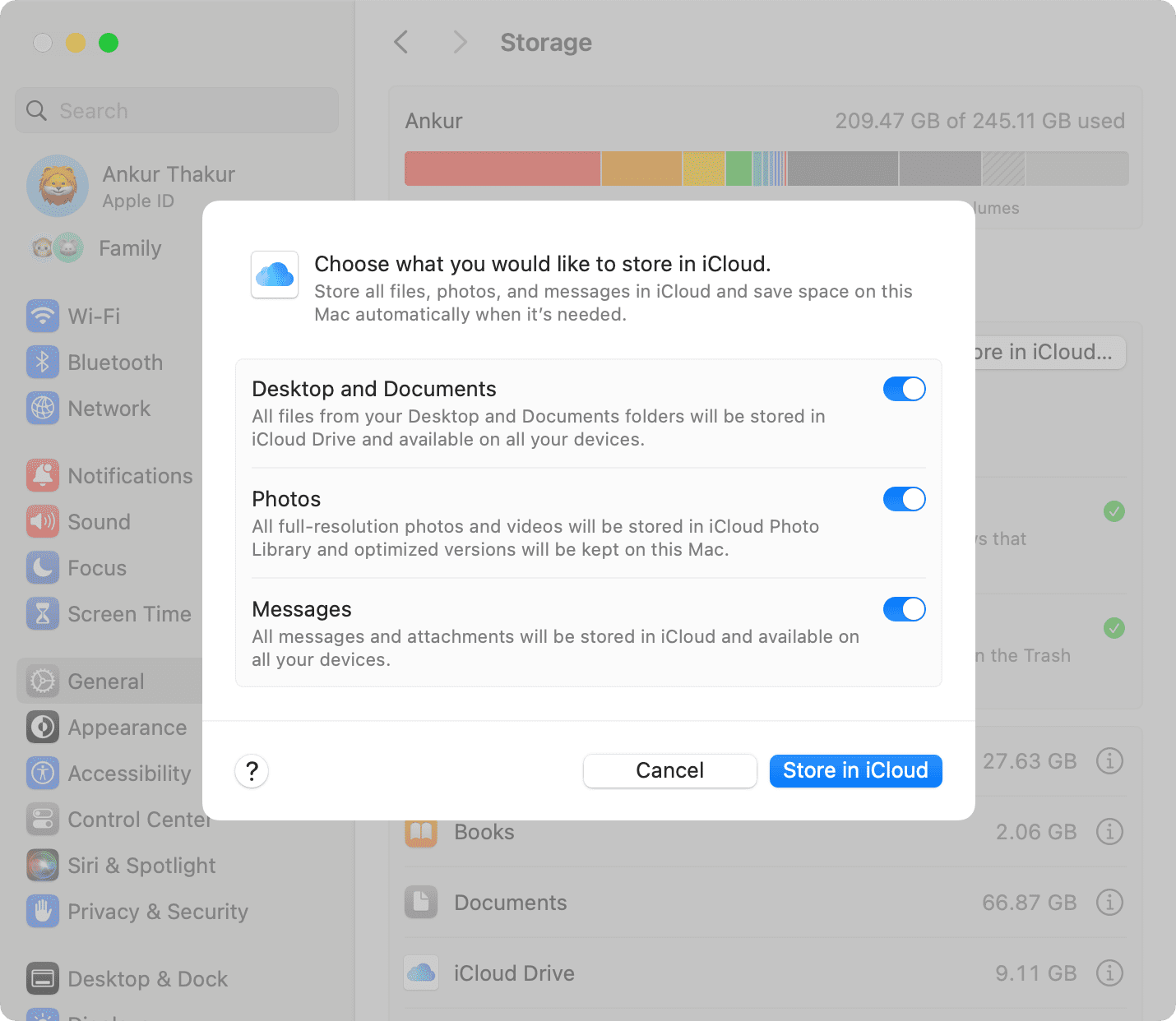
If you’re on an old version of macOS, you can use Spotlight Search to open Storage Management or click the Apple icon > About This Mac > Storage > Manage.
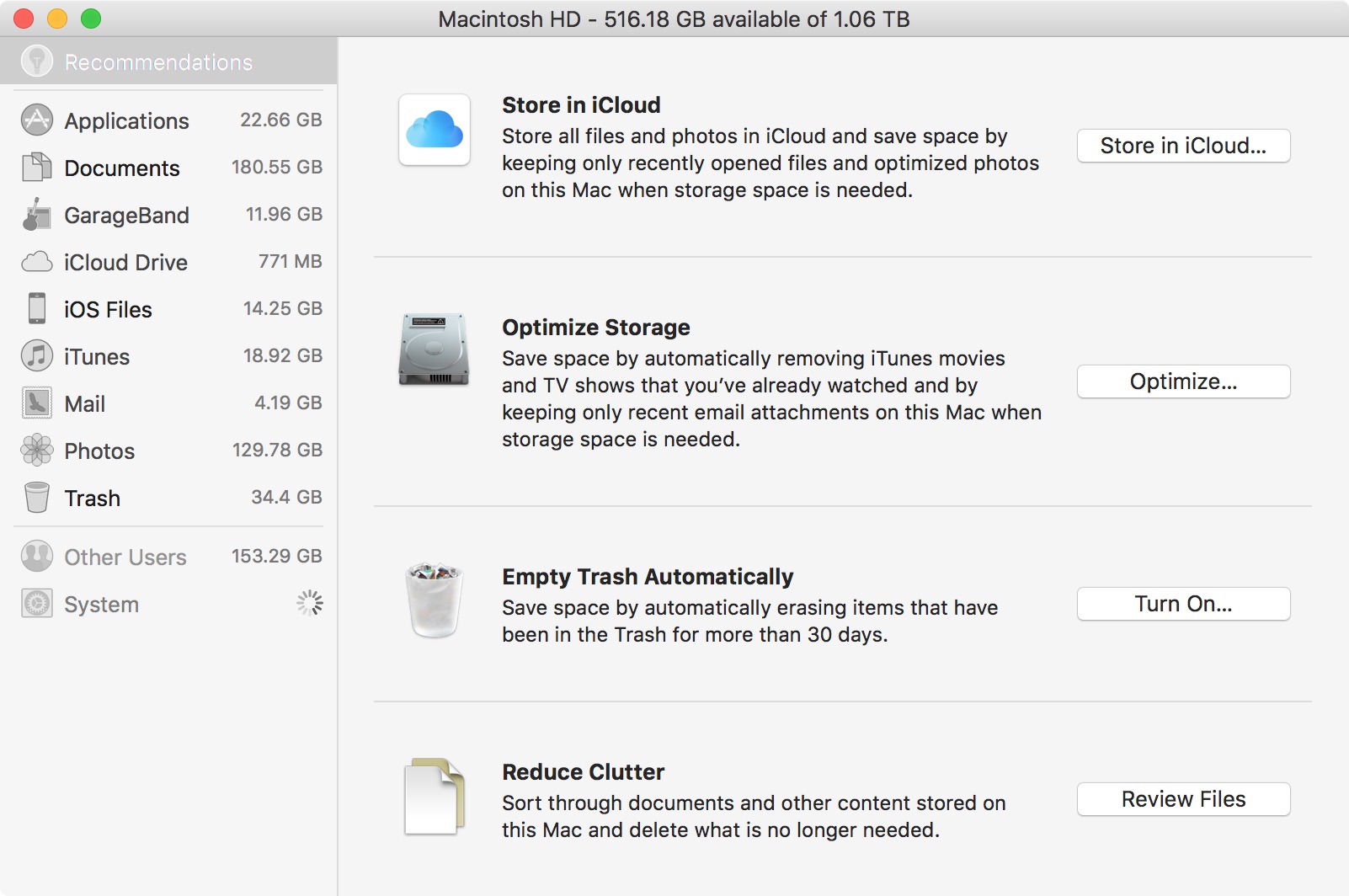
Store in iCloud
It lets you do three things:
- Store all files and folders from your Mac’s Desktop and Documents folders to be stored in iCloud Drive
- Back up your pictures and videos in Mac’s Photos app to iCloud Photos
- Save all your messages and attachments to iCloud
To free up space, only recently opened files will be kept on your Mac’s local storage, and iCloud-only files will have a download button displayed next to them for downloading with a click.
Enabling iCloud Photo Library means your full-resolution photos and videos will be stored in the cloud, while your local storage will only contain optimized media on your Mac, with the full-quality version being downloaded when the file is opened.
Optimize Storage
Using this method of freeing space gives you the option to have your Mac automatically remove TV and iTunes movies and shows after they’ve been watched.
Further, users of Mail in older versions of macOS have the option to only automatically download attachments from recent emails or to download none at all until an email is opened.
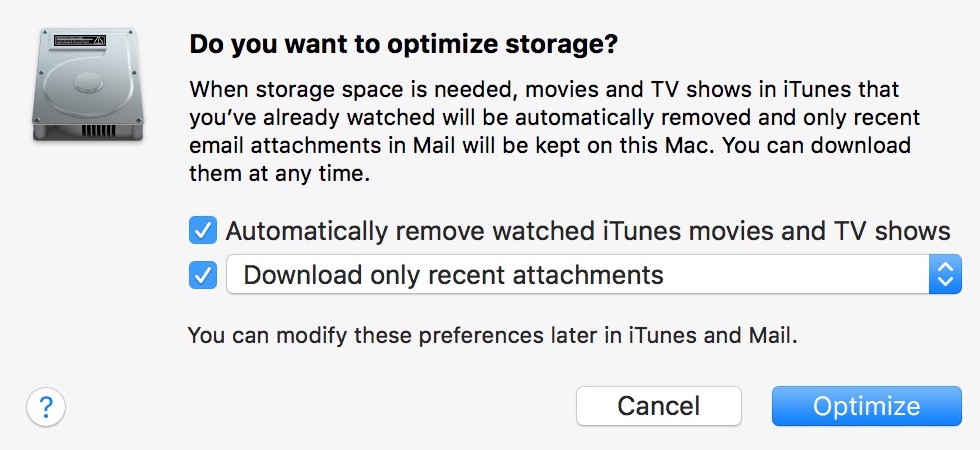
Note that turning on Optimize Storage doesn’t consume space in iCloud Drive.
Empty Trash automatically
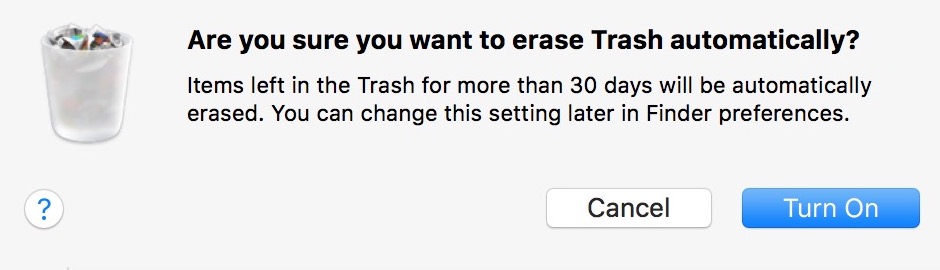
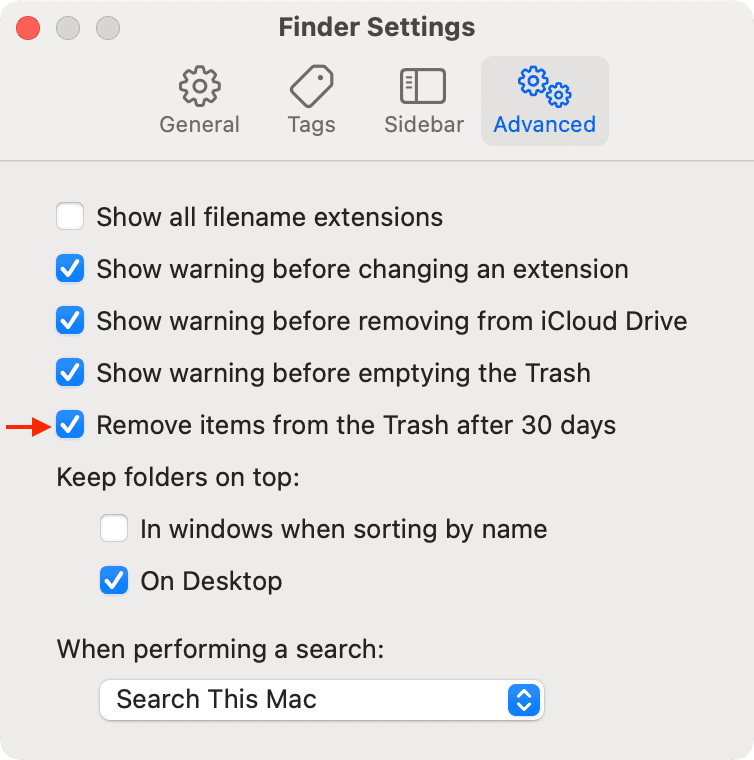
The simplest of all the utilities. It permanently deletes items that have been in the Trash for longer than 30 days. Once enabled, you can easily turn it off by going to Finder > Settings > Advanced, then unchecking the “Remove items from the Trash after 30 days” option.
Reduce clutter by deleting large files
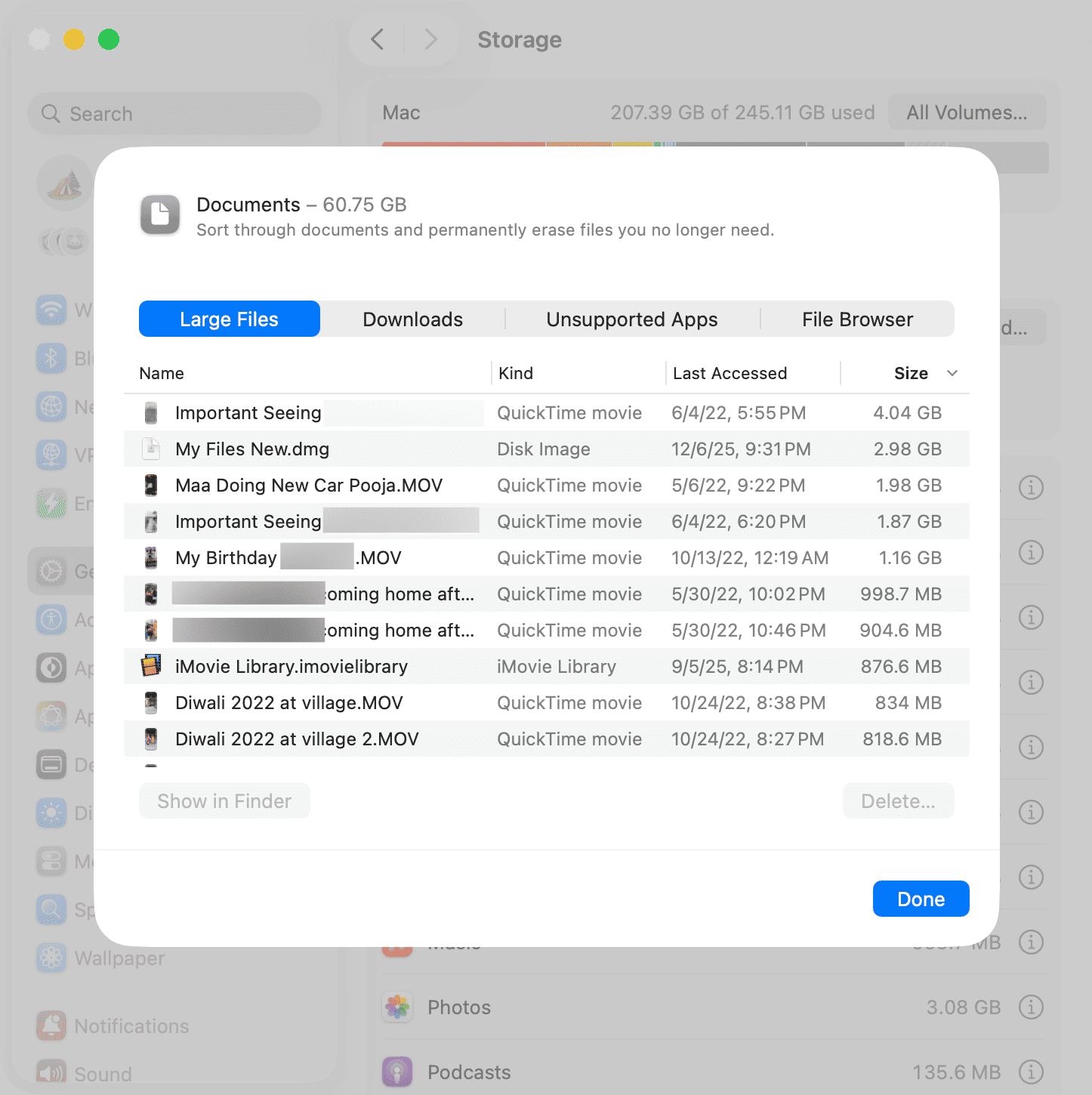
Click the info button ⓘ next to Documents, and you’ll see a Large Files option. It will help you locate large files and files that may no longer be needed while providing the option to delete them. You can also see what files are taking up the most space in the Downloads folder, as well as across the file system.
Do you use the Optimized Storage feature on your Mac? If so, do you use it to the full extent, or do you only use a few options? Share your setup in the comments section.
Check out next: