Learn how to change a user account password on your Mac if you have forgotten it or want to update it for security or administrative reasons.

Changing passwords regularly is a good idea, and your macOS user accounts are no different.
I keep a separate account on my Mac for my wife, and she often forgets her password. Luckily, I can easily log into my macOS admin account and change the password for her account.
Change the login password for a macOS account
Assuming your macOS user account has administrative privileges, you can change the passwords of other user accounts on your Mac, including admin accounts.
1) Open System Settings and select Users & Groups in the sidebar.
2) Click the info button ⓘ next to the account whose password you want to change.

3) Click the Reset button in the Password field.

4) Enter your admin password and click Unlock. If nothing happens, try pressing the return / enter key.

5) Enter the new password in the password field and verify it. After that, you can optionally add a password hint to prevent yourself from being locked out. When you’re done, click Reset Password > OK to save the new account password.

On macOS Monterey and earlier
If your Mac is running an older version of macOS, follow these steps instead.
1) Open System Preferences and go to the Users & Groups preferences pane.
2) Click the lock button in the bottom-left corner of the window to unlock the preferences pane so you can make changes. Enter your admin password when prompted, then click the blue Unlock button or press the return / enter key.
3) Select a desired macOS user account and click the Reset Password button.

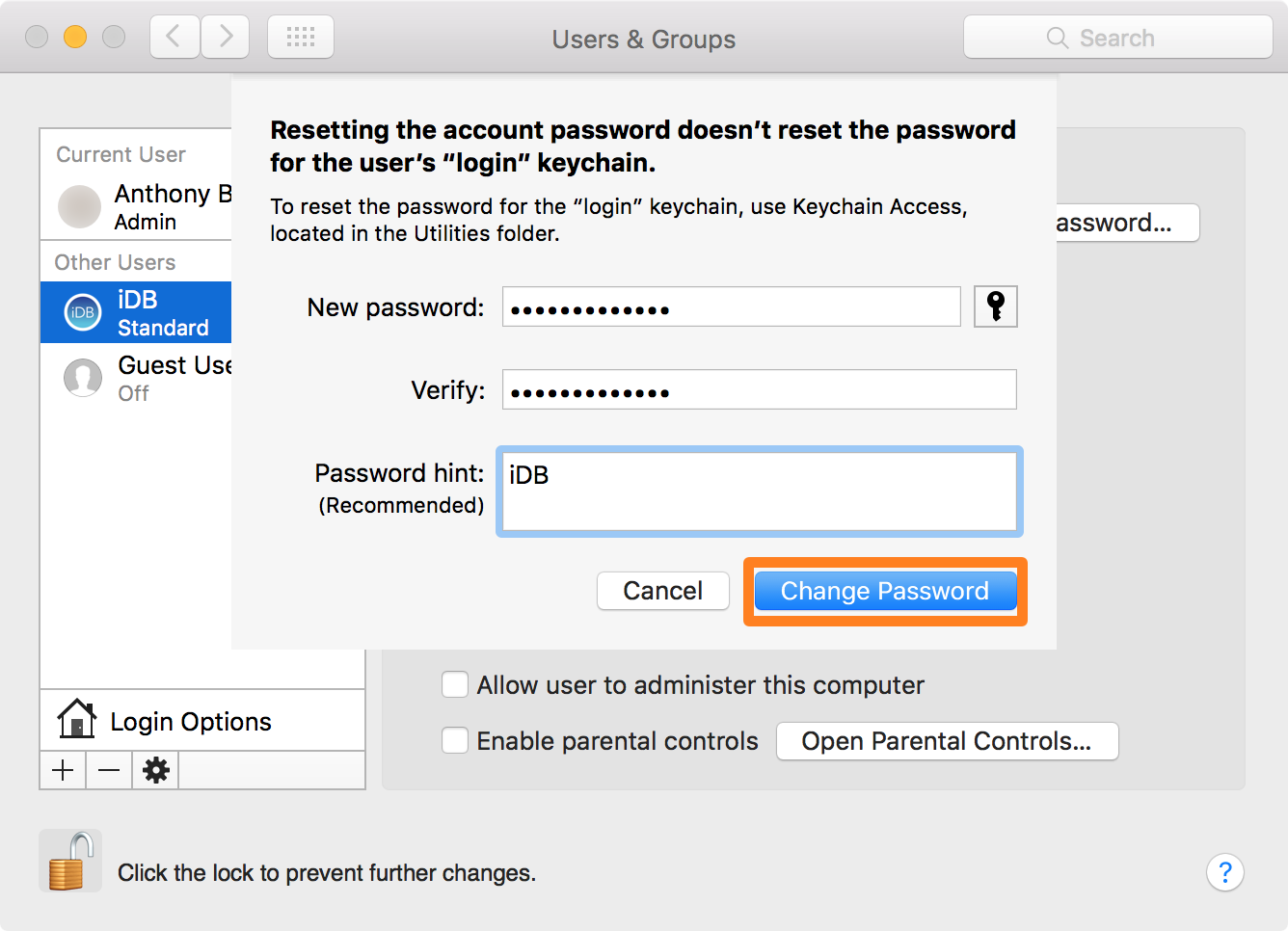
4) You’re now prompted to enter new details. Choose a new password and type it again for verification. Optionally, add a password hint. Once satisfied, click the blue Change Password button.
5) Click the lock icon in the bottom-right corner of the window to save the changes and prevent them from being tampered with.
You’ve successfully changed the password used for logging into that account. Try logging in with your new password to confirm you’ve memorized it correctly.