Learn how to preview links in Safari when you hover over them to find out where the link is taking you before you click it on Mac and iOS.
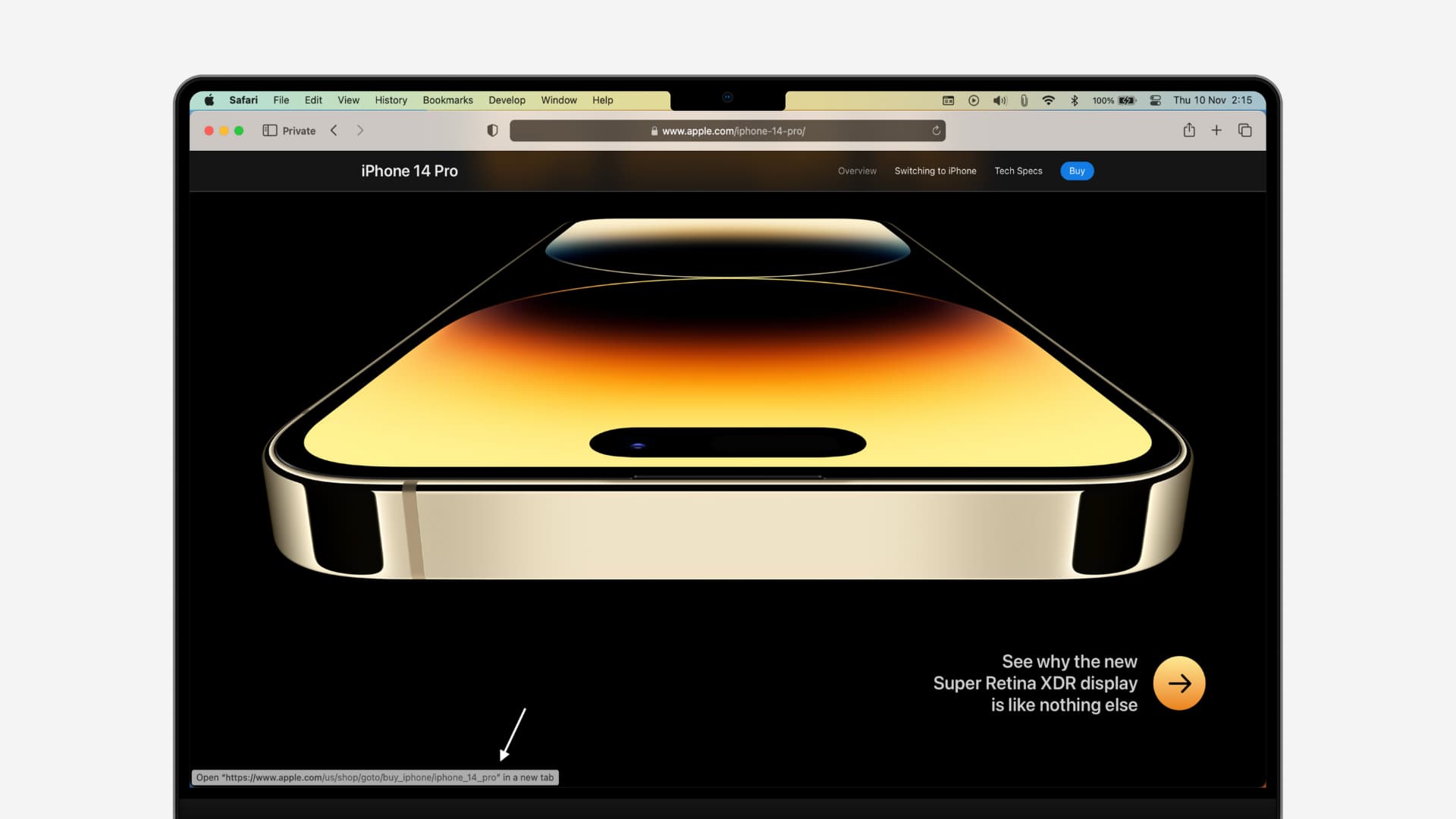
When you’re browsing the web, you’ll find various links that will take you to new websites.
Sometimes, the links take you exactly where you want to go; other times, they lure you somewhere you never intended to go and, in the process, can even infect your machine with harmful malware.
Fortunately, like Google Chrome and Firefox, Safari on Mac comes with a little-known feature called a status bar (illogical name, in my opinion), which you can enable from the web browser’s settings to show the destination link of any hyperlink on a web page by simply hovering your mouse over the link. iPhone and iPad users also have a similar function that they can take advantage of, but more on that later.
Make Safari on Mac show the URL when hovering over a link
1) Open Safari on your Mac.
2) Click View > Show Status Bar from the top menu bar.
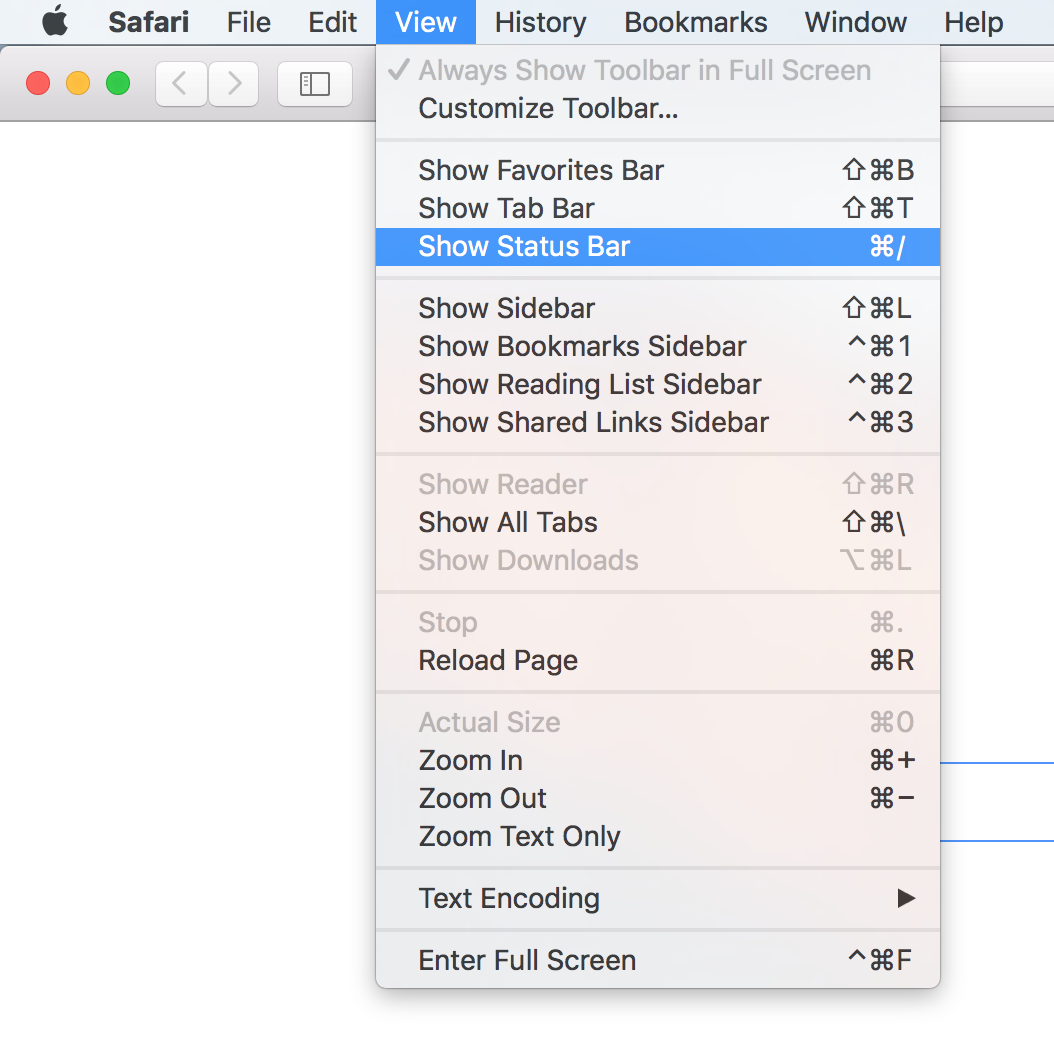
3) The URL-peeking status bar should now appear at the bottom left of the window any time you hover over a hyperlink on the web page, and the URL that you see is the web page that you’ll be directed to if you click on that hyperlink.
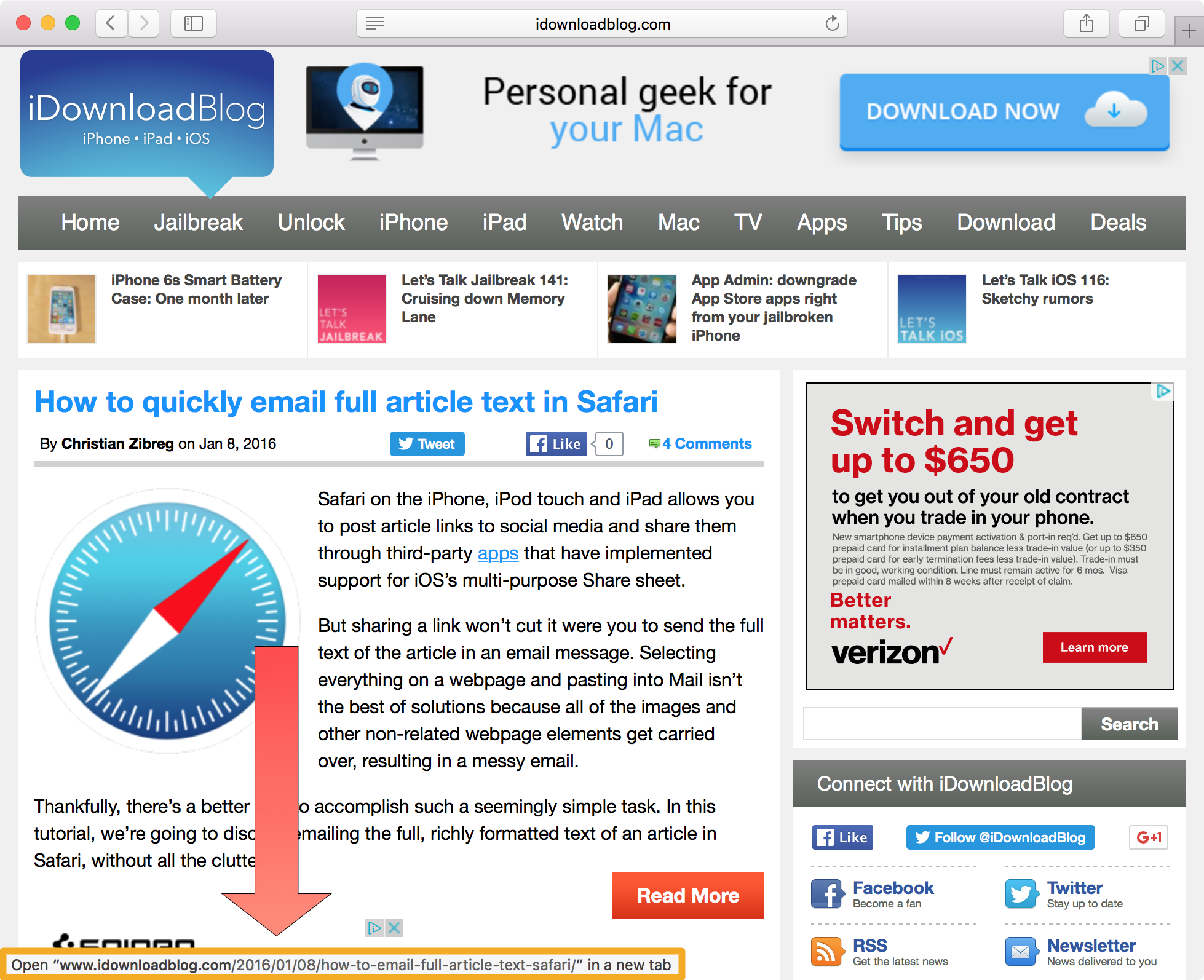
Preview a link in Safari on iPhone and iPad
On an iOS device, whether it’s your iPhone, iPad, or iPod touch, there is nothing to configure because the feature is always enabled by default. It’s just a matter of using the right touch gesture to access it.
1) Open Safari on your iOS device and load a web page with hyperlinks.
2) Touch and hold a hyperlink for a couple of seconds until an action sheet appears.
3) Then tap Hide Preview to see the full URL.

This action sheet also includes other options, such as opening the link in a new tab, adding the link to your Reading List, and copying the link.
Extra info: The above steps also eliminate ads on websites where tapping a link automatically opens a new browser tab with advertisements or a sponsored webpage.
Show Links on Hover on iPad
Since iPad has a big screen comparable to a Mac, Safari in iPadOS lets you see the link in the lower-left corner of the screen when you hover the trackpad/mouse pointer or a supported Apple Pencil over a link. Here’s how to enable and use it.
1) Open the Settings app on your iPad, running the latest version of iPadOS, and go to Apps > Safari.
2) Turn on the switch next to Show Links on Hover.

3) Now, open a web page in Safari and move the trackpad or mouse pointer over a link. If you have an M2 or later iPad, you can also hover over the link with your Apple Pencil 2nd generation or Apple Pencil Pro. The full URL will show up in the bottom-left corner of the Safari screen.

The whole point of this feature is to help with security by letting you know where your web browsing experience is going to take you. It can be an immersive way of ensuring you only click on the links that you intend to visit and can prevent unwanted visits to potentially harmful websites.
Did you find this feature helpful? Let us know in the comments below!
Also, check out: