Did you just get yourself a new pair of Bluetooth headphones, earphones, or speakers that you want to use with your iPhone or iPad? In this step-by-step tutorial, we’ll show you how to connect, use, and manage it for a wire-free audio experience.
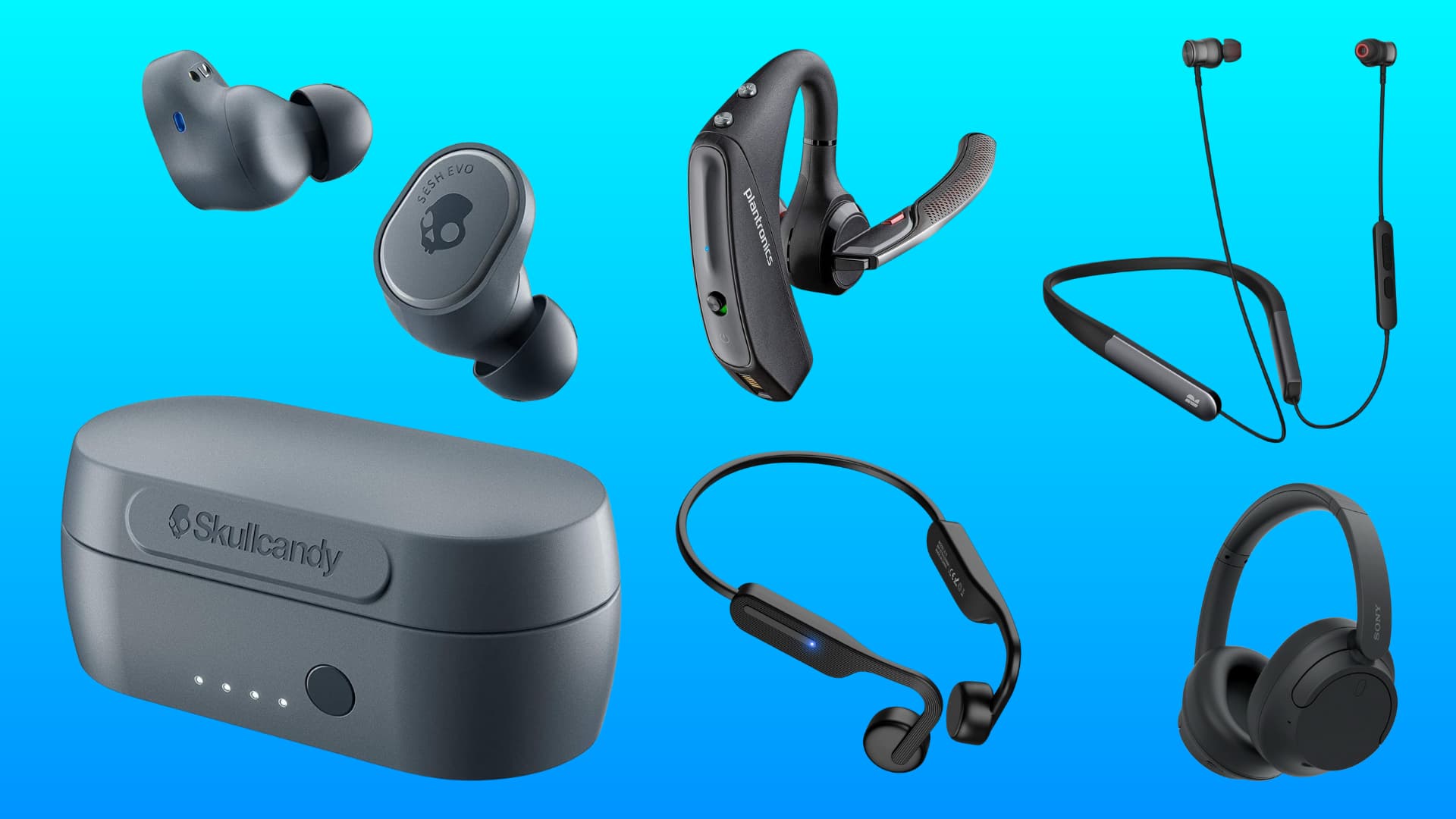
The steps to pair AirPods are similar, but this tutorial is focused on wireless third-party headphones. It should cover devices such as neckbands, Google Nest, Amazon Echo, and almost everything else that uses Bluetooth.
Pair Bluetooth headphones with your iPhone or iPad
- Follow the instructions that came with your Bluetooth headset to put it into discovery or pairing mode. You would typically need to press or press & hold the power button on the accessory to initiate pairing. If the earphones are already connected to another device, first disconnect them from there or simply turn off Bluetooth on that device.
- Open the Settings app on your iPhone or iPad and tap Bluetooth.
- You’ll see nearby Bluetooth accessories that are available for pairing in the Other Devices section. Tap the name of the Bluetooth earphones from under the Other Devices heading to pair them with your iPhone.
- After the device is connected, it’s moved to the My Devices heading and saved for future use. You won’t have to go through the above pairing process again (unless you forget the device, explained later below).

Note:
- You can pair multiple Bluetooth headsets with an iPhone or iPad, but only one can be active at a time. To pair additional accessories, follow the steps above. However, if you own two pairs of AirPods or other compatible Beats headphones (also owned by Apple), you can share audio to both simultaneously.
- Depending on the manufacturer, some Bluetooth devices, such as AirTag-like tiny location trackers, can only be paired via their companion app. You may not be able to connect them from the iOS Bluetooth settings.
Play audio to Bluetooth headset
The moment you pair your wireless headphones to your iPhone or iPad, it should already be selected as your audio output destination. However, if the sound continues to come through the on-device speakers or some other connected headset, then follow these steps to select the Bluetooth headphones you just paired:
- Open Control Center on your iPhone or iPad by swiping down from the top right of the screen.
- Tap the AirPlay icon from the top.
- Select your Bluetooth headset from the list.

Switch to a Bluetooth headset for calls
If there’s a Bluetooth headset paired with your iPhone when you initiate a FaceTime or phone call, a menu may pop up on the call screen, offering you to choose between the iPhone’s earpiece, built-in loudspeaker, or headset. This way, you can choose audio routing before the call connects.
However, if you don’t get that, or you want to switch to Bluetooth headphones mid-call, then tap the Audio button and select the available wireless earphones.

Disconnect Bluetooth headphones
Turning off your Bluetooth headset or turning off Bluetooth on your iPhone won’t unpair both devices. This is handy, as you can just turn the headset on again in order to use it.
However, if you temporarily want to disconnect the headset, follow the steps below:
- Go to iPhone or iPad Settings > Bluetooth.
- Tap the info button ⓘ next to the connected Bluetooth headphones.
- Tap Disconnect. After this, the headset should be listed as “Not Connected” under the My Devices heading.

Reconnect a previously paired Bluetooth headphone
To reconnect the headset, go to iPhone or iPad Settings > Bluetooth and tap the name of a “Not Connected” Bluetooth device in the list. But before you do this, make sure the earphones are switched on.

Unpair Bluetooth earphones
As opposed to temporarily disconnecting a Bluetooth headset, unpairing it removes it from the list of available Bluetooth devices on this iPhone. Here’s how to do that:
- Open iPhone or iPad Settings and tap Bluetooth.
- Tap the info button ⓘ next to the Connected or Not Connected Bluetooth device.
- Tap Forget This Device and confirm by tapping Forget Device.

After unpairing, if you want to add the headset to your iPhone again, place it back in discovery mode and follow the previous instructions to re-pair it.
Problems with the Bluetooth headset?
Your iPhone must be within about 33 feet (10 meters) of your Bluetooth headset to avoid poor or broken audio. Audio output returns to the iPhone whenever the Bluetooth device is out of range, automatically switching back to the headset as soon as it’s within range.
Should you experience audio interference between your iPhone and its paired headset, turning Airplane Mode on and off might help. Reorienting or relocating the iPhone may also help improve Bluetooth performance in certain situations. For more, learn how to fix Bluetooth issues on your iPhone.
Extra info: iOS and Bluetooth profiles
Recent iPhone models (5s and later) support the following Bluetooth profiles:
- Hands-Free Profile (HFP 1.8)
- Phone Book Access Profile (PBAP 1.2)
- Advanced Audio Distribution Profile (A2DP 1.4)
- Audio/Video Remote Control Profile (AVRCP 1.6)
- Personal Area Network (PAN) Profile
- Human Interface Device (HID) Profile
- Message Access Profile (MAP 1.4)
- Wireless iPhone Accessory Protocol (WiAP)
- Braille
The Audio/Video Remote Control Profile (AVRCP) permits a Bluetooth headset to remotely control playback functions on an iOS device. iOS supports the following commands via AVRCP: pause, play, stop, next/previous track, and browsing. Bluetooth profiles supported in iOS are listed in Apple’s support document.
Apple has been a Promoting Member of the Bluetooth Special Interest Group (SIG) since June 2015. A non-profit industry organization, SIG oversees the development and licensing of Bluetooth technologies and trademarks to manufacturers. Apple also has a seat on the group’s Board of Directors, which allows it to influence future Bluetooth development.
More on it: