Learn how to customize canned responses for Messages, Mail, and Phone apps on your Apple Watch to send quick replies without typing.
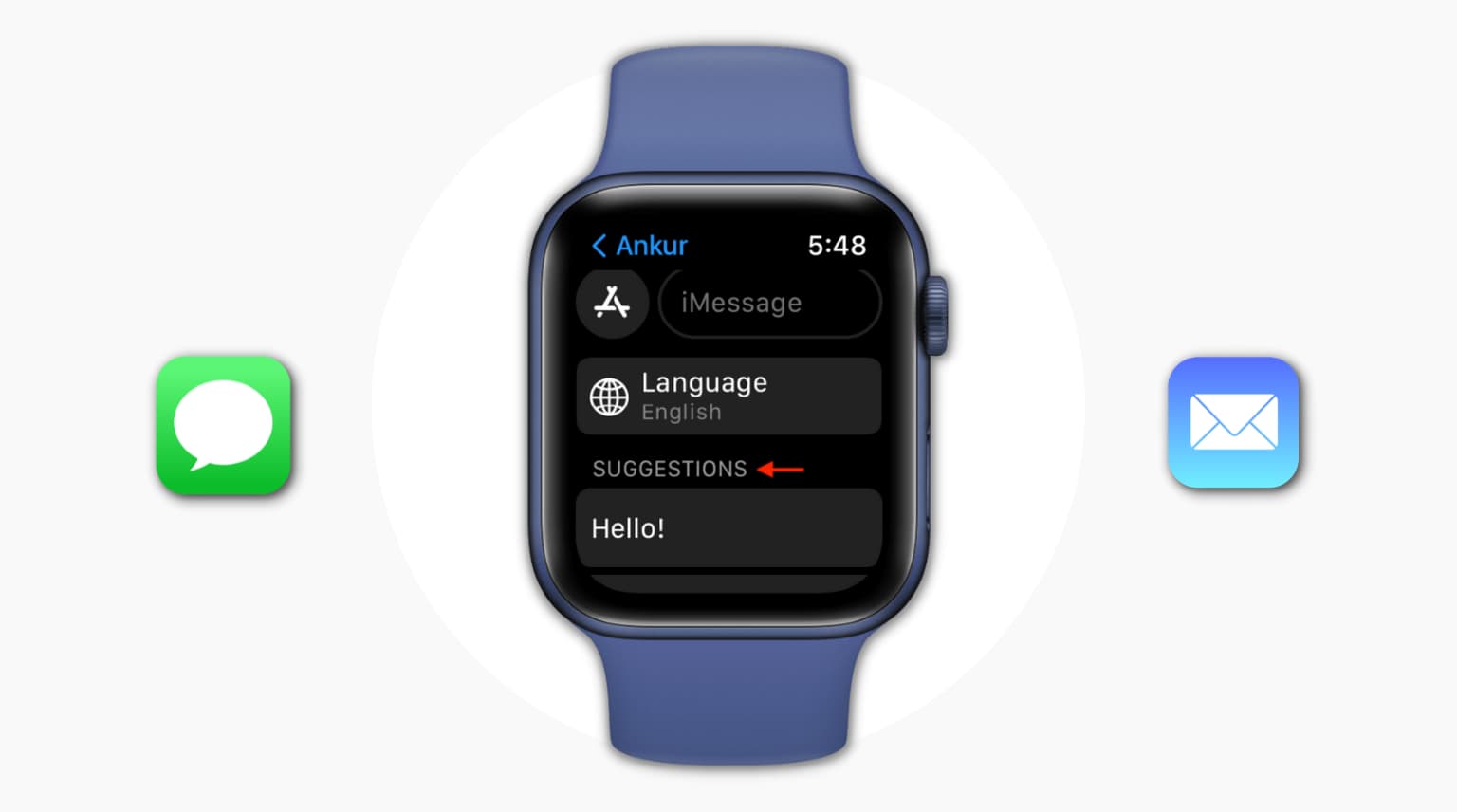
Your Apple Watch may conveniently show a “Suggestions” section for quick replies below a text or email notification. These canned responses can save you time, but you can also customize them to be more personal or even write new ones from scratch.
It seems you can add as many custom replies as you want; I added 40, and the ‘Add reply’ button still appeared. Of course, don’t add too many or scrolling through a long list will defeat the very purpose of “quick” replies.
The changes you make below will reflect on your Apple Watch in a few moments. If not, check that Bluetooth is enabled on both your iPhone and Apple Watch, and that they’re within Bluetooth range (restart, if necessary).
Customize default replies for the Messages app
1) Open the Watch app on your iPhone.
2) Scroll to the bottom of the My Watch tab and tap Apps. Skip this step if you’re not on watchOS 27.
3) Choose Messages from the list of applications.

4) Select Default Replies.

Now, do the following:
- Tap a default reply to substitute with custom text.
- To add a personal quick reply without changing the default canned responses, tap ‘Add reply’ at the bottom.
- To reorder canned responses, tap Edit and use the hamburger icon to change the position of quick replies. The ones at the top will appear as the first suggestions in Messages and Mail.
- To delete a quick reply, swipe left across it and choose Delete.

Customize canned responses for the Mail app
The Mail app has quick replies of its own, available when replying to an email from the notification or within the Mail app. Follow these steps to customize them.
- Go to the Watch app and tap Apps > Mail > Default Replies.
- Now add a new quick reply or edit an existing one.

Keep in mind that these canned responses only work for Mail; they don’t appear as suggestions for WhatsApp notifications.
Customize call responses
When you receive a call on your Apple Watch that you cannot answer in the moment, tap the three-dotted menu and choose from canned responses such as ‘Sorry, I can’t talk right now’ or ‘I’m on my way.’
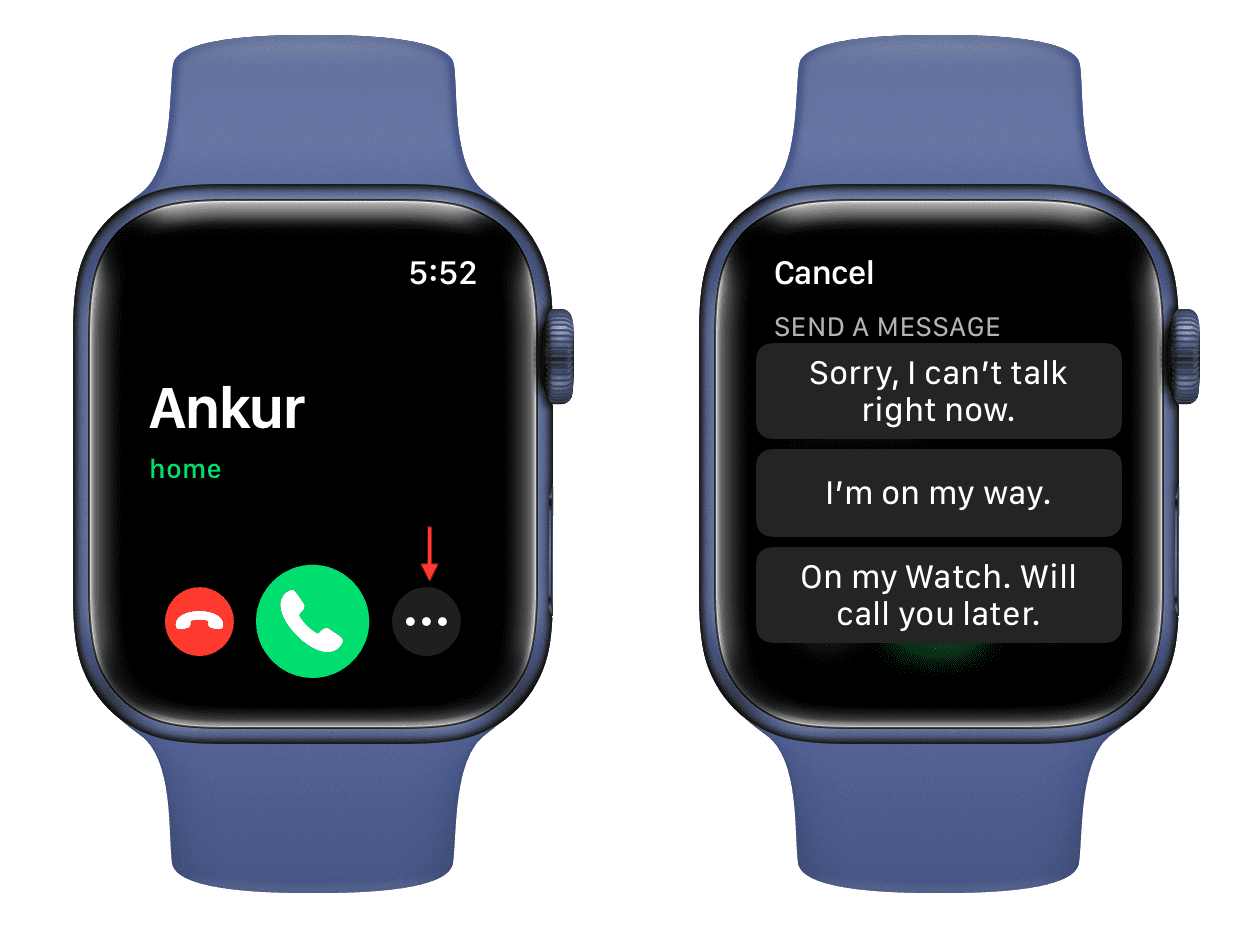 To customize these in-call quick replies:
- Go to iPhone Settings > Apps > Phone.
- Tap Respond with Text, and choose a default reply to customize it. These ready-made responses only appear when you respond to an incoming call on your iPhone or Apple Watch with a text.

Also, check out: How to type in another language on Apple Watch