Learn about three ways to restart or relaunch Finder on your Mac in case it hangs, stops responding, or fails to refresh your files with the latest changes.
If the Finder freezes or stops responding, you’ll need to restart it.
Certain changes on your Mac (usually Terminal commands) that require a Finder restart can also cause it to stop working.
Watch our instructional video and read the instructions right ahead to learn about three simple, quick ways to relaunch and reinitialize the Finder.
Use the Dock shortcut method
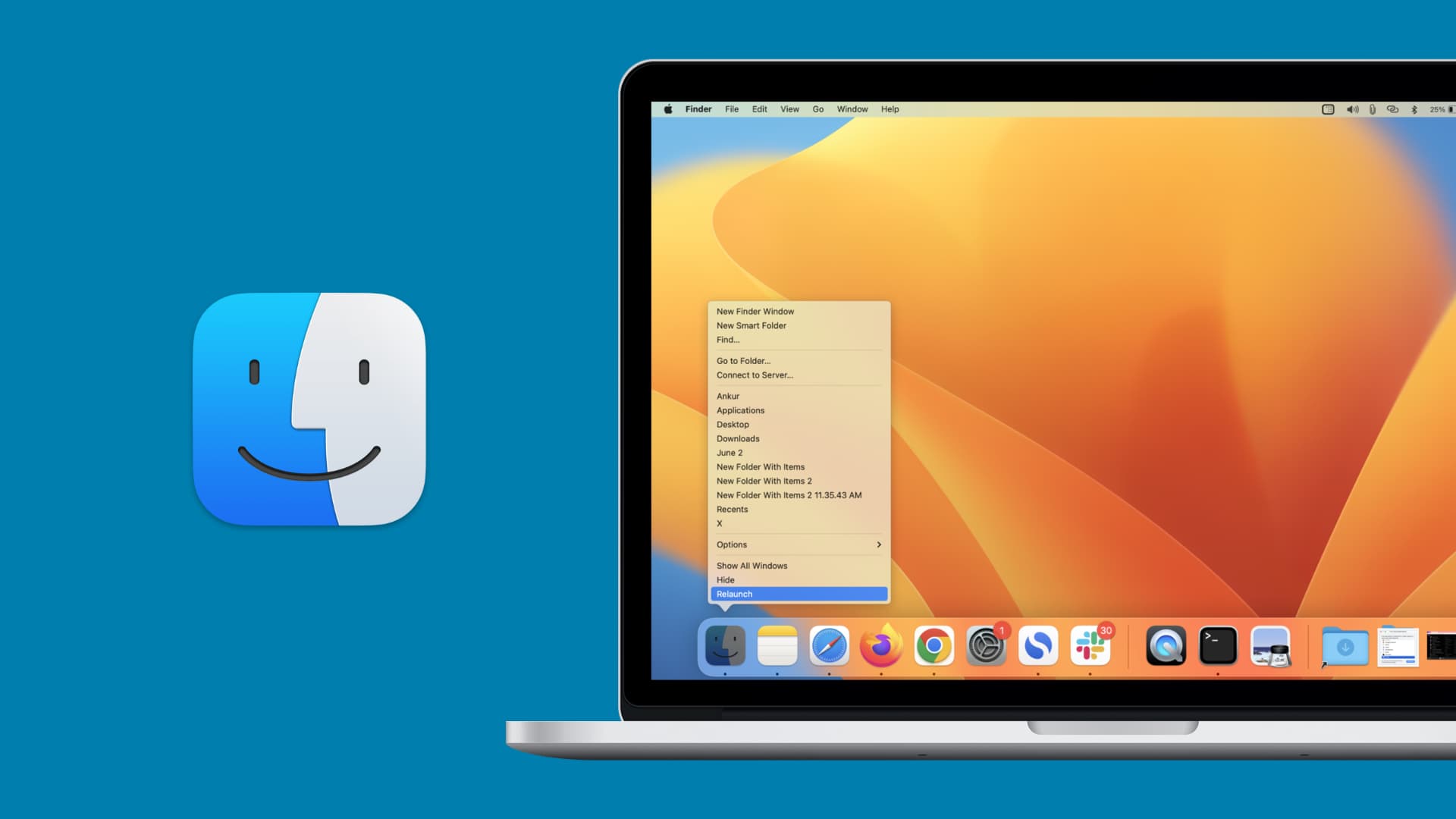
This is the fastest way to restart the Finder.
- Press and hold the Option key on your Mac.
- Right-click/Control-click over the Finder’s icon in the Dock and choose Relaunch from the menu.

Use Force Quit
The Force Quit feature will purge the Finder process from memory and reload a fresh new instance.
- Open Finder or click the desktop to activate it. You’ll see the word ‘Finder’ next to the Apple icon at the top left corner of the screen.
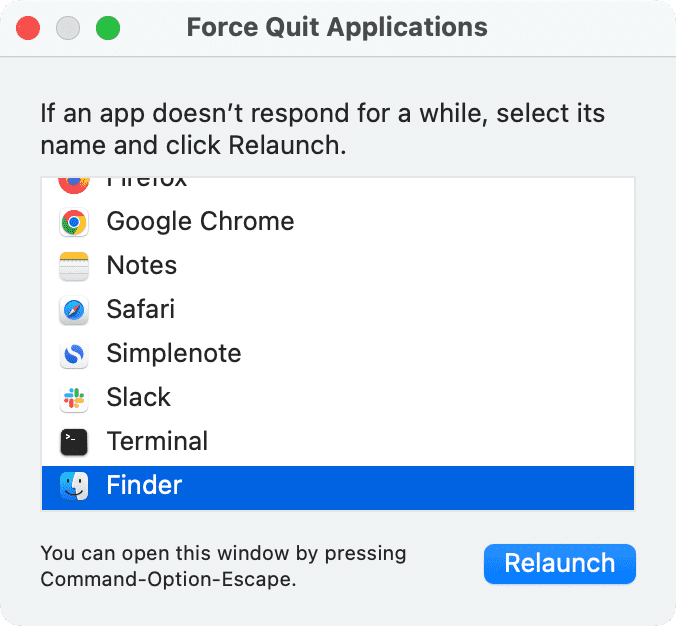
- Hold the Shift key while clicking the Apple icon and choose Force Quit Finder.

You can also click the Apple icon , choose Force Quit, select Finder from the list of running apps, and click the Relaunch button.
Use a simple Terminal command
How about one more way?
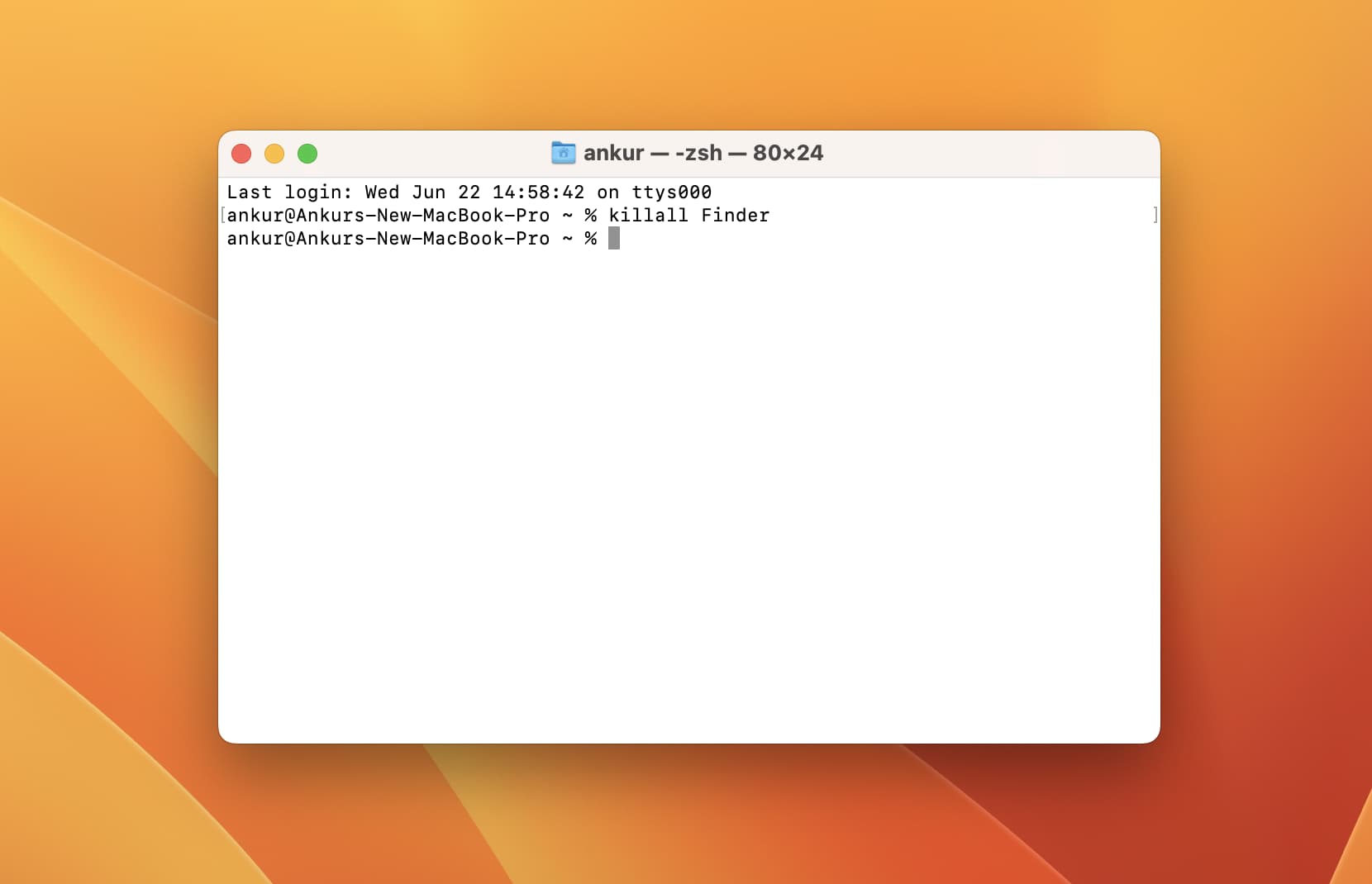
- Open Terminal, type
killall Finderinto the Terminal window, and press the enter / return key. - If asked, enter your macOS account password (you won’t see anything in the Terminal window when entering passwords). The command will instantly quit and then reopen the Finder. If not, just click its Dock icon to launch it.
If the Finder on your Mac gets stuck or starts acting weirdly, relaunching is the best way to fix it.
In case the whole system freezes to the point where your clicks don’t register and you can’t do anything, restarting your Mac should fix the issue.
My favorite trick is creating multiple virtual desktops on my Mac. That way, if one freezes, I can switch to another and invoke Force Quit from there.
Also, check out: