Learn about these six quick ways to start an audio recording on your iPhone, iPad, or Apple Watch so you never miss recording an important conversation for memories or record-keeping.

This guide is a continuation of our earlier tip where we talked about the 7 fastest ways to launch the camera on your iPhone, ensuring you never fail to capture a beautiful memory.
Using Lock Screen control
Recent versions of iOS allow replacing the stock flashlight and camera icons with other features, including a voice memos toggle. This is one of the fastest ways to start a voice recording on all iPhones running the latest version of iOS.
- Touch and hold your unlocked Lock Screen until it shrinks, then tap Customize.
- Tap the minus button (-) to remove the flashlight or camera button.
- Tap the plus button (+), select Voice Memo, and save the new changes by tapping Done.

From now on, simply touch and hold the Voice Memos button on the Lock Screen to start a recording. It works even when your iPhone is locked (but obviously the screen has to be awake, so you can interact with the on-screen button).

Note: You can also build a simple shortcut in the Apple Shortcuts app to start a voice recording, and then add that shortcut as a widget to your Lock Screen. This is particularly helpful for iPad users, as iPadOS doesn’t have native Lock Screen controls like iOS.
In my opinion, the Action button method is even faster than the Lock Screen method explained above. But since the Action button is only on iPhone 15 Pro and later models, I have put it second on the list.
- Open the Settings app on your iPhone and tap Action Button.
- Swipe to Voice Memo and then simply exit the app.

Moving forward, just press and hold the Action button to start and stop an audio recording. It works even when your iPhone is locked, and the screen is not awake.

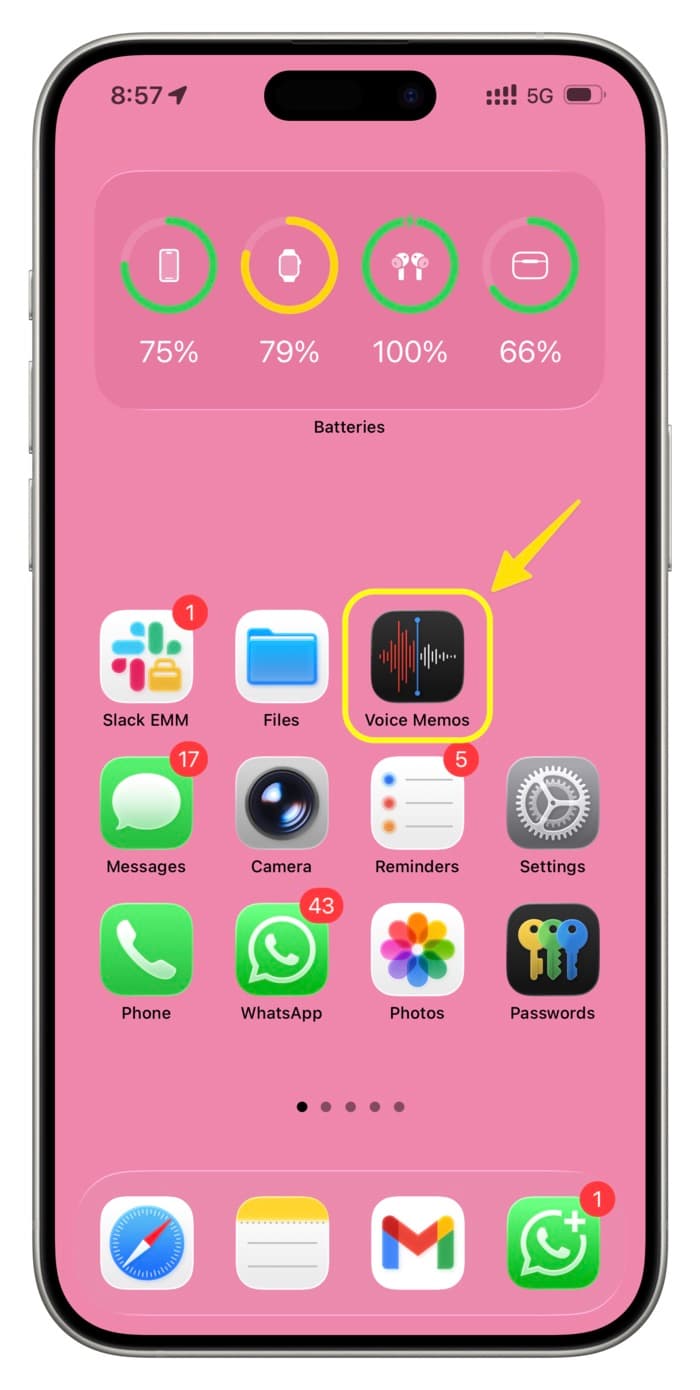
Add Voice Memos to Home Screen or Dock
Out of the box, the Voice Memos app is nested inside a Home Screen folder, which can take a bit longer to access. Therefore, drag the app out of the folder and put it on your Home Screen page or Dock.
From iOS Control Center
This is yet another great option to quickly start an audio recording, provided you find it comfortable to reach the top right corner of the screen to access Control Center in time-sensitive situations.
- Go to iOS Control Center and tap the plus button (+) in the top left corner, followed by Add a Control.
- Find and add the Voice Memo button.

After this, simply go to Control Center from your iPhone Lock Screen or Home Screen and tap the wave icon to begin recording. This also works when your device is locked.

By asking Siri on iPhone or AirPods
Invoke Siri on your iPhone, iPad, or AirPods and ask it to ‘record a voice memo.’ Note that asking it to ‘start an audio recording’ may not work at all times, so it’s better to stick with the phrase that has ‘voice memo’ in it.
If you wear an Apple Watch, add the Voice Memos complication to a supported watch face to quickly start an audio recording.
- Touch and hold a watch face that supports complications, and tap Edit.
- Swipe to Complications and tap a spot.
- Then, tap the back button (<), select Voice Memos from the list of apps that support complications, and select the Voice Memos action.
- Press the Digital Crown to exit editing mode.

After this, tap the voice memo complication to jump right into the Voice Memos app, and then tap the big red button to start recording.

And if you have an Apple Watch Ultra, go to watchOS Settings > Action Button to customize it to start and stop an audio recording with a single press of the physical button.
These are the simplest and quickest ways to start an audio recording on your iPhone, iPad, or Apple Watch. Which one will you be using?
Also, check out: How to improve the sound quality of your Voice Memos recordings with a single tap