Find out what to do if your iPhone or iPad running iOS 26 is connected to Mac but still doesn’t appear in the macOS Tahoe Photos app, thus preventing you from accessing and transferring pictures and videos.

For starters, when you connect your iPhone or iPad to a Mac via a USB-C or Lightning cable, the iOS device should appear under the “Devices” heading of the Photos app sidebar. You can then click your iPhone or iPad name to load all the pictures and videos on it, select the media, and import them to your Mac.

Usually, the process is simple and happens without any fuss. However, several people have faced issues related to it after updating their iPhone, iPad, and Mac to iOS 26, iPadOS 26, and macOS Tahoe 26.
The following solutions should help address the problem. We’ll start with the basics.
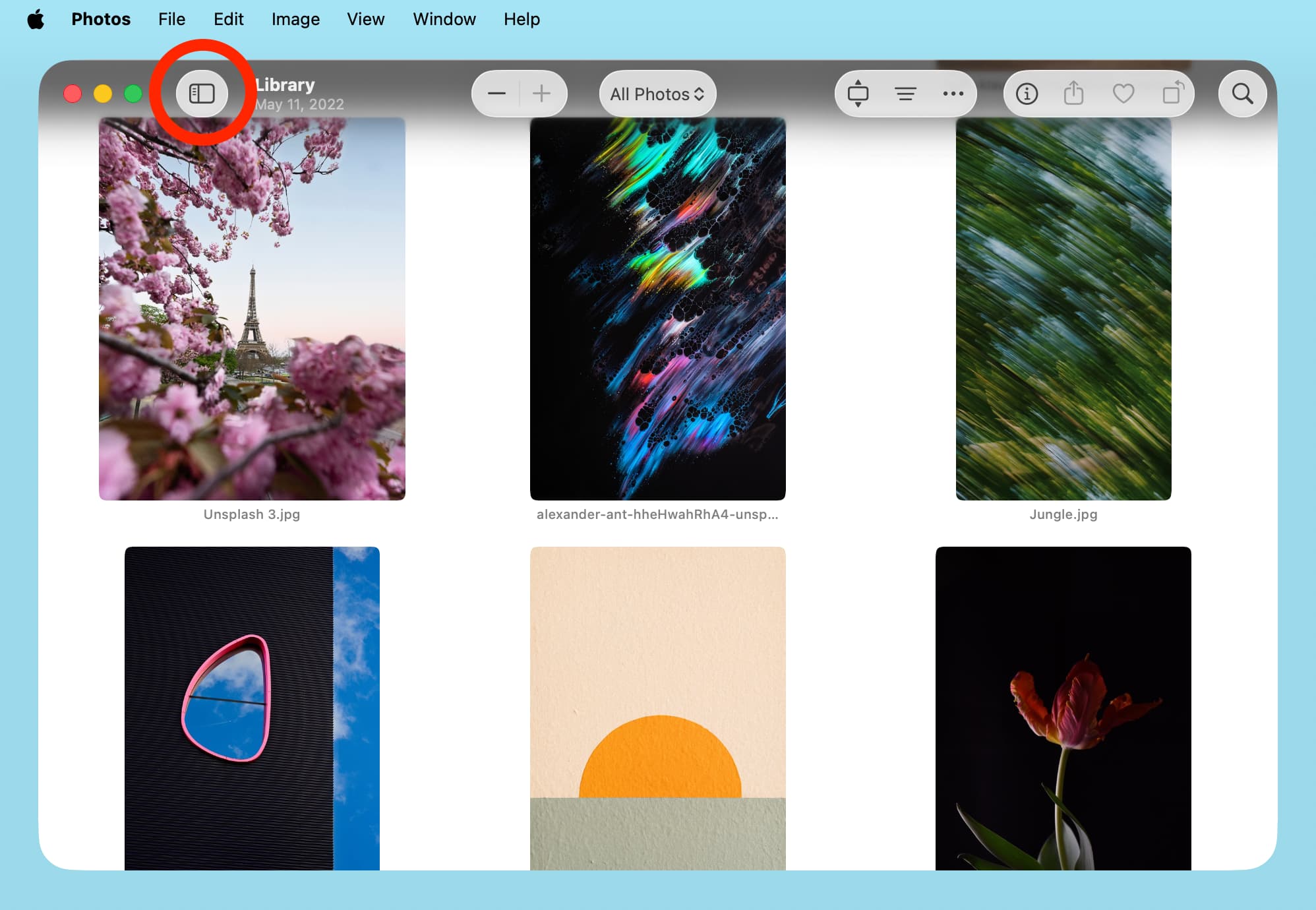
A connected iOS device will only appear in the left sidebar of the Mac’s Photos app. If the sidebar isn’t visible, click the little icon next to the traffic lights button to show it or click View > Show Sidebar from the top menu bar.
Unlock your iPhone or iPad
Make sure your iOS device is unlocked by Face ID, Touch ID, or device passcode. Then, wait a few seconds for it to appear in Mac’s Photos app.
Disconnect and reconnect the cable
Unlock your iPhone or iPad and then unplug the cable and reinsert it. Do this a couple of times, and it should work.
Important: When doing this, if an alert appears on your Mac, make sure to click Allow. And if you see an alert on your iOS device’s screen, tap Trust and authenticate with Face ID or device passcode. If you have never trusted this computer and the permission alert doesn’t appear, reset location and privacy settings, as mentioned later below.

Note: iPhone or iPad can appear in Mac’s Finder even when the devices are connected to the same Wi-Fi network. But for an iOS device to appear in Mac’s Photos app, it must be connected via a cable.
Lock and unlock your iOS device
Ensure your iPhone or iPad is connected to your Mac via a USB cable. Then, lock the device, wait for 10 seconds, and unlock it. Hopefully, this simple step will show your iOS device in the Mac Photos app.
Force quit and reopen Mac’s Photos app
Use the Force Quit menu to close the Photos app and reopen it after about 15 seconds. Now, wait a few more seconds for your iPhone or iPad to appear in the macOS Tahoe Photos app sidebar.

Restart both devices
In many situations, system glitches may be the reason for such troubles. Restart both devices, and things should start working as intended.
Change wired accessories security settings
I was facing this issue where my iPad appeared in the Mac Photos app, but my iPhone didn’t. I tried all the above solutions, but none helped. Thankfully, this one did the trick and continues to work all the time in fixing the said problem:
- Open the iOS 26 Settings app and tap Privacy & Security.
- Scroll down and tap Wired Accessories.
- Select Always Ask. And you should now see an alert on your iPhone screen; tap Allow. If you don’t see this alert, unplug and replug the cable. After that, go to Mac’s Photos app, and your iPhone should appear there.
- After your iPhone is visible in Mac’s Photos app, you can now change Wired Accessories back to Ask for New Accessories.

Ensure everything is updated
If your iPhone, iPad, and Mac are on an early version of iOS 26, iPadOS 26, or macOS Tahoe, update to the most recent version available.
Reset iOS privacy settings and trust the computer again
iPhone and iPad will appear in Mac’s Finder, Photos, Image Capture, and other apps only after you trust that computer.
Usually, you see the ‘Trust This Computer?’ prompt after connecting an iOS device to a Mac or PC for the first time.
In case you didn’t complete the ‘trust’ process and now don’t get the option to do that, reset your iPhone or iPad’s location and privacy settings from Settings > General > Transfer or Reset iPhone > Reset > Reset Location & Privacy. Then, reconnect it to your Mac, and you’ll get the option to allow the connection and trust it.

Use a different cable or USB hub
In case all the above steps have failed to work, try using a different USB cable. If you’re unsure, just use the cable that came in the box with your iPhone or iPad.
And if you’re using a USB hub or adapter, consider connecting your iPhone or iPad directly to the Mac’s USB-C port.
Which of the above solutions worked for you?
On a related note: How to fix Image Capture not showing all iPhone or iPad photos