Learn how to configure your AirPods to automatically pause audio or video playback when you fall asleep so your favorite music or podcast won’t disrupt your sleep.
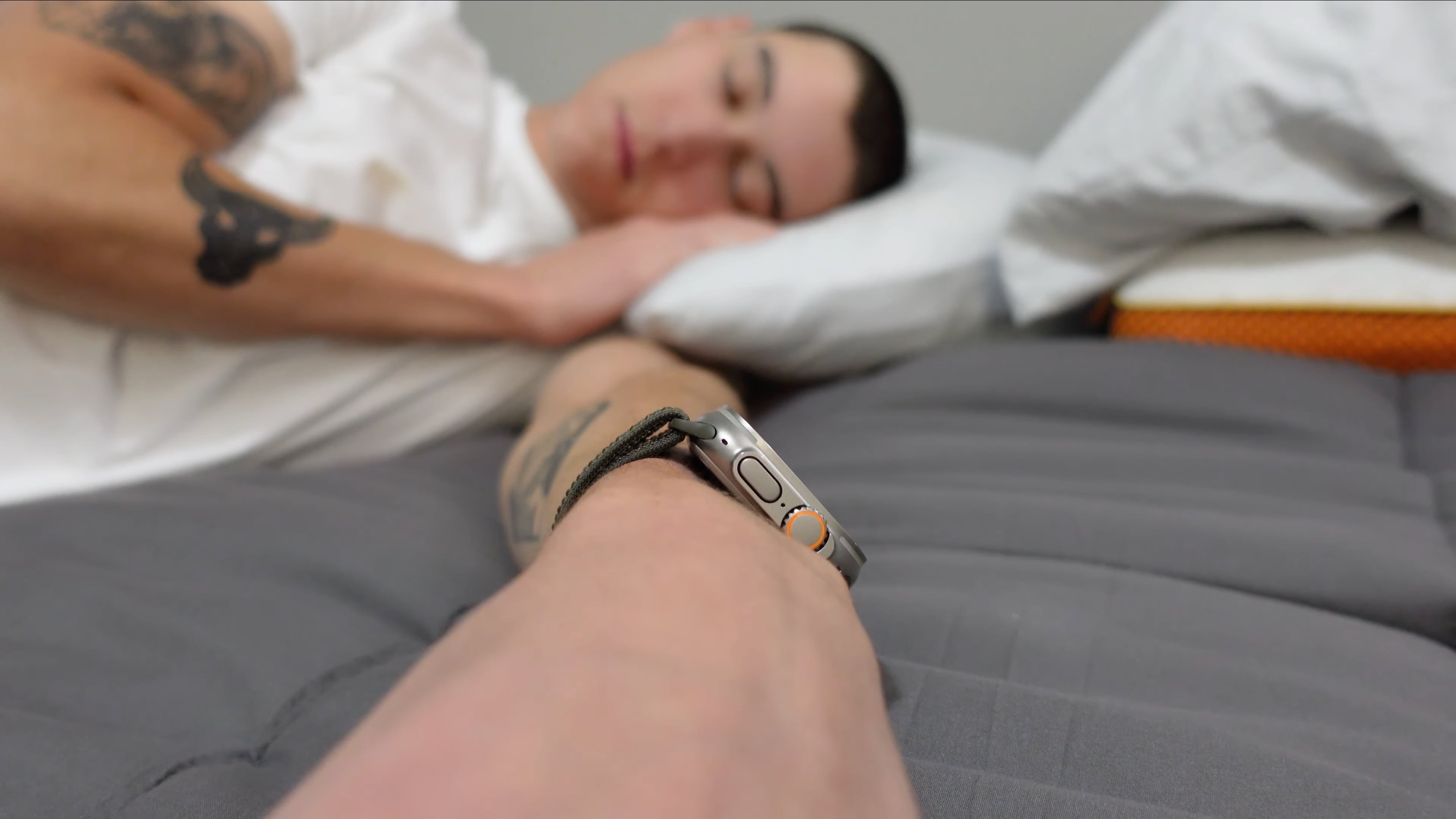
If you own a pair of AirPods 4, AirPods Pro 2, or AirPods Pro 3, you can configure them to automatically pause playback across all apps when sensors detect you’ve fallen asleep.
Many people wear their AirPods in bed to listen to their favorite podcast or maybe make themselves sleep soundly by playing some white noise or relaxing sounds from the “Sound Therapy” playlist on Apple Music or similar.
Instead of setting up a sleep timer, you can have your AirPods do that automatically.
Pause AirPods audio when you fall asleep
- Connect your AirPods to your iPhone and wear them.
- Open the iOS Settings app.
- Select your AirPods below your Apple account at the top.
- Tap Audio & Routing if your iPhone is running iOS 27.
- Scroll down and turn on “Pause Media When Falling Asleep.”

It should be turned on by default, but it doesn’t hurt to check its state to confirm that sleep-based audio control is active. In my testing, the feature worked seamlessly, and I’m glad it requires no additional setup.
If you don’t see this option, it means your AirPods have not been updated to the latest firmware. You’ll have to wait until they update automatically.
Do you sleep with your AirPods?
This is a great feature for anyone sleeping with their AirPods. I routinely fall asleep with the AirPods in my ears, and oftentimes one of the earbuds would fall out of my ear during the night. Over time, this can cause one AirPod to die faster than the other. Turning on the Automatic Ear Detection feature can help by pausing playback automatically when an AirPod is removed from your ear.
But you’ll want to avoid this situation in the first place and enjoy equal listening time, even if there are fixes for an uneven battery charge between the left and right AirPods. With this handy sleep-based audio control in AirPods settings, you can have audio playback stop automatically when you fall asleep, whether or not you have both earbuds in your ear or the Automatic Ear Detection feature is turned on.
I’ve turned this setting on to ensure that both earbuds retain approximately even charge during the course of their lifetime. This also saves battery on my iPhone and keeps my Apple Music history clean by preventing music from overplaying unnecessarily during the night.