Speed up your Home Screen navigation by learning how to move through the pages of apps much faster than by swiping.

People love adding multiple widgets and app icons to their Home Screen, which in turn increases the page count. If you’re among them, chances are that swiping to get through multiple app pages is quickly becoming tiresome.
But it doesn’t have to be that way, as iOS has a faster trick to move between the Home Screen pages on your iPhone or iPad.
Move through iPhone or iPad Home Screen pages quickly
- This tip works even with the Search button visible, but for best results, hide it by going to Settings > Home Screen & App Library, and turning off Show on Home Screen. You can still access Spotlight Search by swiping down anywhere on the Home Screen.
- Now, to speed up navigation when moving from one Home Screen page to another, all you need to do is interact with the dots at the bottom, which indicate how many app pages you have. Simply rest your finger on the dots at the bottom of any Home Screen, then slide it across.
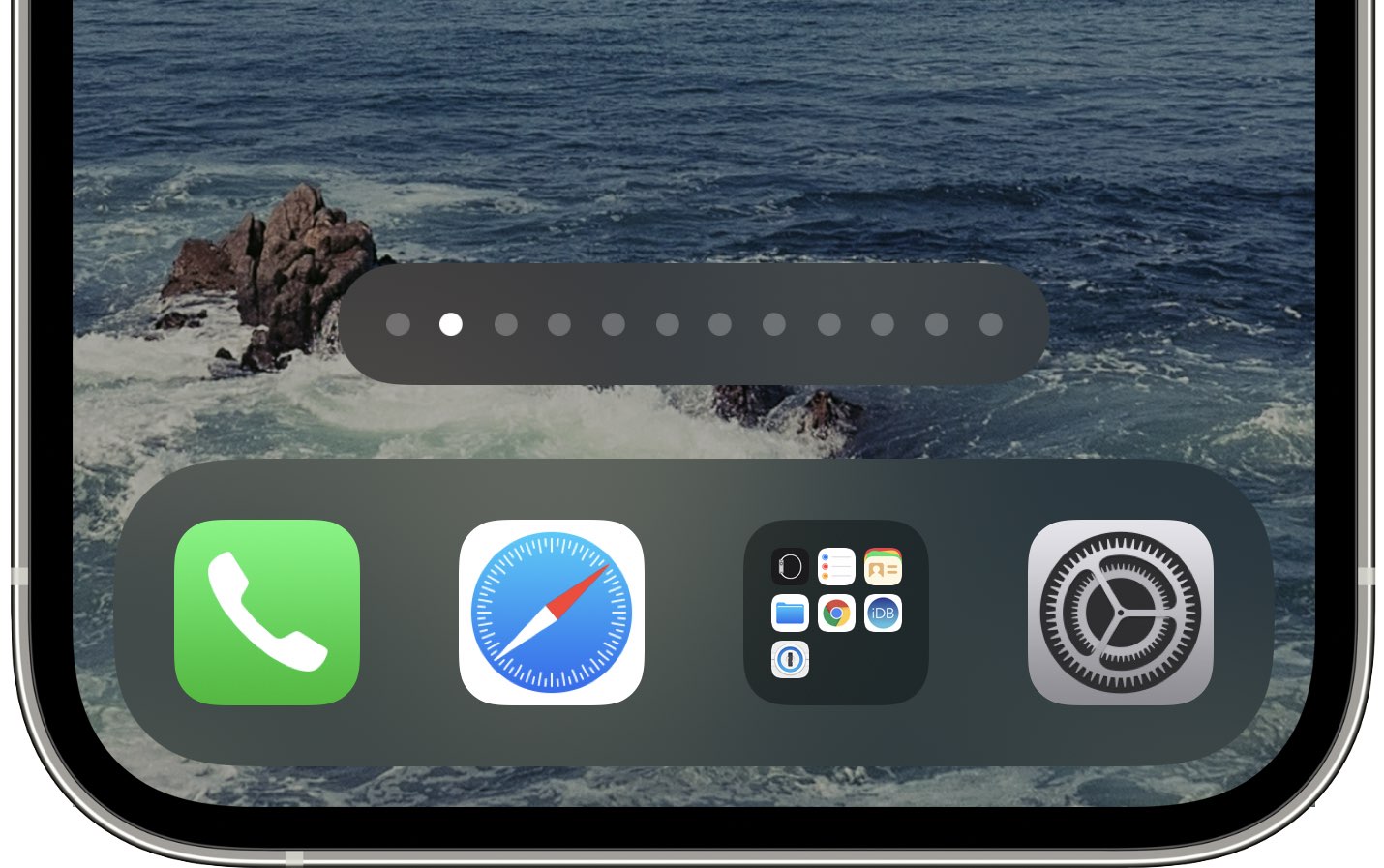
This basically means that you can use your finger like a scrollbar to scrub through multiple Home Screen pages very, very quickly. You should feel subtle haptic feedback via your iPhone’s Taptic Engine, indicating you’ve successfully shifted from one app page to another.
Useful when using a trackpad with your iPad
If you have a Magic Keyboard with a trackpad or are using your MacBook’s trackpad on your iPad, you can swipe left or right with two fingers. In addition to that, you can put the cursor over the dots and then touch & hold with one finger until the dots are surrounded by a pill shape. Now, swipe your finger to go to other Home Screen pages.
Note that if you touch and hold for a long time, it will invoke jiggle mode.
If you use a mouse with your iPhone or iPad
You can pair a mouse with your iPhone or iPad. When you’re using a Magic Mouse with your iPad (Magic Mouse can’t connect to iPhone), you can swipe on the touch surface to swipe through the Home Screen pages.
However, when you’re using some other mouse with your iPhone or iPad, you may not be able to swipe to go to other Home Screen pages. In this case, it becomes essential to use these dots to swipe between your various app and widget pages.
More for your Home Screen: