Learn how to set a strong numeric passcode or, better yet, an alphanumeric one to boost the security and protect data on your iPhone and iPad.
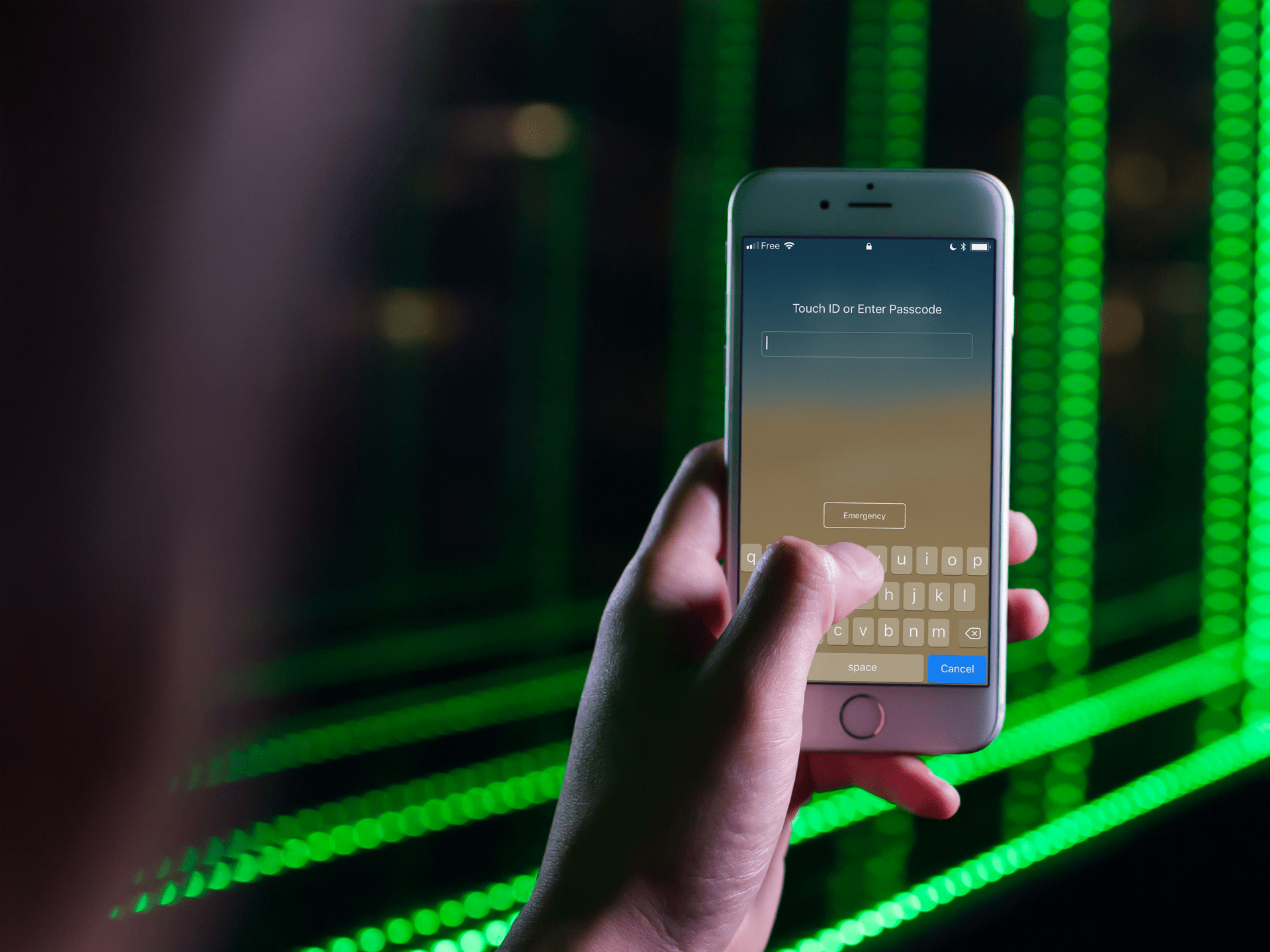
The first step to securing your iPhone and protecting your personal information is setting a strong passcode.
iOS, by default, requires a six-digit passcode, which is much better than the previous four-digit requirement, but you can crank up passcode strength even further by setting a custom numeric or alphanumeric passcode.
A numeric passcode can have more than six digits, while an arbitrary-length alphanumeric one with multiple letters and numbers offers the strongest security.
Make your iPhone passcode stronger
1) Open the Settings app and tap Face ID & Passcode or Touch ID & Passcode. Enter your current passcode to get in.
2) Tap Change Passcode and enter your current passcode when asked.

Important: If you have Stolen Device Protection enabled, tap Start Security Delay, then wait for an hour before coming back here.
3) On the “Enter your new passcode” screen, tap the three dots icon at the top and select Custom Numeric Code or Custom Alphanumeric Code.

On older versions of iOS, tap Passcode Options and select Custom Numeric Code or Custom Alphanumeric Code.
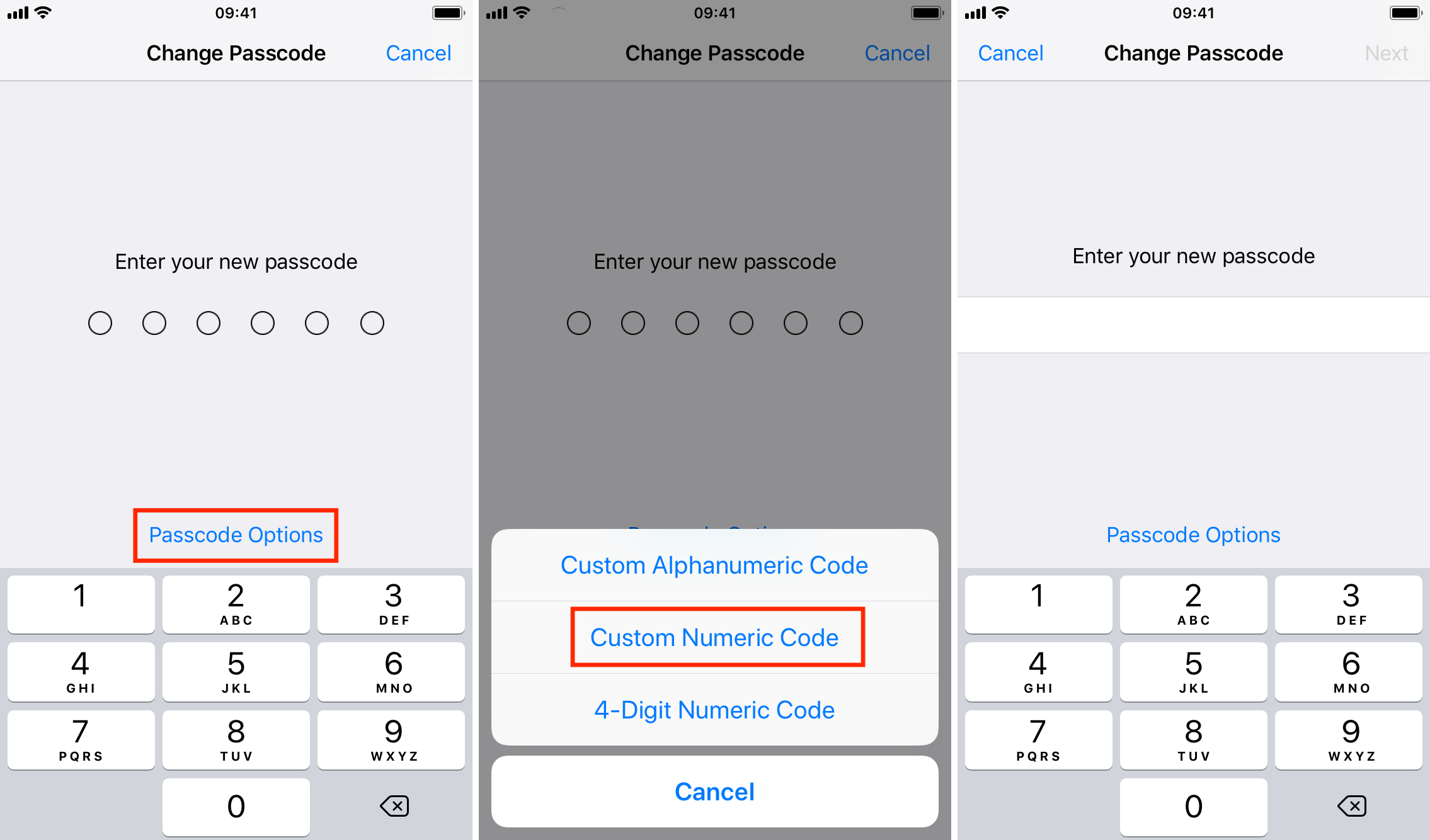
4) If you choose Custom Numeric Code, create a passcode comprised of six or more digits.
If you choose Custom Alphanumeric Code, type a custom alphanumeric password of any length you like, using a combination of letters, numbers, and symbols. The longer the passcode, the harder it will be to break.
Tap the new passcode twice to save it. In older versions of iOS, also remember to tap Done to save the new changes.
It may take a few moments to save your new passcode, during which time the device may appear unresponsive. Just be patient until iOS sets the new passcode, and everything will be back to normal.

Be sure to write down the new passcode and store it in a safe place because some folks forget their new passcode shortly after changing it.
Thankfully, Apple lets you use your old password to reset your forgotten password. However, you’ll need to erase your iPhone (which clears all data) to reset your forgotten passcode after 72 hours, or if you manually expired the old passcode in the Settings app.
On a related note: