Learn how to add audio to your documents, spreadsheets, and presentations in Apple Pages, Numbers, and Keynote apps on your iPhone, iPad, or Mac to provide a more immersive experience and boost engagement.
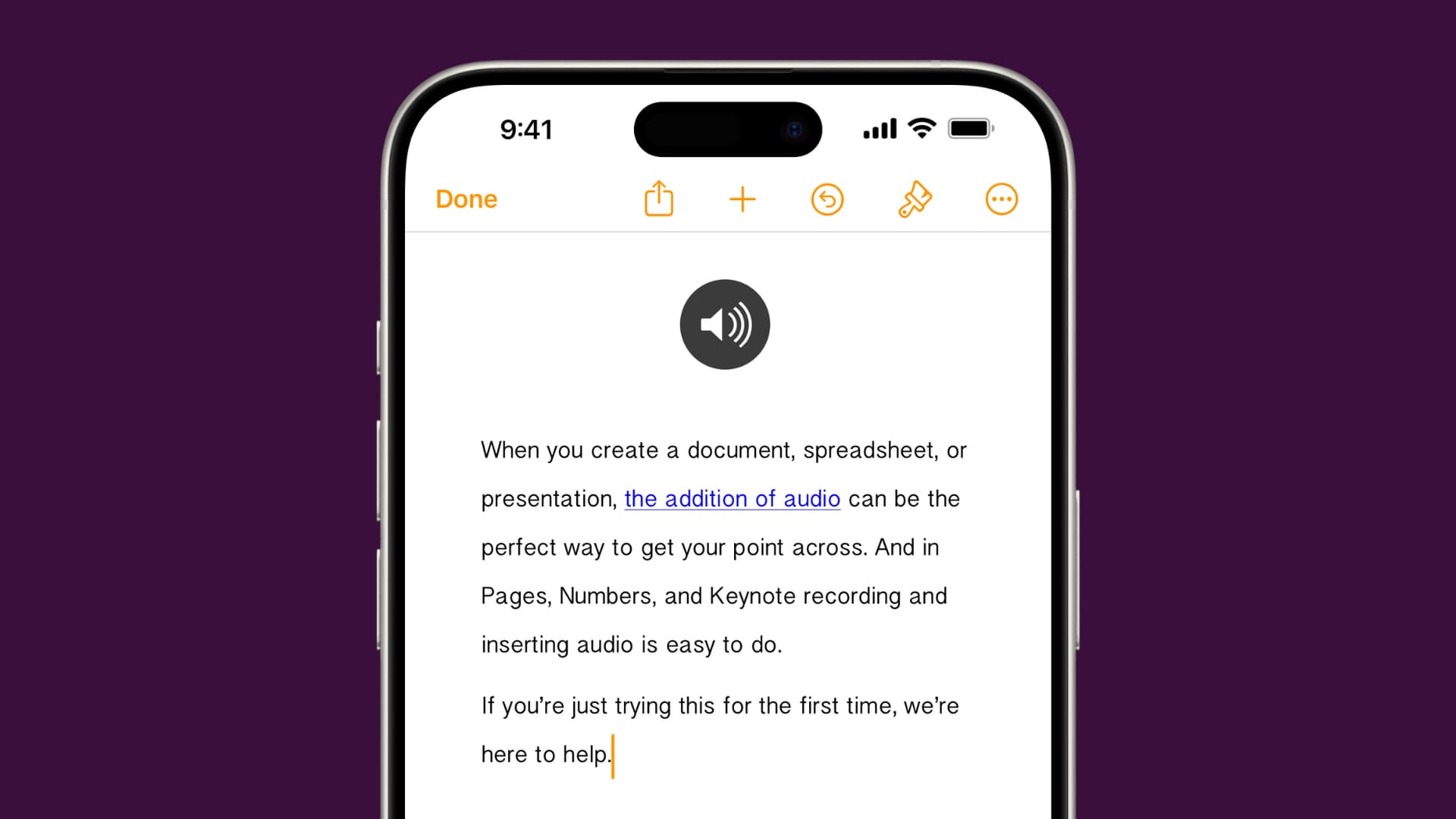
When you create a document, spreadsheet, or presentation, the addition of audio can be the perfect way to get your point across. And in Pages, Numbers, and Keynote, recording and inserting audio is easy to do.
If you’re just trying this for the first time, we’re here to help.
Record audio on iPhone and iPad
The steps for recording and inserting audio are the same for Pages, Numbers, and Keynote. So, open one of those apps to your document on your iPhone or iPad and then do the following.
1) Tap the plus sign at the top, select the media button, which is the one on the far right, and pick Record Audio.
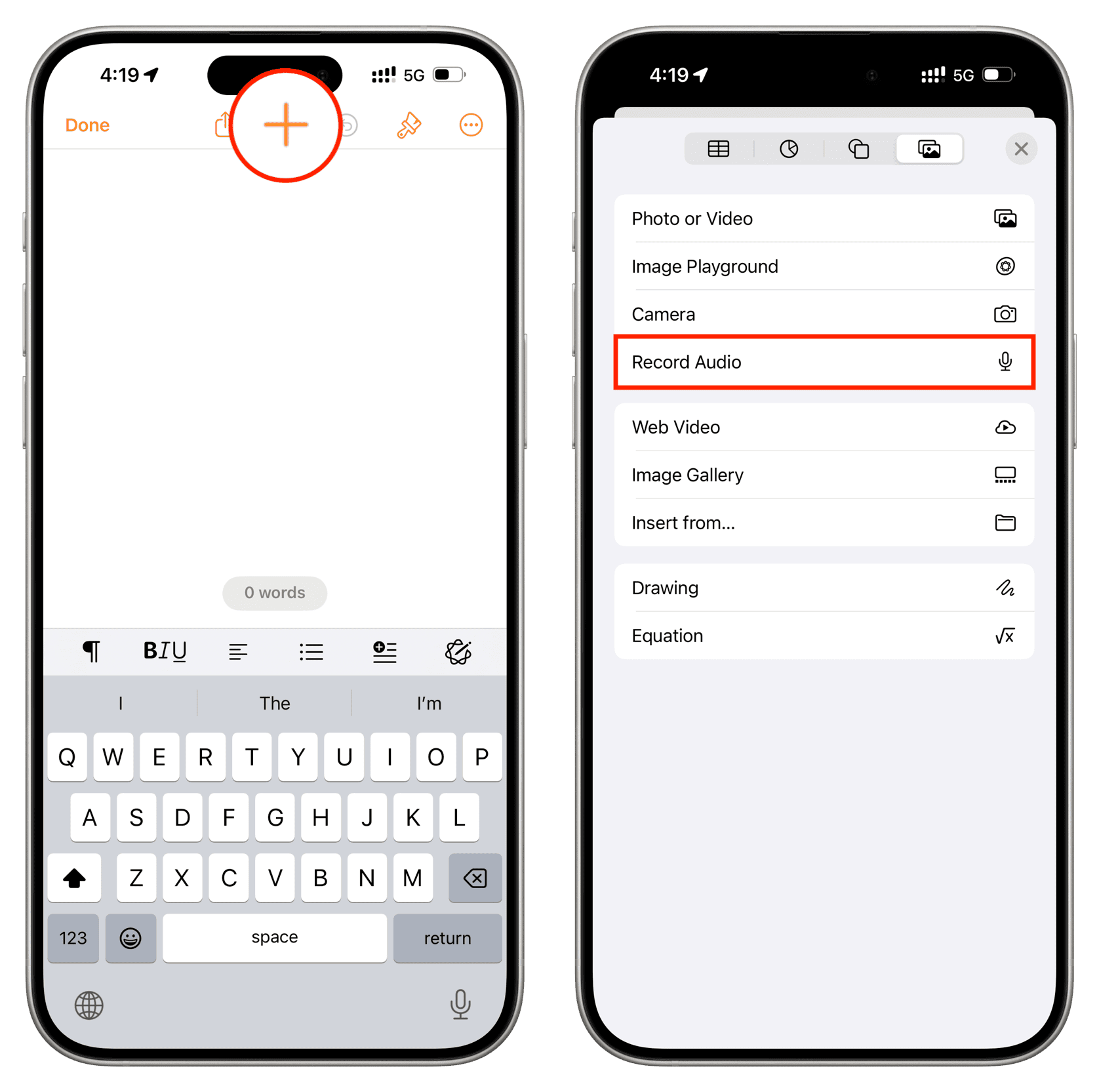
2) Tap the Record button to start and stop when you finish.

3) You can then listen to the preview, record more, or edit the recording.
4) When you’re happy with the recording, tap Insert at the top. Once in your document, just tap and drag the recording icon where you want it.

Adjust your recording
You can make a few changes to your recording after you add it to your document. Select the recording and tap the Format button at the top. You can then enable loop, adjust the volume, add a description, or edit the recording.
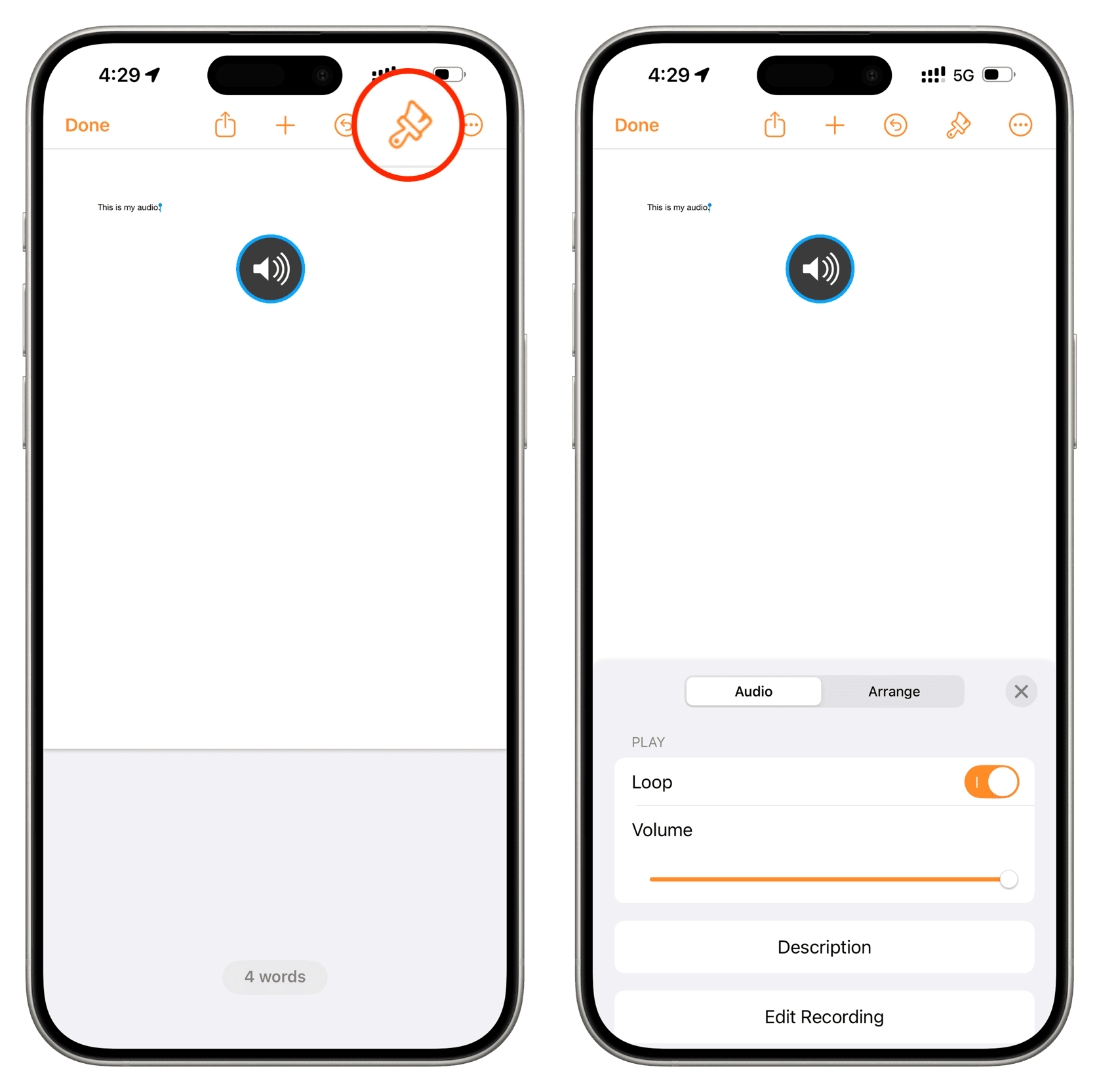
In Keynote, you also have a toggle for Start on Tap.
Record audio on Mac
Just like on iPhone and iPad, you’ll follow the same steps to record audio in Pages, Numbers, and Keynote. So open the app you want to your document and do the following.
1) Select Insert > Record Audio from the top menu bar.
2) Click the Record button to start and stop when you finish.
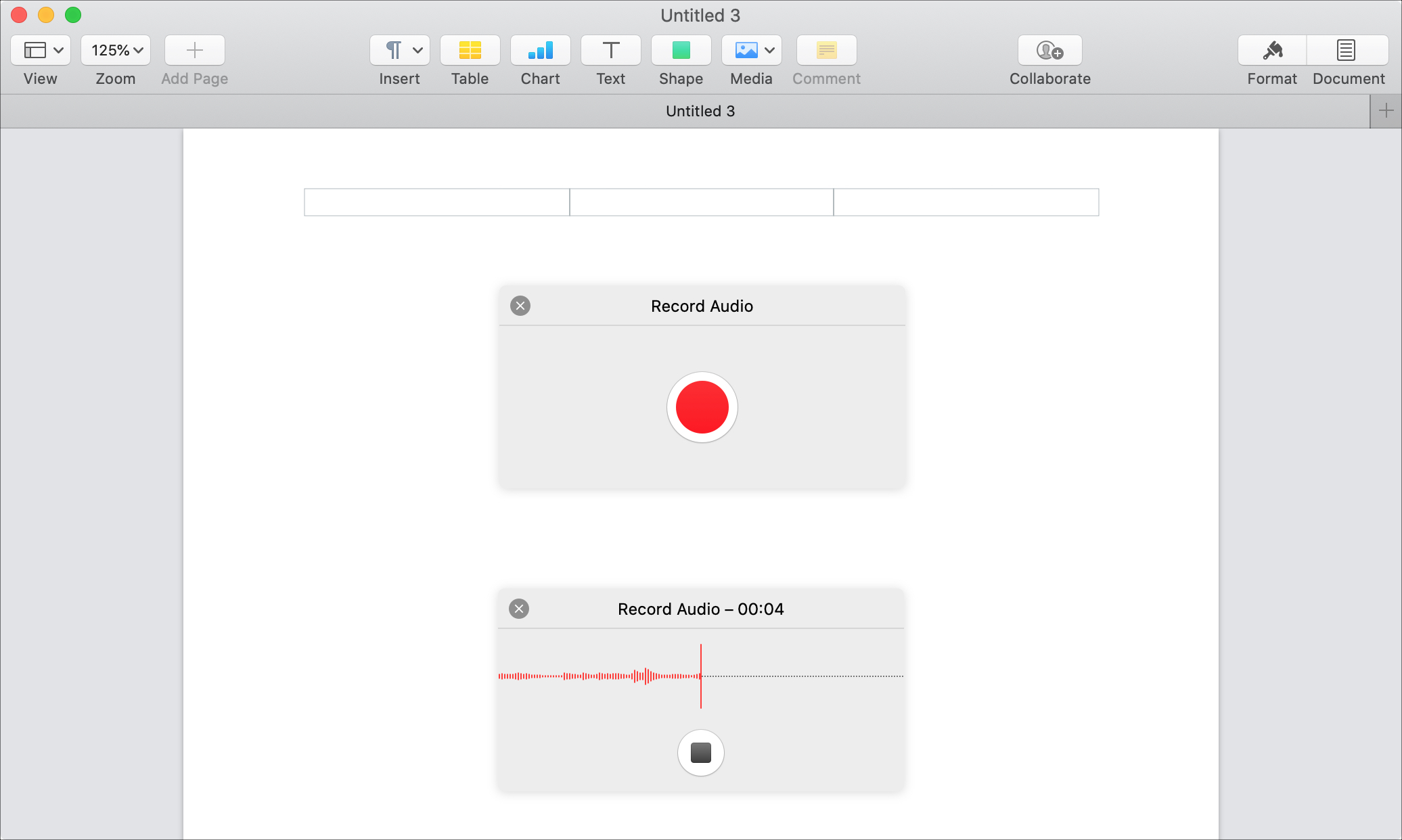
3) You can then listen to a Preview, record more by clicking the red button, or edit the recording. You can also cancel the recording by clicking the X.
4) Click Insert to add the recording to your document. You can click and drag the recording icon wherever you like.

Adjust your recording
If you want to make changes to your recording after you insert it, select the recording and click the Format button on the top right.
In the sidebar that opens, make sure Audio is selected. You can use the audio controls to play, pause, forward, or rewind the recording. You can also enable loop, adjust the volume, add a description, or edit the recording.
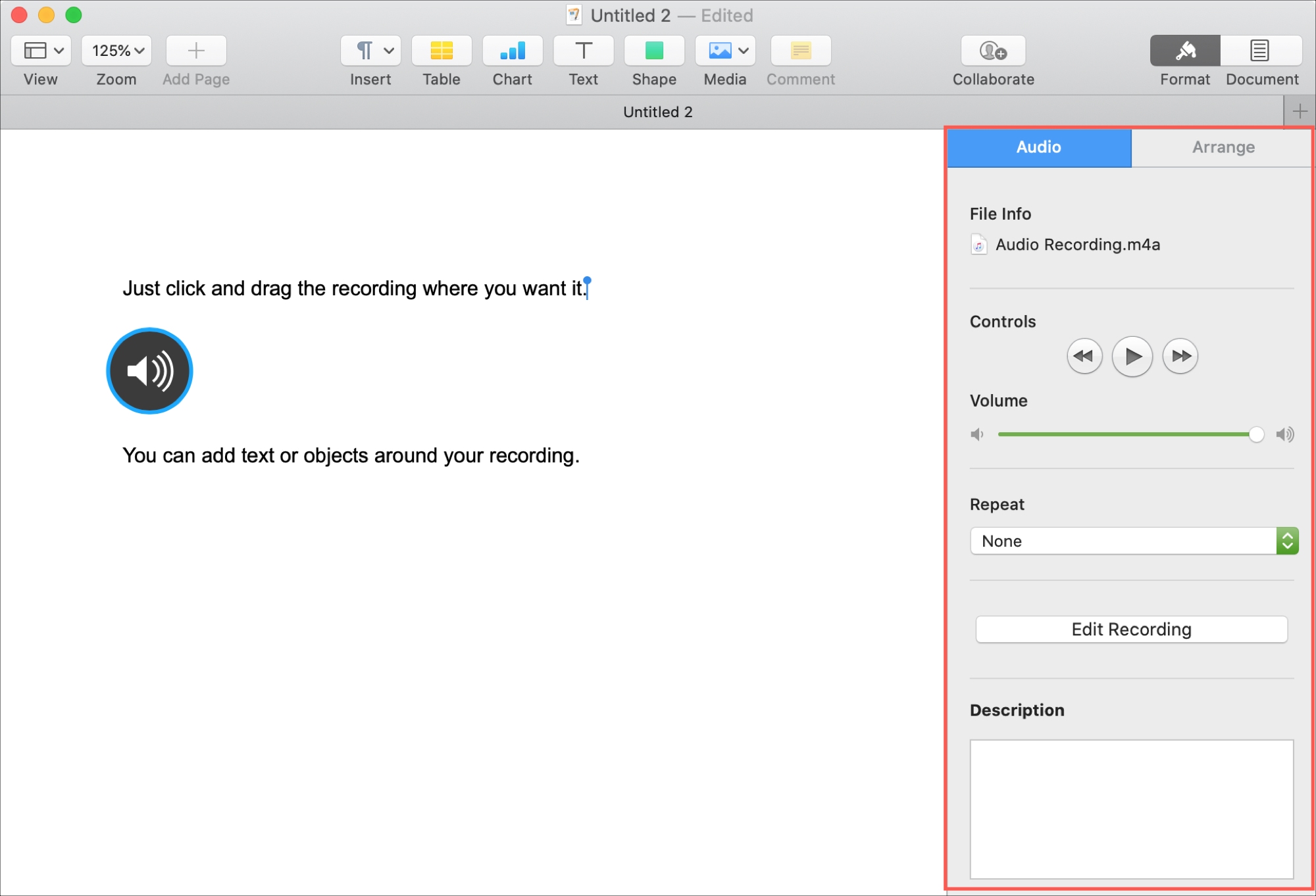
In Keynote, you also have an option to Start audio on click.
If adding audio to your document, spreadsheet, or slideshow is just what it needs, then it’s easy to do. Are you going to give this a try? If so, let us know which app and device you use and how it works out!
Check out next: