Learn how to scan physical documents, such as receipts, flyers, or business cards, directly from the Apple Files app on your iPhone or iPad, and save them in digital form or share them via Mail, Messages, WhatsApp, or Slack.
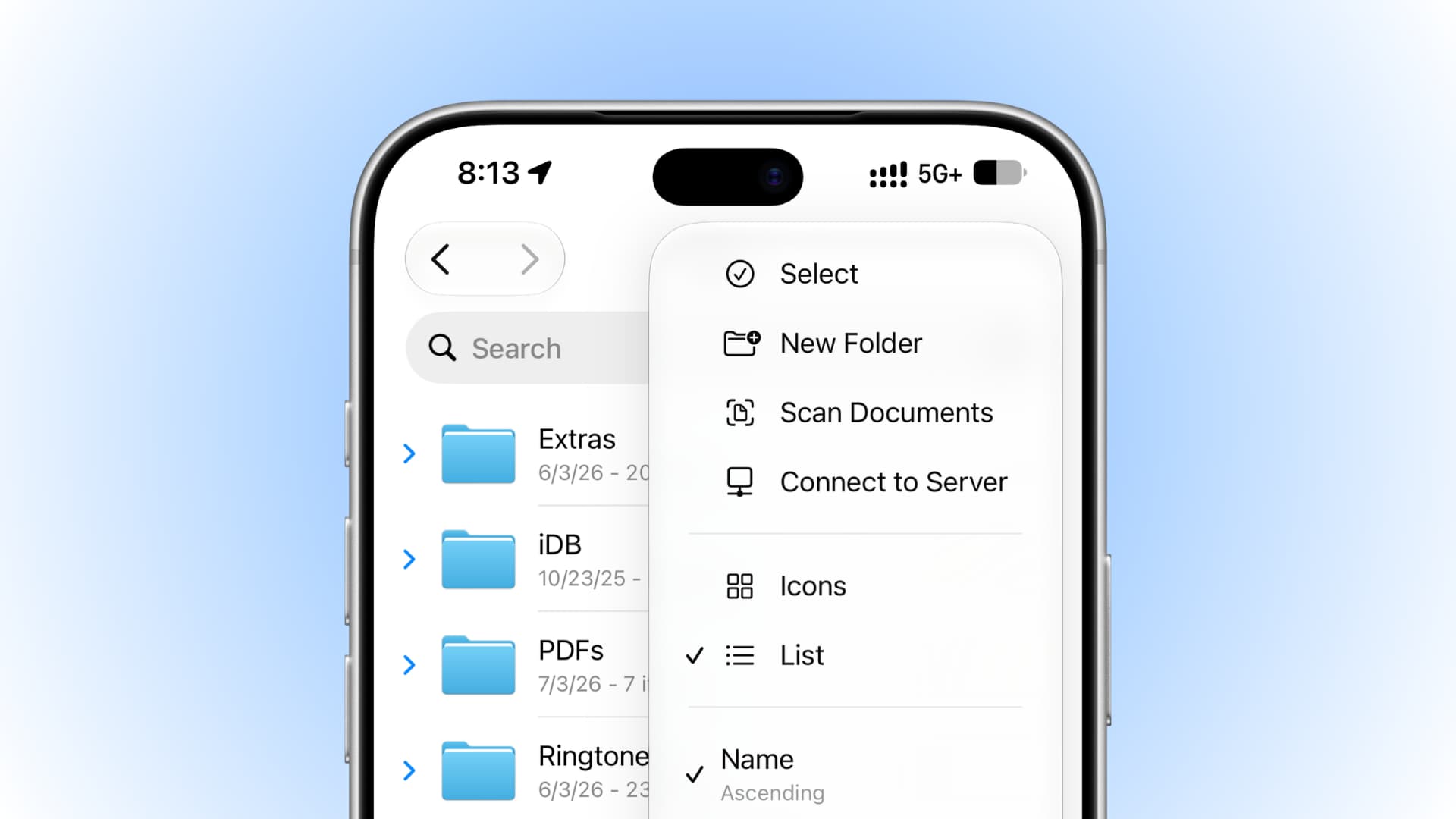
Along with handy features like sharing iCloud folders and zipping or unzipping files, the iOS Files app also allows you to scan documents and save them wherever you want.
This is a good way to save a few bucks on a document scanning app, as well as save time and effort by scanning documents quickly and easily.
Use the Apple Files app as a document scanner
1) Open the Files app on your iPhone or iPad and go to the On My iPhone or iCloud Drive folder where you want to save the file.

2) Tap the three-dot menu button at the top and select Scan Documents.

3) Position your document in the viewer to do an automatic or manual scan:
- Automatic scan: Even if you don’t tap the capture button, the Files app will automatically snap a picture when you position the scanner properly over the document. Keep holding your iPhone or iPad steady, and it will keep scanning and adding all scans to one PDF. Finally, tap the checkmark icon to save the scan.

- Manual scan: Tap Shutter to turn off Auto Shutter. This manual method is handy if you find automatic scanning annoying. Or, if the Files app is not recognizing the document, you can do your best to place it in the scanner frame and then tap the shutter button. After that, use the circles on the four corners to adjust the edges, and tap Keep, which will take you back to the camera scanner screen. If you have another page to scan, you can capture it here. Or, tap the checkmark icon to save the scan.

4) After tapping the checkmark icon, rename the file if you want and tap the checkmark icon on the keyboard.

Once you have the scanned PDF in the Files app, you can store it there or touch and hold the item to share it via email, iMessage, and other apps installed on your iPhone.
Also, check out: