Learn all the ways to launch the macOS Terminal app if you’d like to interact with your Mac using a command-line interface.
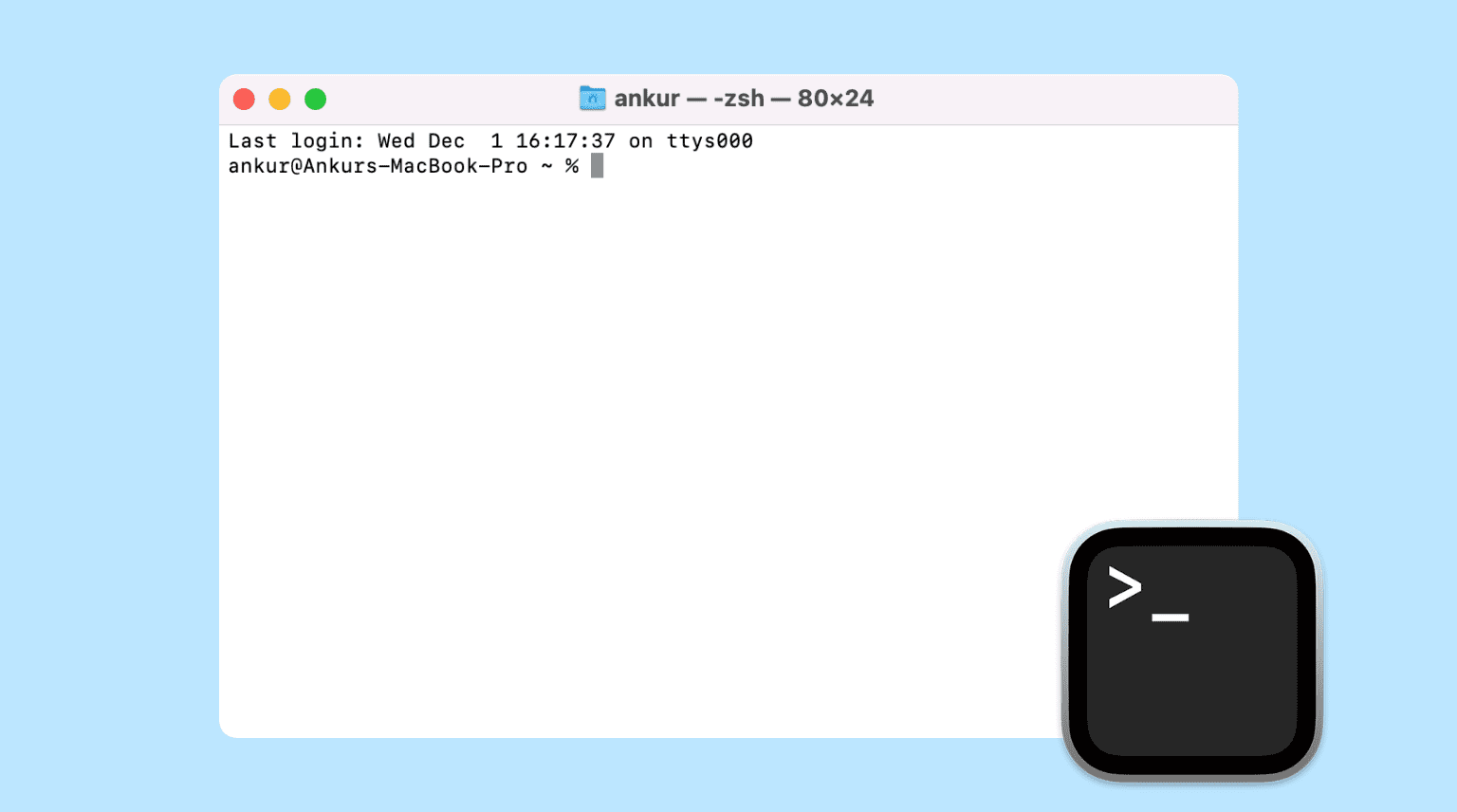
Terminal is a built-in macOS tool that provides a command-line interface.
Primarily designed for power users and developers, Terminal may intimidate novice users who aren’t comfortable with typing cryptic commands. Don’t worry, you’ll find linked articles at the bottom of this post to help you with that. Meanwhile, here are all the ways you can open Terminal on your Mac.
From Spotlight Search
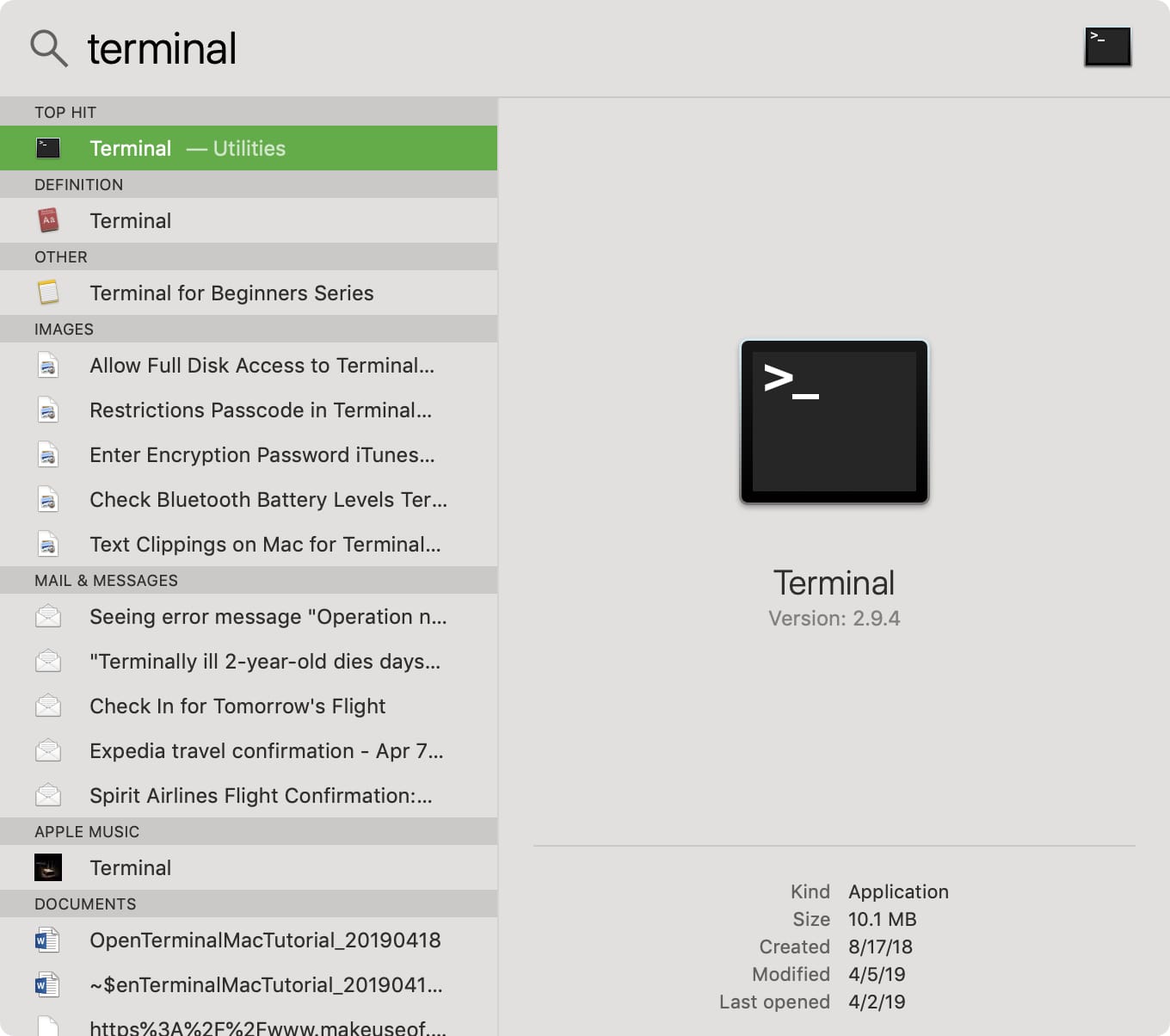
One of the easiest ways to open Terminal on a Mac is Spotlight Search. Click the Spotlight icon in the menu bar or press the Command + Space Bar keys, and type ‘Terminal.’ Select the app or press the return / enter key to open the app.
From the Utilities folder
Click the desktop to make the Finder active, then click the Go > Utilities menu and double-click the Terminal app in the Utilities folder.

Applications folder
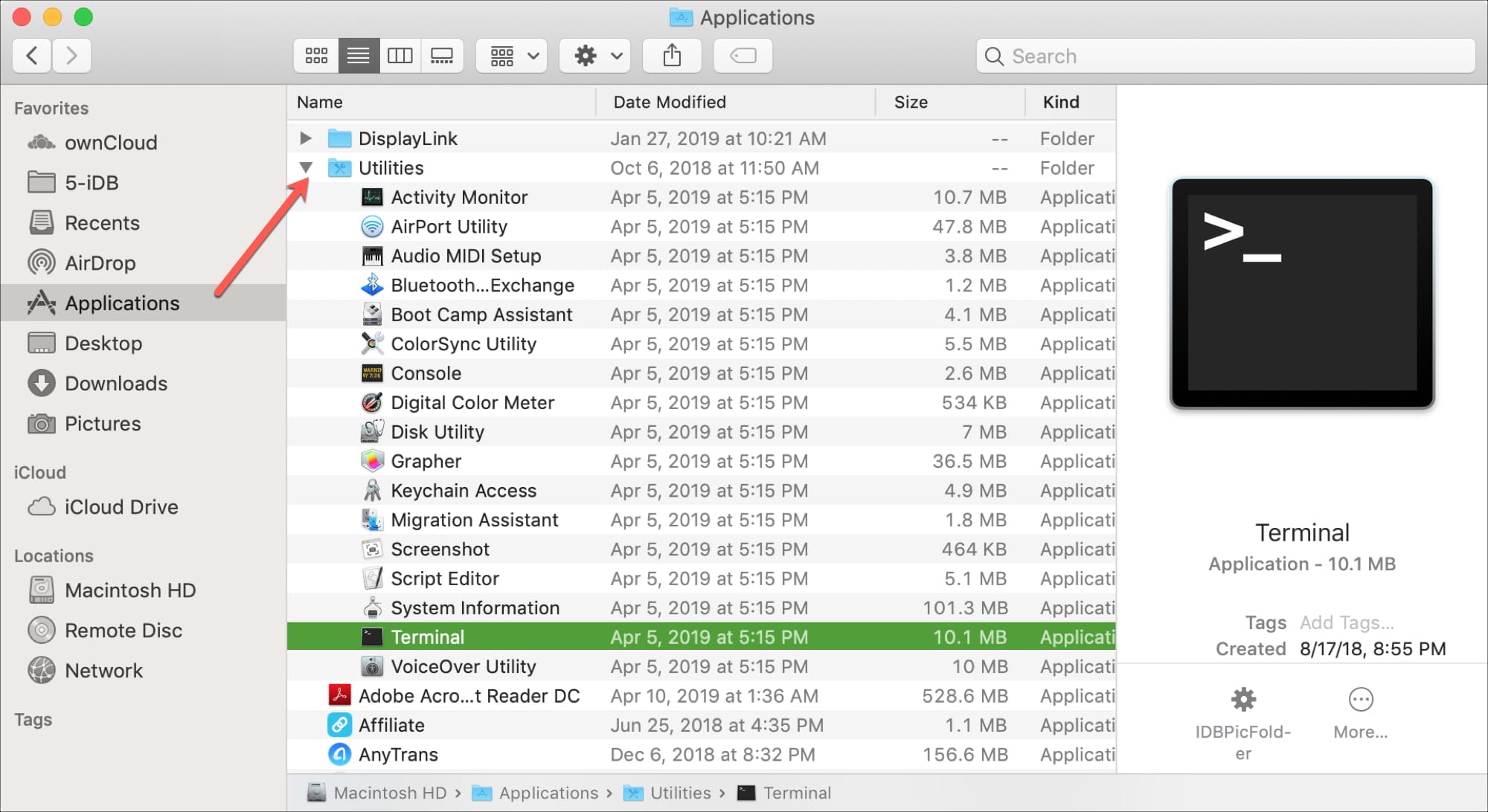
Click the Finder icon in the Dock to open a new Finder window, select Applications in the sidebar, and click the arrow to expand the Utilities folder. Then double-click Terminal to launch it.
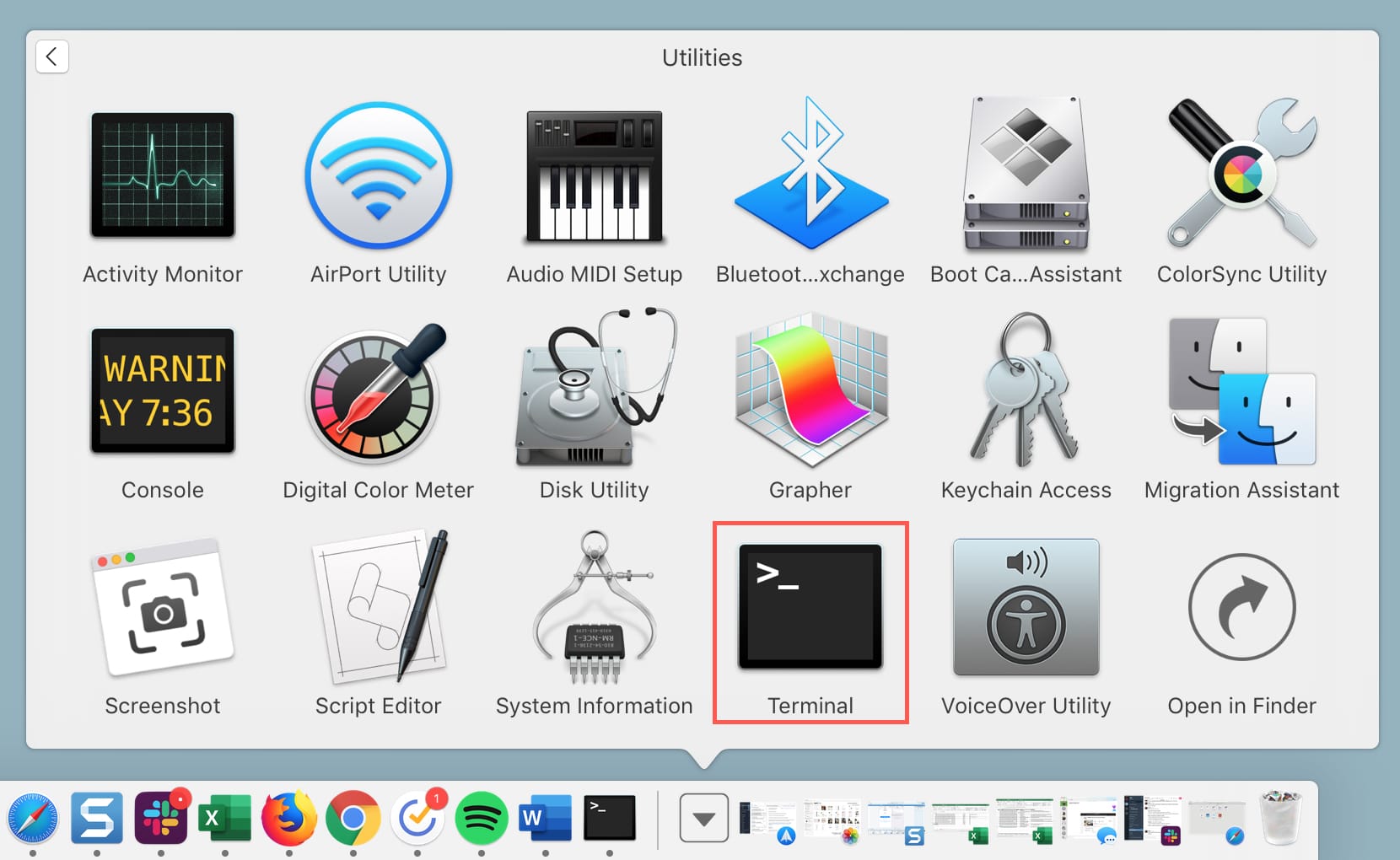
If you keep the Applications folder shortcut in the Dock for instant access as I do, click it there, then select Other or Utilities and choose Terminal.
Ask Siri
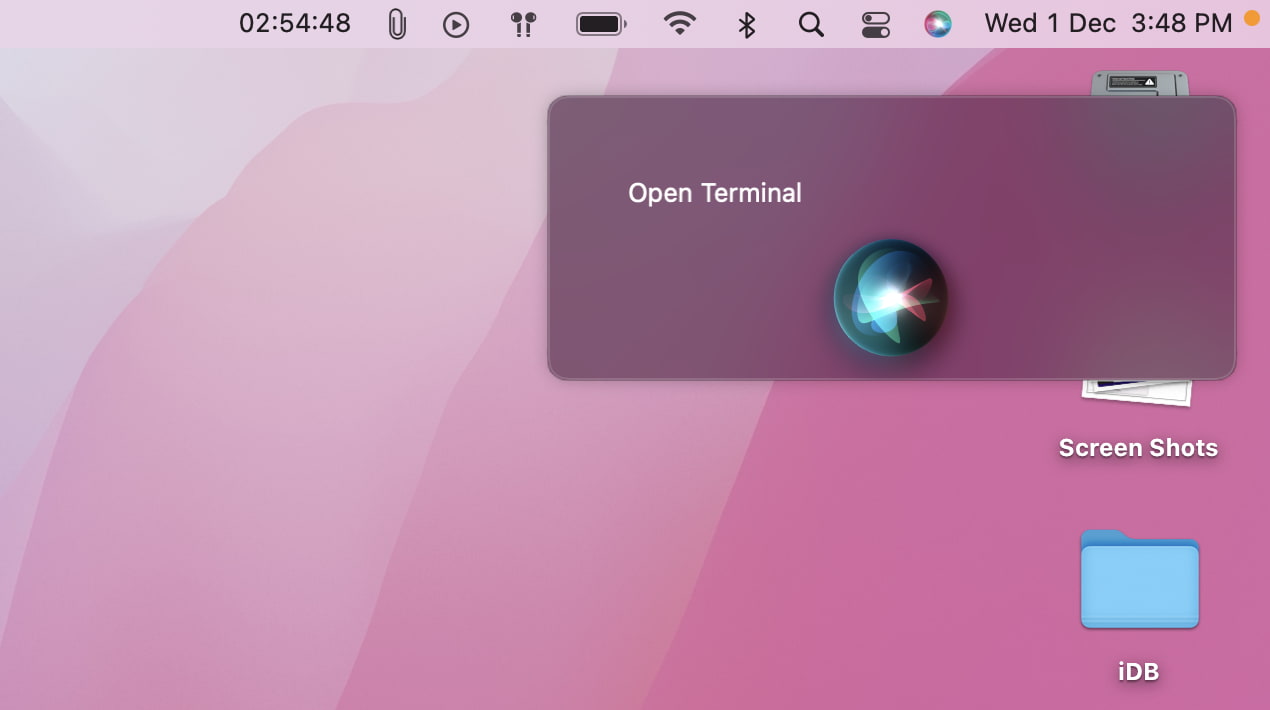
Click the Siri button in the menu bar or open the Siri app from the Applications folder, then ask the assistant to “Open Terminal.”
From Dock shortcut
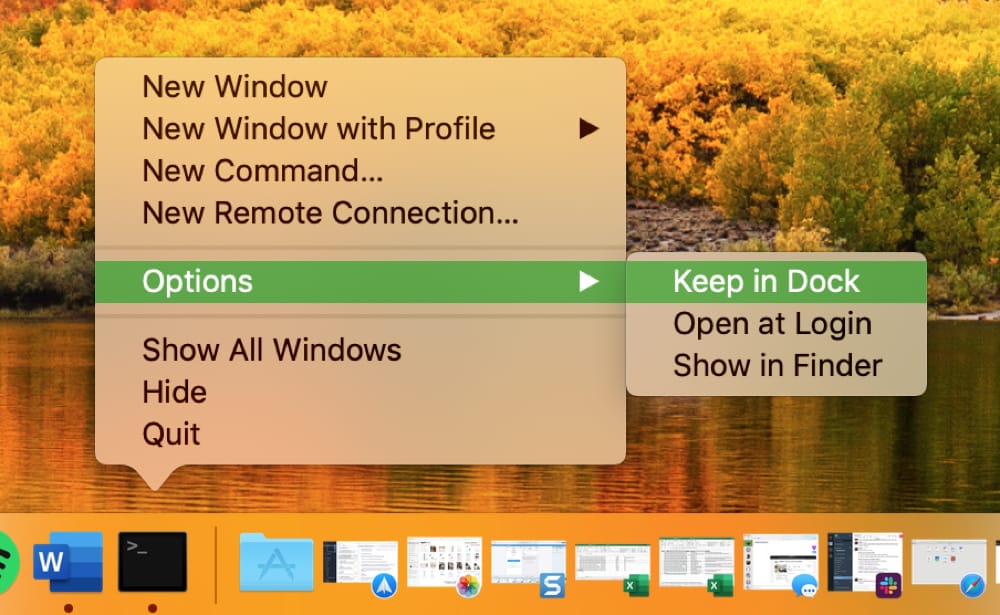
If you’re going to use Terminal frequently, do yourself a favor and create a Dock shortcut. First, launch Terminal. Then, right-click or Control-click its Dock icon and choose Options > Keep in Dock.
From Launchpad (on older macOS versions)
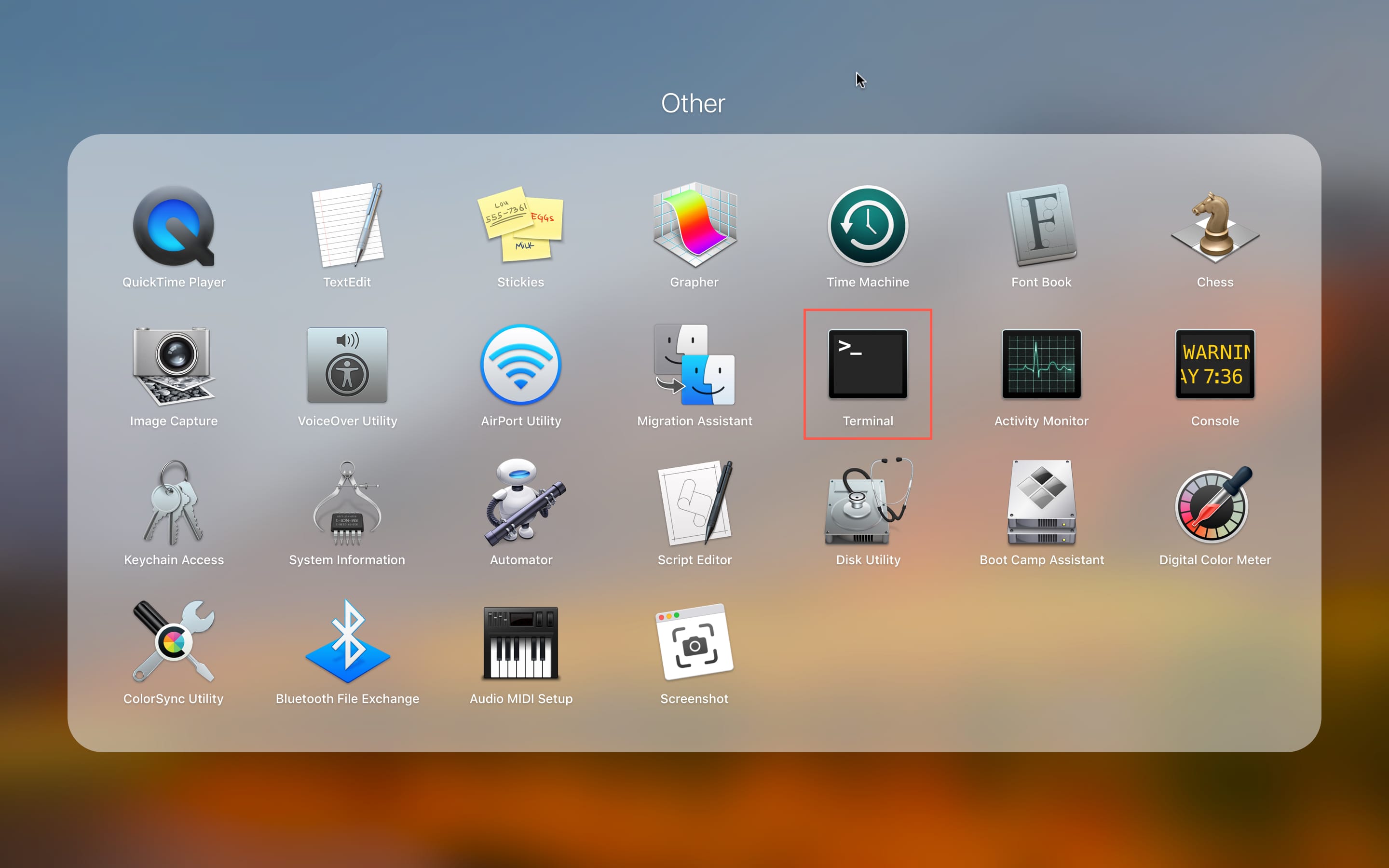
Open Launchpad by clicking its Dock icon or pinching with four or five fingers on the trackpad. Then, locate the Other folder and open Terminal from there. By default, Launchpad includes an Other folder which contains Terminal.
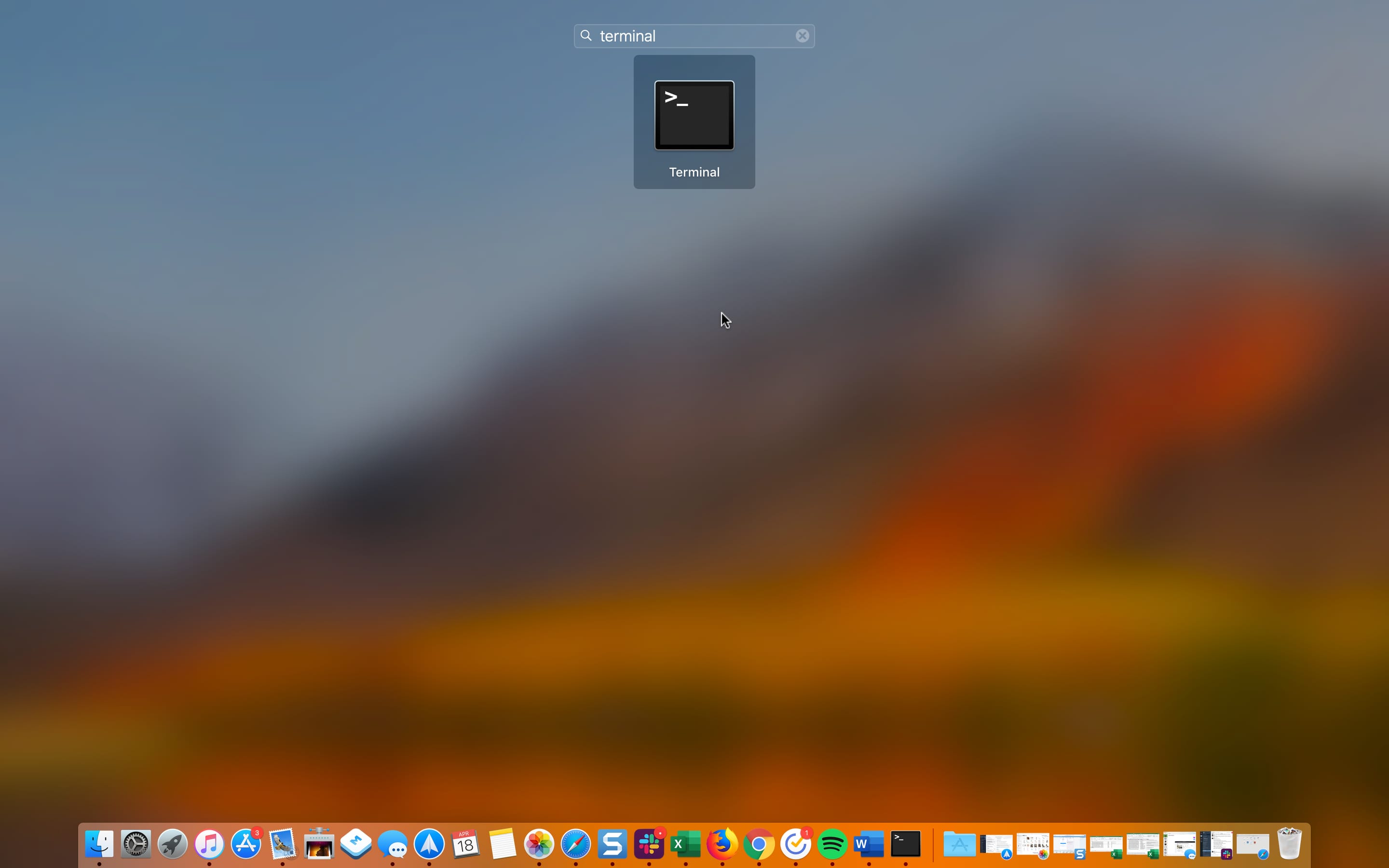
If you’ve removed this folder, type “Terminal” into the search box at the top of Launchpad and launch it from there.
Terminal is a terrific tool. Once you get the hang of it and learn some useful commands, it won’t be so intimidating anymore. Have you tried Terminal yet? If not, are you interested in learning more about what you can do with Terminal?
Terminal commands and tips: