Clean up your Today feed in the Apple News app and have it show only stories from channels you follow. All other recommended news items will be hidden from there.
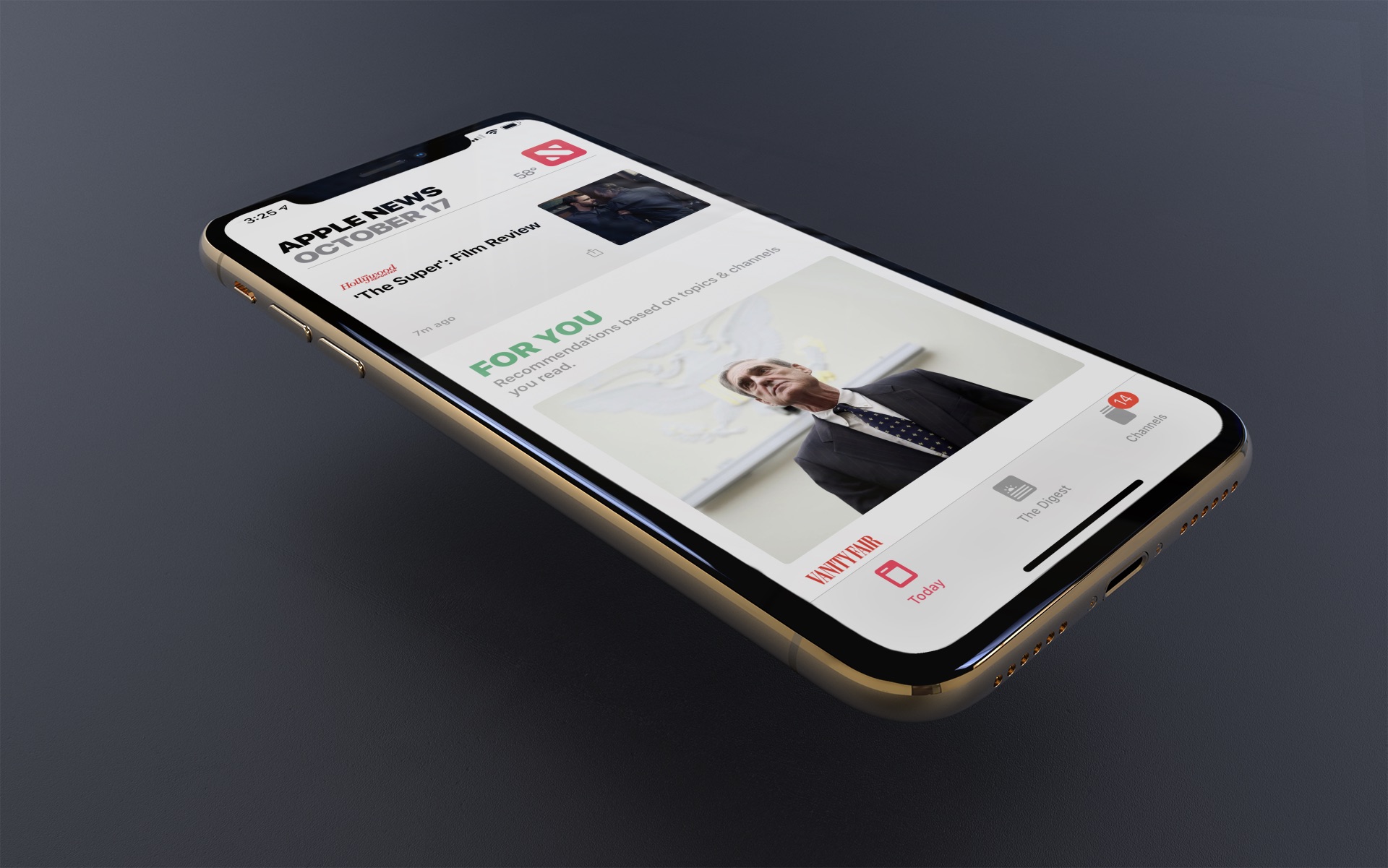
News aggregators like Apple News have grown in popularity over the years, offering immediate access to countless stories from across the internet. Despite this, there are times when less is more. During those moments, instead of wanting to see news from unlimited sources, you might want to stick with your favorites.
Apple News makes it easy to filter content so you only see the stories and videos from the channels you follow. In case you’re wondering, you can follow a channel in the News app by tapping the three dots menu button and choosing Follow Channel.
Here are the quick steps to see stories only from the Apple News channels you follow on your phone and computer.
iPhone and iPad
- Open iOS Settings, tap Apps from the bottom, and select News from the list of applications.
- Turn on the switch for Restrict Stories in Today.
- A pop-up will appear saying, “Turning on this setting will limit the stories shown in Today. Top Stories, Trending Stories, and Featured Stories will be removed.” Tap Turn On to confirm.
- Finally, force close and reopen the News app. It will now show stories from the channels you follow. Every other news source will be blocked and will not appear in the Today feed.

Mac
- Open the macOS News app and click News > Settings or Preferences from the top menu bar.
- Check the box that says Restrict stories in Today and click Turn On in the pop-up to confirm.

From now on, you’ll only see content in Today from the channels you follow. All other sources are blocked. To remove this setting, go back and uncheck the box next to “Restrict stories in Today,” then restart Apple News.
On a related note: