Learn how to turn off personal requests on your HomePod if you don’t want it to access and speak information related to your Contacts, Messages, Notes, Reminders, Calendar, and other installed apps that work with Siri.
With Personal Requests, you can ask Siri on your HomePod to send a message to a friend, set a reminder so you don’t forget to run errands, or make a note to capture a quick thought.
When setting up your new HomePod for the first time, you’ll be asked if you’d like to turn the Personal Requests feature on or off. You’ll also need to choose an iOS device to use for location sharing, which Siri on HomePod will use to create location-based reminders, provide information about current traffic conditions, weather, and so forth.
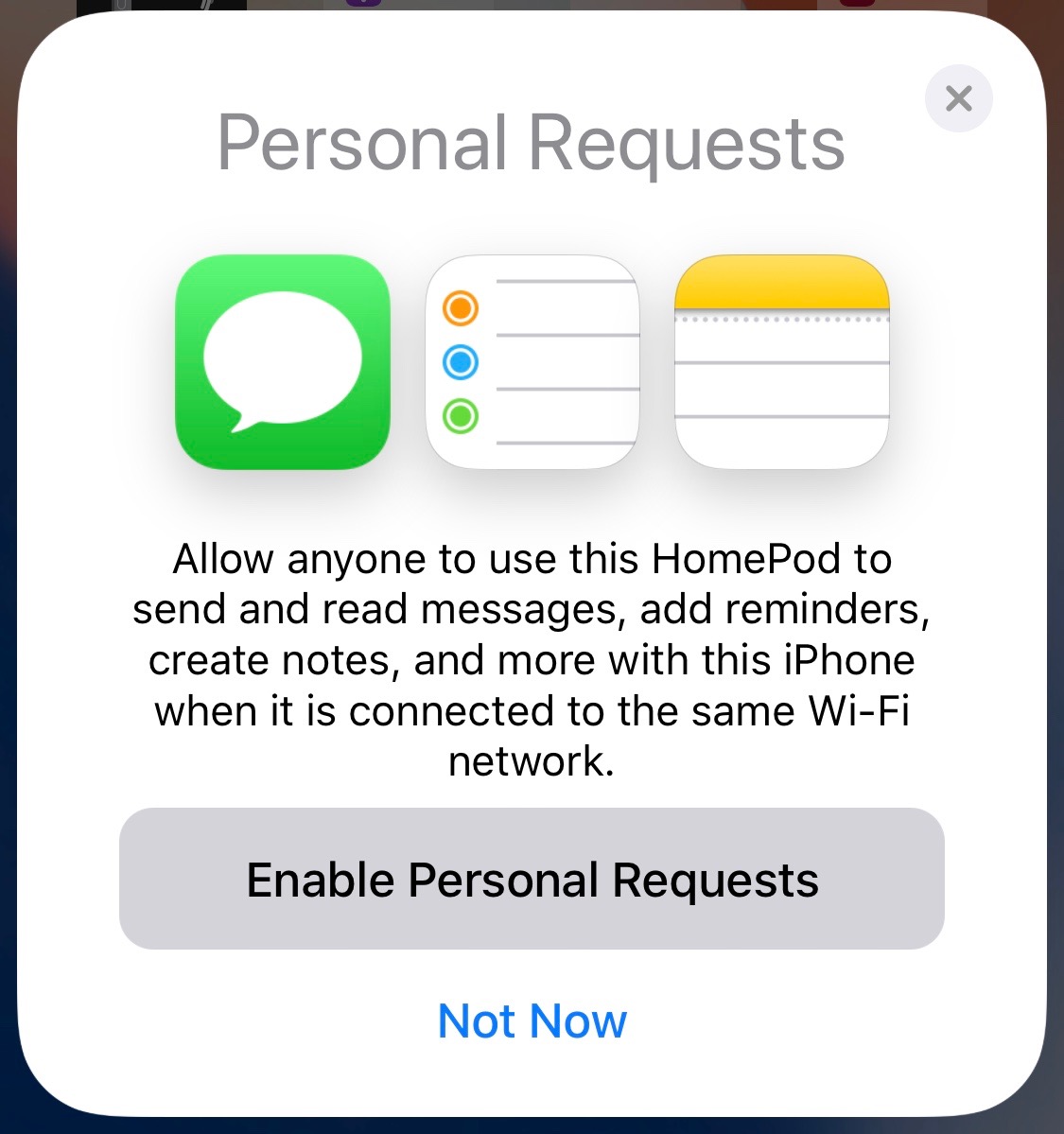
Any request of a personal nature that requires access to Contacts, Messages, Reminders, and Notes is handed off to your iOS device for processing.
Even though this feature is off by default, HomePod owners who have nothing to hide from their families may want to turn it on in order to make the most of their purchase. However, the opposite may also be important, especially if that HomePod is kept in the living room or guest room. In these cases, you can turn off the Personal Requests feature.
Personal Requests and your privacy
HomePod’s Siri can access Contacts, Messages, iCloud Notes, and Reminders if:
- Your HomePod and iOS device are on the same local network
- Your iOS device is turned on
- Siri is turned on for both your iOS device and HomePod
- Your iOS device is the one you share your location from using Find My
HomePod won’t accept personal requests when:
- You’re away from home
- Your iOS device is turned off
- Your iOS device is not on the same Wi-Fi network as HomePod
If you live with roommates or simply value your privacy, chances are you’ll be eager to limit HomePod sharing with other members of your household or friends when they come over, sometimes with acquaintances. You can easily stop making personal requests with your HomePod in just a few taps.
How to stop personal content requests on HomePod
- Open the Home app on your iPhone or iPad and tap your HomePod.
- Tap the gear icon to open HomePod settings.
- Scroll to the Siri heading and tap Personal Content (formerly called Personal Requests).
- At the top of the next screen, disable the toggle for the HomePod you want to stop personal requests for.

To re-enable personal requests, repeat the steps above and flip that switch to the ON position.
On a related note: