Ever wanted to go through your Contacts app and remove all those that you no longer associate with? In this guide, we’ll show you how to delete multiple contacts at once on your Mac, which will also remove them from your iPhone and iPad.
While we’ve shown you previously how to bulk-delete contacts from your iPhone or iPad, it’s worth noting that you can also do this on your Mac, albeit a little bit more easily.
But remember that deleting from Mac will affect all your Apple devices where you use the same Apple Account and have enabled iCloud Contacts.
Using the Contacts app
1) Launch the Contacts app on your Mac and determine which people you want to remove.
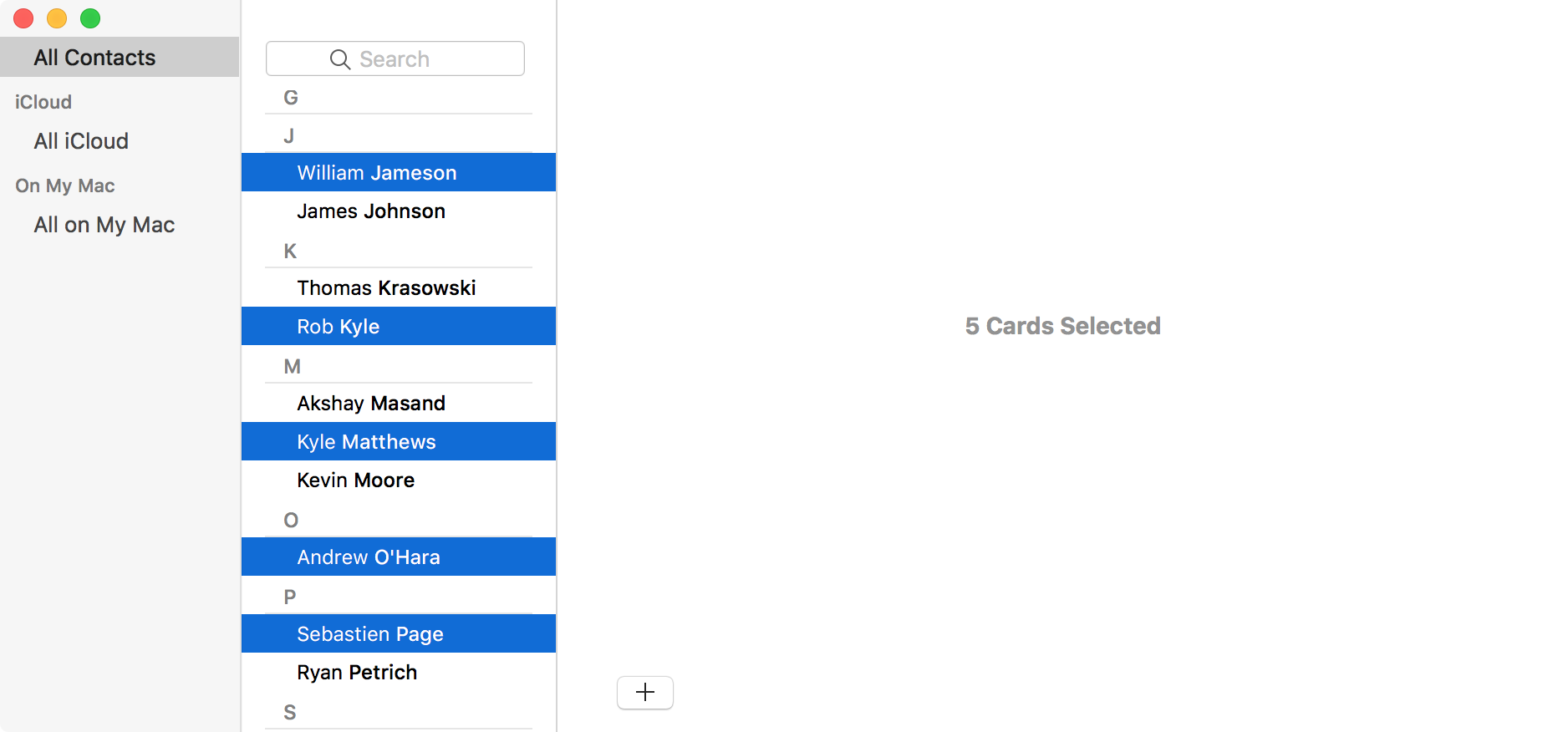
2) Hold down the command key and begin clicking the contact names to select more than one.
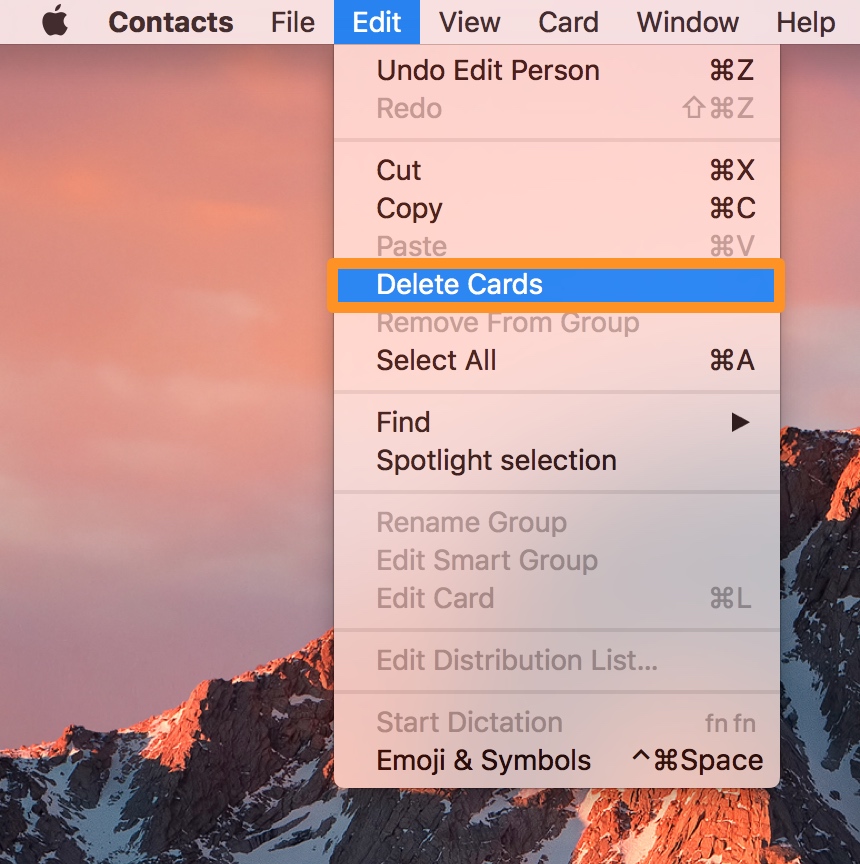
3) After selecting all the contacts you want to delete, go to Edit > Delete Cards in the top menu bar. You can also right-click and select Delete Cards, or you can just hit the delete key on your keyboard.
4) In the prompt that appears next, click delete again to confirm your action.
Congratulations! You’ve just deleted multiple contacts all at once from the Contacts app on your Mac!
Using iCloud
You can also perform the same task from iCloud.com, which might be useful if you’re using a Windows machine instead.
1) Visit iCloud.com/contacts and sign in using your Apple Account and password.
2) Get an idea of who you want to delete from your Contacts list.
4) Hold down the command key on your Mac keyboard and begin clicking on contact names to select more than one.
5) After selecting all the contacts you want to delete, click Delete Contacts.
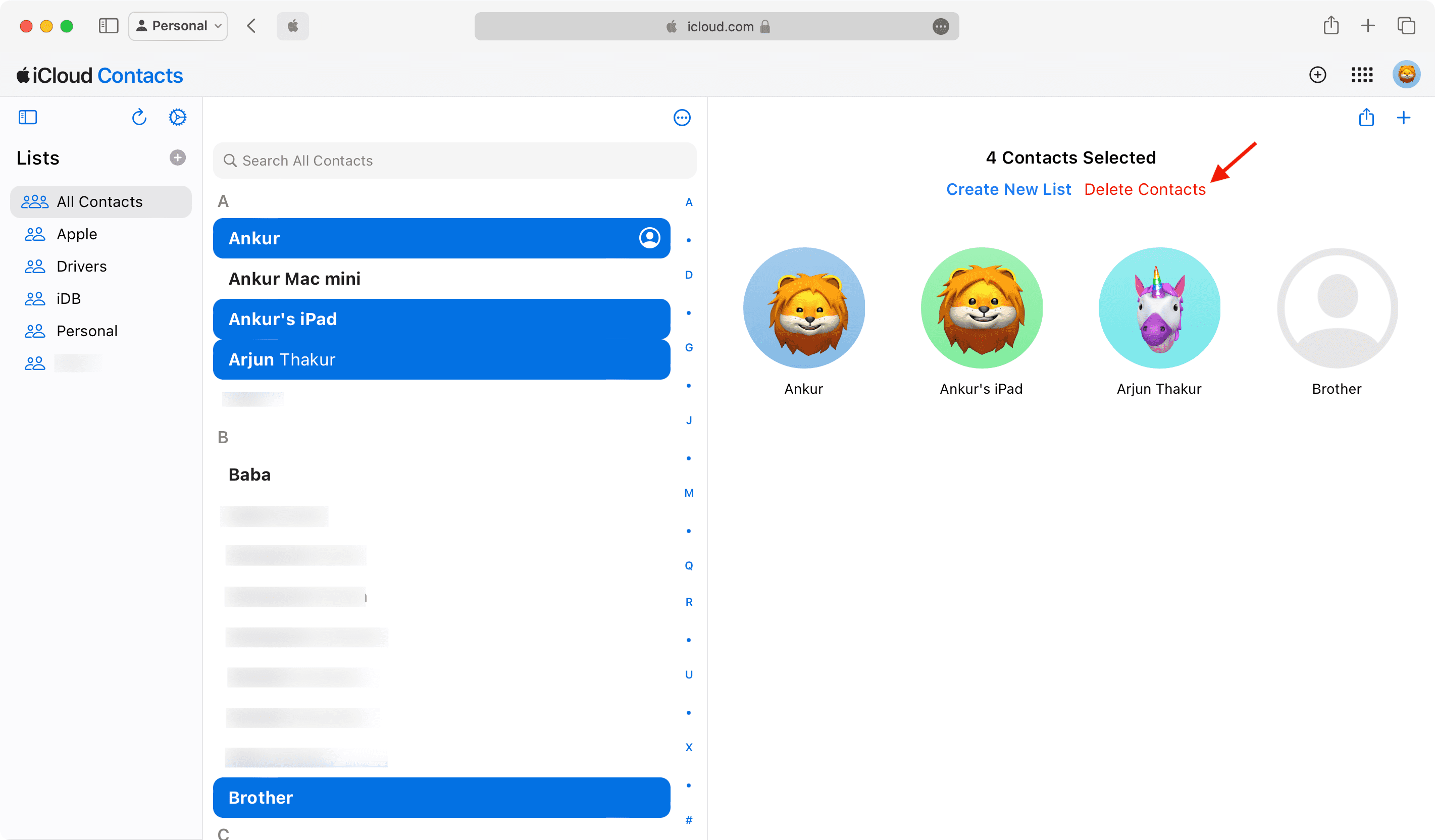
And just like that, your selected contacts will be removed from your iCloud account and all your devices where this account is used.
Now that you know how to delete multiple contacts at the same time on your Mac, you’ll never have to go through the cumbersome process of removing them one by one ever again. Not only do you save some time by doing things this way, but you save yourself some frustration as well.
Check out next: