Learn how to take window screenshots on your Mac without the drop shadow effect to remove distracting extra space and white borders for a cleaner look.
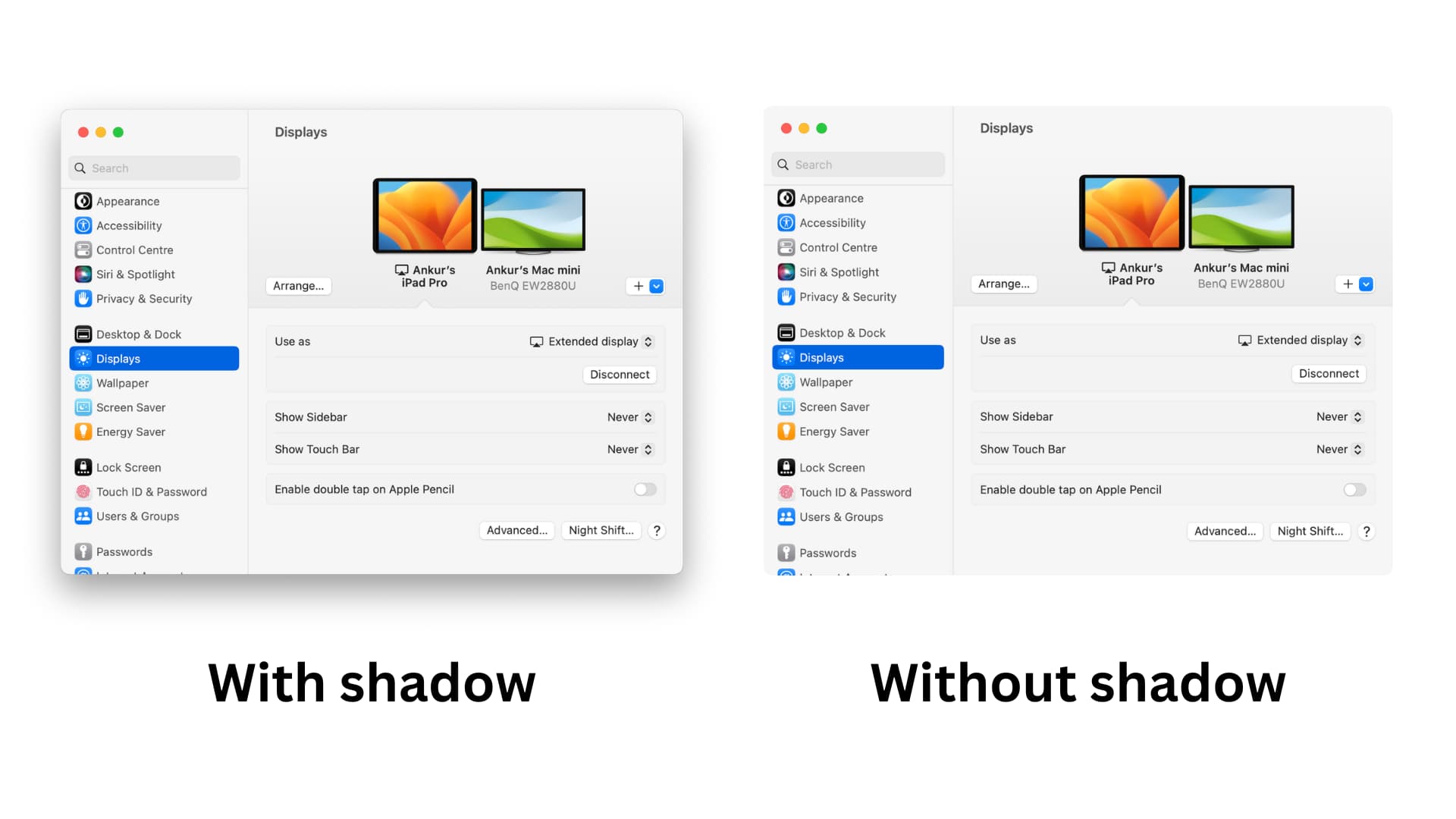
When taking screenshots on your Mac, macOS also captures the drop shadow effect around window borders. The shadow only appears when you screenshot a single window, creating extra space and white borders.
You don’t need to use image-editing software to painstakingly remove these distractions; instead, you can capture a window screenshot on macOS without the drop shadow effect.
You can take a screenshot without the drop shadow effect by pressing a modifier key, or remove the effect from all window screenshots by default with a Terminal command.
Take a window screenshot without the shadow effect
- Press together the Command + Shift + 4 keys and then press the Space Bar.
- Hold the Option key and click on the window with the camera icon to take a screenshot without the shadow effect.
Remove the shadow effect from all window screenshots by default
1) Open Terminal.
2) Type or copy/paste the following command and press the return or enter key:
defaults write com.apple.screencapture disable-shadow -bool true ; killall SystemUIServer
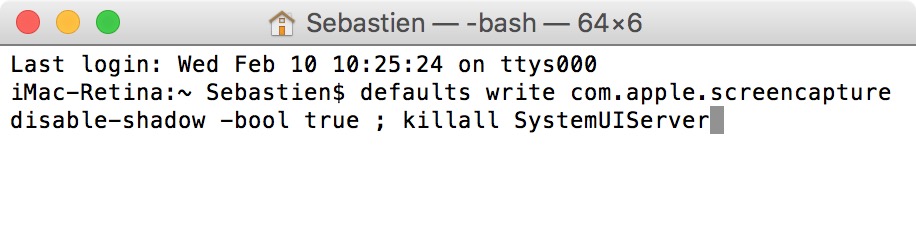
The first command will tell your Mac to remove the shadow from the screen capture. The second part will kill the SystemUIServer, a background process that controls several aspects of the macOS user interface.
Re-enable the drop shadow on Mac window screenshots
If you change your mind and want to revert to the drop shadow effect in your Mac screenshots, open Terminal and use this command instead:
defaults write com.apple.screencapture disable-shadow -bool false ; killall SystemUIServer
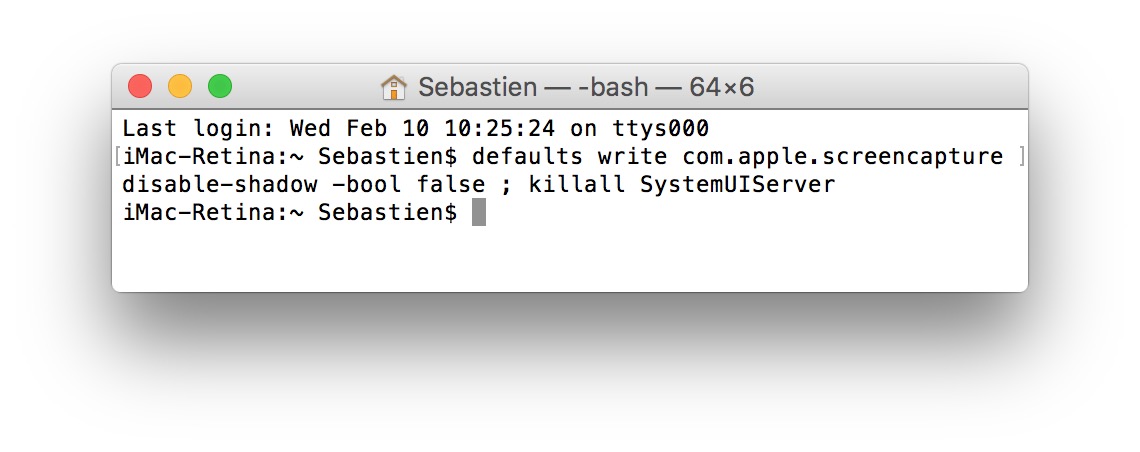
If the above command doesn’t add the shadow effect back to your screenshots, try this one:
defaults write com.apple.screencapture disable-shadow true
As you can tell, it’s a fairly easy tip that doesn’t require much technical knowledge.
macOS provides powerful built-in features to take screenshots and record screencasts.
And with a little help from a Terminal command, you can change the screenshot file format from the default PNG to the space-saving JPG image format.
You can also change the default naming scheme that macOS applies to the screenshot image files.