Learn how to disable the Raise to Wake feature to avoid the screen turning on automatically when you lift your iPhone, whether accidentally or on purpose.
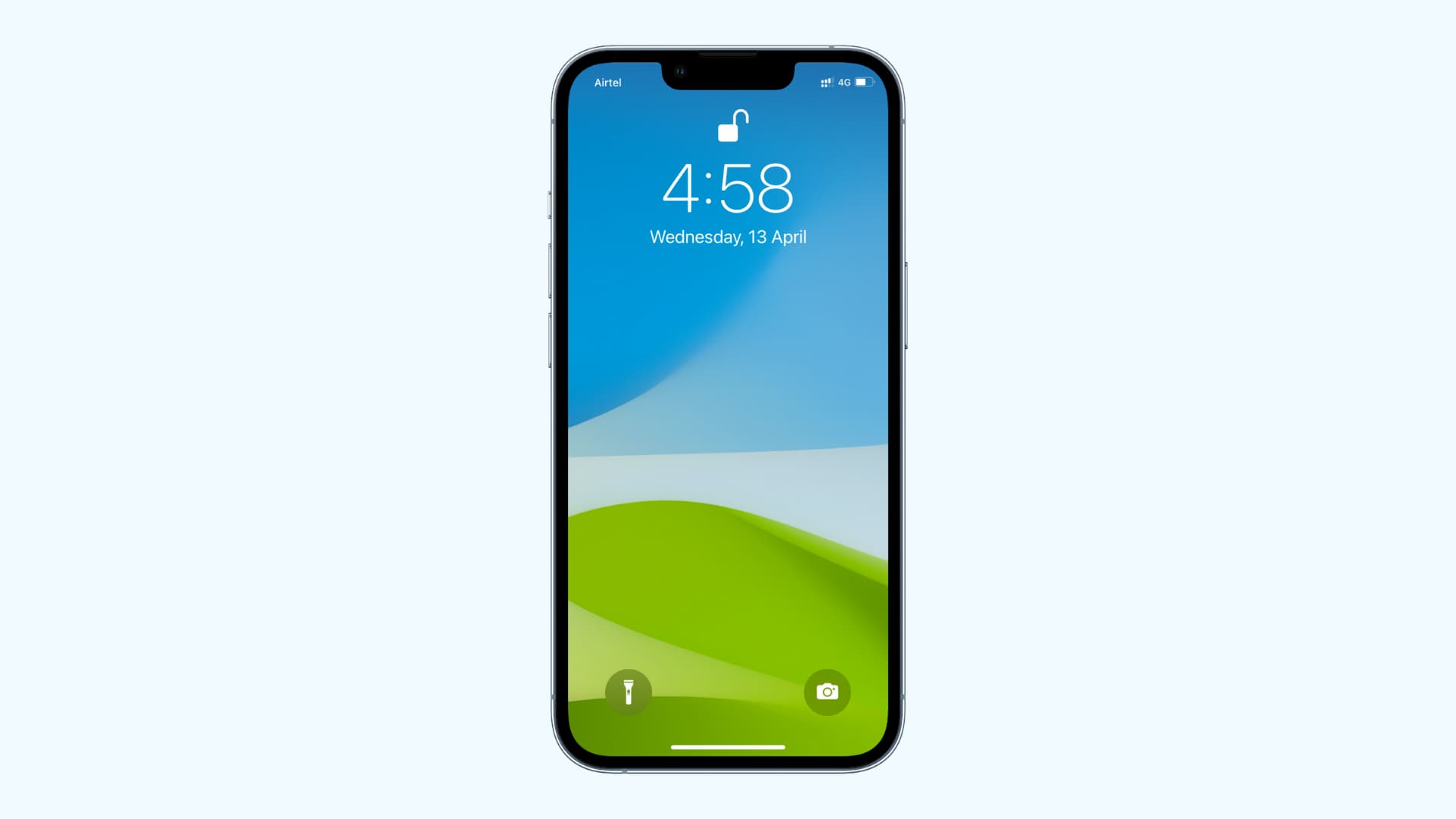
All iPhones from the iPhone 6s (released in 2015) onward have a feature called Raise to Wake.
As the name suggests, it wakes the screen when you grab and raise your device. If you don’t like to access your Lock Screen in this way, you can easily turn off Raise to Wake in the Settings app.
Stop the screen from turning on when you raise your iPhone
- Open the Settings app on your iPhone.
- Select Display & Brightness.
- Turn off the Raise to Wake switch.
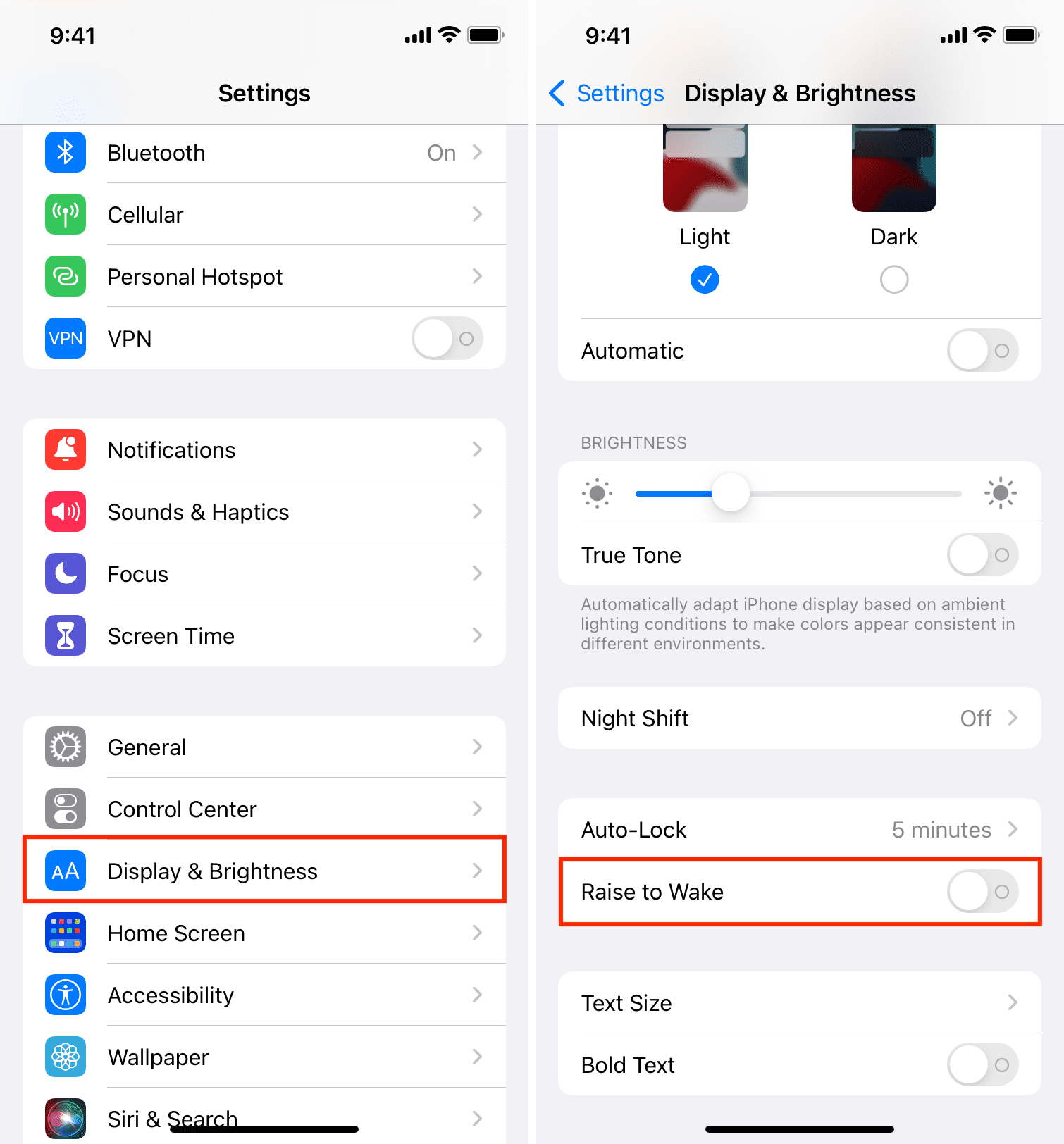
The device will no longer wake from sleep when raised. You can still wake your iPhone by tapping the screen, pressing the power button or the Home button, plugging it into power, or invoking “Hey Siri”.
On iPhones with Face ID, Raise to Wake lights up the display as soon as you lift the phone, and Face ID unlocks it instantly, creating a pretty seamless experience. With Raise to Wake off, however, you’ll need to tap the screen to wake your iPhone from sleep.
Give Raise to Wake a chance before disabling it
Raise to Wake may take a few hours to get used to, but the benefits are clear.
As you raise your phone, the display lights up, and Face ID starts scanning, automatically unlocking the device as you look at the screen. My advice is to try Raise to Wake; if you don’t like it, of course, go ahead and turn it off.
Some people are concerned about the feature’s impact on battery life and the possibility of accidental triggers. Conspiracy theorists will disagree with me, but Raise to Wake should have no noticeable impact on your iPhone’s battery life. Also, rest assured that Apple’s algorithms are optimized to disregard situations like when the phone is in your pocket, purse, or backpack.
Also, check out: