Learn how to turn off the Tap to Wake feature to stop your iPhone or iPad screen from waking when touched.
The iPhone X debuted a display you could wake by tapping to quickly check notifications, Lock Screen widgets, and more.
The problem with Tap to Wake is accidental touches that turn on the display, which adds to battery drain. If you are concerned about this, you can disable Tap to Wake.
Turn off Tap to Wake on iPhone or iPad
- Open the Settings app.
- Tap Accessibility.
- Tap Touch.
- Turn off Tap or Swipe to Wake (formerly just Tap to Wake).
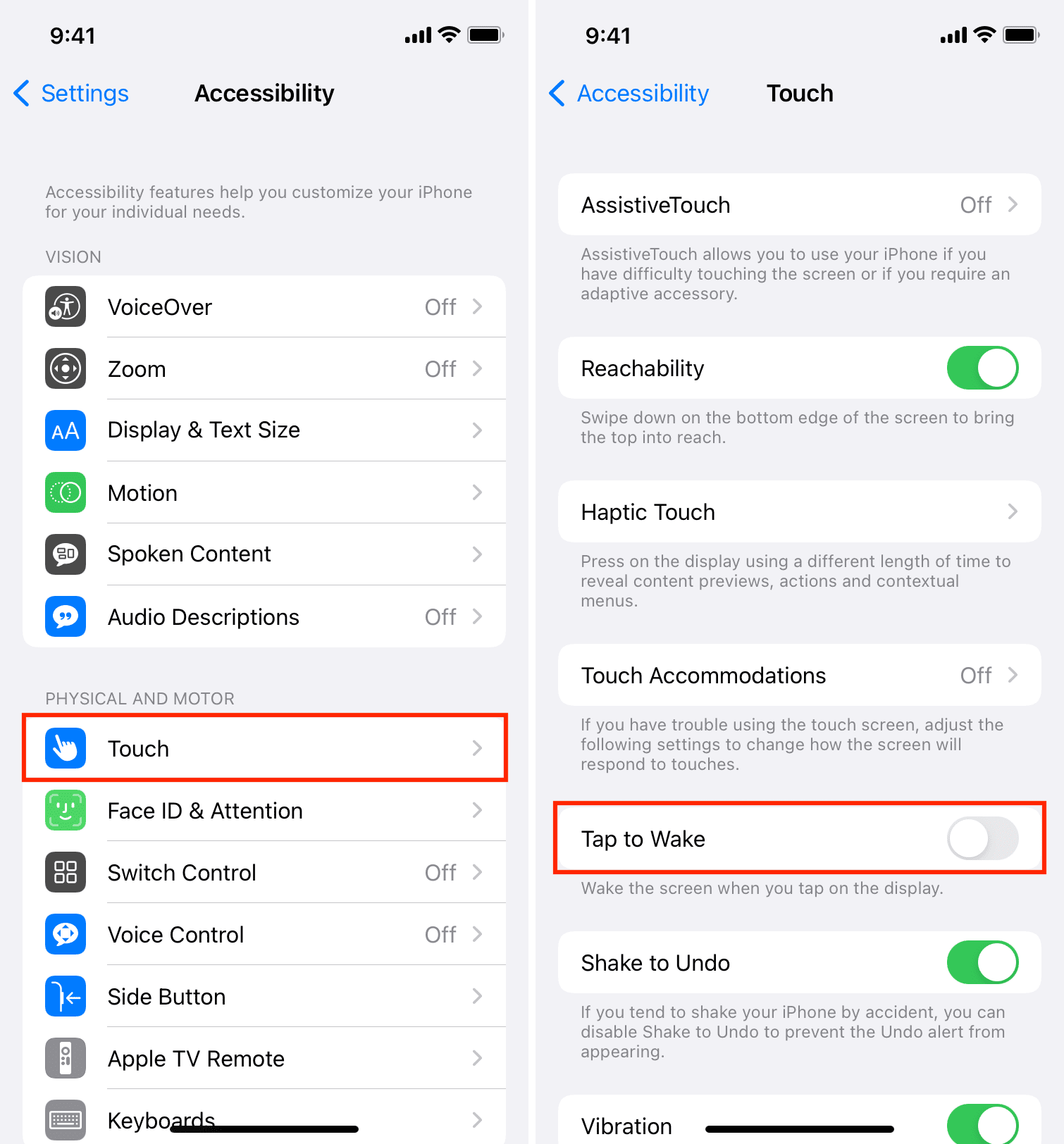
With Tap to Wake turned off, tapping the display will do nothing; that is, the screen won’t automatically light up when touched.
You can still wake your iPhone or iPad by pressing the power button, raising the device, lifting the cover (iPad), saying “Hey Siri,” or plugging the device into power. Don’t confuse Tap to Wake with Raise to Wake, which automatically wakes the device when you raise it to look at it.
Also, check out: