Learn how you can record voice clips inside WhatsApp on your iPhone and send them to a person or group. Additionally, we’ll show you how to listen to voice messages if you receive one and go over some troubleshooting tips in case you can’t do these things.
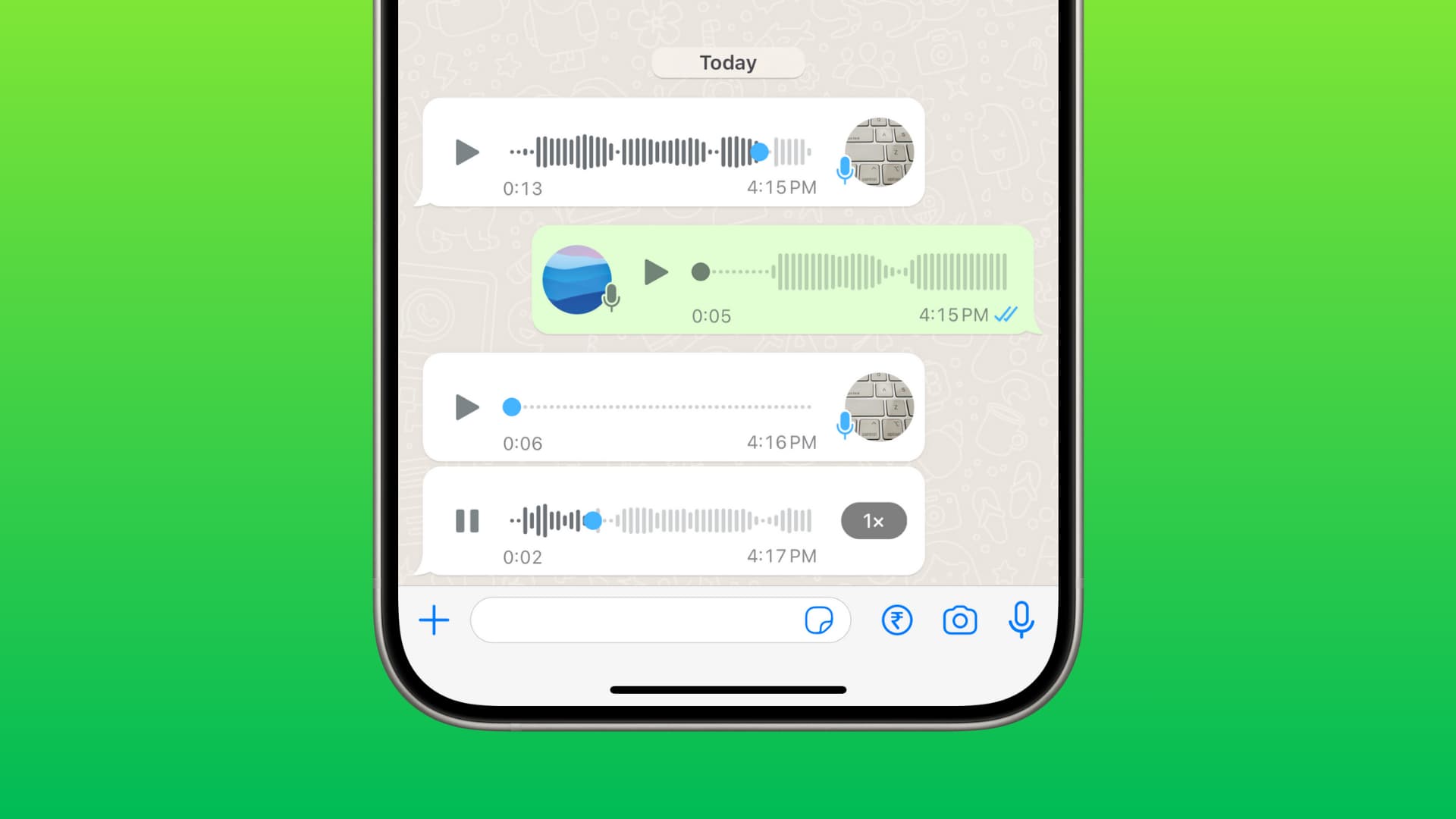
Like Apple’s iMessage inside the iPhone Messages app, WhatsApp, the world’s most popular instant chat service, also allows you to send and receive voice messages. It’s a fantastic medium of communication when you don’t want to type and just want your messages to be heard, literally!
Send voice messages via WhatsApp on iPhone
1) Open WhatsApp and go inside a chat.
2) Tap the microphone icon at the bottom and speak what you want to convey. Note: If you’re using this feature for the first time, make sure to allow WhatsApp to use your iPhone’s microphone.

3) Do the following after you have spoken your message:
Send the message
Tap the arrow send button, and the message will be sent instantly. You won’t be able to preview what you recorded.

Listen to what you recorded before sending
Tap the pause button and then tap the triangle play button to listen to your words.
- If you’re happy, tap the send button.
- If you want to add to this recording, tap the microphone button and continue speaking.
- To start over, tap the trash icon, and then make another recording.

Set the voice recording to be listened to only once
Just like other media, you can also send a special voice message that the recipient can listen to only once. After that, the voice recording will be deleted from both devices and will be unplayable. To do this, tap the pause button after recording, then tap the 1 icon, and finally hit the send button.

Listen to voice messages you receive on WhatsApp
- Tap the new WhatsApp message notification or open the app and go inside the concerned chat.
- Tap the triangle play button to hear the audio message.
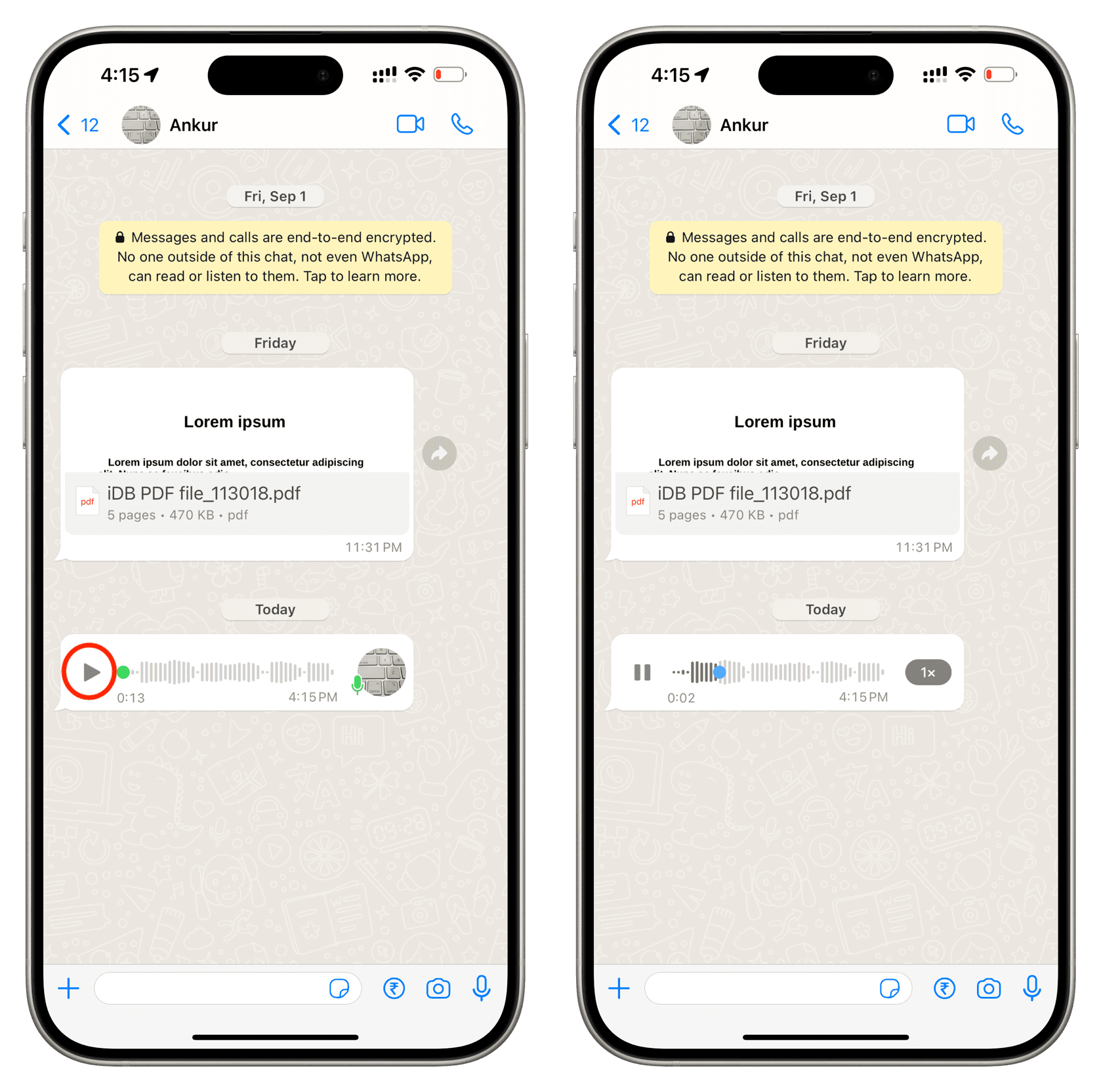
Note: If there are multiple pending voice messages in succession, they will all play automatically, one after the other. You don’t have to tap the play button for each.
Useful tips when listening to WhatsApp voice messages
- Tap the 1x button to change the playback speed. It can be handy if the audio message is long and slow.
- Drag the blue dot on the waveform to scrub through the message, like you do when listening to songs.
- If you’re in a public place, you can listen to the voice message privately by tapping the play button and putting your iPhone to your ear as if you were on a call. The message will now play from the top earpiece speaker and not the bottom loudspeaker.
- Use the Transcribe button to convert the audio message into words and read it instead.
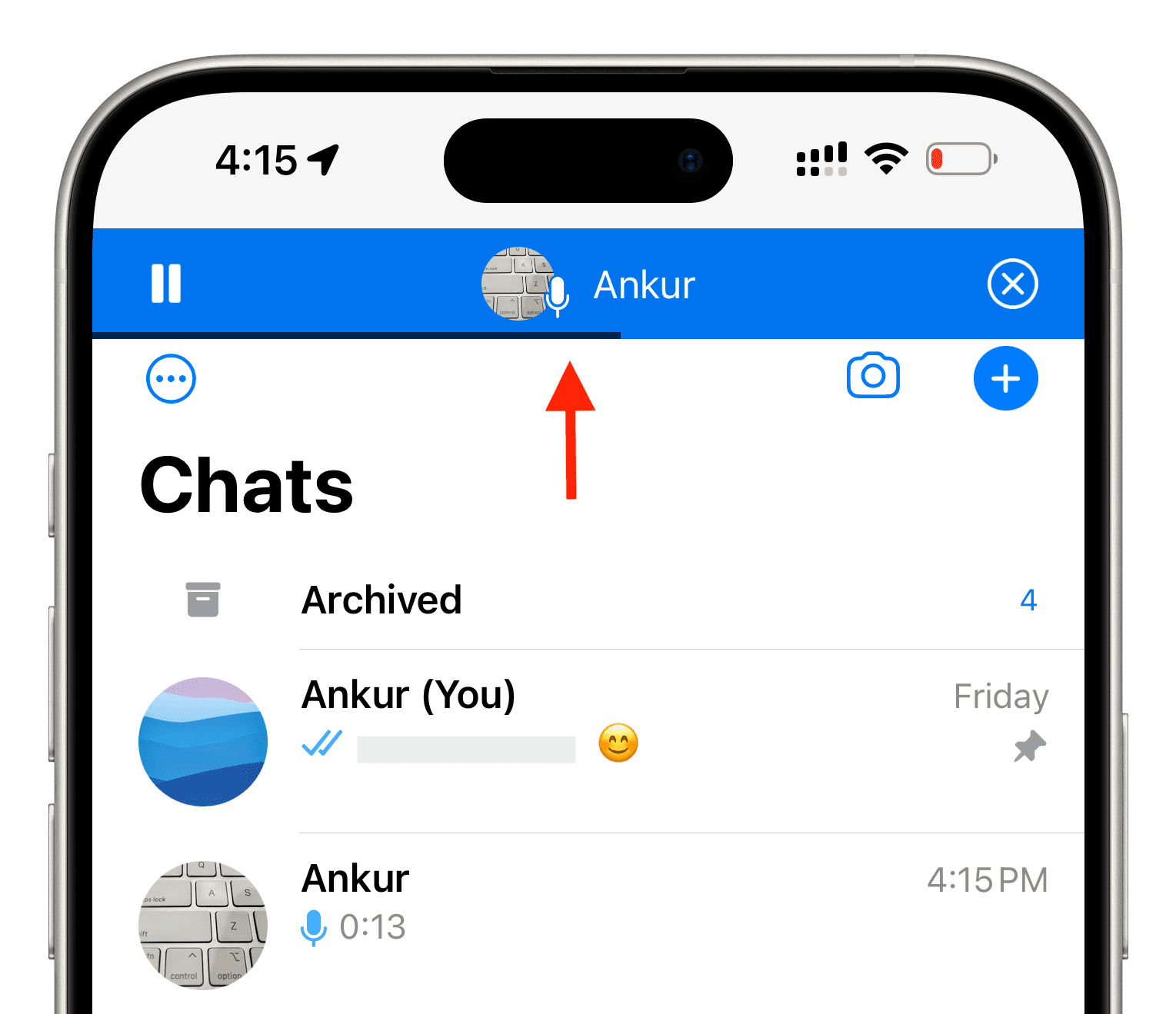
- You can also go back to the main WhatsApp chat screen or even out of the app on the iPhone Home Screen, and the audio message will keep playing. You’ll see a simple playback control strip at the top of the app when you’re out of the chat where the audio message is being played.
Managing WhatsApp voice messages
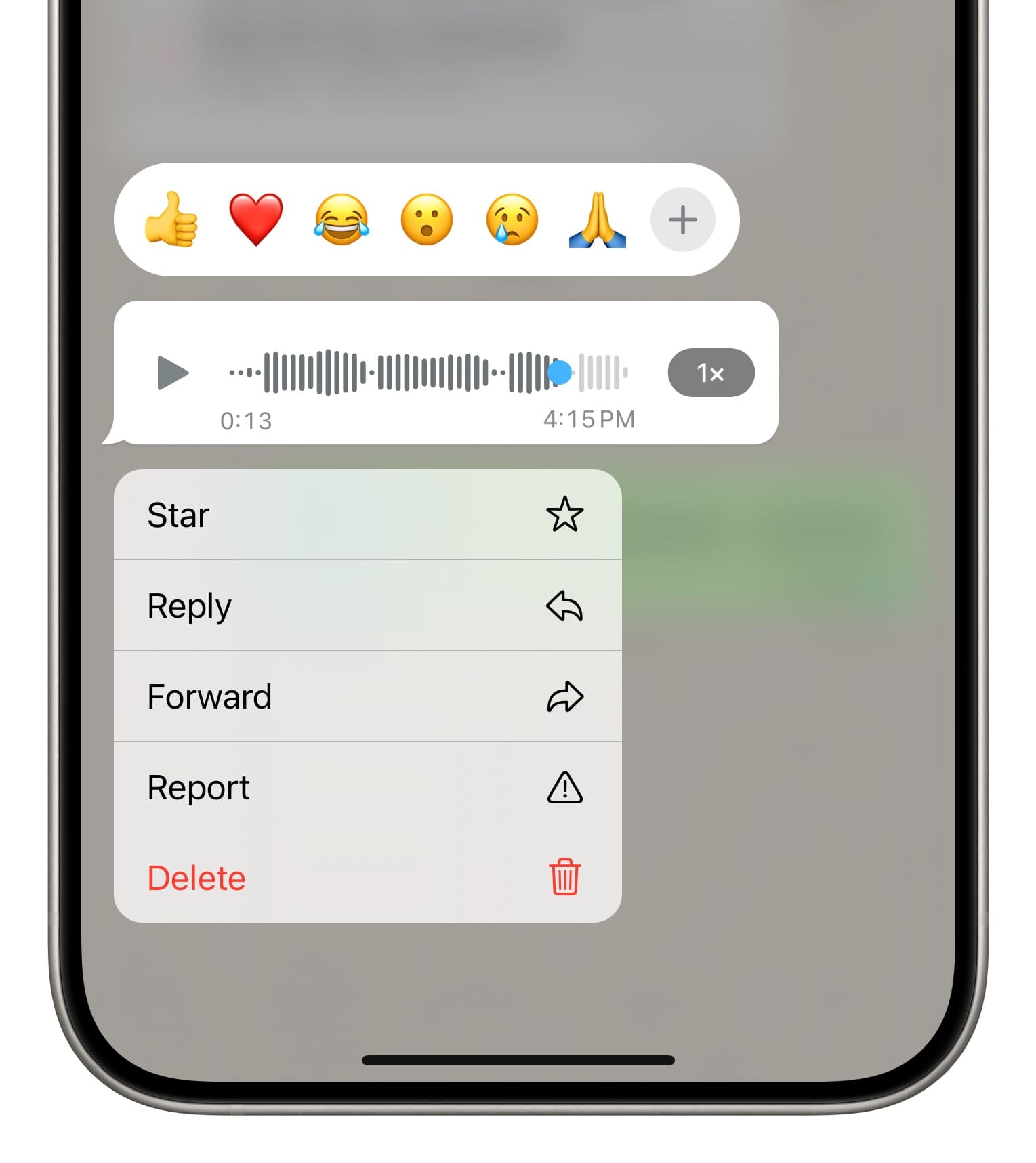
Like text or photo messages, you can touch and hold an audio message to mark it with a star, reply specifically to it, forward it to someone else, report it to WhatsApp if it has something you’re uncomfortable with, or just delete it.
What to do if you’re unable to send voice messages
Make sure you have allowed WhatsApp the necessary permission to use your iPhone’s microphone. If you accidentally choose Don’t Allow:
- Go to iPhone Settings, tap Apps from the bottom, and select WhatsApp.
- Turn on the switch next to the Microphone option.
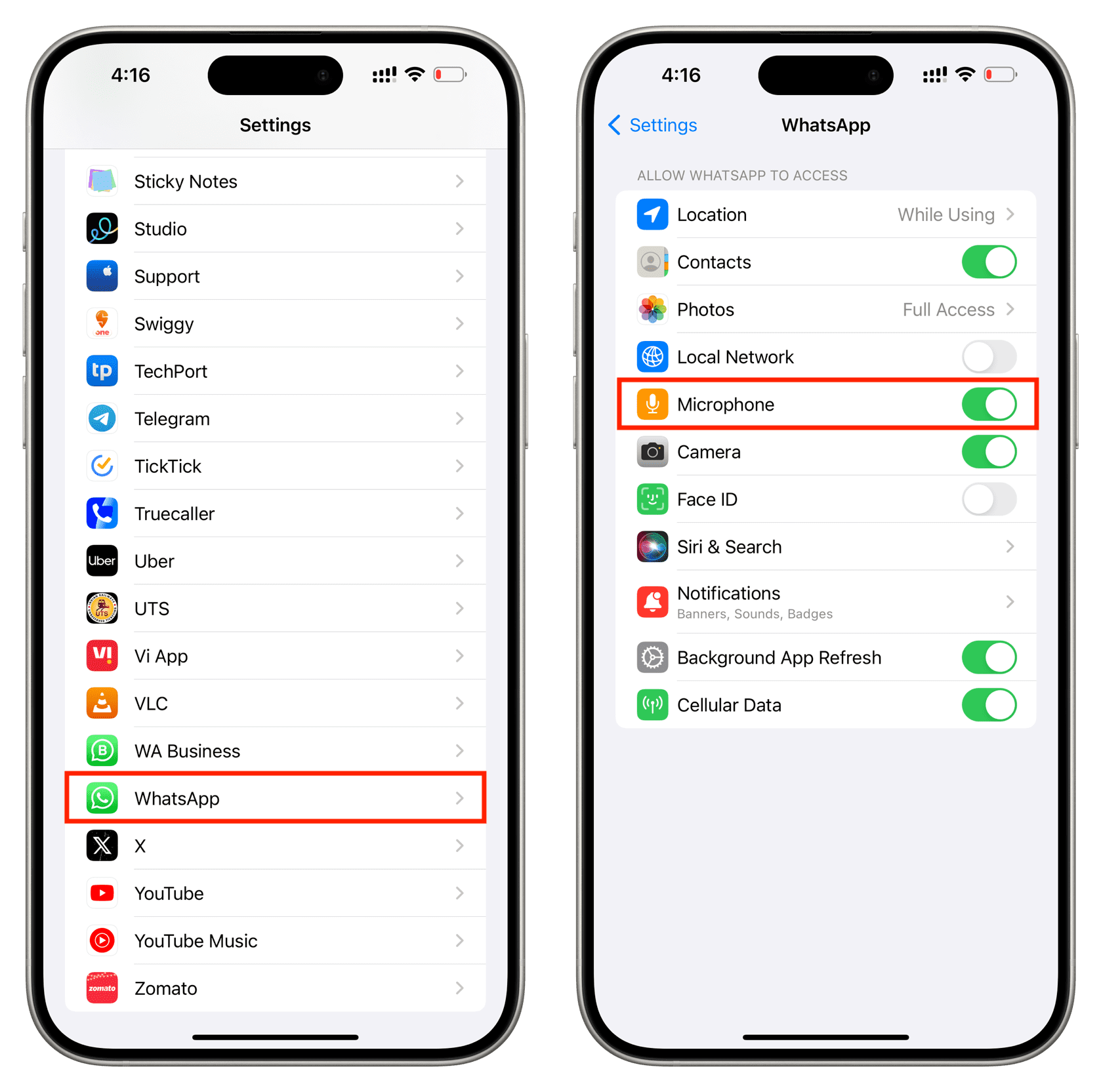
Note: If you don’t see the Microphone option here, that means WhatsApp never asked you for mic access, and you did not tap Allow or Don’t Allow. So, to force the app to ask for permission now, go back to it and try invoking the microphone usage by tapping the mic button inside a chat or making a call. Once you do that, the app will show a pop-up asking permission to use the device’s mic. Tap Allow here. If the problem continues, restart your iPhone and update WhatsApp from the App Store.
What to do if you cannot listen to voice messages
- Press the iPhone volume buttons to increase the sound.
- Make sure your phone is not in silent mode.
- Hit the play button and put the iPhone to your ears. You may hear the audio message from the top earpiece.
- Open Control Center and ensure a Bluetooth device is not connected to it. If it is, put those Bluetooth earphones or AirPods in your ears. You can also disconnect them for audio to play through the iPhone speakers.
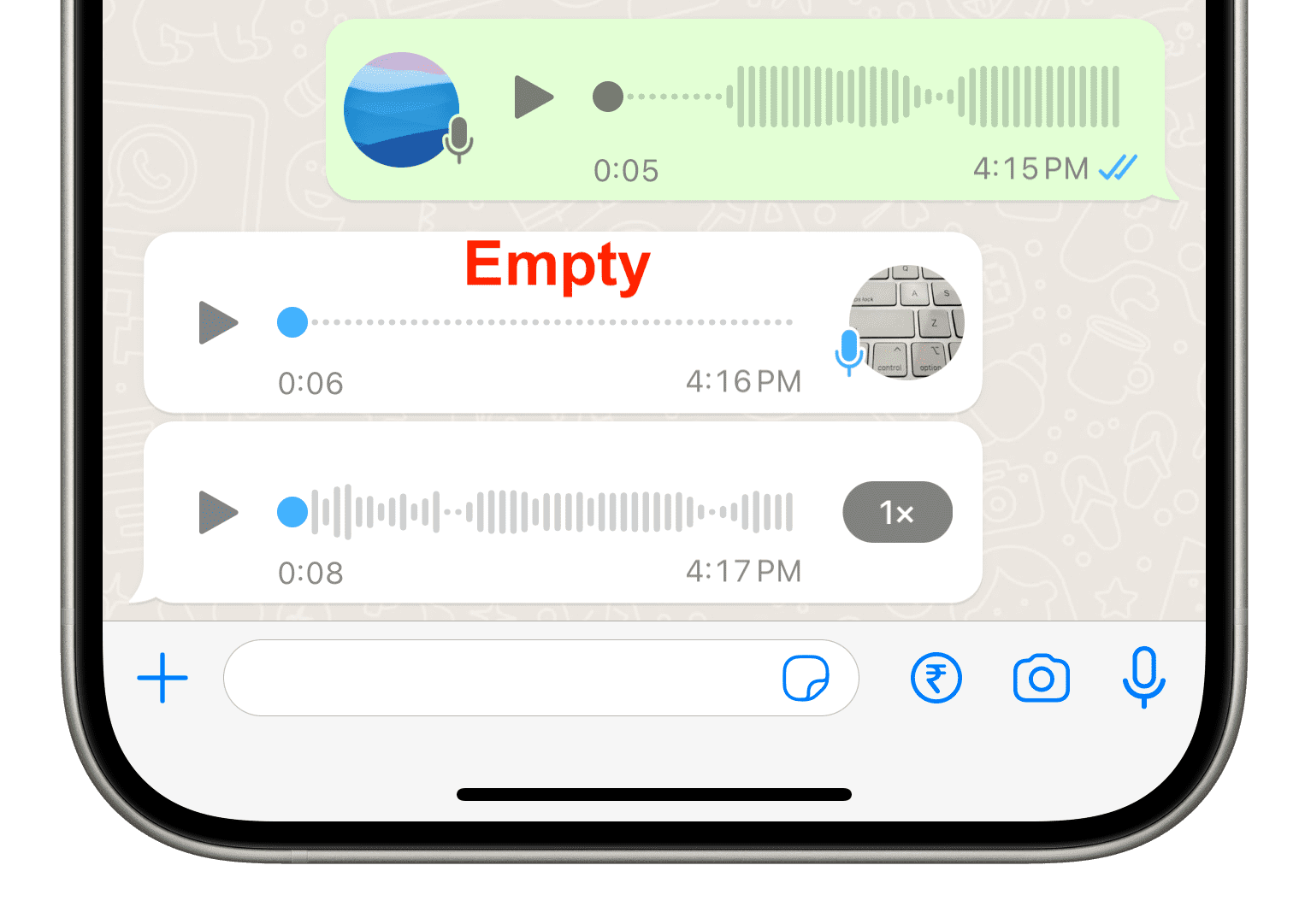
- Check out the audio message, and if there are straight dots and no waves, that means it’s a blank/empty voice message, and you obviously can’t hear anything. Ask the sender to record their message again and resend it to you.
Check out next: How to share your iPhone screen via WhatsApp