Month: April 2011

Tour of MyGreatFest Venue, World’s 1st iDevice Convention Will Take Place on September 17th

The folks at MyGreatFest will be holding the world's first iDevice/jailbreak convention later this year in London, UK. Craig and the rest of the planning team have been working extremely hard over the past months to create the ultimate convention experience for jailbreak and iDevice enthusiasts.

The details for September's convention are shaping up nicely, and there is now a video tour of the venue. The Old Truman Brewery on Brick Lane in London will be where speakers like the creator of Cydia, saurik, present talks and presentations to fellow geeks.

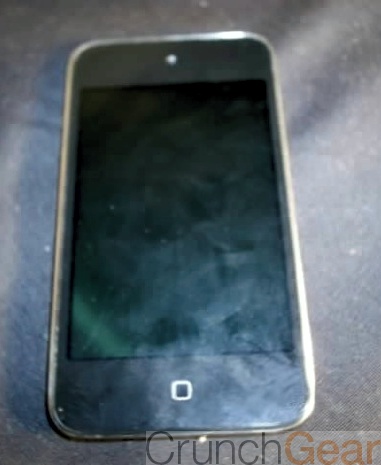
Leaked iPod touch Image Could Potentially Paint a Picture of the iPhone’s Future

The iPod touch, with a "touch to home" feature. How obvious, when you think about it?

This new leaked photo of what is apparently an iPod touch is making waves around the Internet today due to its lack of a mechanical Home button.

Although it's a bit different than the rumors that suggested that the Home button would go away completely, a capacitive touch sensitive button is certainly one step in said direction.

Of course Android phones have been doing this for quite some time now, but it'll be interesting to see -- assuming the photo is the real deal -- if this feature will ever make it to the iPhone...

Surprise. Verizon iPhone Users Drop Fewer Calls

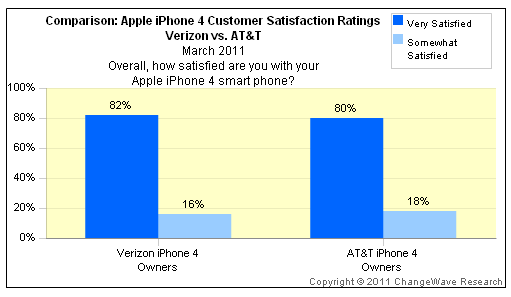
Well thank you Captain Obvious! In a recent poll it's been revealed that Verizon iPhone's drop fewer calls than AT&T iPhone users.

A ChangeWave survey consisting of 4,068 participants found that Verizon users have experienced 3% less dropped calls when compared to AT&T users.

While it's not the greatest sampling of customers, it does reinforce the overall notion that Verizon features a more stable and robust network.

In other news, the sky is blue, and I had to pay my taxes this year as well...

Shinobi III: Return of the Ninja Master Comes Back With a Vengeance

Shinobi III: Return of the Ninja Master [iTunes Link] was released by SEGA in the 1990's and makes its return to the iPhone. Like the original, you will control the ninja Joe Musashi, whose sole mission is to take down the evil Neo Zeed syndicate.

Gameplay is pretty straightforward. Your main weapon is the shuriken, so most of the time it was shoot your enemy before they shoot you. You will also have a slash attack, dive attack, screen-clearing blasts and more but I regularly found myself using just the shuriken...

Certain Cydia Packages Not Yet Compatible with iOS 4.3.1, Jailbreakers Beware

The official jailbreak for iOS 4.3.1 was released yesterday, and many people are re-installing and upgrading their Cydia packages.

There are some popular Cydia apps/tweaks that are not yet compatible with iOS 4.3.1. If you rely on a certain app or tweak, you might want to make sure the desired package is compatible with the latest version of iOS before you jailbreak...

Apple Finally Approves TrapCall App After 201 Days

Apple's App Store approval process has been known to be a very long and hard process for iOS app developers. Although Apple had loosened app approval process back in September of 2010, it seems that certain apps are still taking a good amount of time in limbo before receiving the green light.

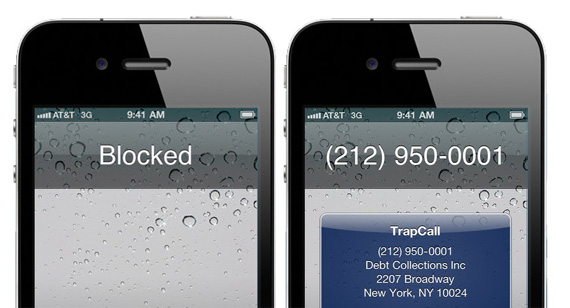
One such application happens to be the TrapCall app by Tel Tech Systems Inc. The app went officially live today after 201 days (almost 7 months) in review by Apple.

TrapCall puts an end to those annoying blocked and private calls, claiming to be the first and only service to unmask blocked calls.

Rumor: iPhone 5 Will Launch at End of June

A report from the Korean site ETNews.co.kr claims that Apple will release the iPhone 5 on the 4th week of June. This rumor directly opposes the previous claim from TechCrunch that Apple would push back the iPhone 5 announcement to later this fall.

ETNews bases this report on inside knowledge that Korean wireless providers SK Telecom and KT will be the first to carry Apple's next iPhone. Will we see an iPhone 5 hardware announcement at WWDC this summer after all?

Jailbreak Your Apple TV2 on 4.3.1 with PwnageTool [Tutorial]

For those of you who own an Apple TV2 and have been looking to jailbreak it, the time has arrived. Although the ATV2 has been hacked before, this is the first official solution available for those who have the latest iOS 4.3 software.

Even the tutorial we released last week on jailbreaking your Apple TV 4.3 with Seas0nPass wasn't an official release. It was extremely buggy and required you to connect your ATV2 to your computer every time it restarted.

Well, thanks to the hard work of the Dev Team, Saurik and NitoTV, we finally have an official jailbreak solution for iOS 4.3. So for those interested in hacking their Apple TVs and adding tons of extra capabilities to that little black box, let's get started.

Important Note: This is only for 2nd generation Apple TVs, the black one. Also this particular tutorial is only for Mac users, as it uses PwnageTool which is currently only available for Mac OS.

Before we start hacking, you want to make sure your Apple TV is on the latest software version. You can do this by connecting the device to a computer with iTunes or from the Apple TV main menu. Just go to Settings > General > Update Software.

Step 1: You will need a micro-USB cable. This are the most common USB cables and are typically used to charge smartphones. Also you will need the latest version of iTunes. Finally, you need PwnageTool 4.3, which can be downloaded here. I always download tools to my desktop so I can keep track of them.

Step 2: If you updated your software via the Apple TV itself, you will still need the firmware file which you can get here. If you updated through iTunes, move along to step 3.

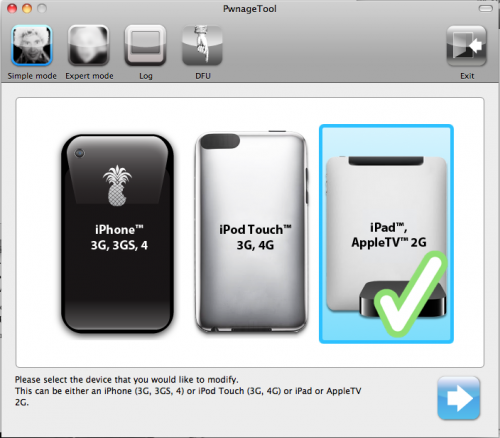
Step 3: Open up PwnageTool and select your device. Obviously for this tutorial we want the Apple TV2. Click the blue arrow and let the software find the file. When it's done, select the Apple TV firmware file and click next.

Step 4: PwnageTool will now create a custom jailbroken file out of the firmware, so give it some time. Once it's done working its magic, plug your Apple TV into your computer using the micro-USB cable. Make sure your power and HDMI cables are left unplugged.

Step 5: The software will walk you through the DFU process, which will prep your Apple TV for the custom firmware. If successful, it should look like this:

Step 6: You can now close PwnageTool and open up iTunes. With your Apple TV plugged in, iTunes should immediately go to the ATV page. You'll see a big button that says restore. While holding down your Mac's Option key, click restore. This should launch a Finder window and allow you to choose the custom firmware, that PwnageTool made, from your desktop.

Step 7: Let iTunes do its thing and once it says completed, you're done. Unplug your Apple TV from your computer and back into your TV set. If you see the NitoTV option in the main menu, you're jailbroken!

From here you can begin to experiment. Stay tuned to our blog as we post more tutorials on some of the cool things you can do with your new jailbroken Apple TV, such as browse the web and even watch Hulu.

Jailbreak Your iPad on 4.3.1 with PwnageTool [Tutorial]

The long-awaited jailbreak for Apple's iOS 4.3.1 is finally here. It is the first official jailbreak since Apple released iOS 4.3 almost a month ago. Those with iDevices wanting to take advantage of some of the new features in 4.3, haven't been able to upgrade without losing their jailbreaks.

That all changed in the wee hours of last night, when the Dev Team members finally released the anticipated software. The exploit is available in 2 different forms of software: PwnageTool, which is for Mac users only, and RedSn0w, which will work on either Windows or Mac.

This step by step tutorial will show you how to jailbreak your iPad on iOS 4.3.1, using PwnageTool. This software is for Mac users only. If you are on a PC, follow our RedSn0w tutorial here.

Important Note: Just remember this is not for the iPad 2, there is no jailbreak available for this device yet.

Before we get started, you want to make sure your iPad is on iOS 4.3.1. Backing up your iPad to iTunes is also recommended, better safe than sorry. But don't worry, the process is super simple and will have your iPad jailbroken in no time.

Step 1: For this tutorial, you'll need PwnageTool 4.3, which you can download here. Make sure you select the 4.3 version, as it is the only one that will work. I always download my tools to my desktop so they're easier to find.

Step 2: Load up PwnageTool, select the iPad/Apple TV option and click the blue arrow. With this method, PwnageTool should actually locate your iPad firmware on your hard drive for you, so there is no need to download the .ipsw file.  Select the iPad firmware and click next.

Step 3: Sit tight as PwnageTool does its thing, it can take a while. It is taking the file you selected and jailbreaking it. Then we will load the jailbroken firmware onto your iPad.

Step 4: Once done, you will be prompted to connect your device via usb. PwnageTool will now help you put your device into DFU mode. If you don't get it the first time, don't fret. Just wait until it's finished giving DFU instructions, and click try again. If you did it correctly, it should look like this:

Step 5: Now you can close PwnageTool. Open iTunes with your iPad still connected, and you should receive this message:

Step 6: Don't just click restore because you will just install Apple's original firmware. While holding down your Mac's Option key, click restore. This should open up a window for you to browse for the file. Select the custom firmware from your Desktop that PwnageTool just created, and restore it.

Step 7: It may take a while for iTunes to install the custom firmware on your iPad. But once completed, your iPad should restart itself and the Cydia icon should be on your home screen.

That is how you jailbreak your iPad on 4.3.1 with PwnageTool, any questions?

Jailbreak Your iPad on 4.3.1 with RedSn0w [Tutorial]

The long-awaited jailbreak for Apple's iOS 4.3.1 is finally here. It is the first official jailbreak since Apple released iOS 4.3 almost a month ago. Those with iDevices wanting to take advantage of some of the new features in 4.3, haven't been able to upgrade without losing their jailbreaks.

That all changed in the wee hours of last night, when the Dev Team members finally released the anticipated software. The exploit is available in 2 different forms of software: PwnageTool, which is for Mac users only, and RedSn0w, which will work on either Windows or Mac.

This step by step tutorial will show you how to jailbreak your iPad on iOS 4.3.1, using RedSn0w. If you are a Mac user and prefer to use Pwnage Tool, stay tuned. We will provide a tutorial for that software shortly. Either method is extremely easy, and will have your iPad jailbroken in no time.

Important Note: Just remember this is not for the iPad 2, there is no jailbreak available for this device yet.

Before we get started, you want to make sure your iPad is on iOS 4.3.1. Backing up your iPad to iTunes is also recommended, better safe than sorry.

Step 1: For this tutorial, you'll need RedSn0w which you can download here. Make sure you select version 0.9.6rc9, as it is the only one that will work. I always download my tools to my desktop so they're easier to find.

Step 2: For this method, you will need the actual 4.3.1 firmware file. If you don't know where to find it on your hard drive, just download it to your desktop from here. Make sure you download the iPad file, 4.3.1.

Step 3: Launch RedSn0w and click Browse. Find your 4.3.1 firmware from the previous step and select it.

Step 4: The software will then give you a few options before continuing. For most of us, all we need is the Cydia icon. Make sure there is a checkmark by Install Cydia and click Next.

Step 5: Plug in your device to your computer and turn it off. Now get ready to follow some onscreen instructions. RedSn0w will walk your through a few steps to put your iPad into DFU mode.

Step 6: If you're successful, RedSn0w will start its magic. Don't worry if it doesn't happen right away, just turn your iPad off, click back and try it again.

Step 7: Once the software is done loading the exploit, your iPad will restarted, and your home screen should load up with the Cydia icon installed. Success!

That is how you jailbreak your iPad on iOS 4.3.1 with RedSn0w. Any questions?