Connect your Apple Watch to AirPods or other Bluetooth and wireless speakers to listen to music and podcasts there.
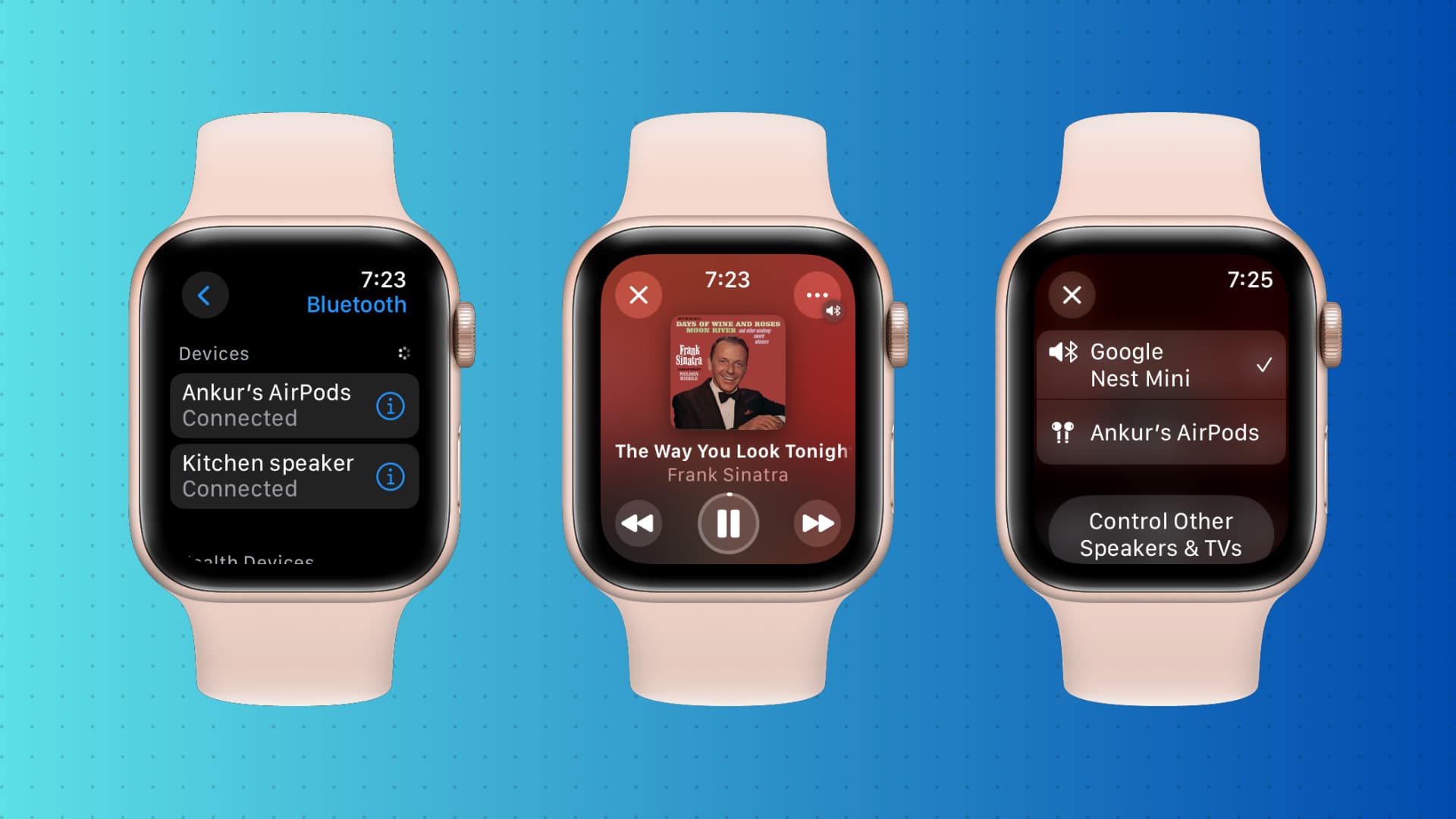
Before you begin, make sure the device in question was paired previously to your Apple Watch:
- This should not be a concern with AirPods, as pairing them with one of your Apple devices, such as your iPhone, makes them available on all your other Apple devices via iCloud.
- But for third-party Bluetooth speakers and headphones, go to Apple Watch Settings > Bluetooth and pair them first. Then, follow the steps below to route the audio from your Apple Watch to your wireless speakers.
Route audio from Apple Watch to AirPods or another Bluetooth speaker
1) Make sure your Bluetooth earphone is powered on and not connected to any other device. In case of AirPods, open the charging case lid to allow connections.
2) Press the side button on your Apple Watch to open Control Center.
3) Tap the AirPlay button and select your AirPods or other available device.
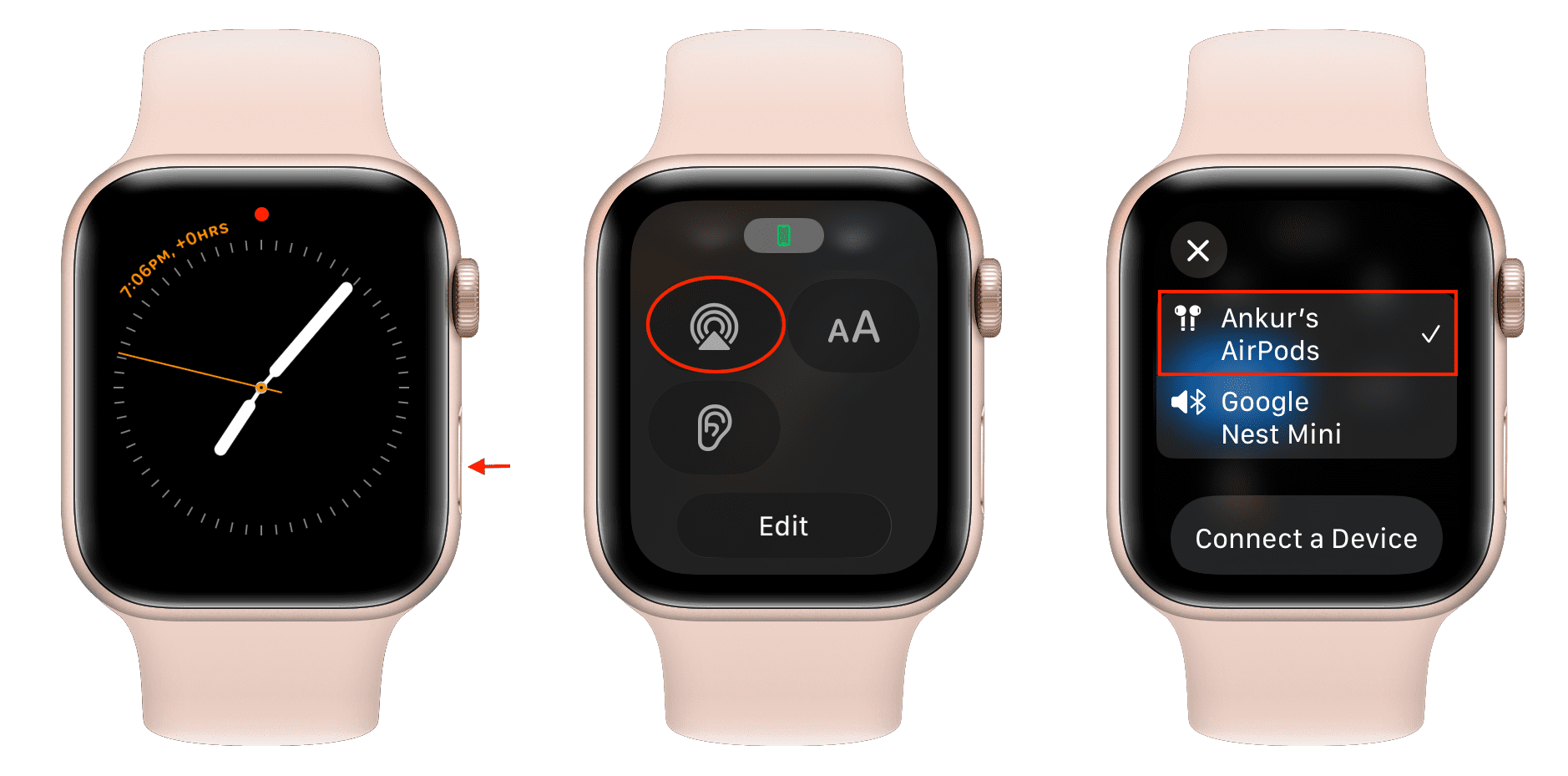
If you don’t see a Bluetooth device here, make sure it’s powered on and disconnected from any other device.
AirPlay music or podcasts from Apple Watch Control Center
In addition to the above steps, you can also channel the music or podcast directly from inside the app.
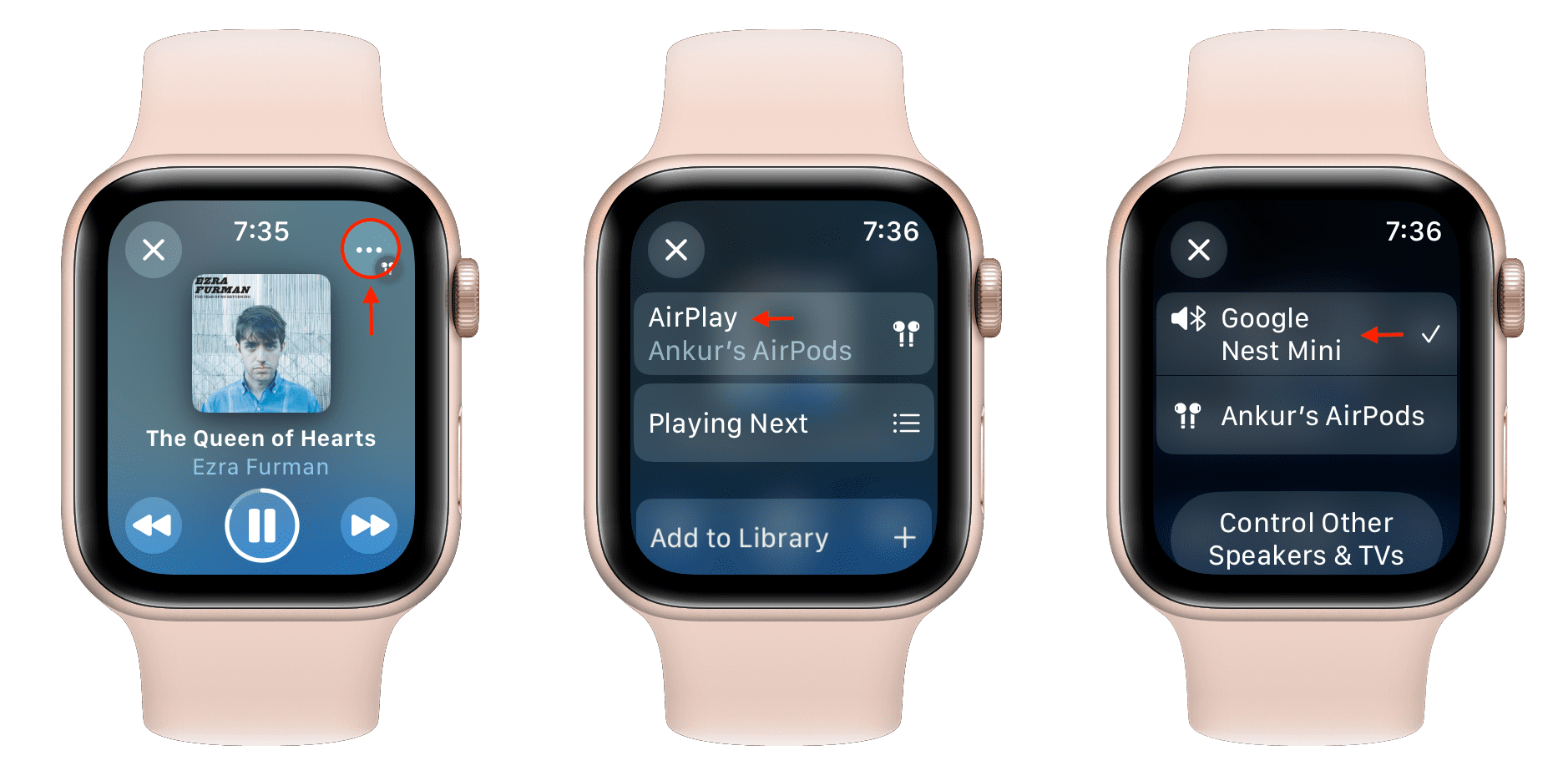
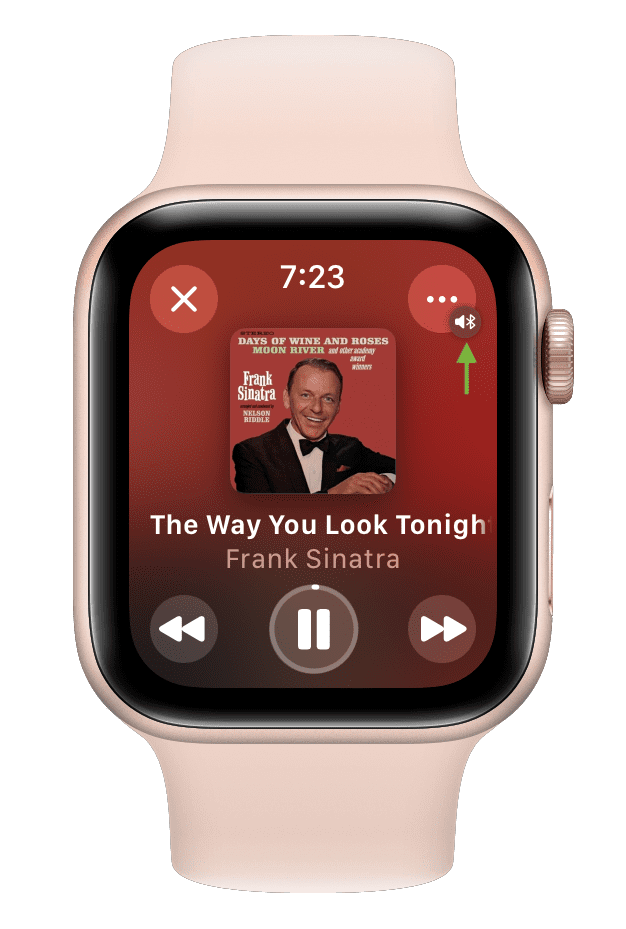
1) Go to the Now Playing screen of the Apple Music, Podcasts, or other media app.
2) Tap the three dots menu icon, followed by AirPlay, and select an available wireless device. This step may differ slightly based on the app.
Connect a Bluetooth speaker to your Apple Watch
You can also connect any Bluetooth headphone or speaker to your Apple Watch and stream audio there.
1) Open the Settings app on your Apple Watch.
2) Scroll down and tap Bluetooth.
3) Put your Bluetooth headset or speaker in pairing mode.
4) Select your Bluetooth speaker and wait until it says “Connected.”
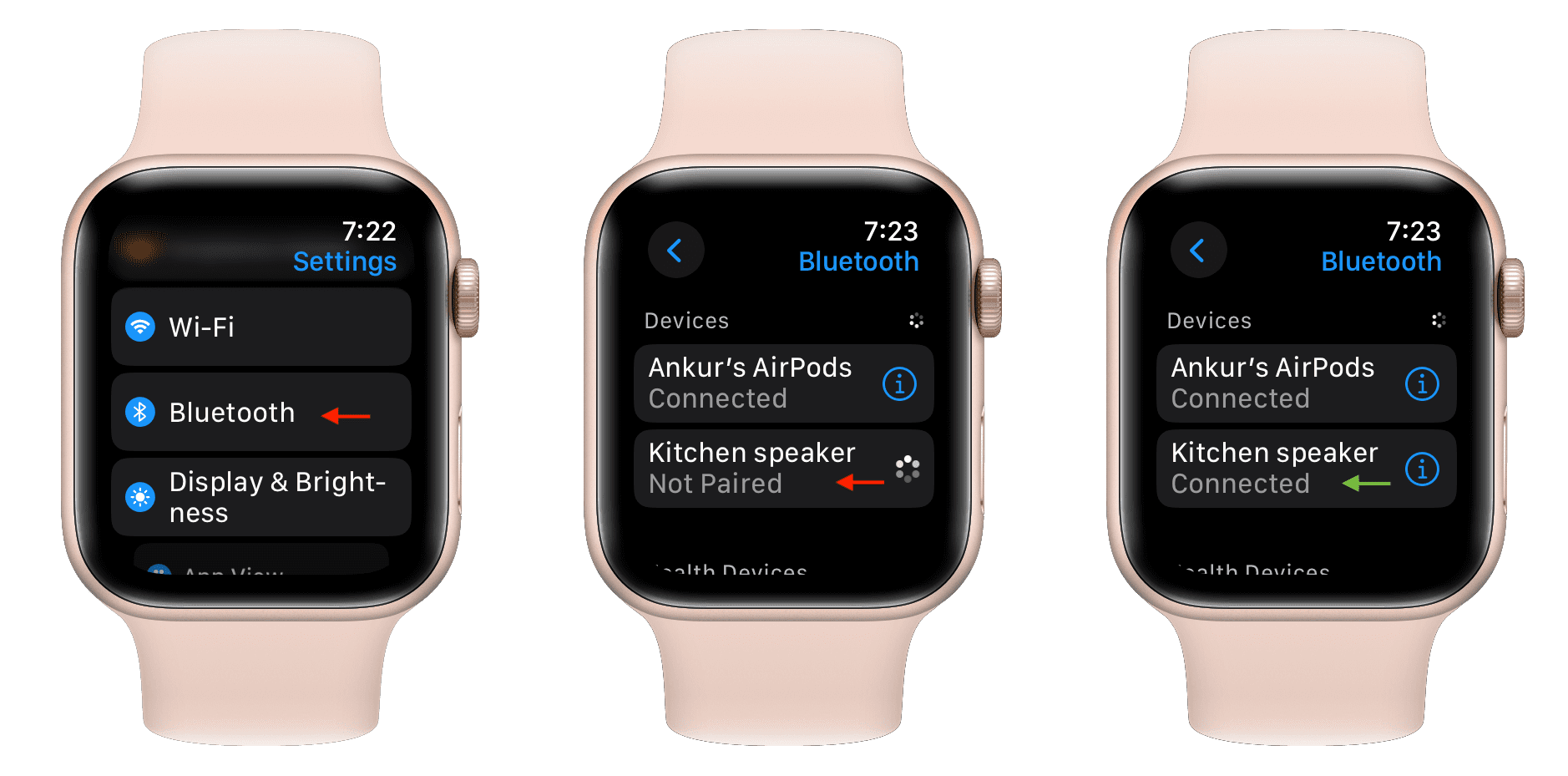
5) Now, play a song or podcast on your Apple Watch, and its audio should be routed to the Bluetooth speaker. If not, follow the above two methods and select your Bluetooth speaker from the AirPlay screen or the Control Center.
AirPlay from Apple Watch to HomePod and other devices
When you tap the AirPlay button from inside the Music app or watchOS Control Center, you may see an option to “Control Other Speakers & TVs.” You can use this to control what’s already playing on your HomePod, Apple TV, or other supported AirPlay devices.

Also, check out: