Filter out the contents of your email inbox in the Apple Mail app on your iPhone, iPad, and Mac to quickly find what you’re looking for. This will ensure you no longer have to scroll endlessly through your inbox, which can be a real pain when you receive a ton of emails.
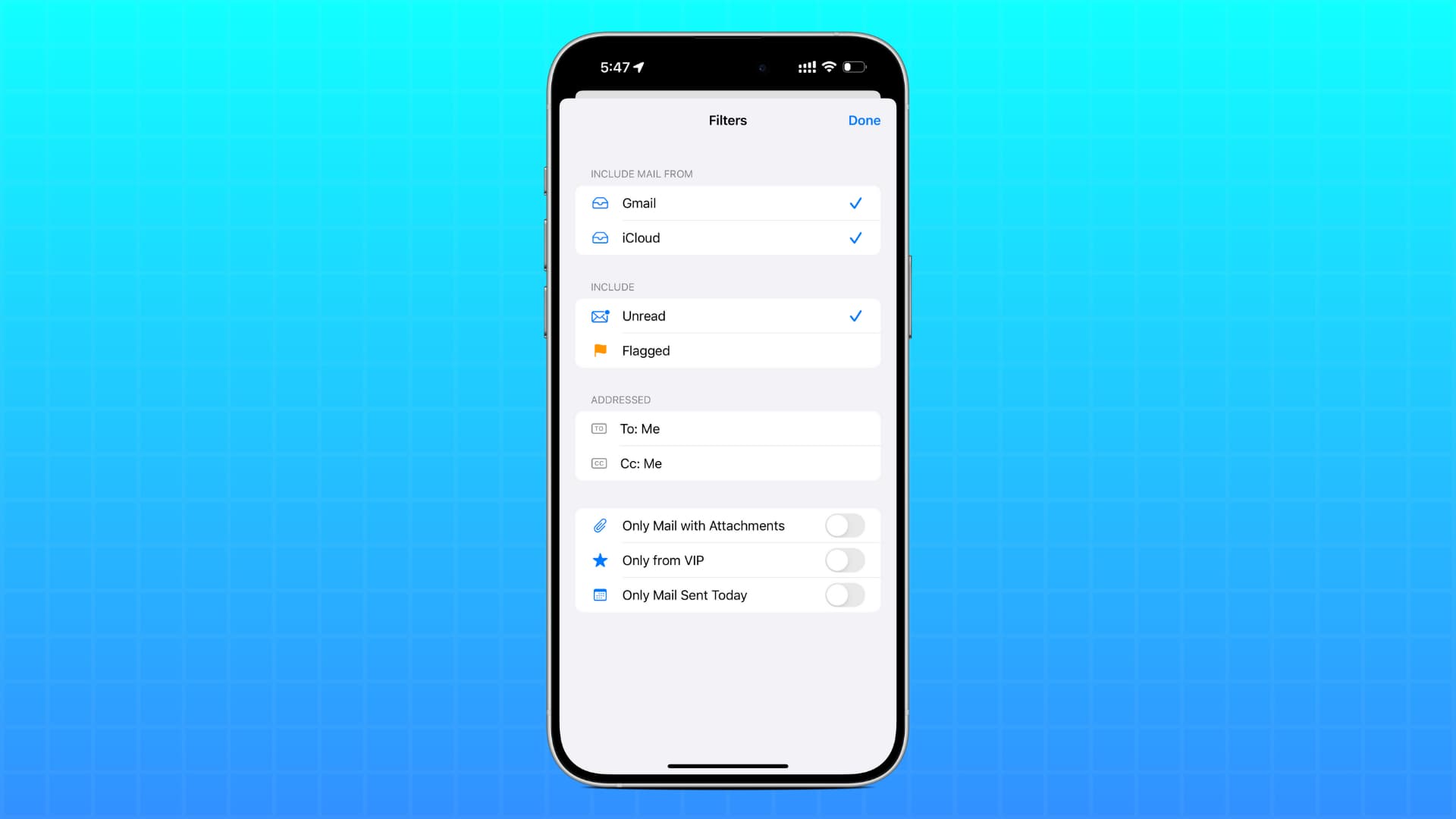
Here are the steps for both iOS and macOS. You can use it to view all unread emails in your inbox or select other filtering options.
On iPhone or iPad
To filter an inbox in the Mail app, launch the app and open one of your inboxes. You can use any of your individual email inboxes, or you can use the unified inbox that shows content from all of your email accounts if you choose to.
Once there, tap the little round button at the bottom left of the screen with the three lines in it. This is the filter button.

As you can see, the filter button is going to filter your inbox by read/unread messages by default. Depending on how you use your inbox, this might be helpful, but you can further customize how your inbox gets filtered if you really want to.
To customize your filtering options, tap “Filtered by,” and you’ll be presented with even more filtering options:

Among the things you can filter by are:
- Email accounts
- Whether or not a message is unread
- Whether or not a message is flagged
- When messages are addressed to you
- When you’re CCed on emails
- If the messages have attachments
- If the messages are from your VIP contacts
- If the messages were sent today
With these filtering options, you’ve a wide variety of ways to focus on the emails you really need to look at instead of having to go through each and every message to pick out what’s important.
For someone who gets a lot of spam messages or uses multiple email accounts in the same app, filtering is sure to save a lot of time.
On Mac
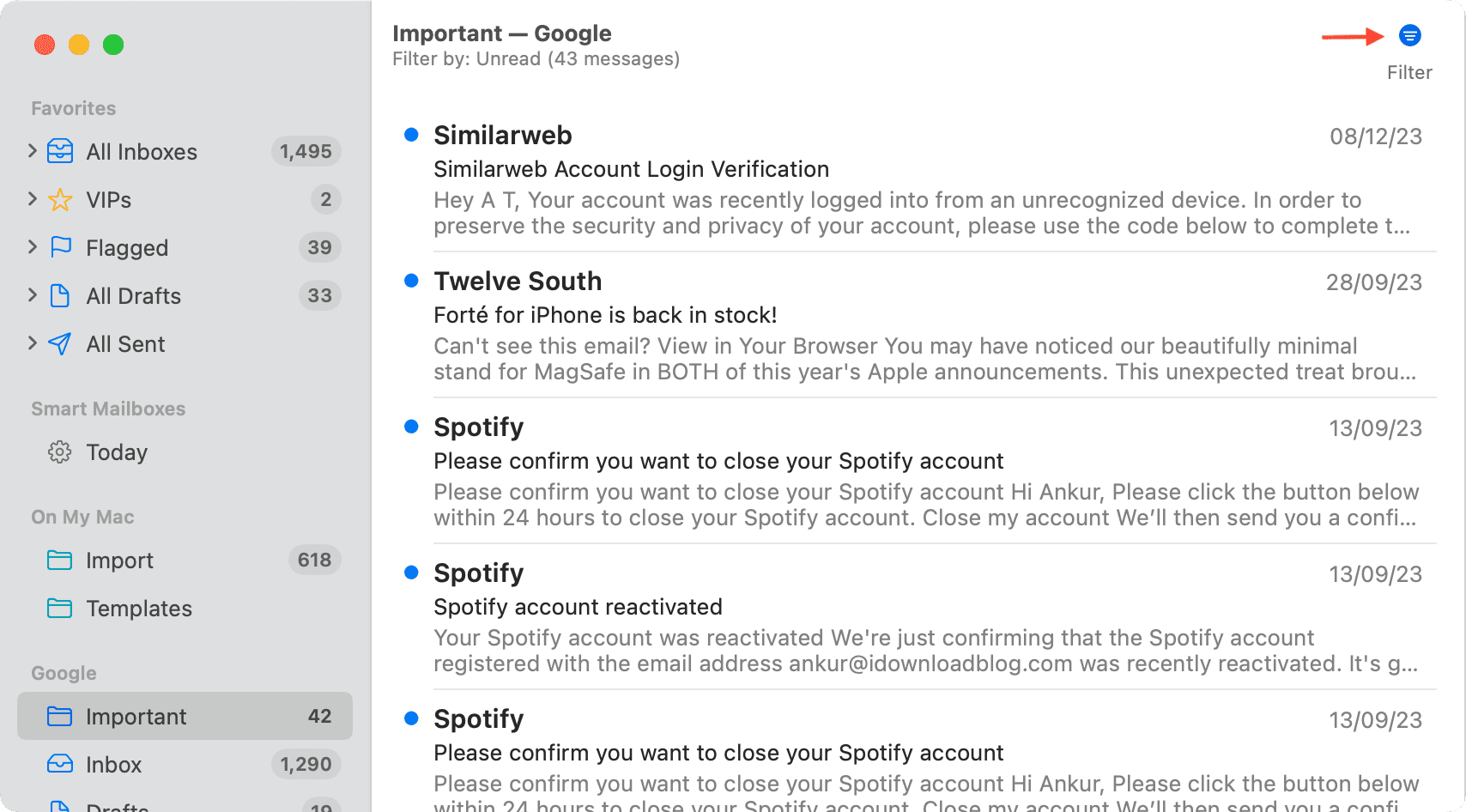
Go inside the Apple Mail app and select an email inbox from the left sidebar. After that, click the Filter button, and it will sort all emails by unread.
To pick a different filtering option, click View > Filter from the top menu bar and select an option.
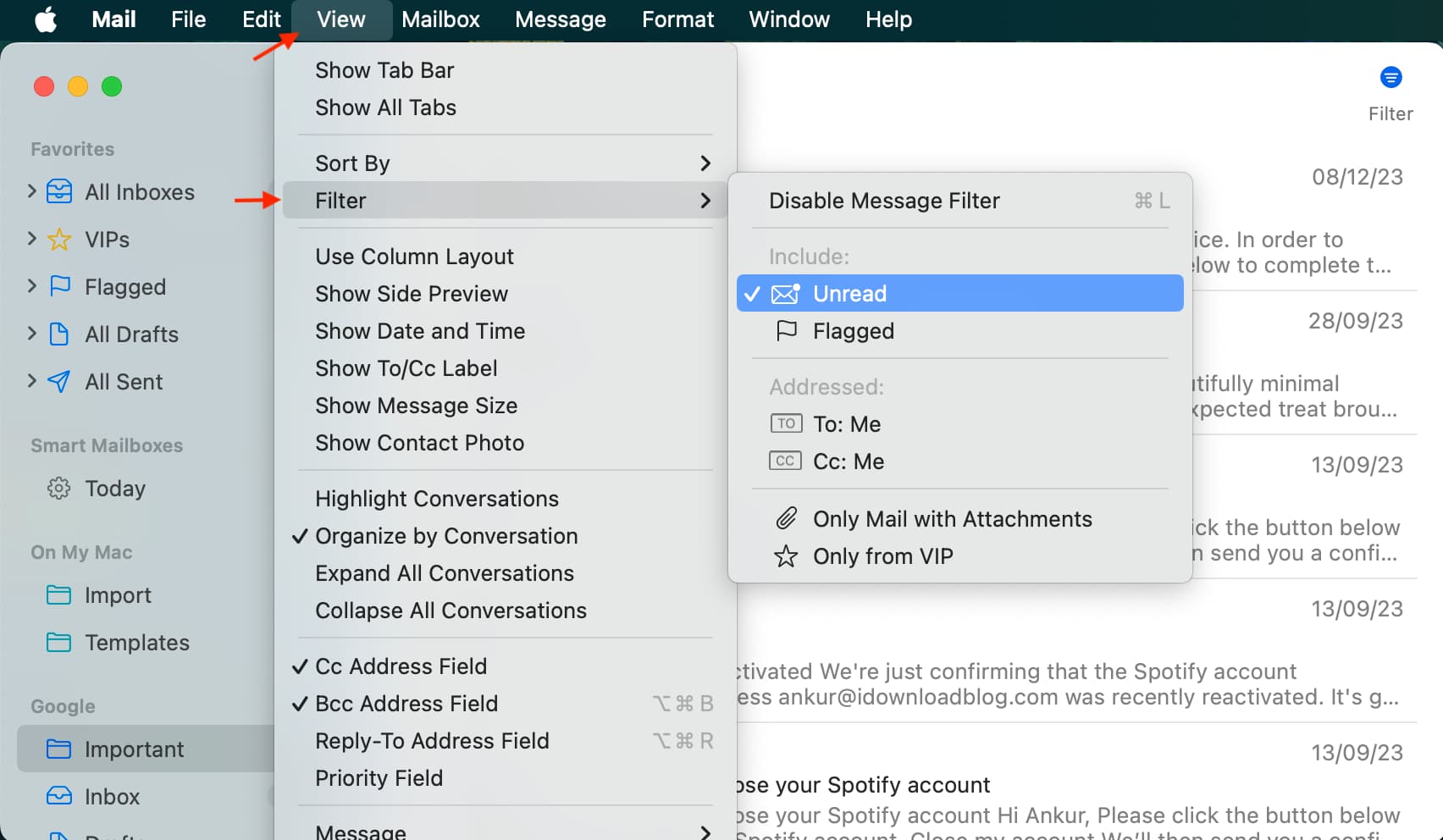
Tip: Instead of clicking the Filter button, you can also hit View > Filter > Enable/Disable Message Filter or press command + L to toggle filtering on and off.
Will you be getting a lot of use out of the email filtering option?
Also, check out: