Like your iPhone or iPad, your Mac sports an auto-correction feature that automatically corrects any misspelled words in your chats, documents, emails, and other documents that work with the system-level auto-correction feature.
In many macOS apps, mistakes are automatically corrected as you type. Native speakers who know their way around the grammar and spelling rules may want to reverse this behavior, and we’ll show you how.
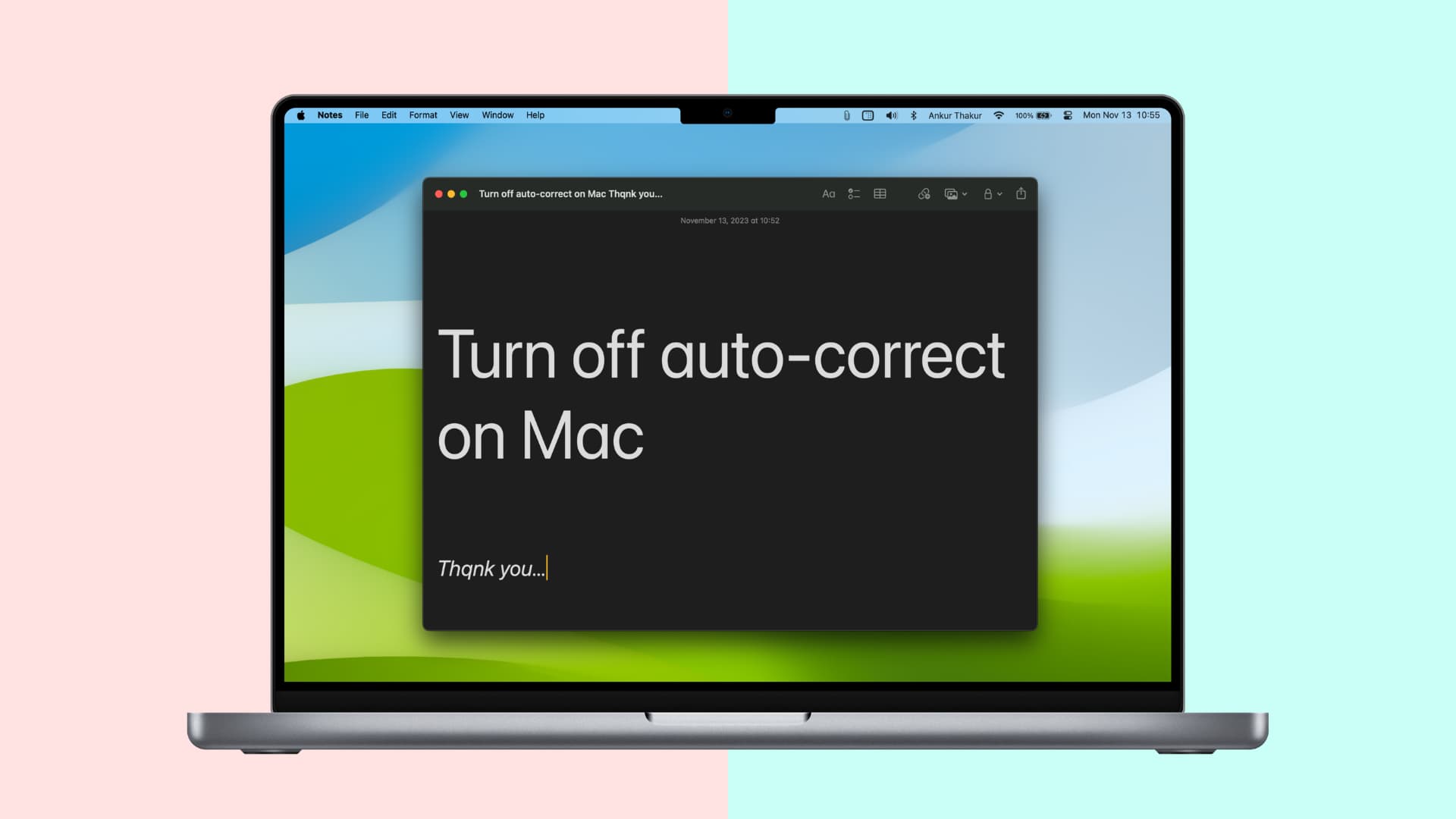
Deactivate auto-correction on Mac for a specific app
- Launch an app like Notes and click the typing text field.
- From the top menu bar, select Edit > Spelling and Grammar and uncheck the Correct Spelling Automatically option so that a checkmark isn’t shown.
- Further, if you don’t want the app to even underline misspelled words in red, uncheck ‘Check Spelling While Typing.’
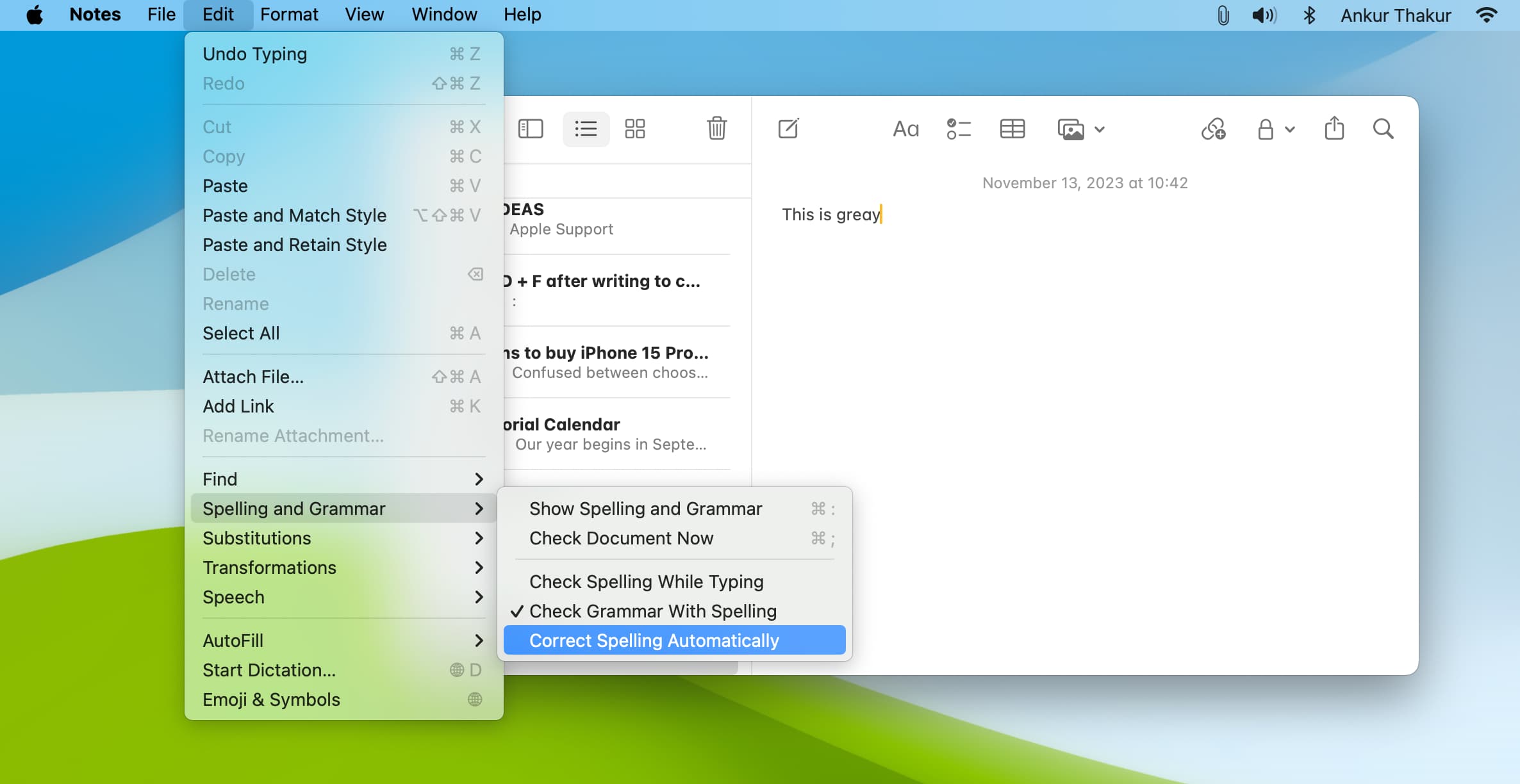
Note: Some apps, like Microsoft Word and Chrome, may lack a spelling or grammar command in the Edit menu. If that’s your case, check the app’s settings pane or menus to see if it came with its own spell checker.
Turn off auto-correct for all Mac apps
- Open System Settings on your Mac.
- Scroll down and select Keyboard.
- Click Edit next to Input Sources, which is under the Text Input heading.
- Turn off the switch for ‘Correct spelling automatically’ and click Done.
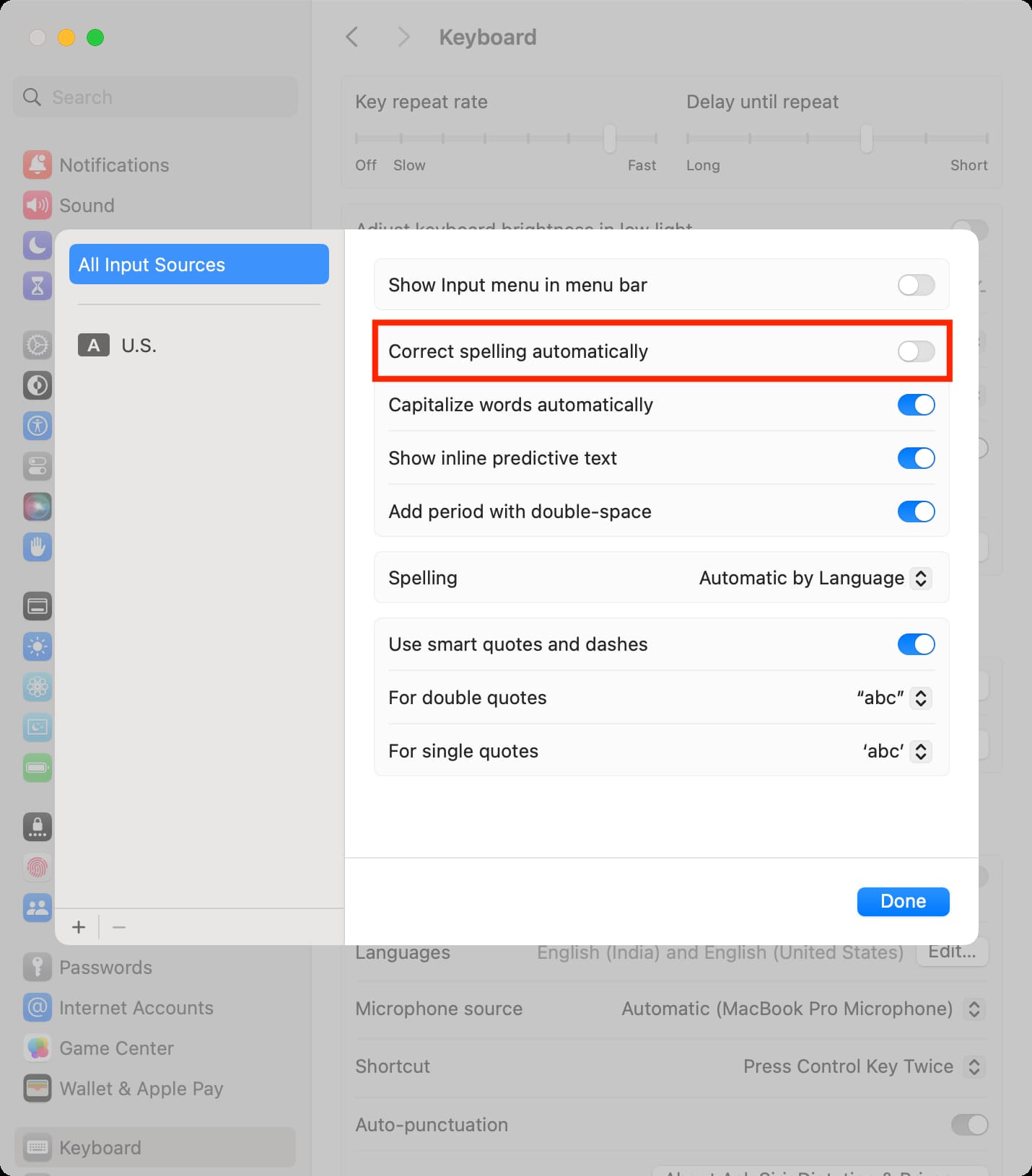
This will stop your Mac from automatically correcting or changing words it thinks you typed incorrectly.
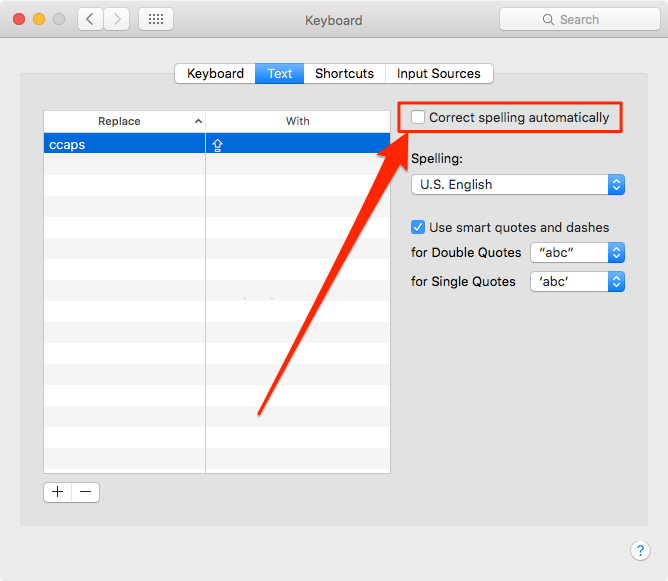
On older versions of macOS, go to System Preferences > Keyboard > Text and untick the box next to ‘Correct spelling automatically.’
How auto-correction works
On macOS, autocorrection underlines misspelled words in red. As you type, suggested words pop up, allowing you to accept a single suggestion by continuing to type.
If two or more suggested words are shown, you can click one or use the keyboard arrows to select it. To ignore suggested words, press the esc key on the keyboard.
Any automatically corrected word is briefly underlined in blue, letting you revert to the original spelling by putting the insertion point after the word.
You can also right-click or Control-click the word to show your spelling, then choose it. To add words to the macOS built-in spelling dictionary, Control-click it and choose Learn Spelling. This will train the spelling dictionary, and macOS will no longer flag the word as misspelled in any document. To have the word flagged as misspelled again, Control-click it in a document, then choose Unlearn Spelling.
Extra info: macOS allows you to add custom spelling dictionaries. All you have to do is obtain one or more spelling dictionary files in either the Affix (.AFF) or the commonly used .DIC or .DICT file format and copy them to the Spelling folder inside your Library folder. Then, log out and log back in for the changes to take effect.
Also, check out: