In this tutorial, we’ll walk you through the steps to change the default icons for your Mac apps to something more custom and unique.
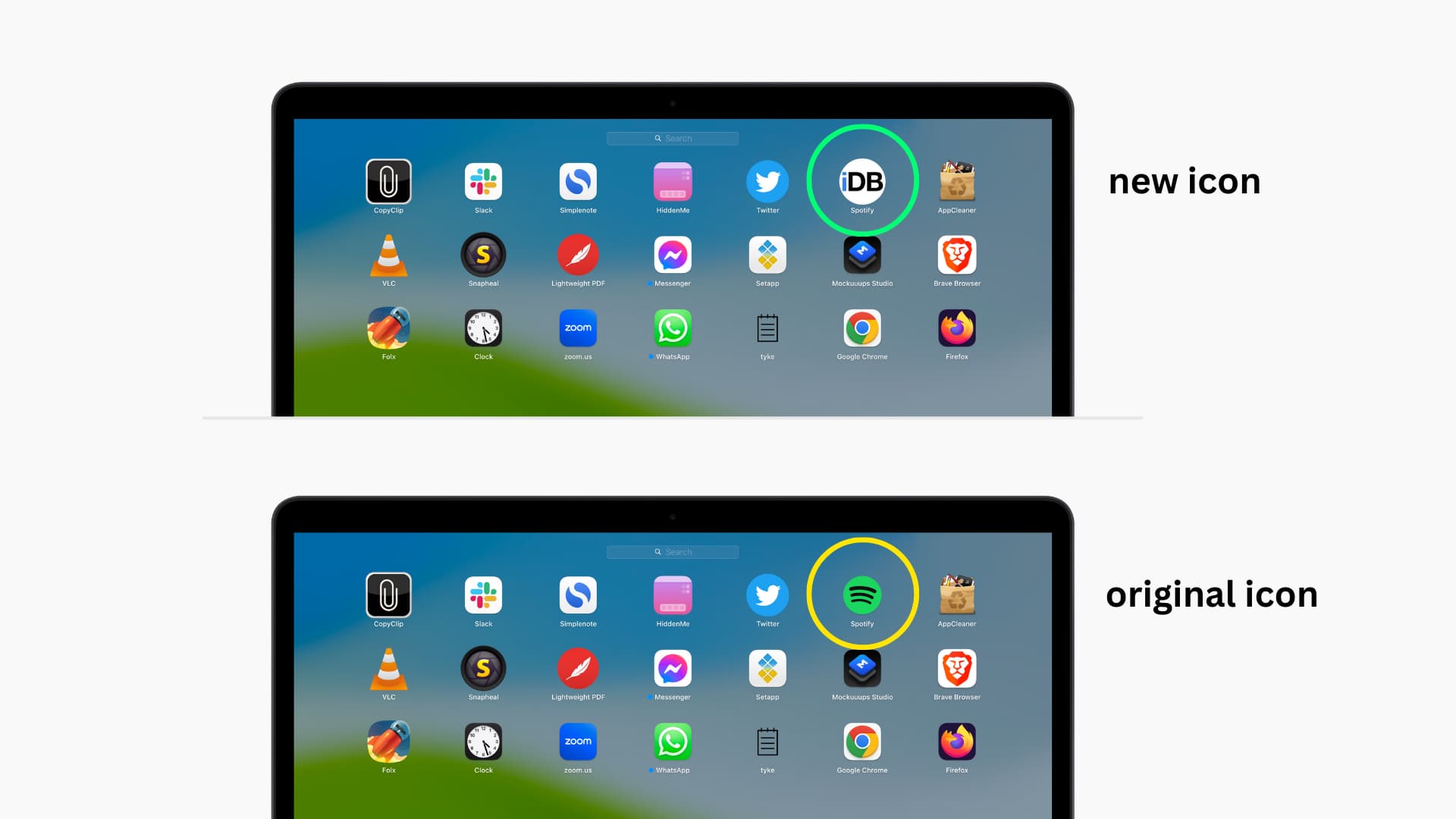
The method highlighted in this guide works for both third-party and system apps, as well as for individual folders and files.
Why change an app icon on Mac
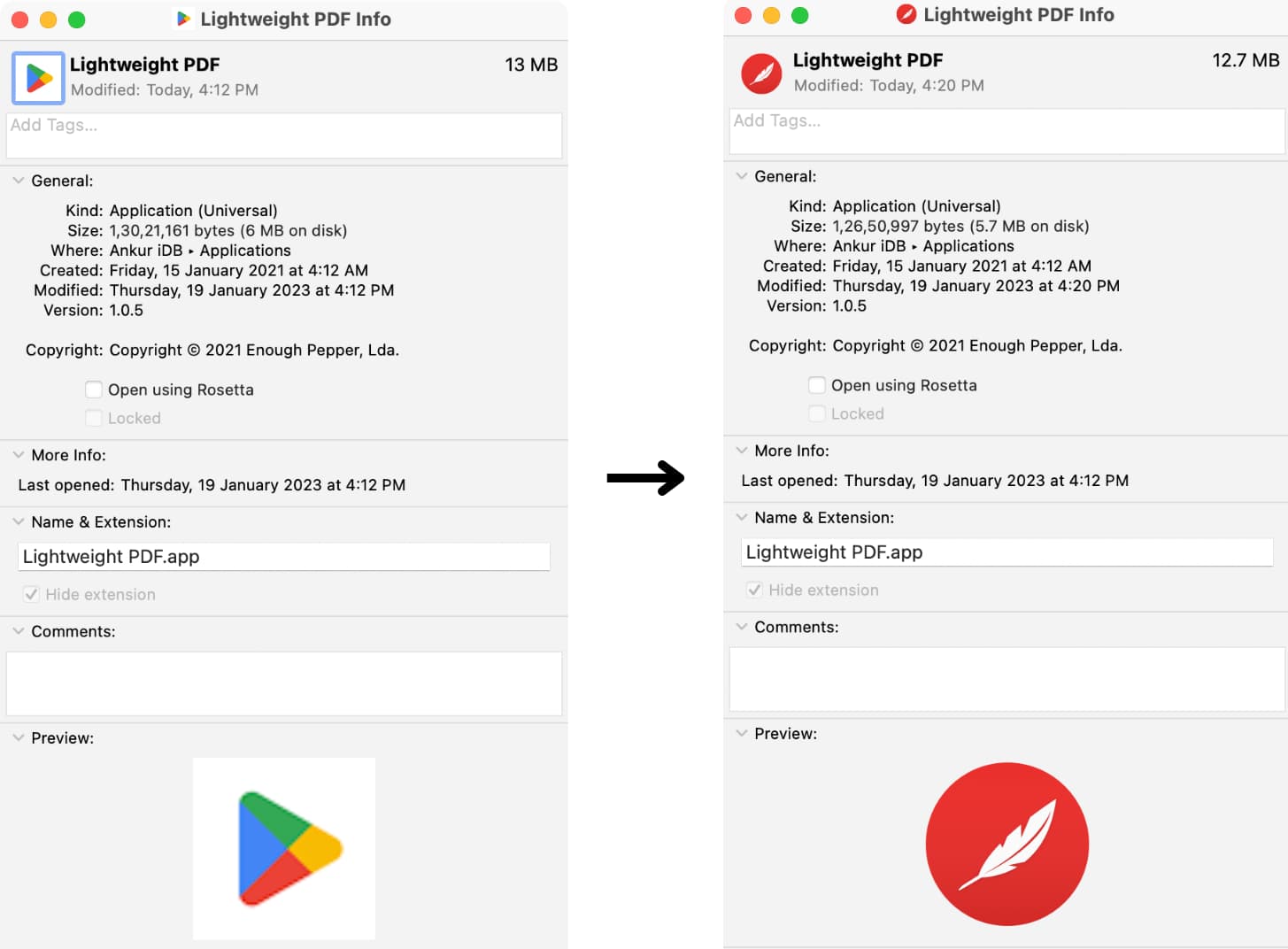
Changing Mac app icons doesn’t affect how the app functions, but it does alter the visual appearance, giving you something different to look at. The change will appear in Finder, Dock, Launchpad, and anywhere else that you can launch the app from.
Many people may want to change an app’s icon for the following reasons:
- They don’t like how an app icon looks
- They want to theme their Mac with a new look and feel
- Most of their apps have an iOS-style look, but some un-updated app icons look different
- They have an app like Tyke with a transparent app icon, which isn’t properly visible on some wallpapers
If any of these reasons apply to you, then it’s time to start changing your original app icons to custom ones.
Before you begin
You can change the app icon of third-party apps with ease. But to change the app icon of built-in Mac apps, you’ll have to disable System Integrity Protection on your Mac. For security purposes, we recommend re-enabling System Integrity Protection when you’re done swapping icons.
Change an application icon on Mac
1) Make sure you have the new app icon or image (JPG or PNG) you want to use. You can download it from the internet or create one yourself using Photoshop.
2) Find your app in the Finder Applications folder. Right-click or Control-click on it, and then click Get Info. You can also just press Command + I.
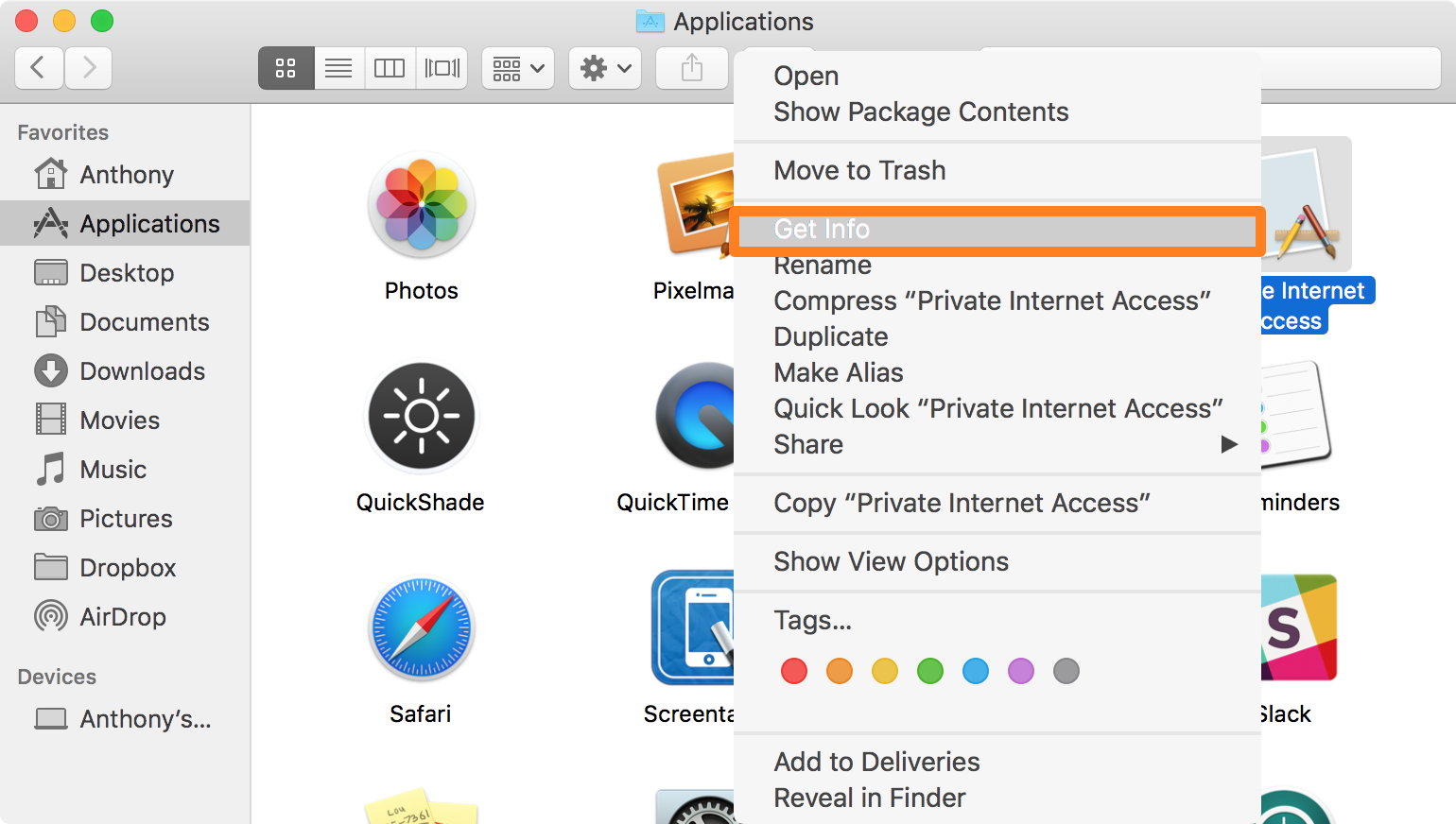
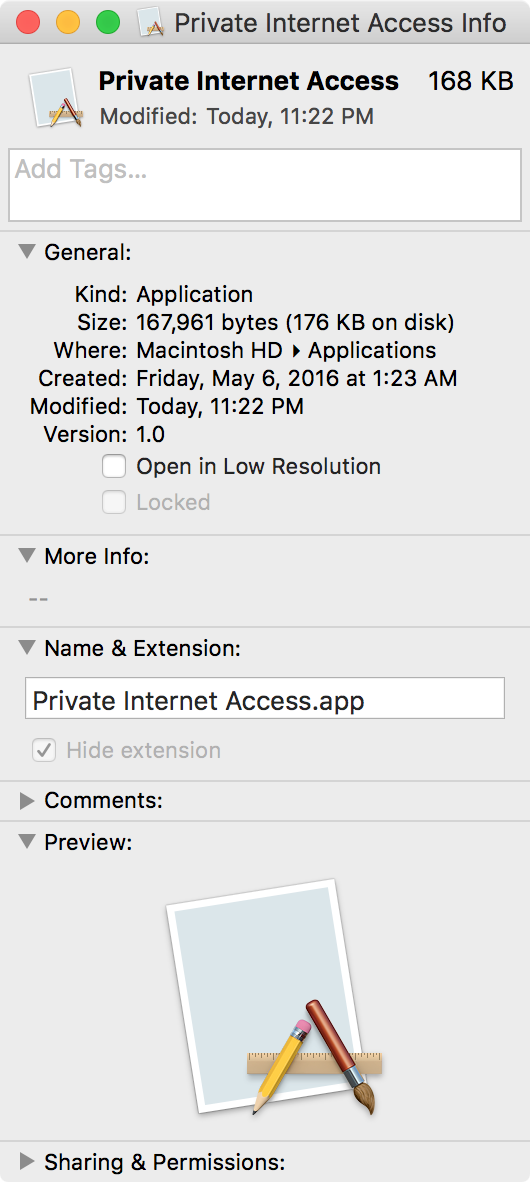
This will open the Info menu for the app you selected:
3) Next, open the image or icon you want to use as an app icon in the Preview app.
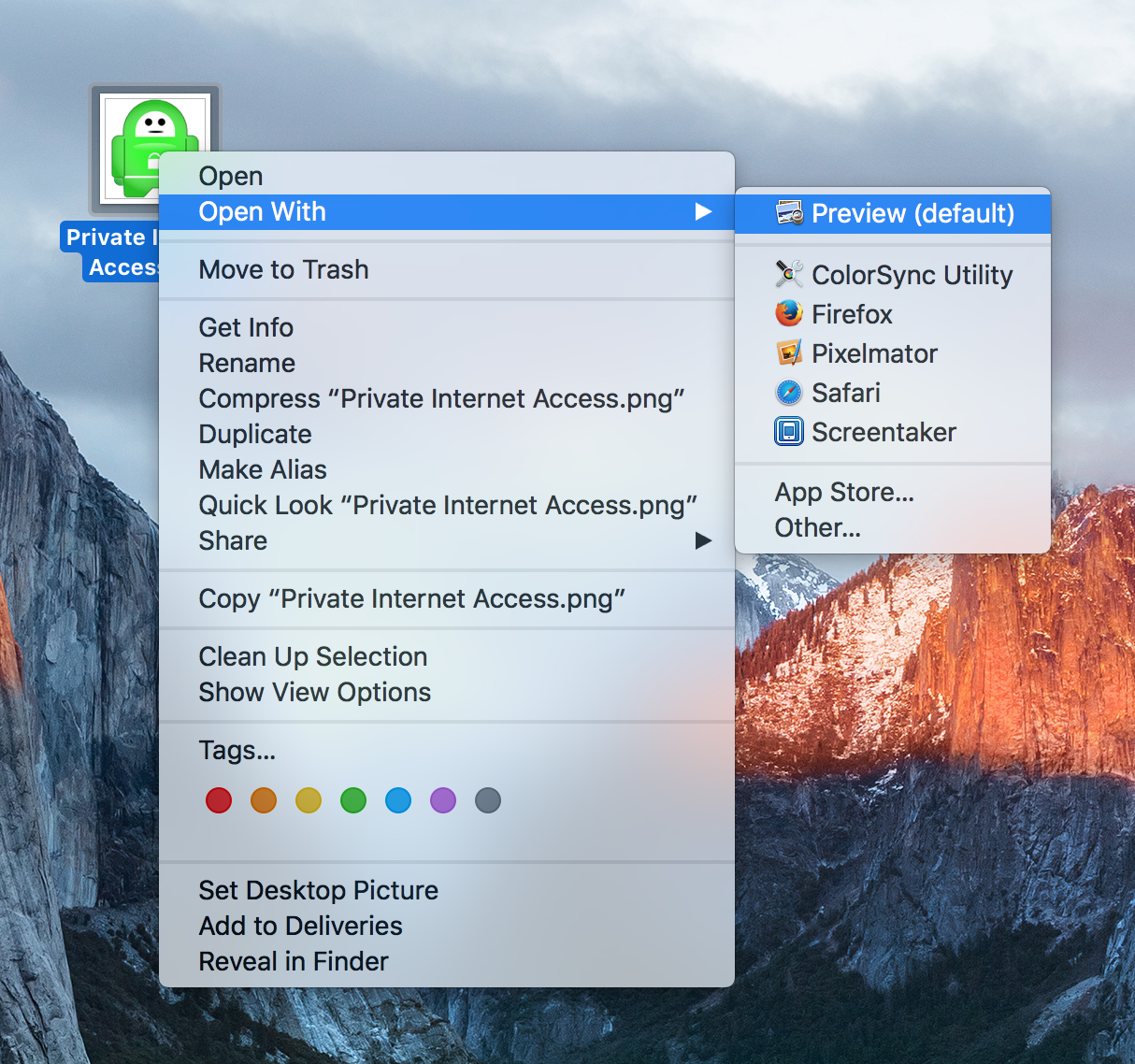
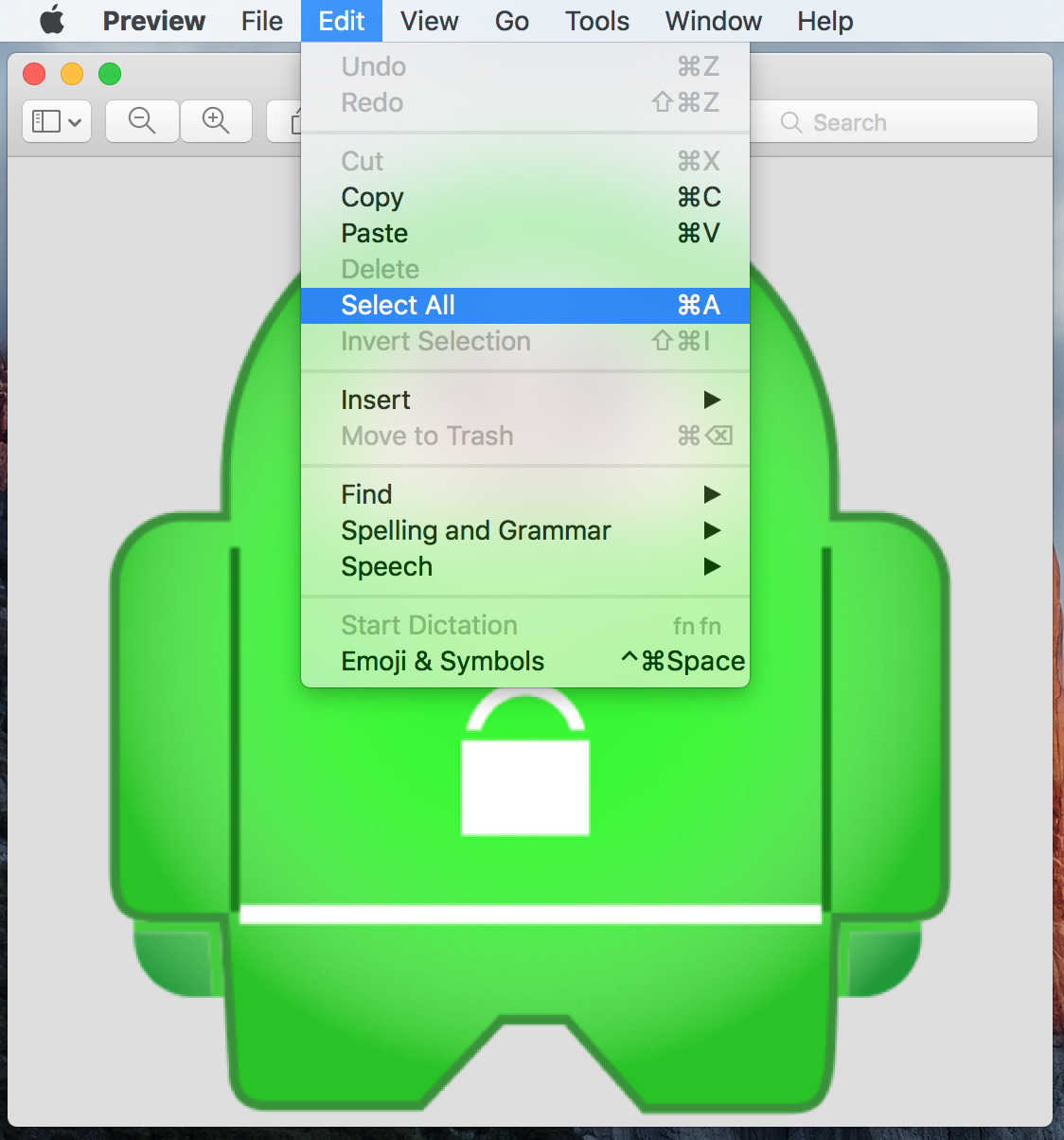
4) With the image open in the Preview app, go to Edit > Select All in the top menu bar to select the entire image.
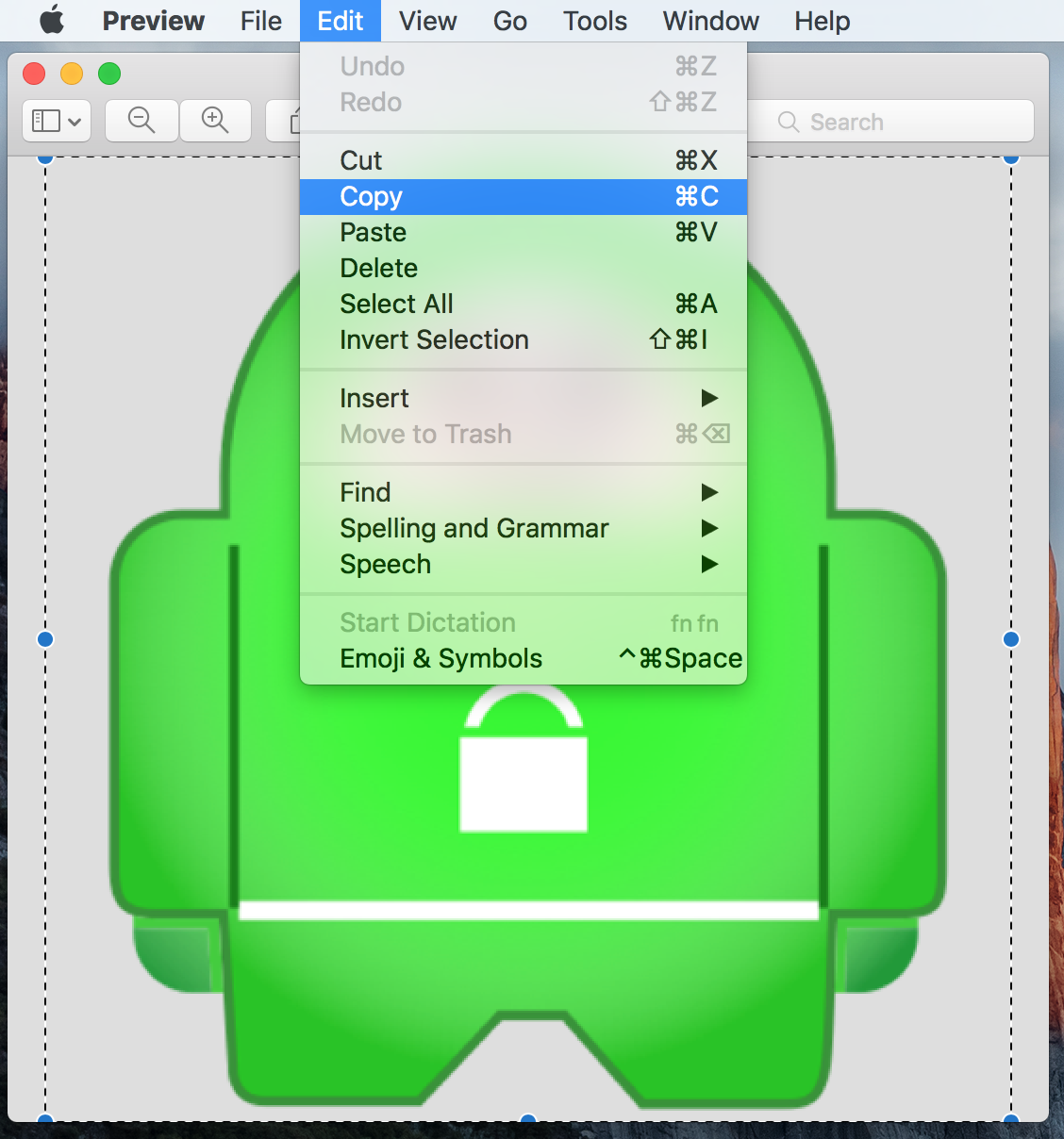
5) Next, with the image selected, go to Edit > Copy in the menu bar to copy the entire image to your Mac’s clipboard. You can also just press Command + C.
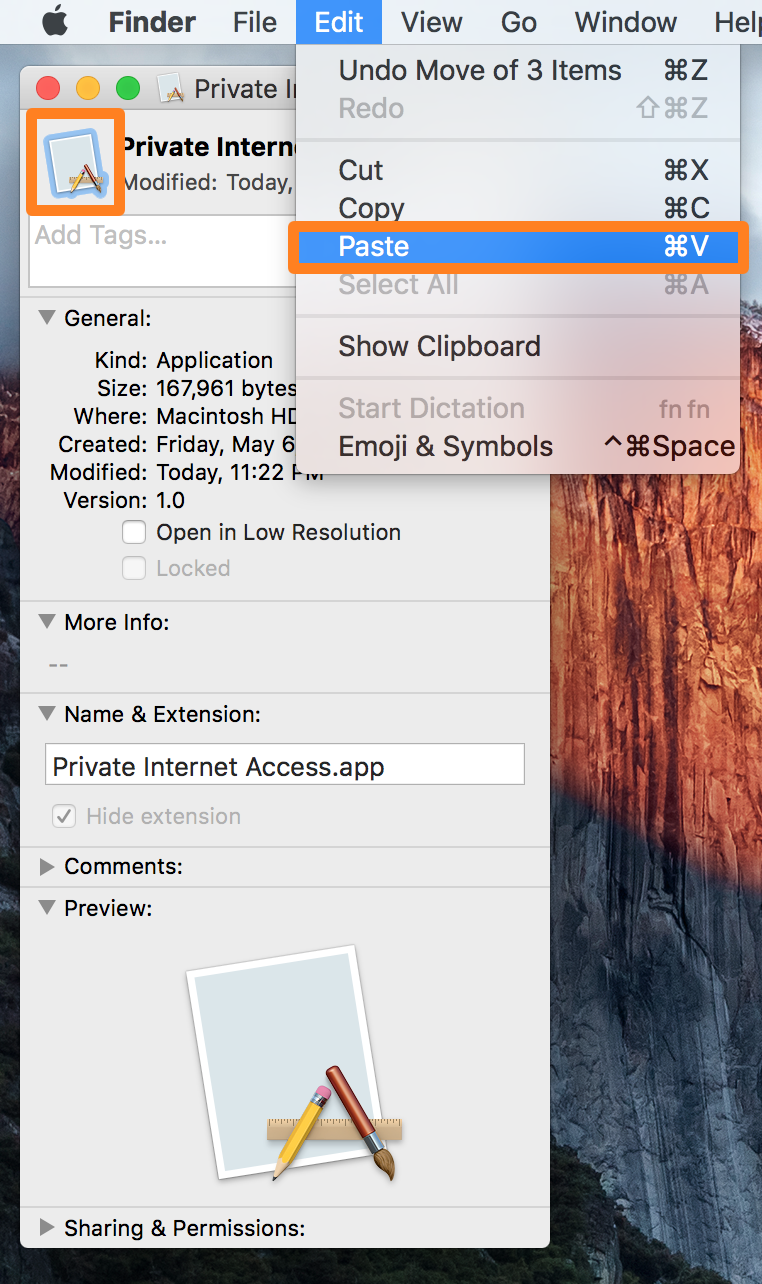
6) With the image in your clipboard, go back to the Info window you opened in step 2, click on the icon at the top left of the window, and then go to Edit > Paste in your Mac’s menu bar.
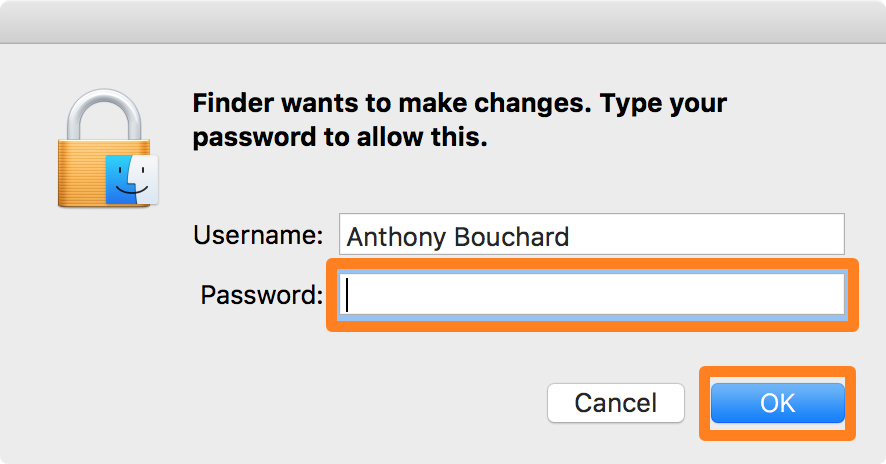
7) Depending on the location of the app you’re trying to change the icon of, you may be asked to enter your password. Go ahead and enter it, then click the blue OK button.
8) The new image should now be applied to the app, but for it to fully take effect, you should restart your Mac. Once you log back in, you can go to Launchpad or your Dock, and you should see the changes.
Another method: Drag & drop the app icon
1) Open Finder and navigate to the Applications folder on your Mac. Locate the app for which you want to change the icon.
2) Right-click the app and select Get Info.
3) In the top left corner of the Info panel, you’ll see the app’s icon. Drag the new icon file over the original one and release it when you see the green plus (+) sign on your cursor.
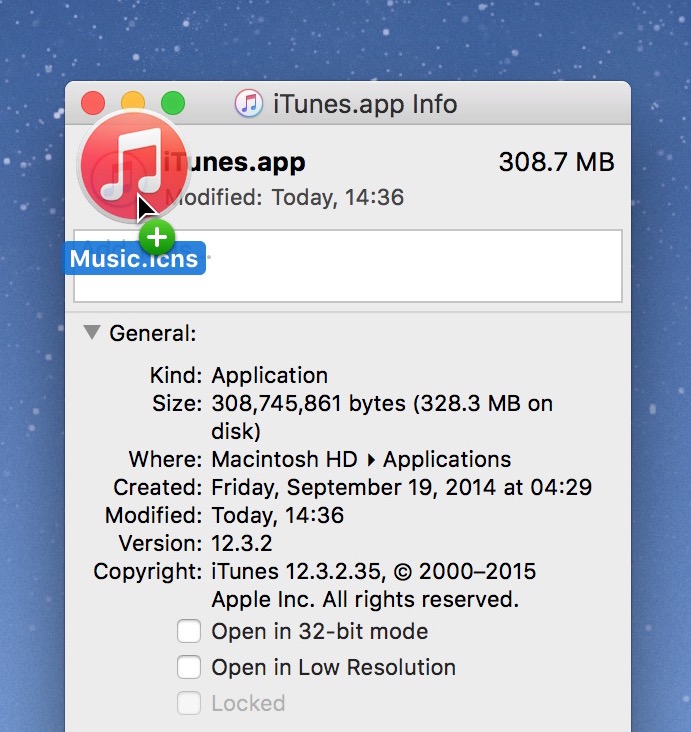
Note: macOS may ask you for your administrative password at this point; enter it to change the icon.
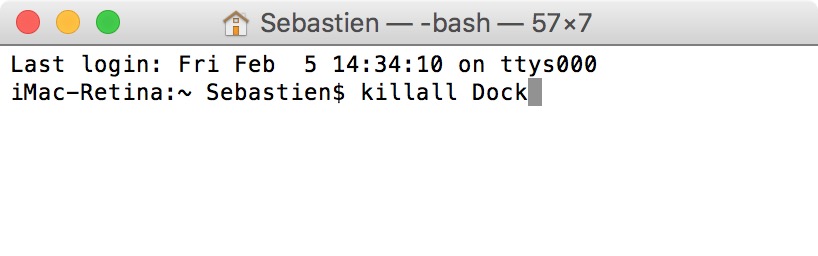
4) If the application is in your Dock, the new icon may not show up until you log out. To fix this, open Terminal, type killall Dock and press the return / enter key.
How to revert to the original icon
If you decide to switch back to the app’s original icon, you can easily do so.
1) Use Finder to navigate to the Applications folder of your Mac and select the app.
2) Right-click the application and select Get Info.
3) In the top left corner of the Info panel, you’ll see the app’s icon. Click it to highlight it.
4) Press the delete key on your Mac’s keyboard. macOS may ask you for your administrative password at this point; enter it to reset the icon.
The app’s icon should be restored to its original state.
You might also like: