Are you worried that your child may download an app, watch a movie/TV show, play a song, see a news story, or read a book that is not suitable for them? Learn how to block your kid’s access to explicit, vulgar, gambling, violent, or inappropriate apps and media on their iPhone, iPad, Mac, and Apple TV.
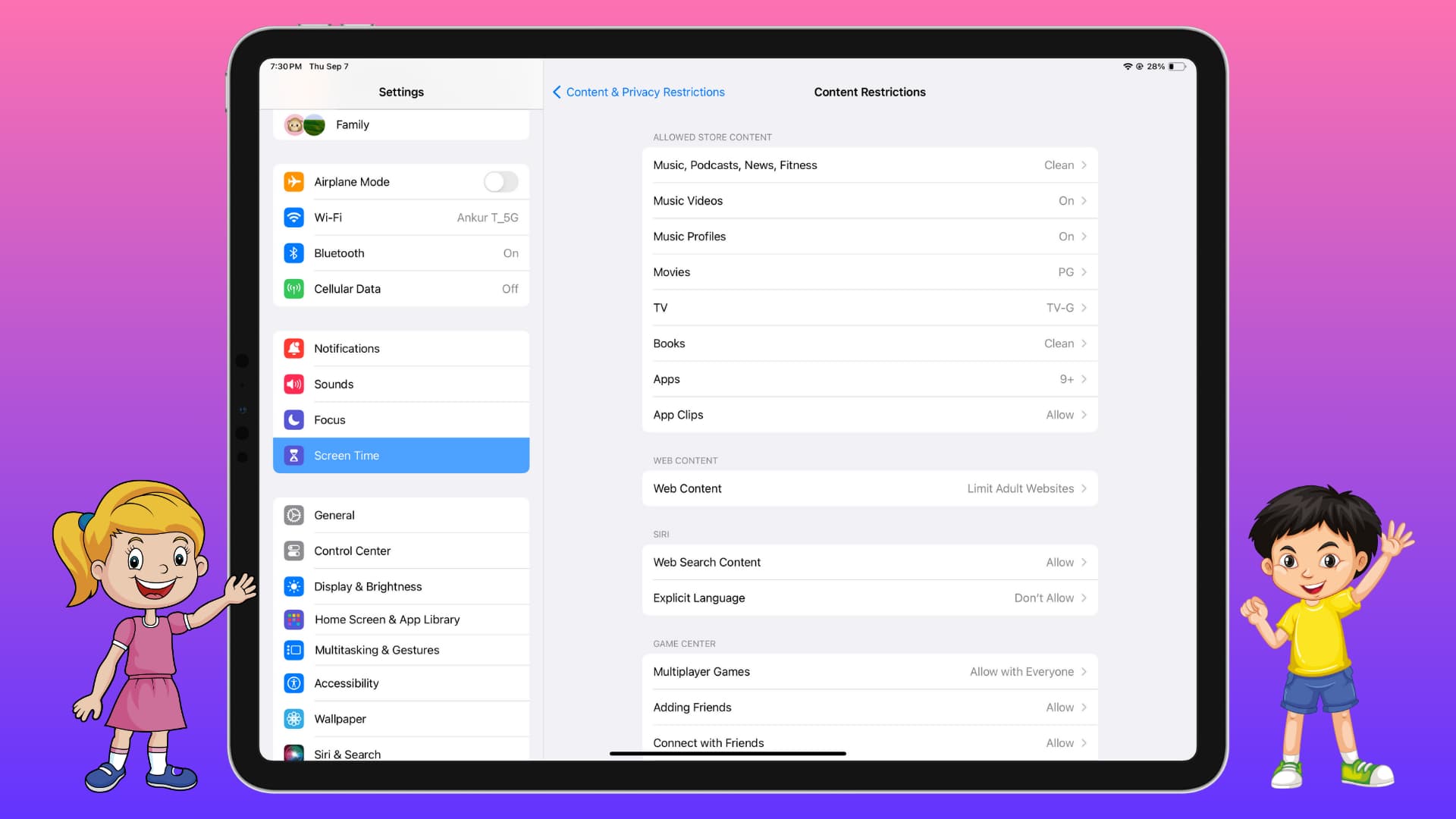
The powerful Screen Time Content & Privacy Restrictions feature lets you block or limit certain capabilities and services on your Apple devices.
For instance, if you’re concerned your child may spend money while playing games, you can simply block in-app purchases on their iPhone or iPad. Similarly, you can block all adult sites on your child’s iPhone.
On that note, here’s how to restrict apps, music, movies, television shows, news, podcasts, and digital books to only those with appropriate age-based ratings by turning on content restrictions.
On iPhone and iPad
1) Open the Settings app on your child’s iPhone or iPad and tap Screen Time. Make sure it’s set up and you’re using a Screen Time passcode different from the device passcode. Also, don’t disclose this passcode to your kid.
2) Tap Content & Privacy Restrictions.

3) Turn on Content & Privacy Restrictions, and tap App Store, Media, Web, & Games (formerly called Content Restrictions).

4) Tap Music, Podcasts, News, Fitness, and choose Clean instead of Explicit.
5) Next, go back, tap Movies, and select a rating other than Allow All. The ratings here depend on your country or region. For instance, if your iPhone region is set to the United States, you’ll see the following:
- NR or Unrated: This usually means the film has not been rated.
- G: For the general audience of all ages.
- PG: Parental guidance is suggested as some parts of the film may not be suitable for children.
- PG-13: Parental guidance is strongly suggested as some parts may be inappropriate for children under 13 years of age.
- R: Restricted. While going to an R-rated movie, children under 17 should be accompanied by a parent or a guardian.
- NC-17: “No One 17 and Under Admitted.” In other words, it’s for people who are 18 and above.
You can learn more about movie ratings in the USA on this Motion Picture Association film rating system page.
6) After taking care of movies, tap TV, and pick a rating like:
- TV-Y: For all children.
- TV-Y7: For children aged 7 and above.
- TV-Y7-FV: Contains fantasy violence.
- TV-G: For general audience. It’s suitable for all ages.
- TV-PG: Parental guidance is recommended.
- TV-14: Not suitable for children under 14 years of age.
- TV-MA: For mature audiences only and unsuitable for children under 17.
Just like movie ratings, the ones here also depend on your region. You can learn more about these TV show ratings here.
7) Next, tap Books and choose Clean.
8) Finally, tap Apps, and pick a rating from 4+, 9+, 13+, or 16+.
The number in all these ratings represents the age an app is fit for. For instance, 4+ means only apps suitable for kids above 4, and so on.
Suppose you pick 9+ here. This means all App Store apps that are rated 13+ or above will not be allowed to be installed on this iPhone, and currently installed apps with a higher rating will be hidden from the Home Screen, thus becoming unusable. You can see the age rating for an app on its App Store page.
In addition to the safety settings mentioned above, you can explore other options here, like preventing explicit language in Siri or restricting web browsing to allowed or non-adult sites.
On Mac
If your child uses a MacBook, iMac, Mac mini, or another Apple computer, you can set some restrictions on this as well. The fundamentals are similar to iPhone and iPad.
1) Open System Settings, go to Screen Time > Content & Privacy, and turn on Content & Privacy.
2) Click Store Restrictions to set restrictions for movies, TV shows, apps, books, music, podcasts, and news. Click Done after changing the settings here.

3) Next, you can click App Store, Media, Web, & Games (earlier called Content Restrictions) and limit access to adult websites or block explicit language in Siri and Dictionary.

On Apple TV
Like other iOS and macOS devices, Apple TV also has robust restriction settings in place. Here’s how to adjust it to make it child-appropriate.
1) Open the Apple TV Settings app.
2) Go to General > Restrictions and create a four-digit passcode that you must not share with your kids. Note it in a locked note on your iPhone.
3) Once you’re on the Restrictions settings screen, make sure it says On next to Restrictions.
4) After that, go to the Allowed Content heading and choose Clean instead of Explicit for Music and Podcasts. Next, pick a rating for Movies, TV Shows, and Apps. The ratings here are the same as what I’ve explained in the iPhone section. Finally, select Siri Explicit Language and change it to Hide.
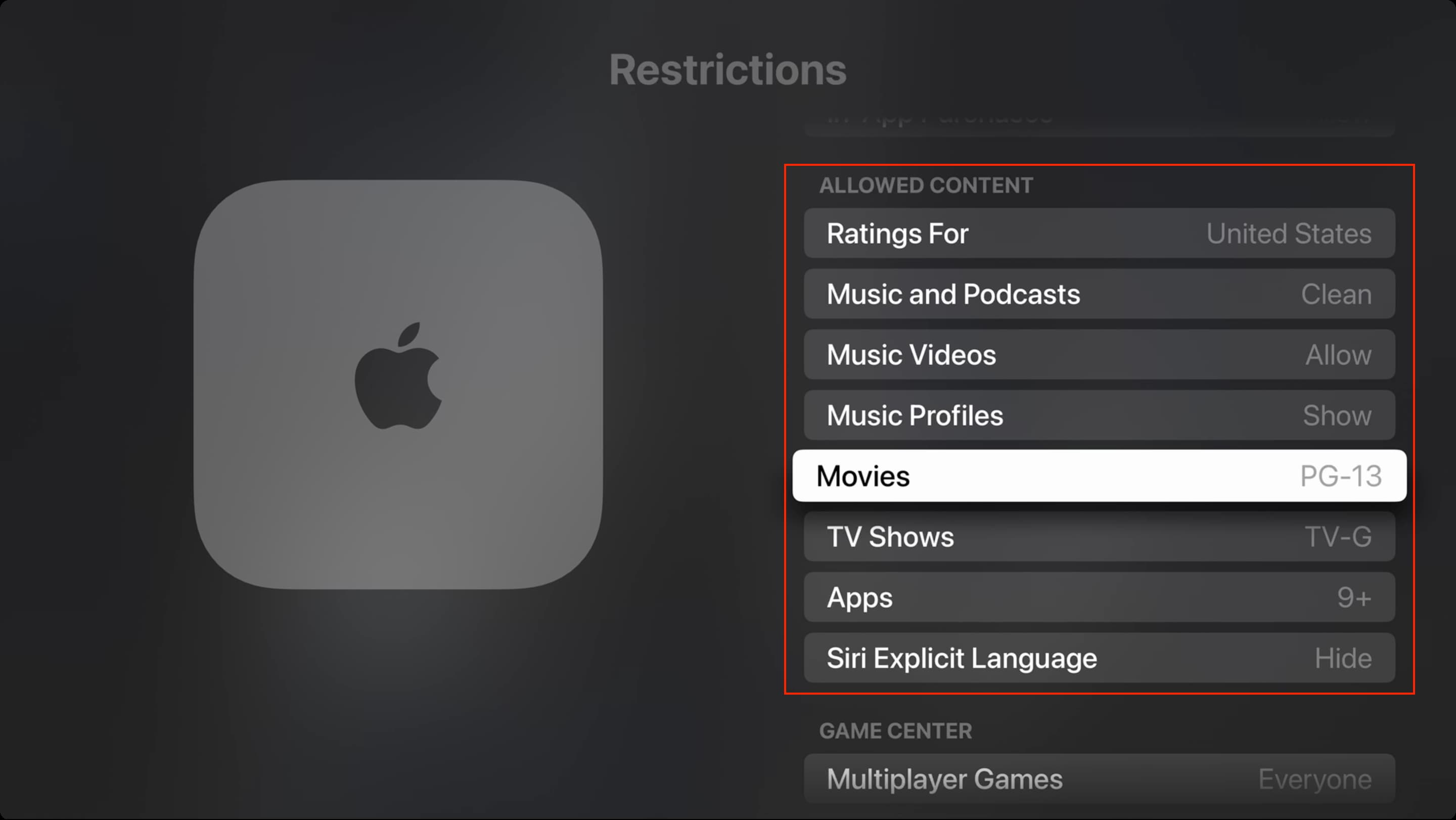
In addition to this, you can also create separate user profiles or accounts on your Apple TV for different family members.
Do these restrictions work everywhere?
Most of these restrictions only work in Apple apps like the App Store, Books, Music, TV, Podcasts, News, and Safari. However, here are some points to remember:
- If you block adult websites on iPhone or iPad, they will also be blocked in Chrome, Firefox, and other web browsers, as all iOS browsers (are forced to) use Apple’s WebKit, and thus restrictions work in them.
- Choosing a lower app limit on Mac will block non-child-friendly apps from the App Store. But your child can download and install them directly from the developer’s website.
- Most third-party apps have in-app toggles to filter out explicit content. So, if your child uses a specific app, say Spotify, then go to its settings and block explicit songs.
Tip: Create a child Apple ID and set up devices for them
While setting up a new or erased iPhone, iPad, or Mac for your child, remember to use their Apple Account. And if they don’t have one, create one for them.
When using a child’s Apple Account, several settings are curated automatically for their safety, keeping their Apple Account age in mind.
Do you hand over your Mac to your child?
macOS allows multiple user accounts. It’s a super handy feature for households and offices, as it keeps all users’ files and settings separate.
If you allow your child to use your Mac notebook or desktop, create a separate user account for them and sign in to it using their Apple ID. In addition to that, you can also set the above-explained restrictions for their account.
On the same note: 15 child-focused features on iPhone and iPad