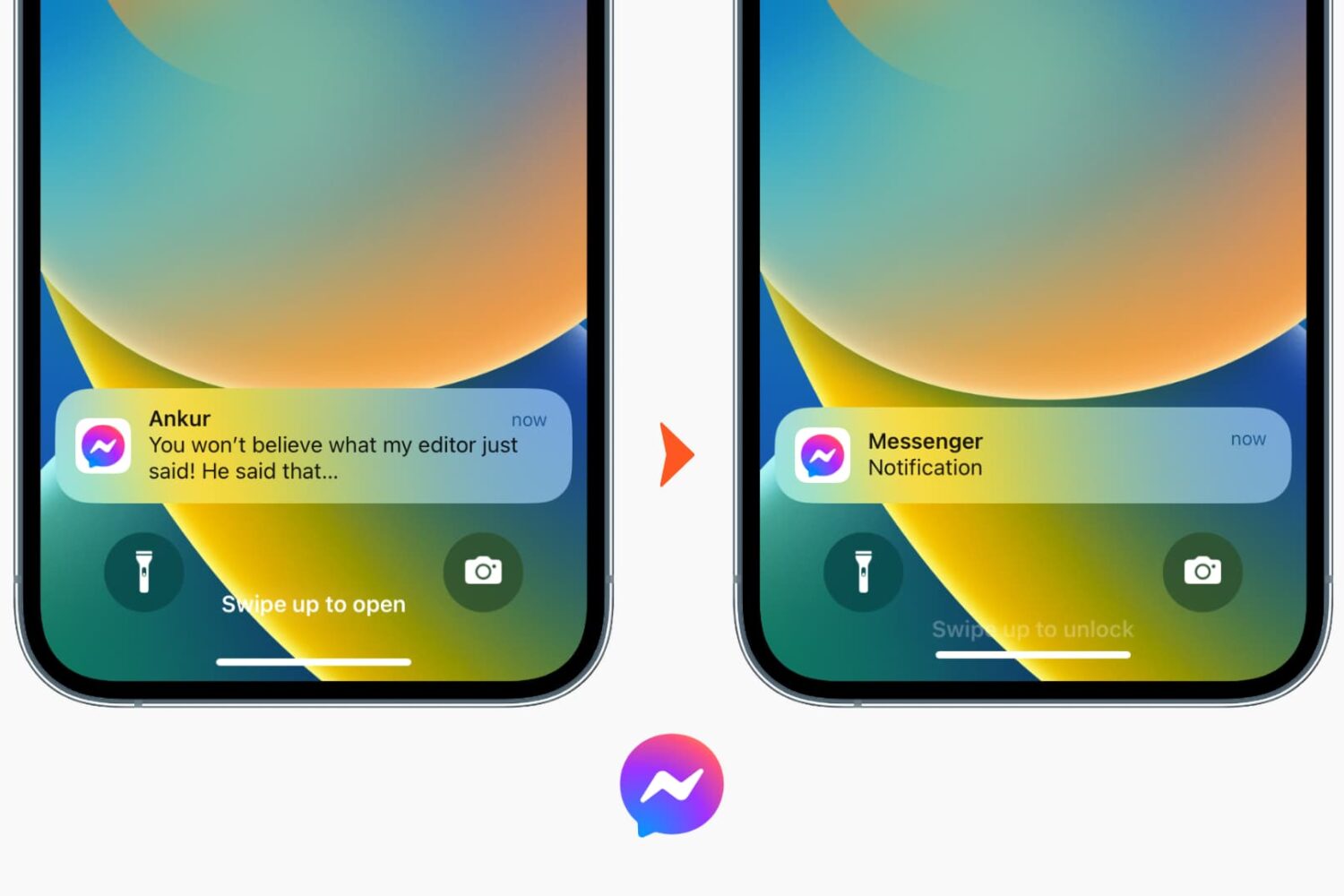
Learn how to turn off notification previews for Facebook Messenger chats on iPhone or iPad and prevent others from reading the contents of your messages.
How to hide Facebook Messenger notification previews from iPhone Lock Screen for more privacy
Learn how to master your Apple devices with our comprehensive tutorials. From iPhone and iPad to Mac, Apple Watch, AirPods, and more, our expert guides will help you unlock the full potential of your Apple products. Discover new features, tips, and tricks each day to enhance your user experience.
Learn how to turn off notification previews for Facebook Messenger chats on iPhone or iPad and prevent others from reading the contents of your messages.

If you've been on Facebook for a few years now, chances are you've shared a bunch of photos and videos with your friends and family thus far, many of which might no longer be stored on your iOS device or Mac.
Unfortunately, Facebook doesn't make things any easier by not providing a straightforward way to download the photos and videos users have uploaded to the service.
But worry not, our loyal fans, the iDownloadBlog tutorial series comes to the rescue. In this detailed tutorial, you will learn about five different techniques that will help you download Facebook photos and videos onto your iPhone, iPod touch, iPad or Mac without too much hassle.

I don't know about you, but I'm annoyed every time an app crashes on my Mac and the macOS Crash Reporter interrupts my work with a pop up warning in the middle of the screen. Wouldn't it be great if those crash reports were displayed as banner notifications?
As explained by LifeHacker, a simple Terminal command will override the default system behavior and send those app crash reports straight to the macOS Notification Center, so they don't interrupt your workflow.
In this tutorial you will learn about a Terminal command which will route crash reports through your Mac's Notification Center rather than display them windowed in the middle of your screen.

Your iPhone is equipped with a feature called Frequent Locations, which slowly tracks your location in the background to keep you updated via the Today View and the Lock screen on how long it would take you to get to your favorite places based on how often you visit them.
If you choose to enable Location Services during the initial iPhone setup, this feature will be enabled by default, so if you feel like it is a slight hindrance on your ability to remain private, you just might be right. In this tutorial, we'll show you how you can disable the feature and keep your iPhone from knowing where you are going next.

If you like to rate songs on Apple Music, including those you have purchased on the iTunes Store, chances are you will at some point want to submit your star-based ratings. Now, iTunes for Mac and Windows PCs used to support half-star ratings out of the box, but recent updates have changed this behavior to using full stars only.
Fortunately, as noted by The Loop's Dave Mark, this can be quite easily reverted back to half-star ratings with a quick Terminal command.
In this post, you will learn how to enable half-star ratings in desktop iTunes and rate music more accurately than before.

Not so long ago, we told you all about an app for iOS that allowed you to convert PDF files to Microsoft Word files, but did you know you can accomplish the same process on your Mac too?
In this tutorial, we'll be showing you how to convert PDF files to Microsoft Word files using an app from the Mac App Store called PDF to Word.

One of the features of the Safari web browser built into your Mac that will come in handy time and time again are the private browsing windows that you can open to browse the web privately without having your browsing history stored in your computer for the next user to see.
In this tutorial, we'll show you how to open a private browsing window in Safari on your Mac so that you're ready the next time you need to perform a web search incognito.
Since the iPhone's inception, Apple's mobile Safari browser has had this neat little feature for quickly jumping to the very top of any webpage simply by tapping the status bar.
Following a major redesign of Apple's mobile operating system with the 2013's release of iOS 7, Safari's top and bottom toolbars now shrink and disappear as you scroll down. As a result, you must scroll back up a bit to access the URL field, bookmarks and other features in the toolbars.
In this tutorial, you're going to learn about a cool new shortcut that you can use to quickly reveal Safari's toolbars without scrolling back up.

Learn how to turn off notification previews from the iPhone Lock Screen for selected apps (like Messages, Mail, WhatsApp) or all apps to strengthen your privacy.

Learn how to download an archive of your Facebook account data with timeline, posts you have shared, messages, photos, etc., and explore its contents.
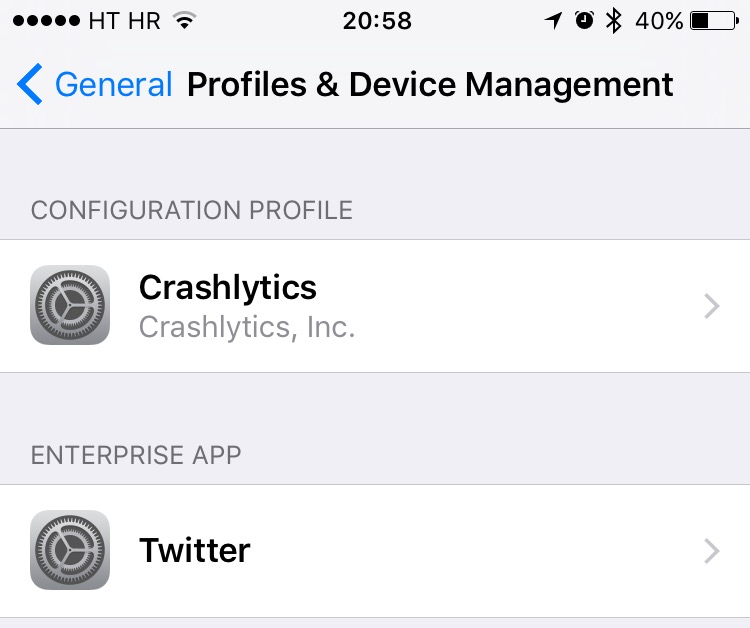
Back in March 2013, security firm Skycure found that some configuration profiles on iOS pose a major security vulnerability because they use root certificates that might allow harmful software to bypass Apple's sandboxing rules and install on your iPhone, iPod touch or iPad.
Apple has since removed a few apps from the App Store that were found to install root certificates which could allow monitoring of data.
Still, the fact remains that configuration profiles could be exploited to compromise SSL/TLS security solutions. If you have a configuration profile installed on your device that's no longer use by apps, you should delete it in order to make sure your data remains protected.
In this tutorial, we're going to demonstrate how easy it is to delete iOS configuration profiles that are no longer needed, thereby increasing your security.

Learn how to erase Safari browsing history and accumulated data for a particular profile or the entire browser on your iPhone, iPad, and Mac.