Tricks

How to generate app-specific passwords

Apps designed to use iCloud Drive for syncing data between devices “just work”. On the other hand, those that don’t natively support Apple's secure Two-Factor Authentication system may ask for your Apple ID password to access data stored in your iCloud account.

For instance, Fantastical for Mac may require your Apple ID user name and password to import your iCloud calendars. And what if you'd like to use your iCloud email account in apps like Spark or Airmail, but don't want to expose your Apple ID credentials to the app?

Given that asking for the user's iCloud password poses a dangerous attack vector, Apple now mandates that all native apps use app-specific passwords to access user data stored in iCloud.

The change goes into effect on June 15, 2017.

To ensure worry-free experience, you can use an app-specific password to sign in to an app or service not provided by Apple, without ever typing your Apple ID password.

In this step-by-step tutorial, you will learn how to create an app-specific password for any native app that wants to access your personal data stored in iCloud, revoke all of your generated passwords one by one or all at once, and more.

About app-specific passwords

Security is paramount.

Protecting your Apple ID account against hackers and nefarious users by turning on Apple's older Two-Step Verification system or the modern, more secure Two-Step Verification also entails using app-specific passwords for any web apps, online services and apps that don’t natively support entering verification codes.

TUTORIAL: How to protect your Apple ID with Two-Factor Authentication

App-specific passwords maintain “a high level of security and ensure that your primary Apple ID password won’t be collected or stored by any third-party apps you might use,” notes Apple.

You can have up to 25 active app-specific passwords at any given time. If you need to, you can revoke passwords individually or all at once.

How to generate app-specific passwords

1) Sign in to your Apple ID account page at appleid.apple.com/account/home.

2) In the Security section, click Generate Password below App-Specific Passwords.

3) Type a password label into the text field, then click Create to generate a random password. The password label helps distinguish one app-specific password from another.

I'll create an app-specific password for Fantastical and name it “Fantastical for Mac”.

4) Click Done to finish creating the password.

5) Now paste the password into the password field of the app as you would normally.

Again, I'm a Fantastical believer so I'm going to type the generated password into Fantastical.

Using an app-specific password ensures that Fantastical is able to access my iCloud calendar and gives me a piece of mind knowing I don't have to worry about the security of my Apple ID.

As a reminder, you can have up to 25 active app-specific passwords at any given time. Keep in mind that each app-specific password is case-sensitive and only works in one app.

How to revoke app-specific passwords

You can revoke app-specific passwords individually or all at once. Revoking an app-specific password stops the app from accessing data in your iCloud account.

1) Sign in to your Apple ID account page at appleid.apple.com/account/home.

2) In the Security section, click Edit.

3) In the App Specific Passwords section, click View History.

4) You can now revoke an individual password or all passwords at once:

Revoke individual passwords—To revoke an individual password, click the “x” next to a password you'd like to delete, then click Revoke. Revoke all passwords at once—To revoke all the app-specific passwords you've generated thus far, click Revoke All.

“After you revoke a password, the app using that password will be signed out of your account until you generate a new password and sign in again,” notes Apple.

Be sure to generate new app-specific passwords for any apps that don't support entering verification codes because, for the sake of your own security, all of your app-specific passwords are auto-revoked any time you update or reset your primary Apple ID password.

Need help? Ask iDB!

If you like this how-to, pass it along to your support folks and leave a comment below.

Got stuck? Not sure how to do certain things on your Apple device? Let us know at help@iDownloadBlog.com and a future tutorial might provide a solution.

Submit your how-to suggestions via tips@iDownloadBlog.com.

How to post images and videos to Instagram on the web

Marketing image with a tagline "Everyone has a story" in white font printed on top of a colorful Instagram gradient background

Instagram for iOS is pretty decent, but there are times when you just wanna quickly post an image without having the app unnecessarily eat into that precious cellular data by refreshing feeds and other content. While you can send photos from other iPhone apps via Instagram's Share sheet extension, it's now possible to upload images through Safari as well.

This tutorial provides step-by-step instructions explaining how to upload your photographs to Instagram using the mobile web interface, no apps needed whatsoever.

Before we get to it, know that you cannot take or upload photos from Instagram's web interface on a desktop computer. Only Instagram's web UI on mobile lets you do that.

How to redeem iTunes or Apple Music gift cards

If you don't set up one of the supported payment methods for your Apple ID, you won't be able to upgrade your iCloud storage or buy music, movies and TV shows from iTunes Store, apps from App Store and Mac App Store, books and audiobooks from iBooks Store and more.

That's where an iTunes or Apple Music gift card should come in handy.

Upon redeeming, the amount shown on the card is added to your Apple ID in the form of good-as-cash credit that can be used for each purchase you make in Apple's content stores.

In this tutorial, you'll learn about the types of gift cards Apple supports, how they should be used, as well as how to redeem your iTunes or Apple Music gift card and apply the credit toward an individual Apple Music membership or to top up your Apple ID balance.

About iTunes and Apple Music gift cards

iTunes gift cards and Apple Music gift cards can be purchased from Apple, PayPal, Amazon, eBay, Best Buy and a number of other retailers. iTunes gift cards typically come in $25, $50 and $100 denominations. Apple Music gift cards are currently available in $30 and $100 denominations for three or twelve months of service, respectively.

You can buy them in physical form for delivery via mail or opt for a digital gift card, in which case your redemption code will be delivered straight to your inbox.

The 16-digit redemption code is hidden underneath the label on the card's back.

The redemption code always starts with an “X”.

The redemption code may appear in different places on the back of your card.

Redeeming an iTunes gift card adds store credit to your Apple ID.

Store credit is used for each purchase you make in iTunes Store, App Store or iBooks Store until it's gone. iTunes billing system always uses your store credit first, as long as the value of the item that you're buying is less than or equal to the value of your credit balance.

If you don't have any store credit left, the payment method that you designate when you sign up for an Apple ID is charged for the entire purchase.

You can use your store credit to buy the following items:

Apps from App Store and Mac App Store In-App Purchases Songs, albums, movies, TV shows and more from iTunes Store Books and audiobooks from iBooks Store iCloud storage

Store credit cannot be used to purchase more gift cards or iTunes Gifts.

NOTE: Some purchases might require that you have a credit card on file, even if you're using your credit balance to make the purchase. For instance, you must have a credit card on file in order to use store credit to pay for your iCloud storage upgrades.

You cannot use store credits for:

App gifting—When you gift an app or media item to someone else the payment method on file is always billed for the entire purchase, not the store credit. Family Sharing—You cannot share your store credit with other family members.

Even if a Family Sharing member buys something and the family organizer has store credit on their account, the item cost is still billed to the organizer's payment method on file rather than being deducted from their store credit.

TUTORIAL: How to gift apps

If a Family Sharing member with a credit on their account buys something from Apple's content stores, the amount is billed to their own account unless there's a remainder, in which case it bills to the family organizer's payment method.

You can use the credit from your Apple Music gift card to:

Sign up for a new Apple Music membership Extend your Apple Music membership by the number of months shown on the card Credit the amount to your Apple ID, like an iTunes gift card

Read Apple's support document for more on how iTunes Store purchases are billed.

How to redeem iTunes or Apple Music gift cards on iPhone and iPad

1) Open iTunes Store, App Store or iBooks on your iOS device.

2) In iTunes Store, App Store or iBooks, tap the Featured tab, then scroll to the very bottom of the screen and tap the Redeem option.

3) Sign in with the Apple ID that you use for iTunes Store or Apple Music purchases.

Tip: You can quickly get to the redeem feature by visiting the link below on your Apple device:

To redeem an iTunes gift card, follow this link To redeem an Apple Music gift card, follow this link

TIP: If your device has 3D Touch, you can press the iTunes Store or App Store icon and select the Redeem option from the Quick Actions menu on your Home screen.

4) Choose whether you'd like to type in your code manually or have the card scanned:

Scan the redemption code—If you have a physical gift card with a box around the code, use this option to redeem it via your built-in camera. Tap Use Camera, then hold the back of the card up to your iPhone's camera until it scans the code. Only gift cards with a focus box around the redemption code are redeemable via a camera. This feature is not available in all countries and regions. Type in the redemption code manually—Tap the field labeled ”You can also enter your code manually”, then peel off the label on the back of the card and type in the redemption code or paste the code from your purchase confirmation email.

When you redeem an iTunes gift card, your updated store balance appears onscreen. An error message appears if you try to redeem a gift card that's already been used.

Upon redeeming an Apple Music gift card, you're given the choice between topping up your iTunes store credit or using the code toward an individual Apple Music membership.

This is what happens if you choose to use the code for your Apple Music membership:

Apple Music members—Applying the credit to your ongoing membership extends your date of renewal by the number of months shown on the card. Apple Music non-members—Applying the credit signs you up for a membership.

If you've never been an Apple Music member, you can still get your free three-month trial in addition to the number of months your Apple Music gift card card is worth.

5) In the upper-right corner, tap Done to finish the process.

If you'd like to redeem another iTunes or Apple Music gift card, tap Redeem Another Code.

TIP: If you received your gift card via email, click the Redeem Now link in the email.

To get information about your iTunes Store or Apple Music balance:

iTunes Store balance—You can find your store balance underneath your Apple ID at the bottom of the Featured tab in iTunes Store, App Store or iBooks on your iOS device. Apple Music balance—To view your Apple Music membership, go to Settings → [your name] → iTunes & App Store and tap your Apple ID at the top of the screen. Tap View Apple ID, then Subscriptions. From the list, choose the subscription that you want to see more information about.

Your account balance automatically updates in iTunes Store, App Store and iBooks Store after redeeming the card. If your store credit does not update automatically, sign out and back in on all of your devices for it to refresh properly.

How to redeem Apple Music gift card in iOS Music app

1) Open the Music app on your iOS device.

2) Switch to the For You tab at the bottom of the screen.

3) Tap your profile image in the upper-right corner.

4) Tap the Redeem option.

5) Use your iPhone to scan the redemption code on the back of the card or enter it manually, then tap Redeem to continue.

7) Tap Done when finished redeeming the code.

How to redeem Apple Music gift card on Android

1) Open the Apple Music app on your Android device.

You can download Apple Music for Android free from Google's Play Store.

2) Tap tap the Menu icon in the upper-left corner.

3) Tap your Apple ID.

4) Tap Redeem.

5) Enter the code from the back of the card, then tap Redeem again.

An error message will appear if you try to redeem a card that's already been used.

How to redeem iTunes or Apple Music gifts card on Mac and Windows PCs

1) Open iTunes on your Mac or Windows PC.

2) Choose Music, Movies, TV Shows or Apps from the popup menu near the top-left corner, then click the Store tab near the top of the screen.

3) Click the Redeem link under the Quick Links heading on the right side.

Tip: Alternatively, choose the Redeem option from iTunes' Account menu.

To get to the Redeem feature faster, visit the link below on your computer:

To redeem an iTunes gift card, follow this link To redeem an Apple Music gift card, follow this link

4) Enter the password for the Apple ID you use for iTunes Store purchases or your Apple Music membership, then press the Return or Enter key on your keyboard, or click the Sign In button.

5) Choose how you'd like to redeem the code on the card:

Scan the redemption code—Use this option to redeem a physical card via your Mac's built-in camera. Click the Use Camera button, then hold the back of the card up to the FaceTime camera until it scans and redeems the code. Only gift cards with a focus box around the code are redeemable via a camera. This feature is not available in all countries and regions. Type in the redemption code manually—Click inside the field labeled ”You can also enter your code manually,” then type in the redemption code from the back of the card or paste it from your purchase confirmation email.

6) Click Redeem to continue.

You'll be asked if you'd like to apply the credit toward your individual Apple Music membership.

If not, select the option Use Credit for iTunes or App Store to add the amount shown on the card to your Apple ID store balance like a regular iTunes gift card.

Your updated store balance appears onscreen.

7) Click Done to finish redeeming the card.

To redeem an iTunes gift card in iBooks or App Store on your Mac:

iBooks—Open the iBooks app from your Dock, Launcher, Spotlight or the Applications folder. In the upper-left corner, click the iBooks Store button, then click the Redeem link underneath the Quick Links heading on the right side. App Store—Open the App Store app from your Dock, Launcher, Spotlight or the Applications folder. Click the Featured tab at the top, then click the Redeem link underneath the Quick Links heading on the right side.

An error message appears if you try to redeem a card that's already been used.

Related tutorials

You may find the following how-tos useful:

How to gift iTunes or App Store credit on iPhone and iPad How to redeem iOS app promo codes How to redeem Apple TV app promo codes Redeeming iTunes gift cards with iPhone's camera Redeeming iTunes gift cards with Mac's camera That's all, folks!

If you have a question, post a comment below and we'll do our best to answer it. Please share this tutorial on social media and pass it along to the folks you support.

Submit your ideas regarding future coverage via tips@iDownloadBlog.com.

How to watch Google I/O keynote live

Google's annual conference for developers is kicking off today with an opening State of the Union-like keynote address by CEO Sundar Pichai. Will be providing remote coverage of the most important announcements from the event as they happen.

That said, you can tune in to watch a live-stream of the keynote if you'd like.

The keynote address is scheduled to kick off today at 10am Pacific Time / 1pm Eastern Time. Here's how you can stream the event live on your iPhone, iPad, Mac and other devices.

When does Google I/O keynote start?

As mentioned before, the three-day conference is scheduled to kick off with a keynote today, May 17, at 10am Pacific Standard Time / 11am Mountain Standard Time / 12pm Central Time / 1pm Eastern Standard Time.

If you’re watching the keynote from the United Kingdom, Beijing, Europe or elsewhere, here’s what times the event goes down in some of the major cities around the world:

London, United Kingdom—Wednesday, May 17 at 6pm Paris, France—Wednesday, May 17 at 7pm Berlin, Germany—Wednesday, May 17 at 7pm Central Europe—Wednesday, May 17 at 7pm Moscow, Russia—Wednesday, May 17 at 8pm Eastern Europe—Wednesday, May 17 at 8pm New Delhi, India—Wednesday, May 17 at 10:30pm Beijing, China—Thursday, May 18 at 1am Tokyo, Japan—Thursday, May 18 at 2am Sydney, Australia—Thursday, May 18 at 3am Auckland, New Zealand—Thursday, May 18 at 6am

If you're located overseas, but your country isn’t on the list, simply use an online timezone service to determine what time 10am PST is in your country or ask Siri what time it is in Cupertino to figure out how long before the keynote starts.

How to live-stream Google I/O 2017 keynote

The main Google I/O keynote, featuring CEO Sundar Pichai, as well as the 150 other talks streaming from the Shoreline Amphitheater in Mountain View this week, will be hosted on Google's Developers channel on YouTube.

https://www.youtube.com/watch?v=Y2VF8tmLFHw

The live-stream YouTube video is embedded above.

If Google provides a 360-degree video of the keynote address, like it did last year, we'll be making sure to update the post with the video URL.

Will you be tuning in to Google I/O?

If so, which potential announcements are you looking forward to the most?

Leave a comment below to let us know!

How to delete old Time Machine backups

Do you use macOS's incredibly useful zero-configuration Time Machine feature to keep the personal files, settings and documents residing on your Mac safely backed up to an external disk? If so, is your backup disk nearly full? The best way to make room on your backup disk is to delete old Time Machine backups using Finder.

For example, the disk in my AirPort Time Capsule is nearly full because I have backups dating back to 2010. In this day and age of iCloud Drive and other cloud-storage services, keeping years worth of backups is kind of useless. That precious disk space could be put to better use for storing your photos and videos, for example.

In this tutorial, you will learn how to delete old Time Machine backups to help clean up your disk and regain storage space on it.

Deleting old backups should be your first order of business in situations when your Time Machine backup disk runs out of space. By default, Time Machine deletes older backups to make room for new ones as your backup disk fills up.

There are a couple ways to remove entire backups created on specific dates. We will describe both, but note that Apple seem to prefer the first method

How to delete old Time Machine backups

1) Click the Time Machine icon in your Menu Bar to enter Time Machine.

2) Navigate through the interface to the desired date.

3) Once you have located the day you want to delete from your backup, click on the gear icon and select Delete Backup.

4) You will be asked to confirm you indeed want to delete the backup, and you may be ask to enter your administrator password too. Once done, the backup for that specific day will be deleted.

How to remove old Time Machine backups using Finder

1) Click the desktop and open a new window by selecting New Finder Window from the File menu, or press the Command (⌘)—N keys on your keyboard.

2) Connect the disk containing your Time Machine backups to the computer and wait until its name appears underneath the Devices section in the Finder sidebar, then click it.

You may be asked to enter your administrator name and password to continue. If you use AirPort Time Capsule, you may be asked to enter a password to access the backup disk.

3) Navigate to the “Backups.backupdb” folder on your Time Machine backup disk as you would other folders. It should be a top-level folder of your backup drive.

4) Once inside the “Backups.backupdb” folder, navigate to the sub-folder named with your Mac computer's name. For instance, if your Mac is named “iMac Retina” in System Preferences, Time Machine will store backups inside the “iMac Retina” sub-folder.

TUTORIAL: How to change your Mac computer's name

5) You will see a bunch of sub-folders, each prefixed with the date of the backup in the YYYY-MM-DD format. For example, backups of your iMac created on April 19, 2017 would we stored in the sub-folder with the name beginning with “2017-04-19”. To delete a desired backup sub-folder, right-click or Control (⌃)-click it, then choose Move to Trash from the popup menu.

This will delete all copies of a backed-up file or folder from your Time Machine backup disk.

6) Repeat the process for other full-day backups you'd like to remove. When done, disconnect the disk by selecting its icon on the desktop, then choose Eject from Finder's File menu.

While you can safely delete sub-folders within the “Backups.backupdb” folder, you are not allowed to delete individual items inside the dated folders.

You're wholeheartedly discouraged from using Terminal or any other app other than Finder to move, copy or delete items from the Backups.backupdb folder.

You also cannot delete items from local snapshots stored on your internal drive.

To save space on the backup drive, why not exclude individual files or entire folders of files—like your Applications or Downloads folder—in the Time Machine preferences window?

That's all, folks!

If you have a question, post a comment below and we'll do our best to answer it. Please share this tutorial on social media and pass it along to the folks you support.

Submit your ideas regarding future coverage via tips@iDownloadBlog.com.

How to check if the phone you’re buying was stolen

If you're in the market for a used iPhone, it's always a good idea to ask the owner to disable Find My iPhone, which automatically turns off Apple's theft-deterring Activation Lock feature.

But what if you're buying a non-Apple smartphone? Can you still check if it was stolen? As it turns out, that's exactly what CTIA’s Stolen Phone Checker service does for you.

Powered by the GSMA Device Check service, which provides up to 10 years’ of a device’s history as well as the device model information and capabilities, the free Stolen Phone Checker tool is an online service designed to help consumers, businesses and law enforcement agencies make informed purchasing decisions and limit the resale of lost and stolen mobile devices.

TUTORIAL: How to find your iPhone's IMEI number

This is a US-only service so this tutorial may not apply to international readers.

How to check if the phone you're buying was stolen

1) Visit stolenphonechecker.org/spc/consumer on your device.

2) Enter the IMEI, MEID or ESN of the phone you're about to purchase. If you're buying an iPhone, you can find this information in Settings → General → About. If you're buying a non-Apple smartphone, ask the owner to provide the IMEI number.

3) Solve the captcha and click the Submit button.

If the phone isn't stolen,“Not reported lost or stolen” should appear next to Device Status along with some useful information, including the device model, manufacturer and more.

Regular consumers are allowed to check up to find phones per day. Again, this service is limited solely to consumers in the United States.

Related tutorials

Check out the following how-tos:

What to do if your iPhone is lost/stolen How to remotely erase iPhone that was lost/stolen How to use Lost Mode if your iOS device is lost/stolen How to secure your iPhone with Activation Lock How to locate misplaced AirPods Checking Activation Lock status via Apple Support website Wrapping it up

If you have a question, post a comment below and we'll do our best to answer it. Please share this tutorial on social media and pass it along to the folks you support.

Submit your ideas regarding future coverage via tips@iDownloadBlog.com.

Apple shares videos tips on getting the most from iPhone 7 camera

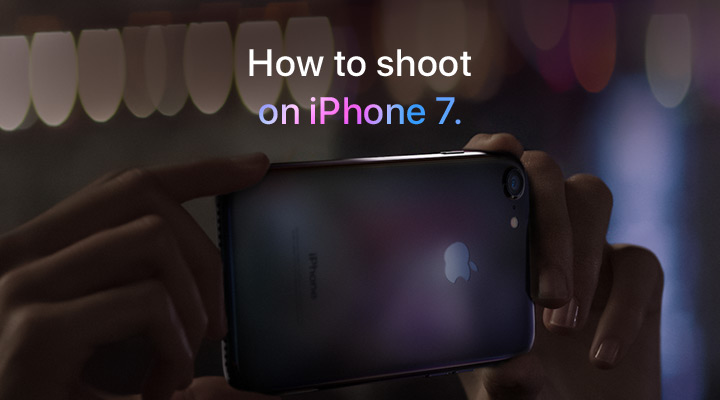
Apple has published a new mini-website with nearly two dozen how-to videos covering iPhone 7 photography. Titled “How to shoot on iPhone 7”, the mini tutorials run about forty seconds each and deal with various topics of interest, including taking depth-of-field images with Portrait mode on iPhone 7 Plus, using tap to focus, adjusting exposure, taking low-light images, capturing selfies with the timer, snapping vertical panoramic photographs, taking stills while filming video and more.

Here are Apple's photography how-tos.

How to shoot action

https://www.youtube.com/watch?v=lhZnMBnosJk

“Use Burst mode to capture that perfect split second”.

How to shoot without flash

https://www.youtube.com/watch?v=uwMJv0_wa-M

“Make the most of light sources around you to brighten up your photo.”

How to shoot vertical panoramas

https://www.youtube.com/watch?v=VY2FqNAk0mM

“Boldly go from base to summit with a vertical pano.”

How to shoot close-ups

https://www.youtube.com/watch?v=ElHnXjbGAm4

“Life looks different from 10 cm away. See how to capture it beautifully every time.”

How to shoot great portraits

https://www.youtube.com/watch?v=xvvXIt7XwXE

“Use Portrait mode to take an amazing photo of a friend.”

More photography tips and techniques can be explored via the new mini-site.

How to disable in-app ratings and review requests on iPhone and iPad

Apple included a handy new feature in iOS 10.3 beta to give people the power to disable in-app prompts seeking feedback in one fell swoop. Apps that use the new SKStoreReviewController API can invoke a new standardized prompt offering users to provide a rating or write a review without taking them to the actual App Store. This feature has been available on and off for beta testers and should be available to the public in an upcoming update to iOS 10.

These in-app prompts for ratings and reviews can be disabled at once for all apps installed on your iPhone, iPad or iPod touch which support the feature. This tutorial provides step-by-step instructions for how to disable in-app ratings and review requests in iOS.

How to disable in-app ratings and review requests on iPhone and iPad

To opt out of receiving these feedback prompts, do the following:

1) Launch Settings on your iOS device.

2) Tap iTunes & App Stores.

3) To disable all in-app prompts for App Store reviews and ratings, flip the switch In-App Ratings & Reviews switch to the OFF position.

This will prevent all apps that are installed on your iPhone, iPad or iPod touch from asking for product feedback in the form of App Store ratings and reviews. Again, this toggle has no bearing on apps on your device that do not use iOS 10.3's new SKStoreReviewController API.

Please think twice before disabling in-app ratings and reviews.

As I explained before, the new API streamlines the product feedback experience with standardized prompts limited to three per year per app. As Apple itself suggests, you should help developers and other users know what you think by letting apps ask for product feedback.

Like before, your submitted ratings are valid for the App Store territory where you originally purchased the app. You can also leave ratings and write reviews for iPhone, iPad and iPod touch apps directly in App Store, and for macOS apps in Mac App Store.

You can also leave ratings for Apple TV apps, but not submit reviews.

About in-app ratings and review requests

iOS 10.3 beta gives users the power to silence in-app prompts seeking App Store feedback.

In the past, developers were free to interrupt the experience and inundate users with pesky prompts asking them to provide a rating or write a review on App Store.

With the new SKStoreReviewController API, developers simply choose when they’d like to prompt the user and identify places in their apps where it makes sense to ask for feedback, and the system takes care of the rest.

The system allows users to submit a rating through the standardized prompt and authenticate with Touch ID to write and submit a review, all without leaving the app.

The API limits these requests to three prompts per app in a 365-day period. The counter is not reset when the app is updated. The hope here is that the new API will encourage developers to strategically ask for feedback for major updates only.

Previously, many apps would aggressively ask for feedback after each and every update because App Store erases an app's average rating with each submitted update. Apps that don't use the aforesaid API can still put up a bespoke prompt seeking feedback “at appropriate times throughout the user experience,” according to Apple.

App makers that use iOS 10.3's new SKStoreReviewController API save time because the system decides when to pull up these in-app prompts and how they're rendered.

Users benefit from having the standardized prompt and the ability to write a review or submit a rating without leaving the app they're in.

When the user sees an in-app prompt seeking App Store feedback, he or she can authenticate with Touch ID to write and submit a review, right there and then.

“The system’s rating prompt offers a familiar, efficient experience that’s designed to engage the user with minimal impact,” explains Apple.

As a bonus, developers can at long last respond publicly to App Store reviews.

Any questions?

If you have any questions regarding the topic of this tutorial, please post a comment below and our knowledgable writers will try to answer them.

Be sure to pass this article along to the friends and family you support.

Submit your ideas regarding future coverage via tips@iDownloadBlog.com.
How to stop your iPhone from automatically switching lenses when shooting video

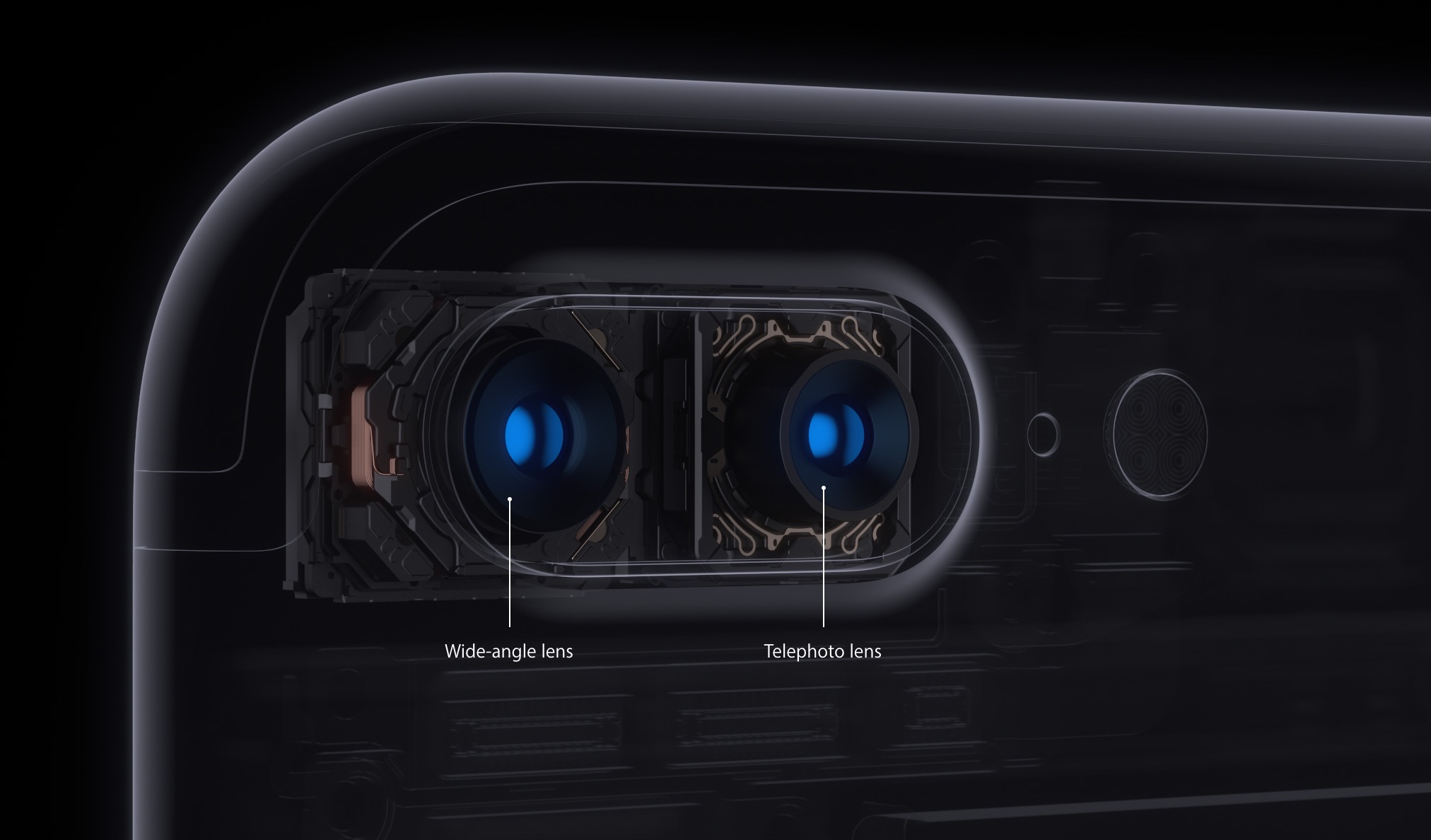
iOS decides on your behalf when it's appropriate to use iPhone 7 Plus's telephoto camera and when to switch to the wide angle shooter. This default behavior can be altered, which helps you avoid potentially unexpected results when shooting video.

If the phone switches to or from the second lens while you’re zooming in or out, glitches will probably appear in the recorded video. Thankfully, Apple, in all its wisdom, has provided a toggle in Settings to easily override this behavior at any time.

With its dual-lens system, iPhone 7 Plus is an awesome portable camera for both pro and wannabe iPhone photographers. In addition to powering depth-of-field photography, the dual twelve-megapixel cameras give you the benefits of an 2X optical zoom.

The problem with lens switching

Due to an ƒ/1.8 aperture and optical image stabilization, the wide angle camera captures images that are sharper and stabler than those taken with its telephoto counterpart. The two lenses have a different aperture and physical position, which also affects image quality.

Jarring transitions in your recorded videos are caused by automatic lens switching, which occurs if your iPhone switches to or from the second lens as you’re zooming in or out.

To avoid accidentally running into jarring transitions while recording video on your iPhone 7 Plus, you should disable the automatic lens switching feature.

Here's how.

How to stop your iPhone from automatically switching lenses

1) Launch the Settings app.

2) Tap Photos & Camera.

3) Tap Record Video underneath the Camera heading.

4) Slide the Lock Camera Lens switch at the bottom to the ON position.

Your iPhone will no longer automatically switch between camera lenses while shooting video.

This setting only takes effect when you’re actually shooting video. If you toggle the Lock Camera Lens to the ON position, your iPhone will keep on using whichever lens you started recording with. You'll want to keep that in mind when fiddling with this setting.

By the way, I learned about this feature via the always informative iLounge.

Speaking of which, iLounge explains how this setting affects your video recordings:

In most cases, you’ll simply be relying on digital zoom rather than optical. However, if you begin recording a video while zoomed in to beyond 2X, you may not be able to zoom back out, as you’ll already be using the 2X lens.

iOS uses a number of factors to determine whether it should use the optical 2X lens or simply rely on digital zoom, such as in lower light conditions where the faster primary lens has an advantage, so you won’t always see the impact of the Lock Camera Lens setting.

And that's it, boys and girls.

Any questions?

If you have any questions regarding automatic lens switching on iPhone 7 Plus, please post them in the comment section below and our knowledgable writers will try to answer them.

Be sure to pass this article along to th friends and family you support.

You can shoot us your ideas regarding future coverage to tips@iDownloadBlog.com.