Tricks

How to switch between Celsius and Fahrenheit on your iPhone, iPad, and other Apple devices

Two screenshots from the iPhone Weather app with one showing the temperature in Fahrenheit and the other in Celsius

Your Apple devices provide a global setting for representing specific quantities of temperature in apps. You can switch between displaying the temperature in either Celsius or Fahrenheit. Apps that support this feature, including Apple's stock Weather app, honor this setting to display the temperature in your preferred unit regardless of your regional settings.

In this tutorial, you will learn how to easily switch between Celsius and Fahrenheit independently of your other regional settings on your iPhone, iPad, or iPod touch, as well as adjust this setting on other Apple devices, such as your Apple TV, Apple Watch, or Mac.

How to open your iTunes playlists in separate windows

In older versions of iTunes, you could easily open a playlist in a separate window. It was both a great time-saver and a boon to your productivity, especially on large screens.

For reasons unknown, Apple has removed that functionality from the iTunes 12 update which was overhauled around a single-window workflow.

Thankfully, the company has reinstated the ability to open playlists in new windows with iTunes 12.6. Here's how to open your playlists in their separate windows using iTunes for Mac.

How to open your playlist in a new iTunes window

1) Launch iTunes on your Mac.

2) Choose Music from the menu near the upper-left corner, then click the Library tab.

3) In the lefthand column, right-click or Control (⌃)-click your playlist underneath the All Playlists heading, then select the option Open In New Window from the popup menu.

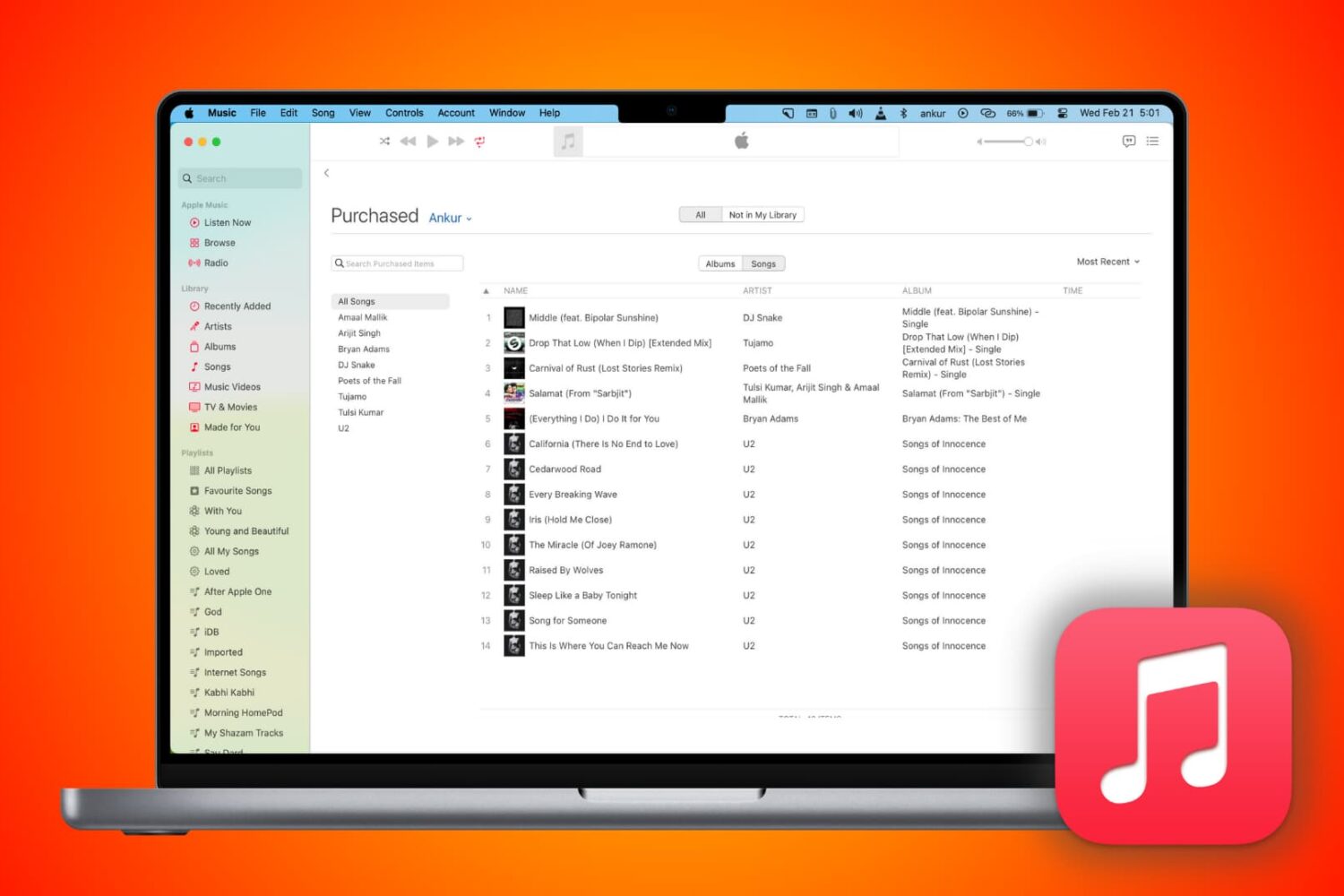
This will open a new iTunes window containing the selected playlist, as shown top of post.

You can drag songs at will between the playlist windows and open as many playlists in separate windows as you like. I don't have that many playlists created in iTunes so I was able to open “only” four playlist windows, but it worked like a charm.

How to open an Apple Music playlist in a new window

Playlists on Apple Music cannot be opened in their separate windows unless they're in your iTunes library. To do so, follow the steps below:

1) Launch iTunes on your Mac.

2) Choose Music from the popup menu near the upper-left corner of the window, then click either the Library or the For You tab.

3) Find a playlist on Apple Music and click the three dots in the lower-right corner of playlist graphics to bring up the contextual menu, then choose the option Add to Library.

4) With the selected Apple Music playlist now in your iTunes library, switch to the Library tab, right-click it underneath the Apple Music Playlists heading in the lefthand column, then select the Open in New Window command.

Just like that, the selected Apple Music playlist from your library opens in a new window.

iTunes playlists windows and Split View

Sadly, playlists windows in iTunes don't support macOS's useful Split View feature.

If iTunes supported Split View properly, it could have been a great multitasking feature. In other words, you cannot browse your iTunes library in the main window and have your favorite playlist in its separate window in macOS's Split View mode.

And that's it, boys and girls!

Pass along this article to other Mac users you support and don’t forget we accept your submissions regarding future coverage ideas via tips@iDownloadBlog.com.

If you have any questions, please post a comment below.

How to clear your web browsing cache in Chrome, Safari, and Firefox on Mac

Chrome settings on Mac

Over time, web browsers accumulate website data from everyday browsing. Known as cache, this data collection helps browsers load web pages more quickly, so these files don't have to be re-downloaded when you revisit the same websites in the future.

Unfortunately, cache is also the main suspect when diagnosing issues loading websites, and it can also eat up valuable storage space on your Mac. That's why in this tutorial, we'll show you how to delete cache and cookies in three of the most popular web browsers: Apple Safari, Google Chrome, and Mozilla Firefox.

How to use your iPhone’s compass with Apple Maps

iPhone includes a magnetometer sensor, also known as digital compass. With it, your iPhone can tell the direction it's pointed at. Along with built-in GPS and iOS's Location Services, this allows for some cool navigation capabilities. If you're wondering how to use iPhone compass with Apple Maps, you've come to the right place.

Displaying compass on a map not only helps you orient yourself better and find a route to a location, but also stay on course while navigating to avoid distractions that could lead to dangerous situations. In this tutorial, you'll learn how to display the compass for navigation and use it with Apple Maps turn-by-turn directions.

How to save posts on Instagram and organize them into collections

Instagram recently added a tool that permits you to save posts for later and organize them into Pinterest-like curated collections that only you can see. Whether you want to plan your next day trip, revisit your favorite artists’ illustrations or always have some animal videos on hand, our tutorial will get you up to speed on Instagram's Saved Posts and Collections features and lay out the basics of keeping track of any posts you wish to remember.

How to show community posts on YouTube for iOS

Back in September 2016, Google's YouTube received its own social network of sorts with the launch of a new Community feature.

With YouTube Community, your favorite creators can better express themselves beyond video by engaging viewers using text posts, GIFs, images and more.

Those types of posts appear in a new Community section on creators' channels and directly in viewers' Subscriptions feed.

In this tutorial, we're going to teach you how to enable or disable posts from the YouTube community in your Subscriptions feed.

How to spoof the GPS location of photos on your iPhone

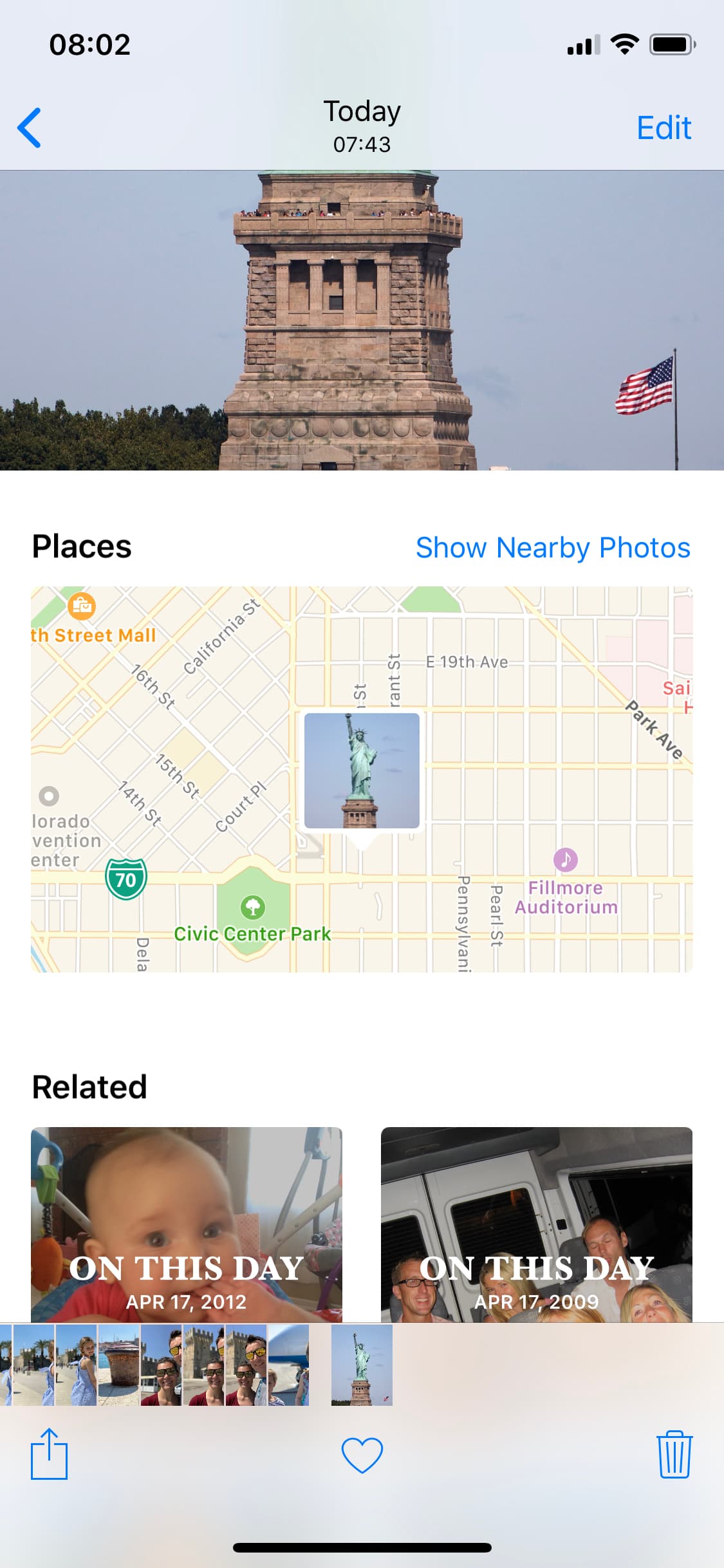
spoofed location

The Photos app can keep track of where your photographs are taken, assuming the photos in your Photo Library have location-based metadata attached to them. Even images you save from the internet can have this location data baked into them from time to time.

What most people don’t know is that it’s possible to spoof a photograph’s location data to make it look as if it were taken somewhere else. In this tutorial, we’ll show you how you fake the location of your photos in less than a minute with Exif Metadata, an app we developed in house.

How to share your real time location on Google Maps

Google recently introduced a location-sharing feature in the mobile Google Maps app that's somewhat similar in functionality to Apple's Find My Friends app. On your iPhone, iPad, iPod touch, Google Maps allows you to share your location with others for up to 72 hours, choose who can see where you are, hide other people's locations from a map and more.

In this step-by-step tutorial, you'll learn how to share your real-time location on Google Maps with friends and family in case you'd like to let them know where you are and when you’ll get there.

How to disable comments on your Instagram posts

If you have problems with trolls leaving nasty comments on your Instagram posts, then it might be music to your ears to hear that you can disable commenting, a step that can prevent trolls from leaving hurtful comments on your posts while allowing you to maintain a presence on the popular media-sharing social network.

While the workaround certainly isn’t perfect, it can be effective if used correctly. We’ll show you how to disable comments on your Instagram posts in this tutorial.