Tips

5 awesome 3D Touch tips that you may not know

Now that we've had the new iPhone 6s for about a week, it's time to share a few more 3D Touch tips that we've picked up over the last few days. By now, everyone knows about the basic 3D Touch features, but there remain a few usage scenarios that continue to fly under the radar. In this post and video walkthrough, we'll examine five different 3D Touch gestures that can help make your life easier when using your iPhone 6s. 

How to disable the mouse pointer shake gesture on Mac

Have you ever woken your Mac up from sleep, and couldn't find the mouse pointer among the mess of windows and desktop icons. We've all been there before.

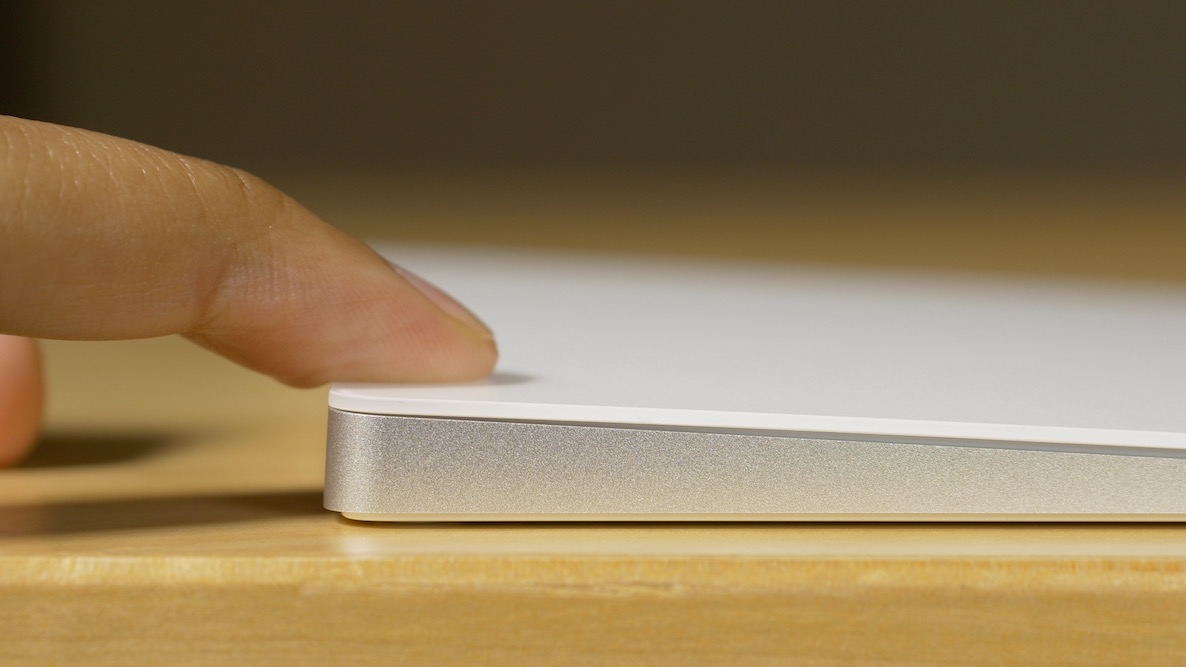
Starting with El Capitan, macOS is hoping to help out with that, courtesy of a brand new addition to the operating system. It's certainly not a headline feature, but macOS can help you quickly locate your mouse or trackpad pointer by simply shaking your mouse or swiping your finger back and forth on the trackpad in quick succession.

Watch our video inside to see how it works. We'll also show you where to go to disable the feature in System Preferences.

How to zoom in and out of your iPhone 6s screen with 3D Touch

We have been covering various 3D Touch features extensively here on iDownloadBlog and will continue to do so in the foreseeable future.

In addition to using your iPhone 6s keyboard in trackpad mode, adjusting the sensitivity of 3D Touch and turning the feature on and off, iOS 9 also provides a way for iPhone 6s owners to use its built-in zooming capability in conjunction with 3D Touch, based on the amount of force exerted on an on-screen controller.

They're calling it Peek Zoom and once activated lets you invoke iOS's standard Zoom feature through 3D Touch rather than requiring you to double-tap with three fingers.

How to turn iPhone keyboard into a trackpad with 3D Touch and select text with precision

iOS 9 brought out a new feature for iPads called easy text selection which lets you slide two fingers on the screen to turn the keyboard into a trackpad of sorts. While in this mode, you can control cursor movement and select chunks of text with precision.

Thanks to 3D Touch, you can bring up this trackpad-esque functionality on your iPhone 7 or later in order to easily select and manipulate text with great precision, here's how.

How to adjust 3D Touch sensitivity

Using a grid of 96 sensors that read microscopic changes in the distance between the cover glass and the backlight, your iPhone is able to detect different degrees of pressure. This headline feature, called 3D Touch, is used to reveal content previews and contextual menus within apps and quick actions on app icons on the Home screen.

Do you feel like 3D Touch requires you to press the screen too hard? If so, iOS offers a handy slide to change the amount of pressure you need to activate the feature.

How to turn off and on 3D Touch on your iPhone

So you got your brand new iPhone and decided that 3D Touch is more of a nuisance than gets in your way than a time-saving feature you'd like to use on an everyday basis. Worry not, for iOS gives you an easy way to disable 3D Touch on a system-wide level with just a few taps.

3D Touch, of course, offers shortcuts to commonly used app-specific actions right from the Home screen and lets you preview content or jump straight into it within supported apps by applying varying degrees of pressure to the screen.

People with disabilities, those with limited motor skills and everyone who would rather do without these handy shortcuts for one reason or another can easily disable 3D Touch on your iPhone.

Tip: ask Siri to remind you about things you’re looking at in your apps

Siri's Proactive features let you do so much more, and in a more intelligent fashion than ever before. In addition to suggesting apps, people, locations and more when you use Spotlight Search, iOS also lets you ask Siri to actually create context-aware reminders for what you’re looking at on the screen of your iPhone, iPod touch or iPad.

Asking to be reminded about things you’re looking at in apps like Safari, Mail and Notes that you want to follow up on later can be a tremendous productivity boost.

The feature is a great time-saver when you cannot currently deal with what you're doing right now, and would like to get reminded about it at a later stage, but are too lazy to create a reminder yourself. Here's how it works.

How to import your old Health and Activity data into your new iPhone

Moving over your existing Health and Activity data from your old iPhone to a new one can be a tricky business unless you know exactly what you're doing. The problem stems from the fact that Health and Activity data is not stored in regular iTunes backups, which are unencrypted by default, unless you remember to turn on encryption manually. It's a security precaution to prevent malicious users with access to your computer to mine your sensitive medical data from unencrypted iTunes backups.

The approach also poses a major challenge to folks who log their fitness and health data in Apple's Health and Activity apps. Surely you don't want to start from scratch and lose all the Health and Activity data that you'e amassed in the past year or so.

As it turns out, there is a way—actually, two ways—to preserve your complete Health and Activity data logs when you switch to a new iPhone.

How to silence Siri audio feedback when your iPhone is on silent

Starting with iOS 9, you are able to shut Siri up as easily as turning the mute switch to silent. Prior to iOS 9, Siri would not respond to the state of the ringer switch.

Indeed, how many times did you wish you could chat with Siri in the middle of the night but didn't out of fear her loud voice might wake up your significant other?

As it turns out, a quick trip to the Settings app and a couple of taps is all it takes to tell Siri to honor the state of your ringer switch.

How to get your iPhone on Friday morning at 8am sharp

It's the same dilemma every year. You want the new iPhone as soon as possible, but don't want to spend the night waiting in line to get it. As much as I love Apple crowds, I'd rather spend the night in my bed.

Even if you ordered your iPhone for delivery, there is always a chance the UPS guy won't come by your house until later in the day, which means you could still be left hanging there for several excruciating hours. First world problems indeed!

Thankfully, if you've ordered your iPhone for delivery, we have a trick that may help you score your iPhone first thing in the morning, as soon as 8am.