macOS

Apple brings APFS to macOS High Sierra

Apple is bringing its renowned Apple Filesystem (APFS) to the macOS platform for the first time with the newly-announced macOS High Sierra operating system for Macs.

APFS first debuted in iOS 10.3 to replace the dated HFS, and the speed improvements were quickly noticed by users.

Apple introduces macOS High Sierra

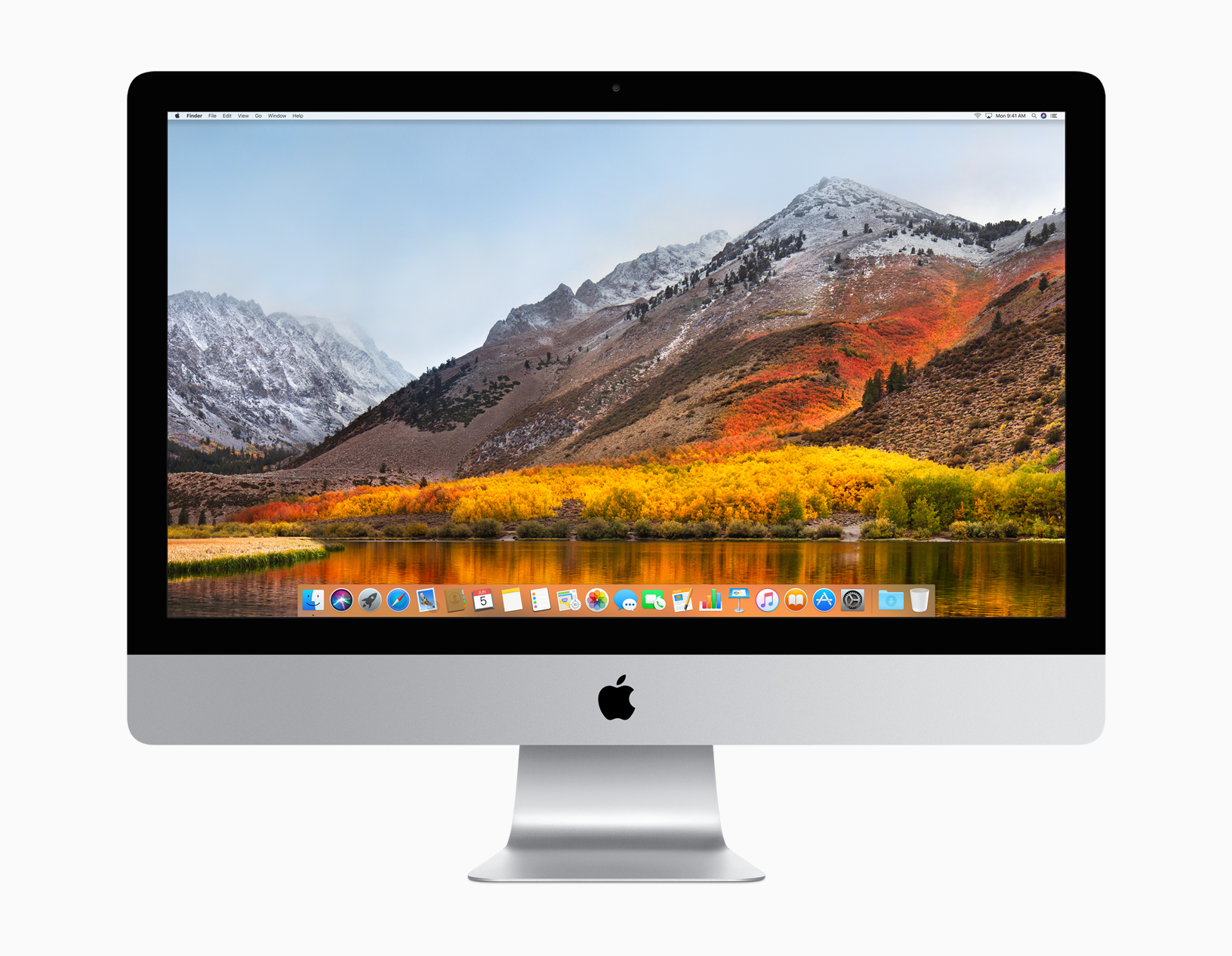
Apple's Senior Vice President of Software Engineering Craig Federighi has taken the stage at Apple's WWDC keynote to introduce the next major version of macOS. They're calling it macOS High Sierra.

Think of this like a Mountain Lion-style update—Craig said "we wanted to spend this year perfecting Sierra." There have been several improvements made, but it doesn't sound like much in terms of new features.

“macOS High Sierra delivers important forward-looking technologies and new opportunities for developers wanting to tap into the power of machine learning and create immersive VR content on the Mac,” said Craig Federighi, Apple’s senior vice president of Software Engineering. “The core technology innovations in macOS High Sierra, combined with our advances in hardware, will continue to push the Mac forward in exciting new ways.”

Among those new ways  is a faster Safari. Craig says Safari in High Sierra is the "fastest browser in the world." It also has a few new features like blocking AutoPlay videos and something called 'Intelligent Tracking Prevention,' which uses machine learning to protect your privacy from sites/ads that want to track you.

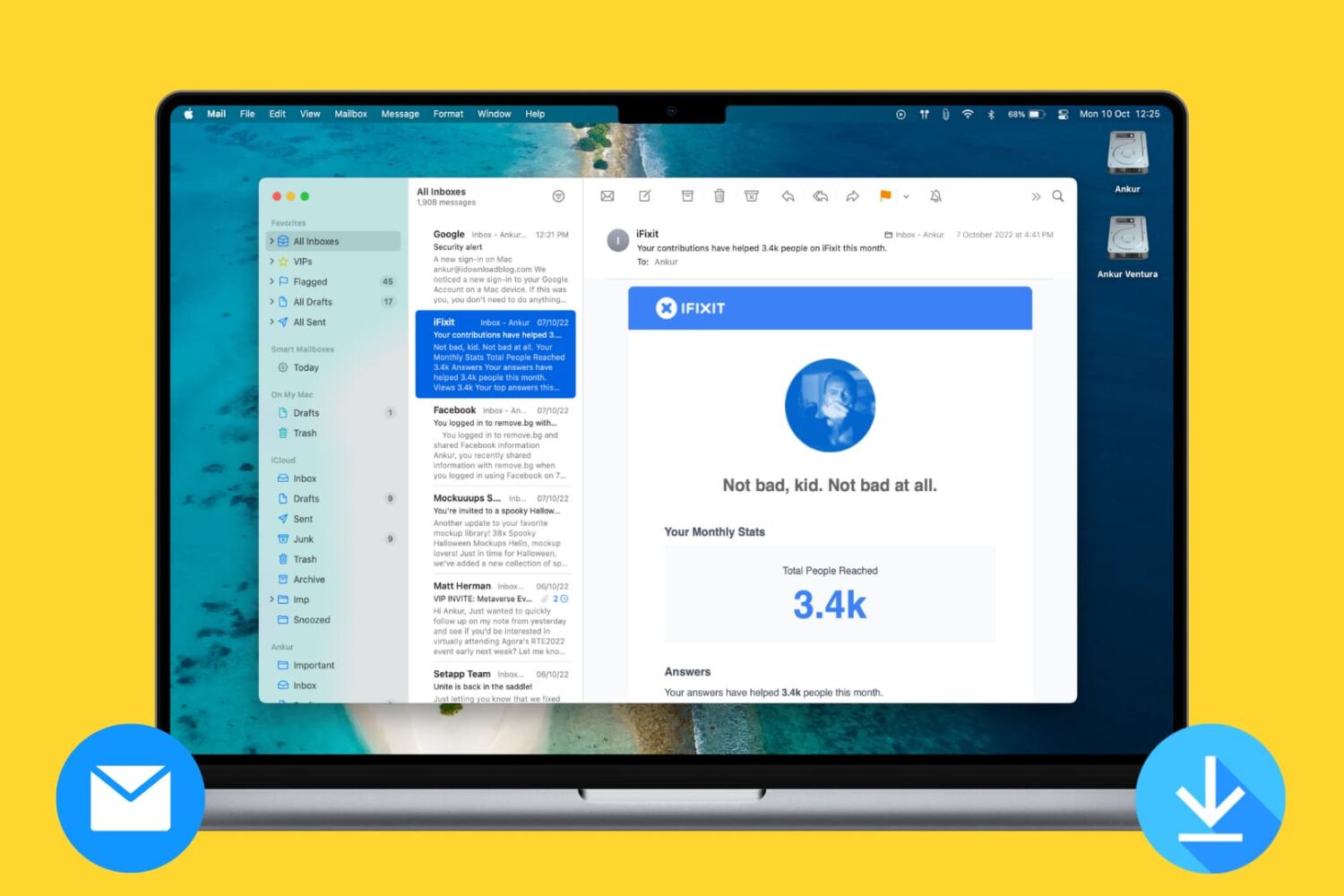
There is also Mail enhancements, a new file system—Apple File System replaces HFS, improvements to the Photos app, enhanced 4K support, and Metal 2 for better graphics performance. An important note: Metal 2 supports external graphics, which opens up the door for Virtual Reality content creation.

Other new features:

Safari can automatically use Reader to open articles in a clean, uncluttered format, while Autoplay Blocking stops media with audio from automatically playing in the browser. Mail search gets faster and easier with Top Hits, which puts the most relevant results at the top of a user’s message list. Siri on the Mac responds with a natural and more expressive voice, and when using Apple Music, it learns music preferences, creates custom playlists and answers music trivia. Notes adds simple tables, where a user can type in cells, make edits and move rows and columns. Spotlight provides flight status information, including departure and arrival times, delays, gates, terminals and even a map of the flight path. iCloud File Sharing lets users share any file stored in iCloud Drive and collaborate with other people.

macOS High Sierra is available in developer beta form today, and will be released to the public this fall.

How to live stream WWDC 2017 on iPhone, iPad, Apple TV, Mac, Windows and Android

Apple will be live-streaming its WWDC 2017 event, just as they have for the last several years, so the world can tune in and see what’s new in the world of iOS, macOS, tvOS, watchOS, and more.

No matter what type of device you’re using the day of the event, you can live-stream the keynote. In this piece, we'll go over all the methods on how for every operating system and platform.

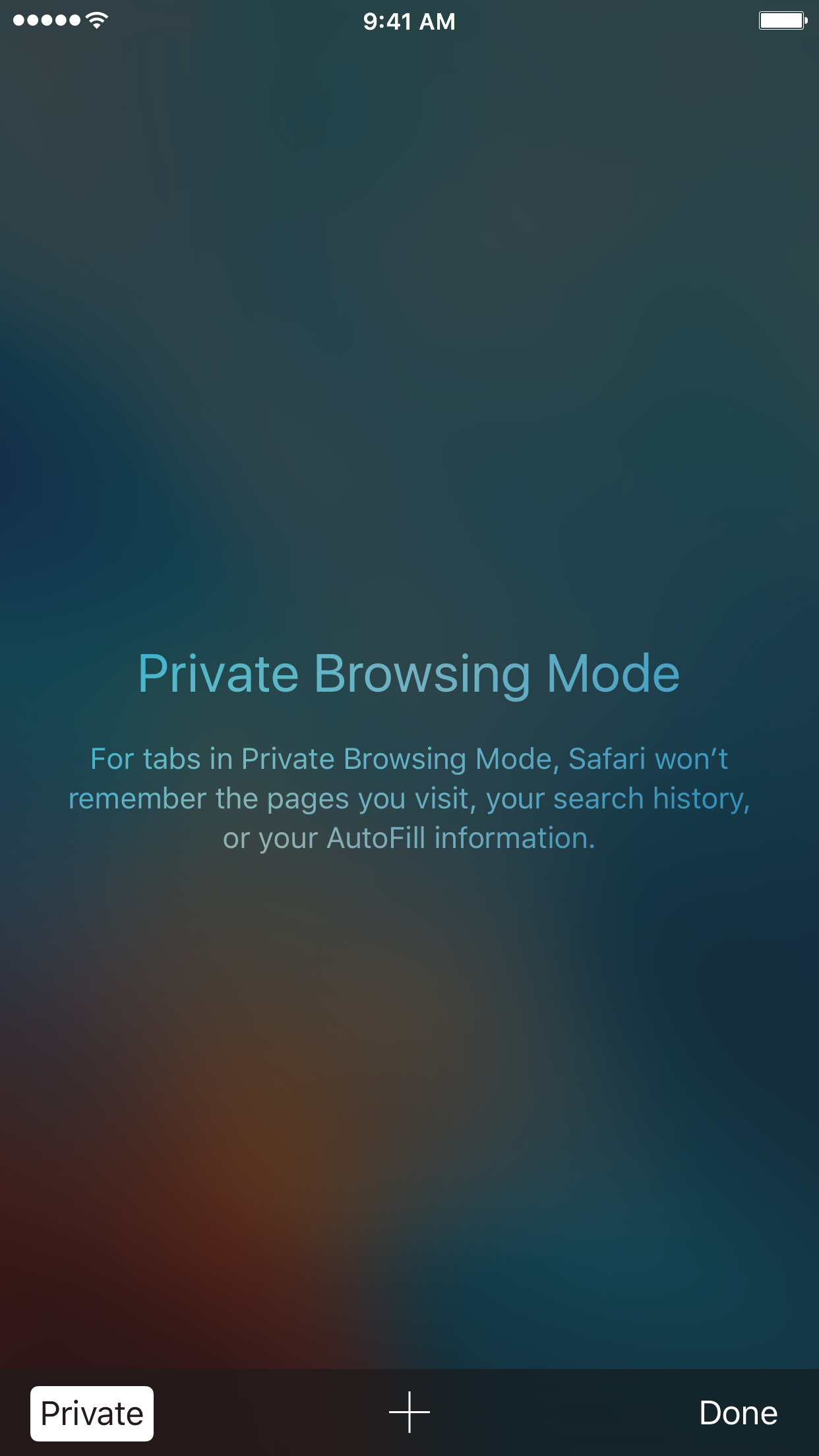
How to always open Safari in a private window

With privacy becoming a hotter topic these days, web users are becoming more and more wary about what they share online. While there are many different steps that can be taken to increase your online privacy, a very simple way to get started is to use a web browser in Private mode.

In this post, you will learn about what Private mode means in Safari, and you will find out how to always open Safari in a private window to make this simple precaution an automatic way of accessing the web on your Mac, your iPhone, or your iPad.

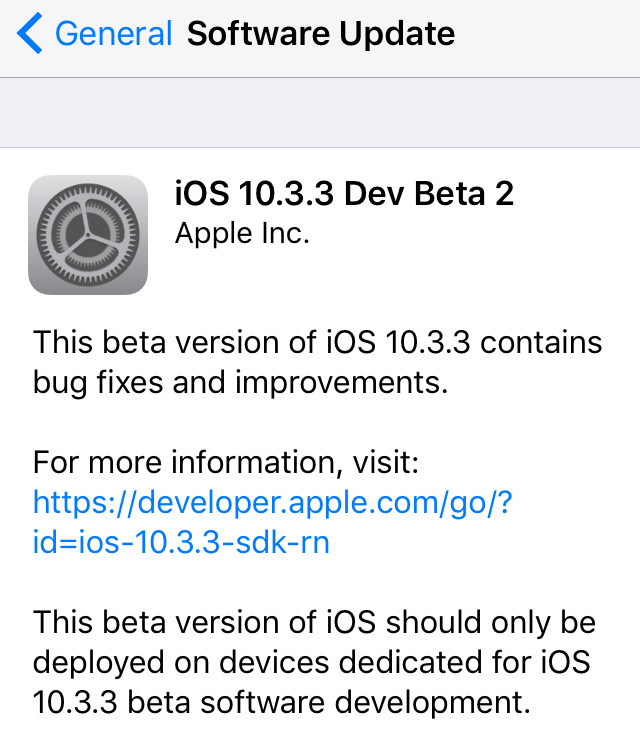
Apple launches second betas of iOS 10.3.3, macOS 10.12.6, watchOS 3.2.3, and tvOS 10.2.2

Apple on Tuesday released a second round of betas for all of its platforms, including iOS 10.3.3, macOS 10.12.6, watchOS 3.2.3, and tvOS 10.2.2.

No significant changes can be spotted in any of these betas at this time, signaling that these simply feature the usual round of bug fixes and performance improvements, which is not surprising considering WWDC 2017 is just around the corner.

We shouldn't expect anything really new from now on until the public releases of Apple's new softwares, likely around September.

Tim Cook talks assistive technologies with Accessibility evangelists

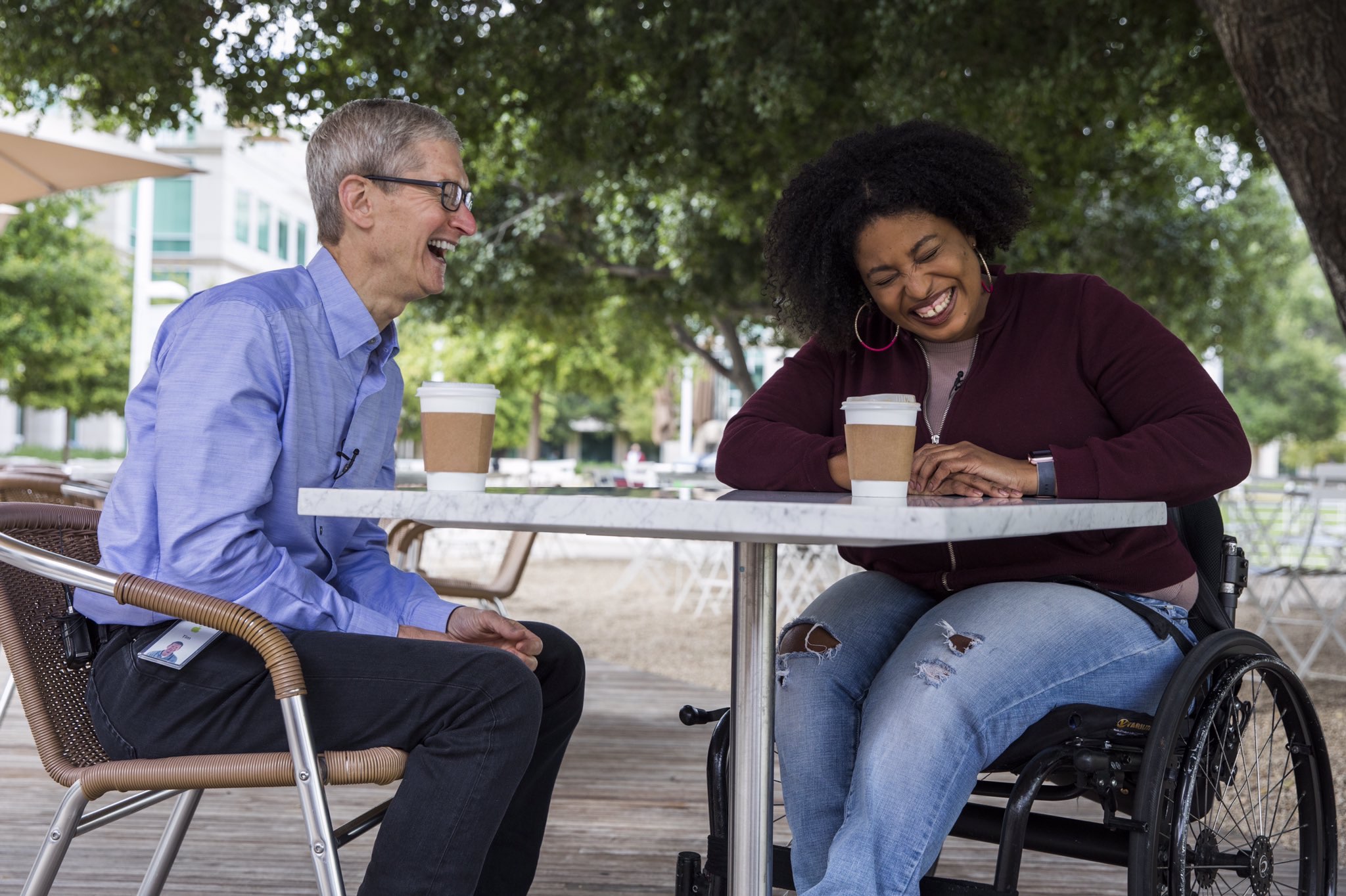
Apple CEO Tim Cook sat down with three YouTubers who are Accessibility evangelists to discuss the importance of the assistive technologies built into the company's iOS, macOS, tvOS and watchOS platforms.

James Rath, a legally blind filmmaker; Tatiana Lee, a model, actress and lifestyle blogger; and Rikki Poynter, a North Carolina-based writer and deaf awareness activist, all published their video interviews with Apple's chief on their respective YouTube channels on Wednesday.

James Rath interview

https://www.youtube.com/watch?v=kXy8KcONTSs

Rikki Poynter interview

https://www.youtube.com/watch?v=t6_iOVSavdE

Cook explained to Poyter what Apple is all about when it comes to Accessibility:

Apple is founded on giving people power to create things, to do things that they couldn't do without those tools. And we've always viewed accessibility as a human right. And so just like human rights are for everyone, we want our products to be accessible for everyone.

He added that accessibility should be a basic human right:

It's a basic core value of Apple. We don't make products for a particular group of people. We make products for everybody.

We feel very strongly that everyone deserves an equal opportunity and equal access. So we don't look at this thing from a return on investment point of view—I've been asked that before. The answer is no, I've never looked at that. We don't care about that.

A lot of these Accessibility features, everyone can use. With HomeKit, I use HomeKit every day and control my house with my voice.

“It’s a basic core value of Apple,” said Cook.

Tatiana Lee interview

https://www.youtube.com/watch?v=58ZZFUDIM0g

Lee's whole video was shot with her iPhone 7 and edited using Apple's new app Clips.

Cook did the interviews to honor Global Accessibility Awareness Day, an initiative that promotes inclusion when it comes to creating products, content and experiences for everyone.

The company is currently highlighting apps on App Store that implement Accessibility features.

Lastly, Apple posted seven inspiring videos showcasing how people with disabilities are using assistive technologies built into iPhone, iPad and Mac. For the full overview of the extensive assistive features built into Apple products, check out its dedicated Accessibility webpage.

How to delete old Time Machine backups

Do you use macOS's incredibly useful zero-configuration Time Machine feature to keep the personal files, settings and documents residing on your Mac safely backed up to an external disk? If so, is your backup disk nearly full? The best way to make room on your backup disk is to delete old Time Machine backups using Finder.

For example, the disk in my AirPort Time Capsule is nearly full because I have backups dating back to 2010. In this day and age of iCloud Drive and other cloud-storage services, keeping years worth of backups is kind of useless. That precious disk space could be put to better use for storing your photos and videos, for example.

In this tutorial, you will learn how to delete old Time Machine backups to help clean up your disk and regain storage space on it.

Deleting old backups should be your first order of business in situations when your Time Machine backup disk runs out of space. By default, Time Machine deletes older backups to make room for new ones as your backup disk fills up.

There are a couple ways to remove entire backups created on specific dates. We will describe both, but note that Apple seem to prefer the first method

How to delete old Time Machine backups

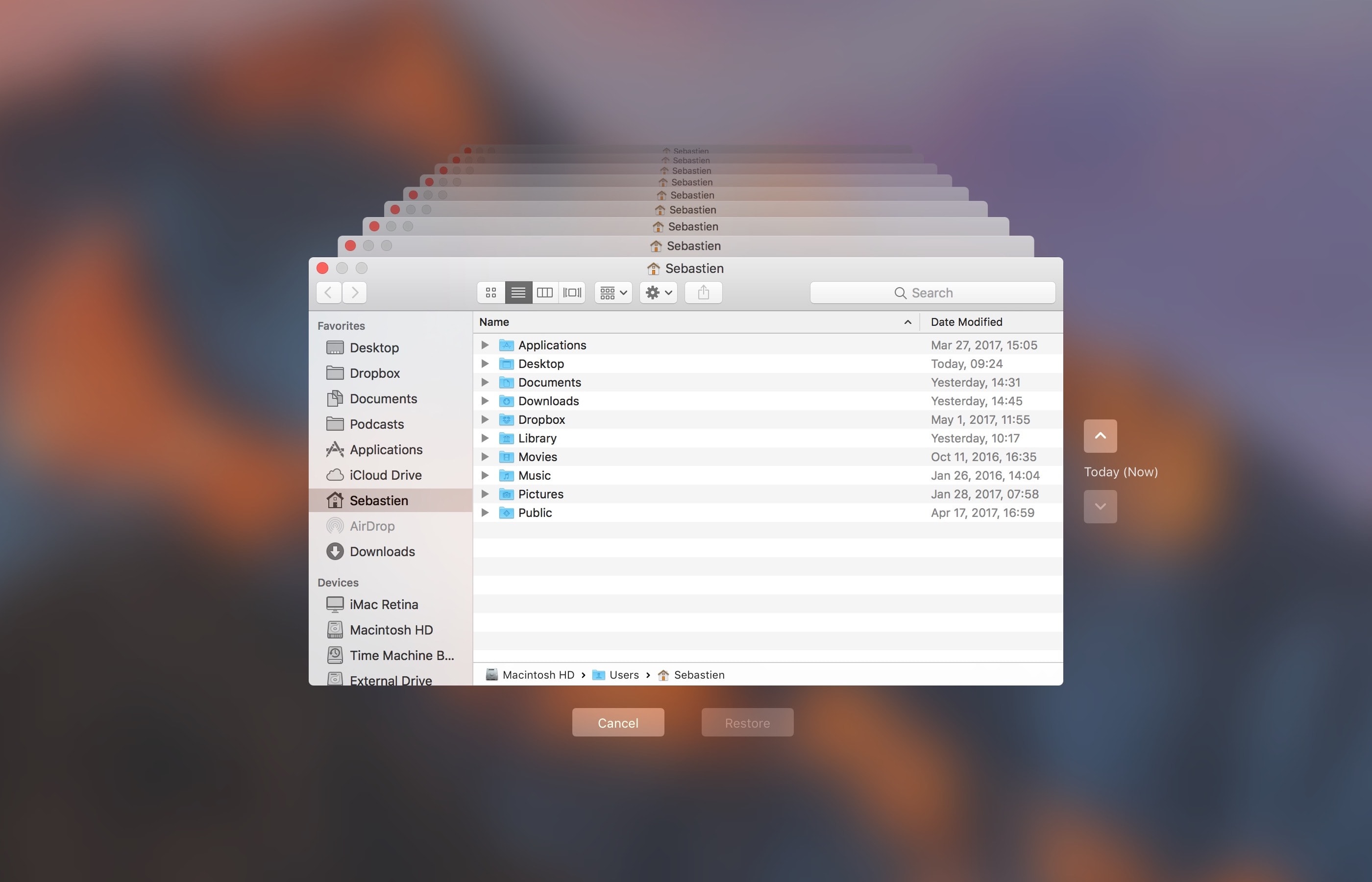
1) Click the Time Machine icon in your Menu Bar to enter Time Machine.

2) Navigate through the interface to the desired date.

3) Once you have located the day you want to delete from your backup, click on the gear icon and select Delete Backup.

4) You will be asked to confirm you indeed want to delete the backup, and you may be ask to enter your administrator password too. Once done, the backup for that specific day will be deleted.

How to remove old Time Machine backups using Finder

1) Click the desktop and open a new window by selecting New Finder Window from the File menu, or press the Command (⌘)—N keys on your keyboard.

2) Connect the disk containing your Time Machine backups to the computer and wait until its name appears underneath the Devices section in the Finder sidebar, then click it.

You may be asked to enter your administrator name and password to continue. If you use AirPort Time Capsule, you may be asked to enter a password to access the backup disk.

3) Navigate to the “Backups.backupdb” folder on your Time Machine backup disk as you would other folders. It should be a top-level folder of your backup drive.

4) Once inside the “Backups.backupdb” folder, navigate to the sub-folder named with your Mac computer's name. For instance, if your Mac is named “iMac Retina” in System Preferences, Time Machine will store backups inside the “iMac Retina” sub-folder.

TUTORIAL: How to change your Mac computer's name

5) You will see a bunch of sub-folders, each prefixed with the date of the backup in the YYYY-MM-DD format. For example, backups of your iMac created on April 19, 2017 would we stored in the sub-folder with the name beginning with “2017-04-19”. To delete a desired backup sub-folder, right-click or Control (⌃)-click it, then choose Move to Trash from the popup menu.

This will delete all copies of a backed-up file or folder from your Time Machine backup disk.

6) Repeat the process for other full-day backups you'd like to remove. When done, disconnect the disk by selecting its icon on the desktop, then choose Eject from Finder's File menu.

While you can safely delete sub-folders within the “Backups.backupdb” folder, you are not allowed to delete individual items inside the dated folders.

You're wholeheartedly discouraged from using Terminal or any other app other than Finder to move, copy or delete items from the Backups.backupdb folder.

You also cannot delete items from local snapshots stored on your internal drive.

To save space on the backup drive, why not exclude individual files or entire folders of files—like your Applications or Downloads folder—in the Time Machine preferences window?

That's all, folks!

If you have a question, post a comment below and we'll do our best to answer it. Please share this tutorial on social media and pass it along to the folks you support.

Submit your ideas regarding future coverage via tips@iDownloadBlog.com.
macOS 10.12.5 fixes issues with USB headphones & Windows 10, lays the groundwork for future macOS releases

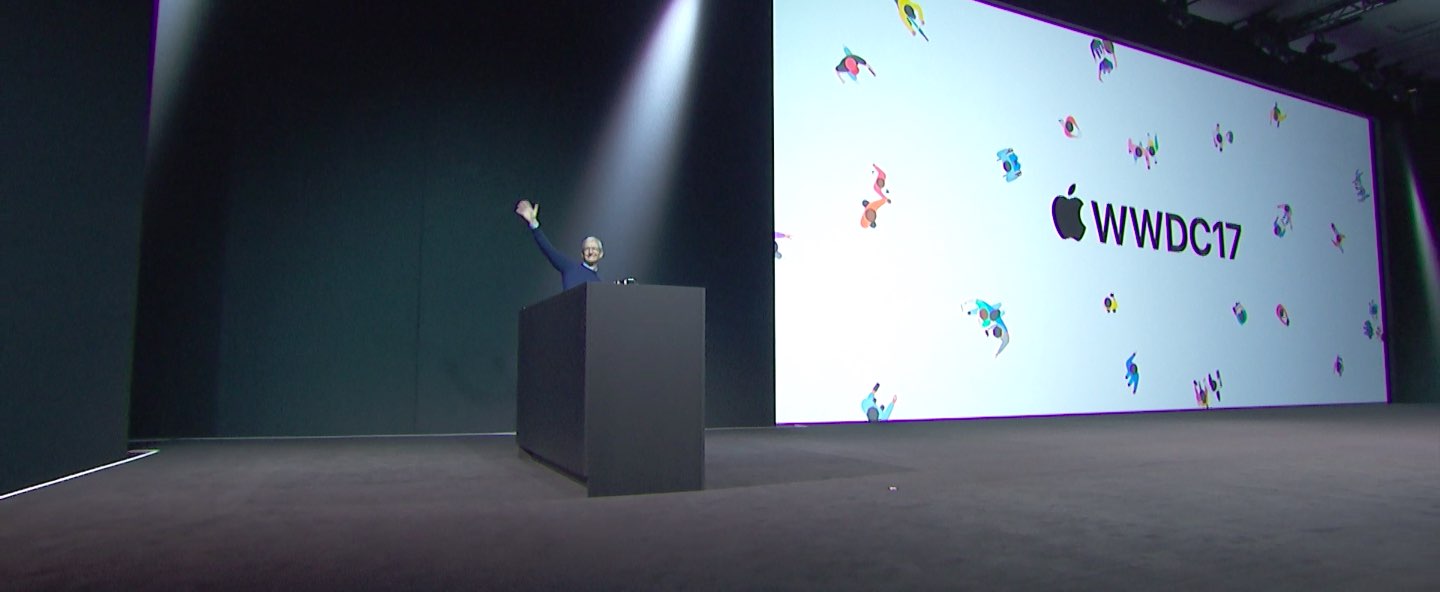
Apple today released the mostly maintenance macOS Sierra 10.12.5 software update alongside updates to iOS, watchOS and tvOS. According to release notes accompanying the download, 10.12.5 fixes issues with USB headphones and Windows 10 installations while laying the groundwork for future macOS releases.

Plus, this version of macOS “enhances compatibility of Mac App Store with future software updates.” Apple is expected to preview the next major version of macOS at its annual developers conference next month.

macOS Sierra 10.12.5 can be installed via the Mac App Store's Updates tab.

Read Apple's support doc for detailed information about the update's security content.

Safari 10.1.1, which comes included in the 10.12.5 update, patches for more than half a dozen WebKit-related vulnerabilities while fixing yet another instance of address bar spoofing that could fool users into believing they're visiting a genuine rather than a maliciously crafted webpage designed for phishing attacks.

It's available for OS X Yosemite 10.10.5, OS X El Capitan 10.11.6 and macOS Sierra 10.12.5.

A minor update to iTunes for Mac and Windows was also pushed today.

iTunes 12.6.1 comes with unspecified app and performance improvements along with a fix for a WebKit exploit on Windows 7 and later which could result in arbitrary code execution after processing maliciously crafted web content.

PDF Expert 6 for iOS is out with revamped look, enhanced search, new editing tools & more

Readdle, a prolific Ukrainian developer of fine productivity software for iOS and macOS, today pushed a major new version of its fast, robust and beautiful PDF editor, called PDF Expert.

Aside from an overhauled interface which allows you to navigate your documents in a most effective way, PDF Expert 6.0 for iPhone and iPad includes a brand new experience when adding and managing files and built-in editing tools for those times when you're required to edit that contract, update presentation slides or change the invoice logo while on the go.

PDF Expert for iPhone and iPad

“You make fewer taps in order to edit, zip, tag, move or sync files,” developers noted, adding that “bigger file preview thumbnails give you a better idea of the content of that Excel spreadsheet or PowerPoint presentation.”

Aside from the usual features, PDF Expert 6.0 now allows users to edit and modify text and images in their PDFs, as well as add links, redact information and more.

But first, watch the promotional video below.

https://www.youtube.com/watch?v=_Jrg8txgDVo

The new editing tools in the iOS app let you:

Edit and modify PDF text Add and replace images Add links to text and pictures Hide sensitive information using Redact feature

For those who work in the cloud, the app now allows you to edit, annotate or sign documents in your Dropbox or any other supported cloud storage service without needing to download the document locally—all your edits are now saved directly in the cloud version of the document.

With PDF Expert 6.0, PDF documents that contains sensitive data can be finally protected with a password. Lastly, the iOS app now lets you edit outlines to help structure data in huge documents and provides an enhanced search feature with the ability to search for a word or a document across multiple documents and file types.

PDF Expert for Mac

The Mac app was refreshed with enhanced navigation, faster search and other updates back in March 2017, here are your key highlights. To make the editing process even easier, the Mac app automatically detects the font, size and opacity of the original text.

This is very useful because no longer do you have to adjust the formatting after every single edit. “Now, you can edit PDF text and images, add links, work directly from the cloud without downloading files and much more,” Readdle noted.

The improved search is smarter and quicker than before. Perhaps more important than that, you can save all relevant discoveries into your search history to easily find them in the future.

Lastly, you'll notice the all-new toolbar layout with several page layout templates and the ability to customize your reading experience in macOS's Split View multitasking mode. Whether you’re comparing contracts or reading an article, you can now bring up the new rendering options to choose the most convenient layout to quickly accomplish your task.

The new editing tools in PDF Expert 6.0 for iOS require a one-time $9.99 In-App Purchase. All the other new features are free for existing users of the iPhone and iPad app.

New users can grab PDF Expert for iOS on App Store in exchange for $9.99.

PDF Expert for macOS is available for $60 via Mac App Store.

A free trial is available via the official PDF Expert website.