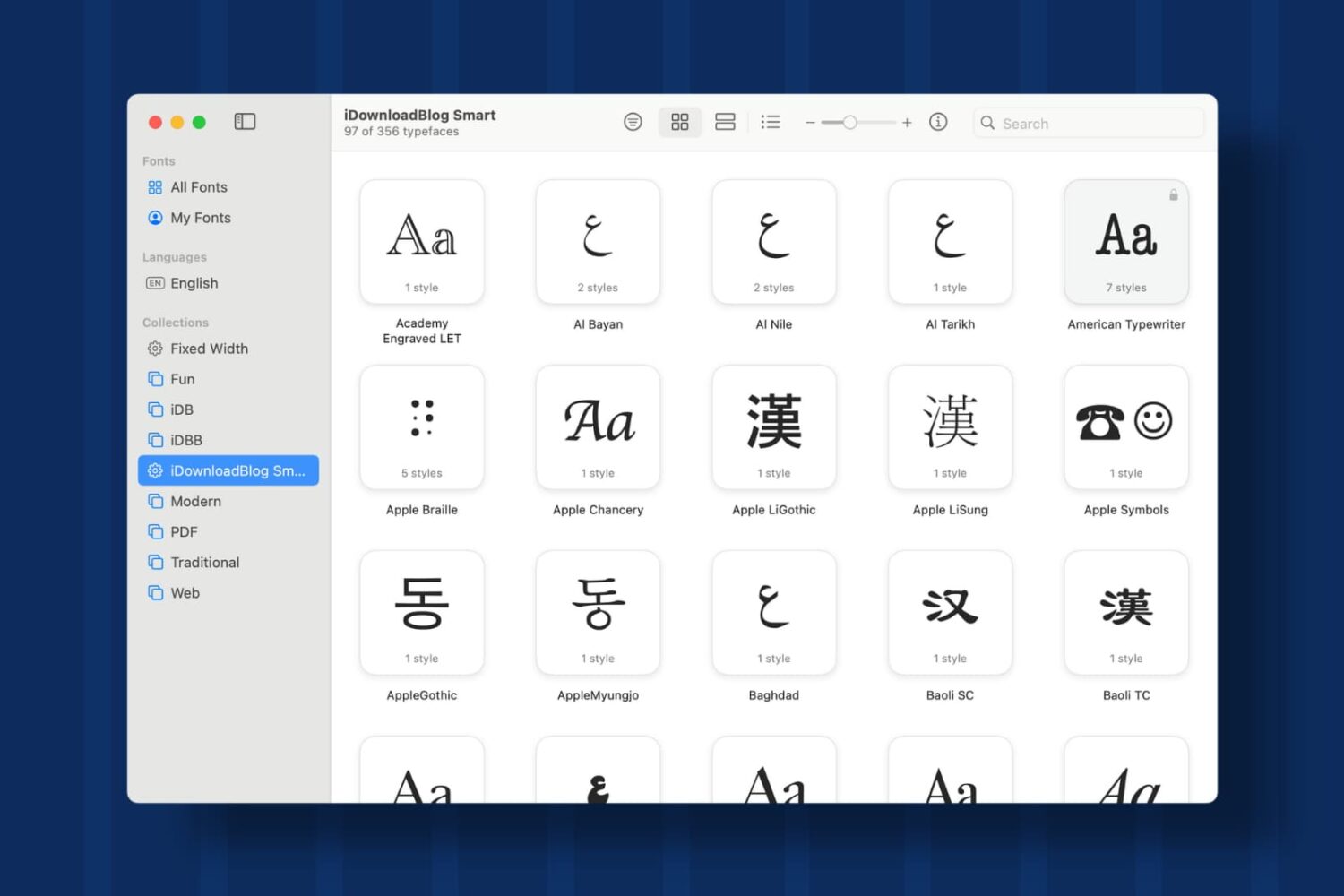
Learn how to create Collections and Smart Collections in Font Book on Mac, which are ideal when you quickly need a specific group of fonts.
How to create Font Book Collections and Smart Collections on Mac
Stay up-to-date on the latest Mac news, and tutorials. Get expert tips and tricks to optimize your Mac’s performance and learn about the latest Apple products and software updates. Discover the best Mac apps and accessories to enhance your user experience.
Learn how to create Collections and Smart Collections in Font Book on Mac, which are ideal when you quickly need a specific group of fonts.

In this tutorial, we’ll walk you through the steps to reset Bluetooth on your Mac to fix common wireless connection issues with your Bluetooth accessories.

Learn how to create and manage Shared Albums in the Photos app on your iPhone, iPad, or Mac to easily share pictures and videos with your family members and friends.
Learn how to import pictures and videos from Mail, Messages, Safari, and other apps to the Apple Photos app on Mac so you can create albums or just keep all the visual media together.

Learn about the must-have list of commands you need to navigate the menu bar and the menus within it using VoiceOver on your Mac.
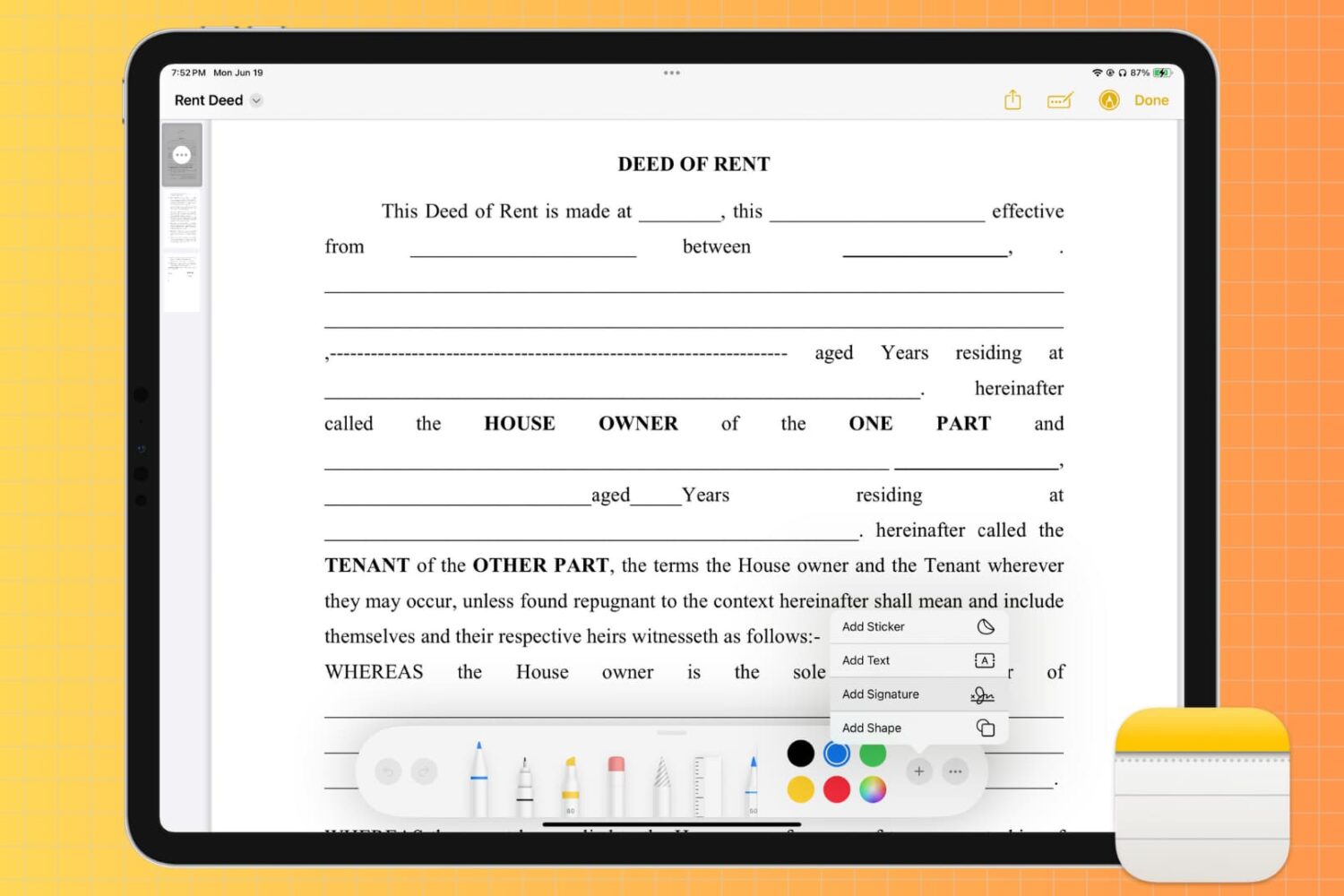
You can include images and PDFs as references in your notes. This is perfect for keeping everything together. And if you want to annotate one of those items, you can mark up images and PDFs right within the Notes app on your iPhone, iPad, and Mac.

Learn how to use the built-in Quick Look feature in macOS to instantly preview one or more selected files, rotate an image, or trim a video file on your Mac.

Learn how to change or delete the date, time, location, and other metadata of a photo on your iPhone, iPad, and Mac.
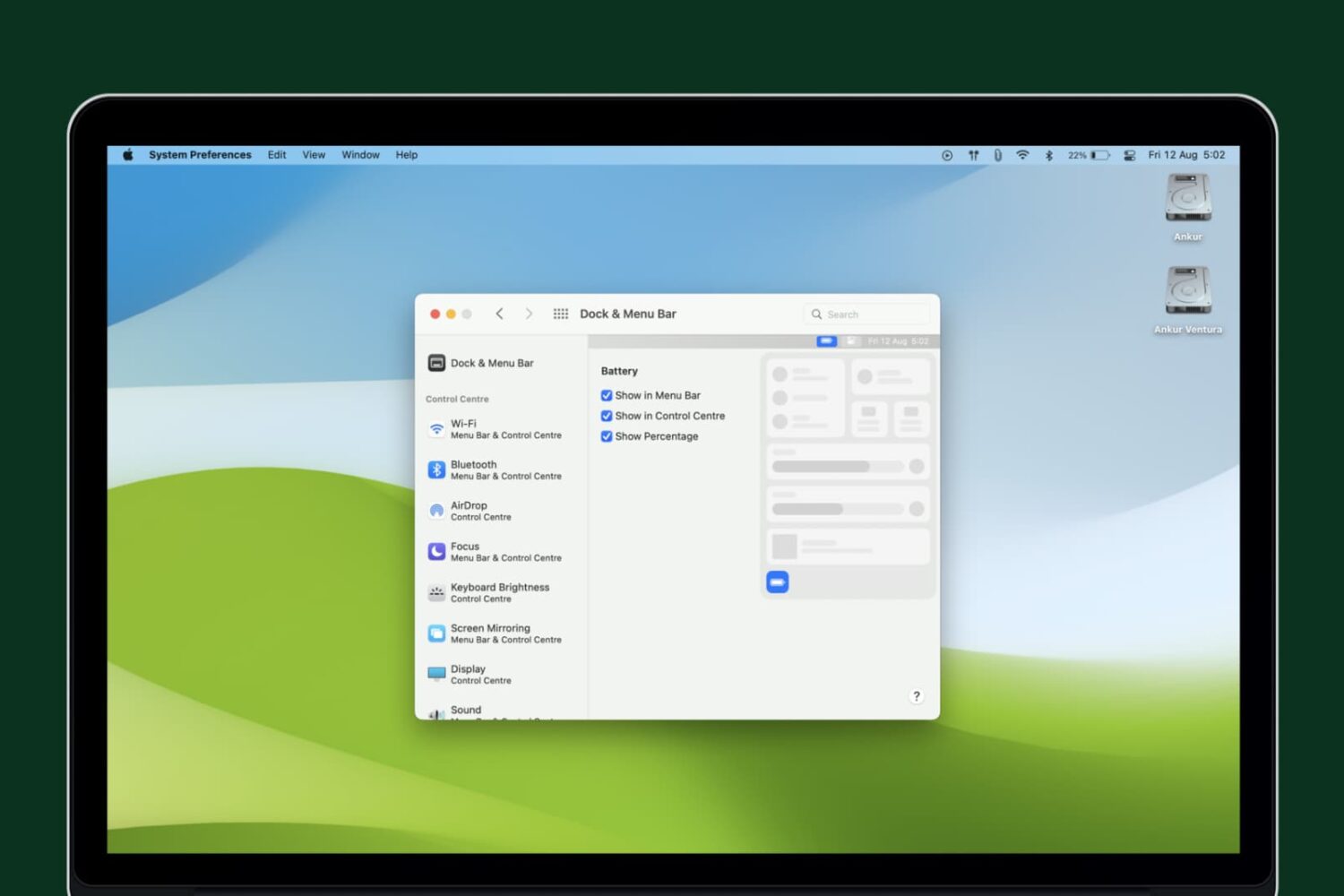
Learn how to display the battery percentage in the top menu bar and Control Center to quickly check your Mac’s battery status.

Use the Sort By option in the Apple Mail app on your Mac to organize your emails based on two dozen parameters.

In this tutorial, we will show you how to customize the settings for VoiceOver announcements and hints on your Mac to fine-tune your experience.

Maybe you just purchased your first Mac, or maybe you only perform certain tasks on it each day. In these situations, it can be difficult to find items you’re unfamiliar with when you need them. From big things like applications to small ones like the trash, we’ll help you find the most commonly looked-for items on your Mac.