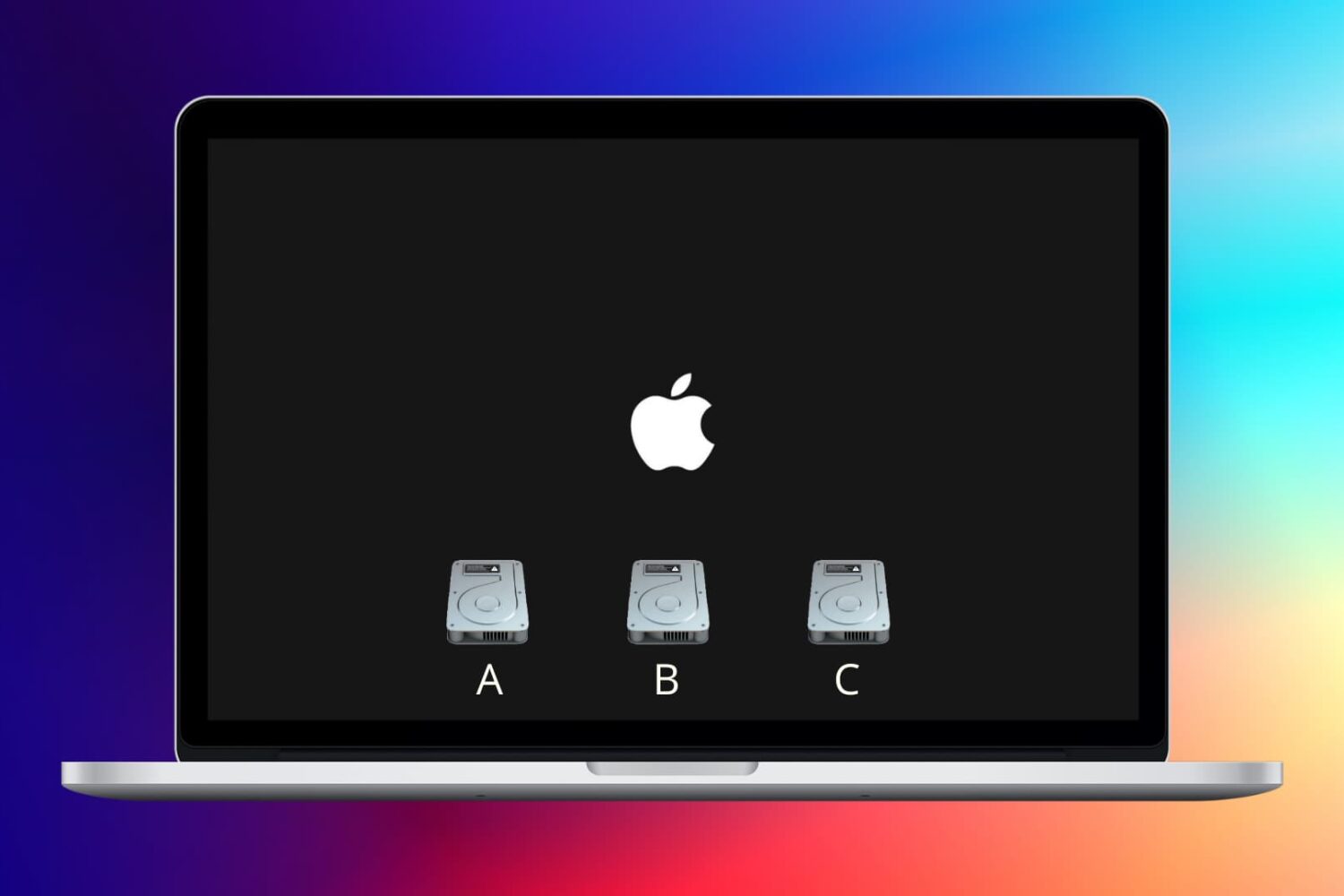
Learn how to change the startup disk on your Mac if you’d like to boot from other storage devices like an external drive.
How to pick a startup disk for your Mac at boot time
Stay up-to-date on the latest Mac news, and tutorials. Get expert tips and tricks to optimize your Mac’s performance and learn about the latest Apple products and software updates. Discover the best Mac apps and accessories to enhance your user experience.
Learn how to change the startup disk on your Mac if you’d like to boot from other storage devices like an external drive.
We previously discussed how booting your Mac into macOS' Safe Mode can help troubleshoot various issues with your computer. In more obscure situations and borderline cases, however, Safe Mode may not be enough to understand why your Mac freezes or crashes during the system boot process.
Enter macOS Verbose Mode.
Not only does Verbose Mode makes it easy to access detailed status messages as your Mac is starting up, but also lets you see what's really going on behind the scenes and watch as macOS loads kernel extensions and other startup items.
In this tutorial, we're going to cover booting your Mac in macOS' Verbose Mode, explain in which situations it might come in handy and give you some handy tips related to using Verbose Mode.
With Time Machine, it's easy to restore all of your data back to a new Mac or to a fresh install of macOS. As we outlined previously, users can choose to restore all data, or pick and choose the data that they wish to restore during the initial setup process of macOS, and that includes both music and photos.
Another option is to simply restore the entire Pictures or Music folder via the Time Machine interface. We show you how to do that via this post.
In the following tutorial, we'll show you another quick and easy way to recover photo or music data from a Time Machine backup—directly from the backup folder on your Time Machine external drive.
One of the primary benefits of using Time Machine is that it allows you to restore your backup on a new Mac or a new macOS installation. This makes it so that you can essentially pick up where you left off from your old machine or old installation.
Fortunately, restoring Time Machine backups to a new Mac is extremely easy and straightforward. In this fifth tutorial in our Time Machine how-to series, we'll show you how easy it is.
Learn how to start your Apple silicon or Intel Mac in safe mode to check if startup software is causing the issue.
Time Machine is extremely easy to use, and its flexibility makes it a great solution for keeping your Mac backed up safely. But with external drives being as large as they are, you may wish to use some of the space on your Time Machine drive for basic file storage.
There are many ways to go about this, but one of the best ways is to simply create a separate partition on your external drive. By doing this, you have a dedicated partition for file storage, and a dedicated partition for your Time Machine backups.
Although it's possible to store files on your Time Machine partition, in my opinion, it's a better practice to keep them separated. In this fourth entry into our Time Machine tutorial series, I'll show you how simple it is to create a second partition on your Time Machine external drive.
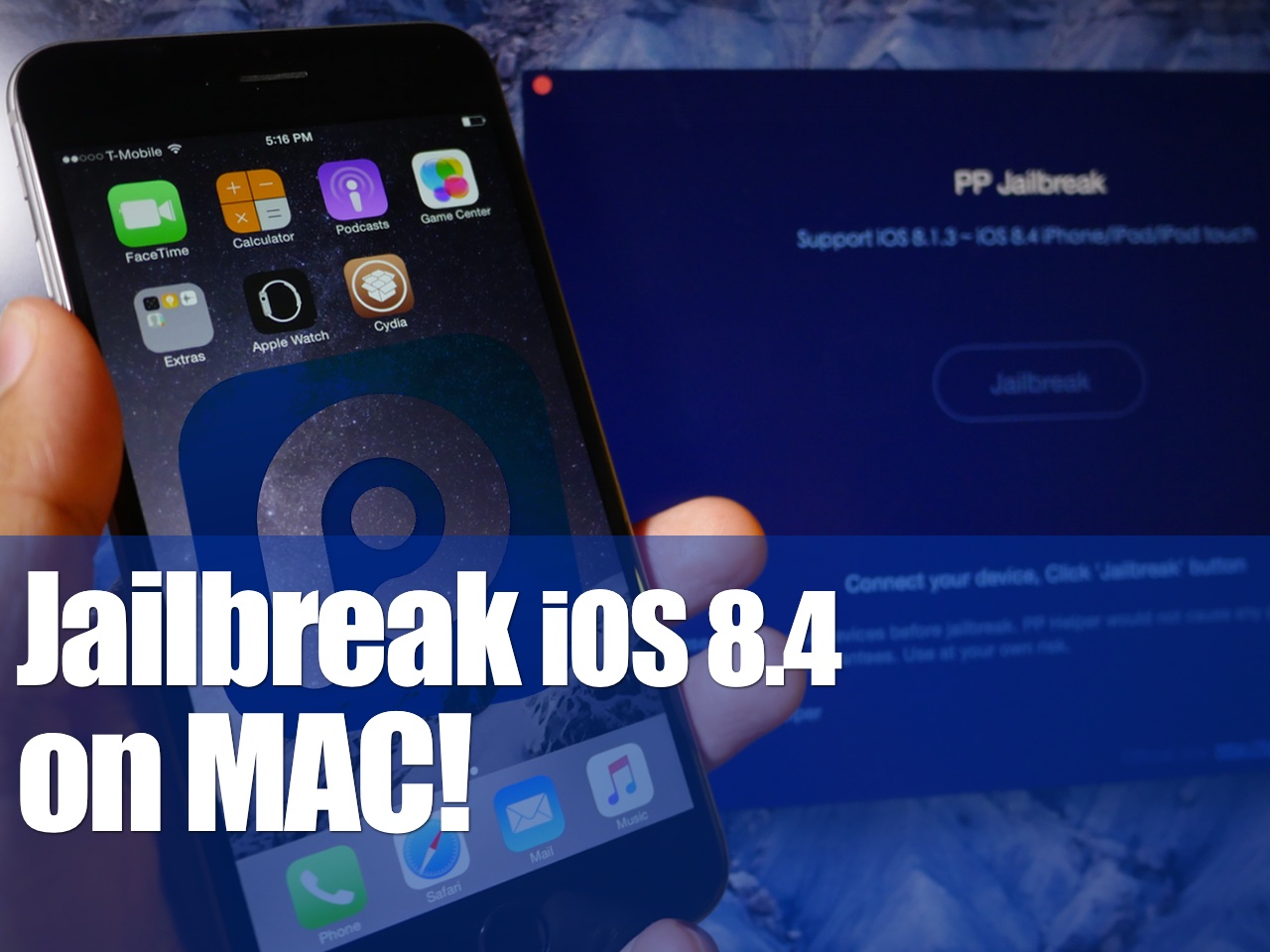
The PP untethered jailbreak for iOS 8.4 is out, and it has been confirmed to work. As we continue to wait on a possible TaiG jailbreak for Mac, the 25PP team is making it so that Mac users can jailbreak now.
Of course, you can always use the virtual machine method for jailbreaking iOS 8.4 using TaiG on Mac, but the PP jailbreak tool is as simple as simple gets for Mac users. Inside, we'll show you how to jailbreak your iPhone, iPad, or iPod touch running iOS 8.4 on Mac using PP jailbreak.
Time Machine is very useful, because not only does it allow you to back up all of your user data, but it also allows you to selectively view and restore portions of that data, even down to individual files.
In this tutorial, the forth in our series about Time Machine, I'm going to show you to how to view and restore an individual file using a Time Machine backup.
In our third Time Machine tutorial for macOS, we'll show you how to exclude specific files or folders from being included in your Time Machine backup. You'll find that it's extremely easy to curate your Time Machine backups using its preferences.
The thing that I really like about Time Machine is that you can exclude not only individual files, but entire folders of files as well. Have a look at our easy to use tutorial to find out how you can exclude certain data from becoming a part of your backup.

In this tutorial, we go over four ways to force-quit apps on Mac so you can close an app that is misbehaving, frozen, unresponsive, or monopolizing system resources and slowing down your computer.
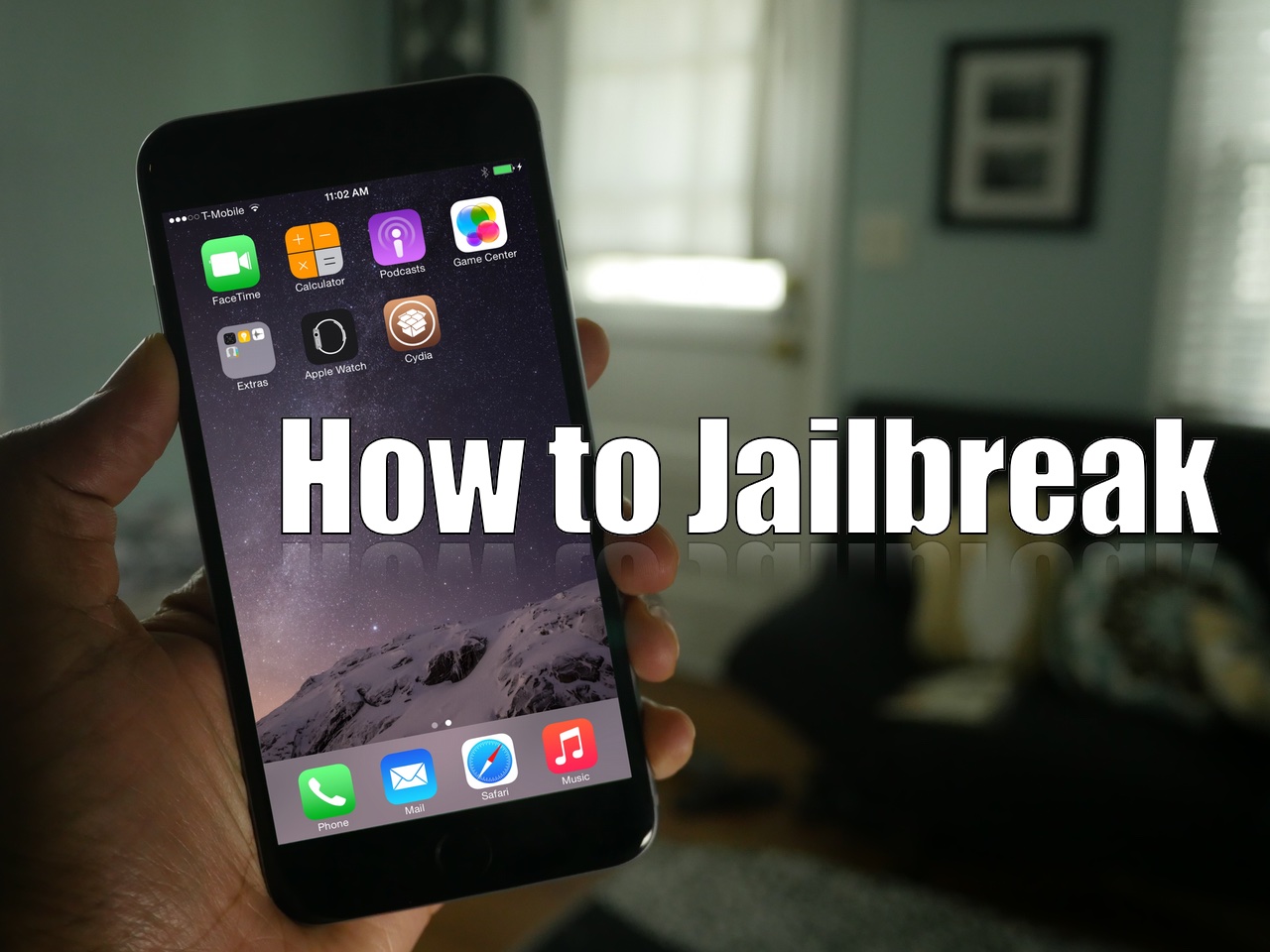
As we mentioned earlier, TaiG has released version 2.1.3 of its jailbreak tool, and it's a significant update as far as fixes go. First and foremost, it works with virtual machines, so you no longer need to modify your virtual machine to use the tool. Secondly, it fixes the 20% hangup. With these things in mind, we thought we'd show you how to jailbreak using this latest TaiG update.
This post is primarily aimed at those who have yet to jailbreak, and are looking for guidance with the latest tool. In the video that follows, we'll show you the proper way to go about jailbreaking your iPhone or iPad, and we'll show you how well the tool runs on a virtual machine.
In our second Time Machine tutorial, we're going to show you how to encrypt a Time Machine backup. Encrypting your backups is extremely easy and straightforward. All you need to do is select a single check box in order to enable encryption and enter a password. In this tutorial, we'll show you how to do it, and why you should consider encrypting your backups.