You can now access Bing's AI chatbot and other AI-powered features in any app on your iPhone or Android device via Microsoft's updated SwiftKey keyboard.
Microsoft’s Bing AI chatbot is now available in any app via the SwiftKey keyboard
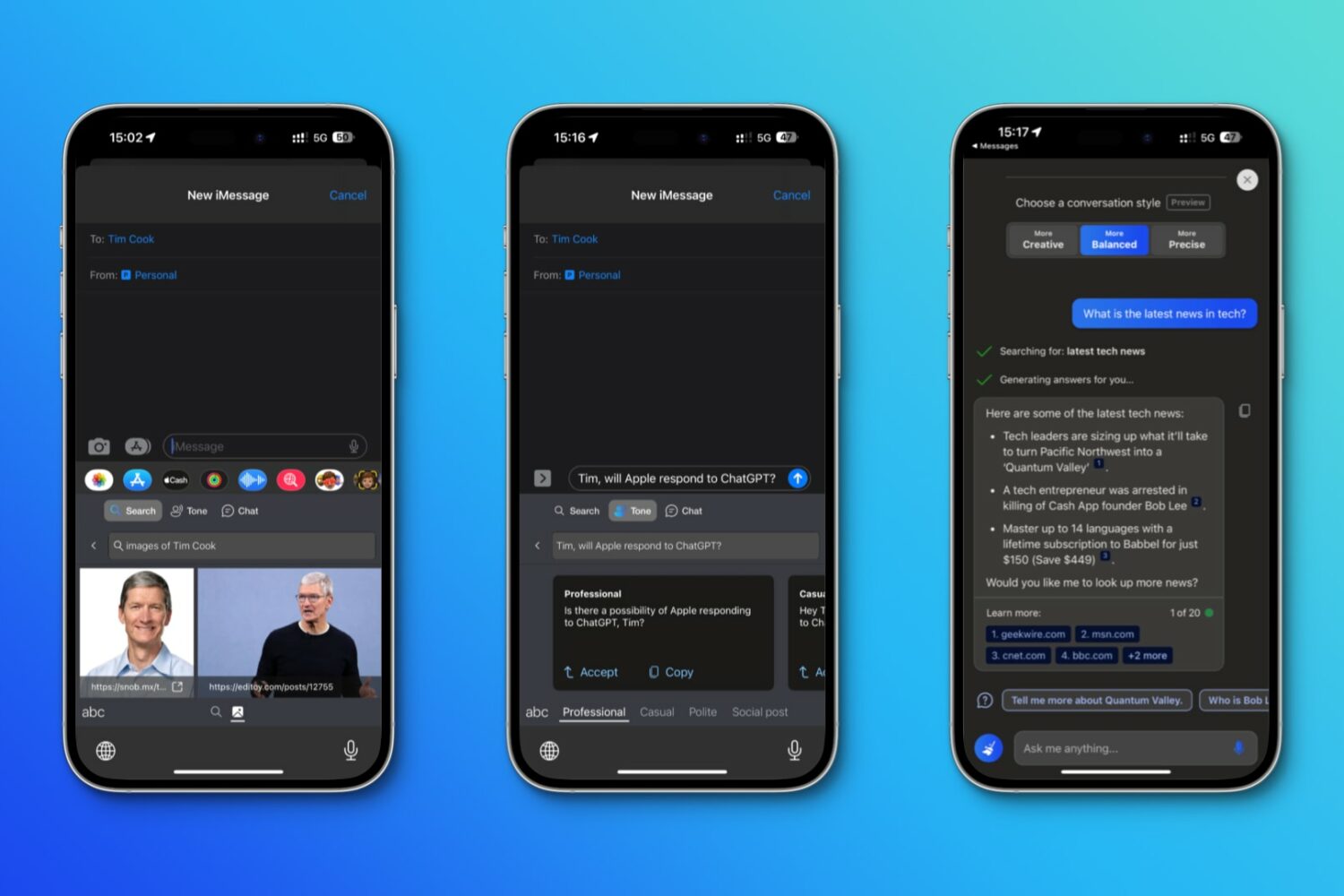
You can now access Bing's AI chatbot and other AI-powered features in any app on your iPhone or Android device via Microsoft's updated SwiftKey keyboard.
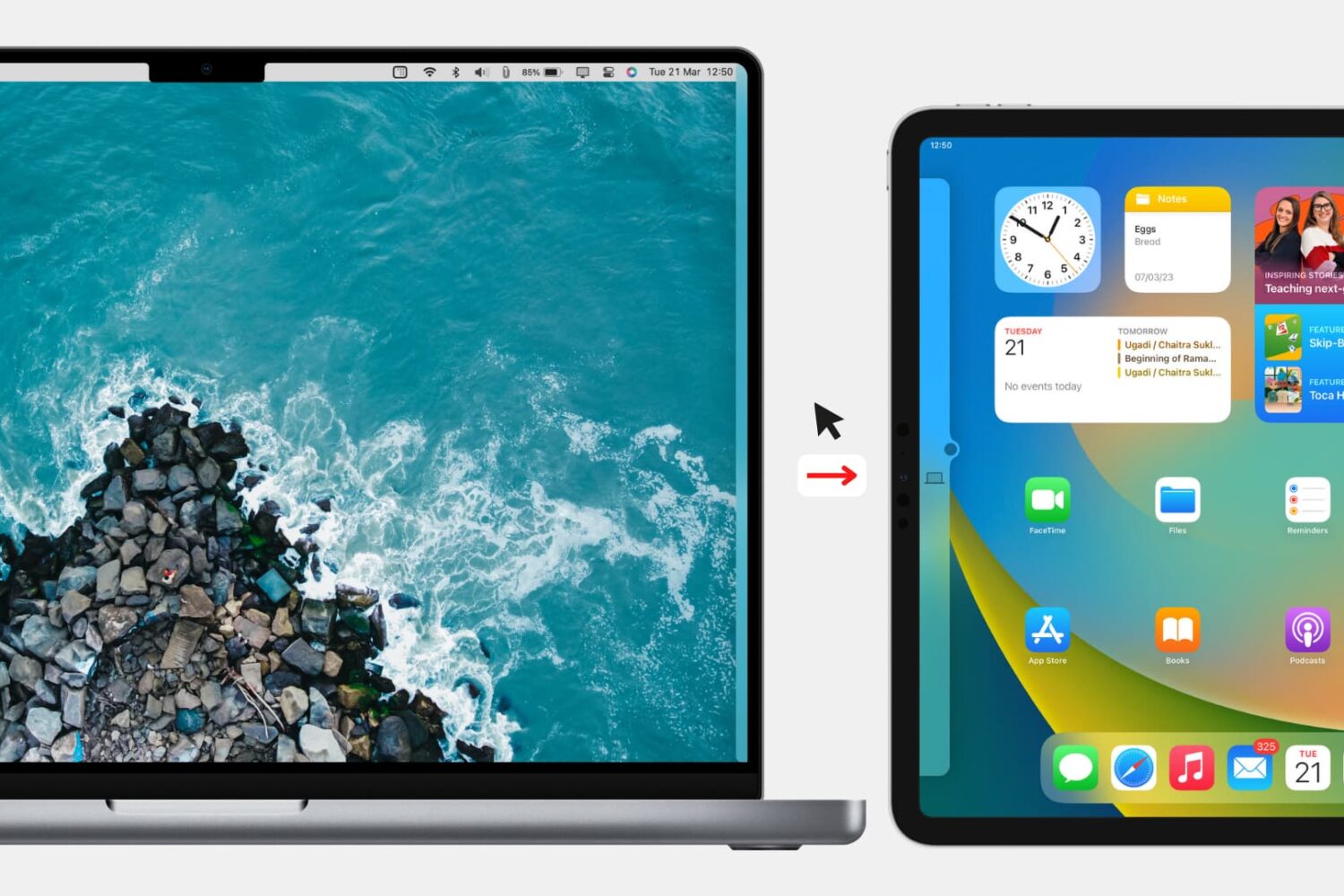
Check out the quick steps to block your Mac’s keyboard, mouse, and trackpad from being used on a nearby iPad or other Mac.
Apple's AR/VR headset could debut with an air typing feature, but it's currently “finicky” so a connected iPhone could still be required for text entry.
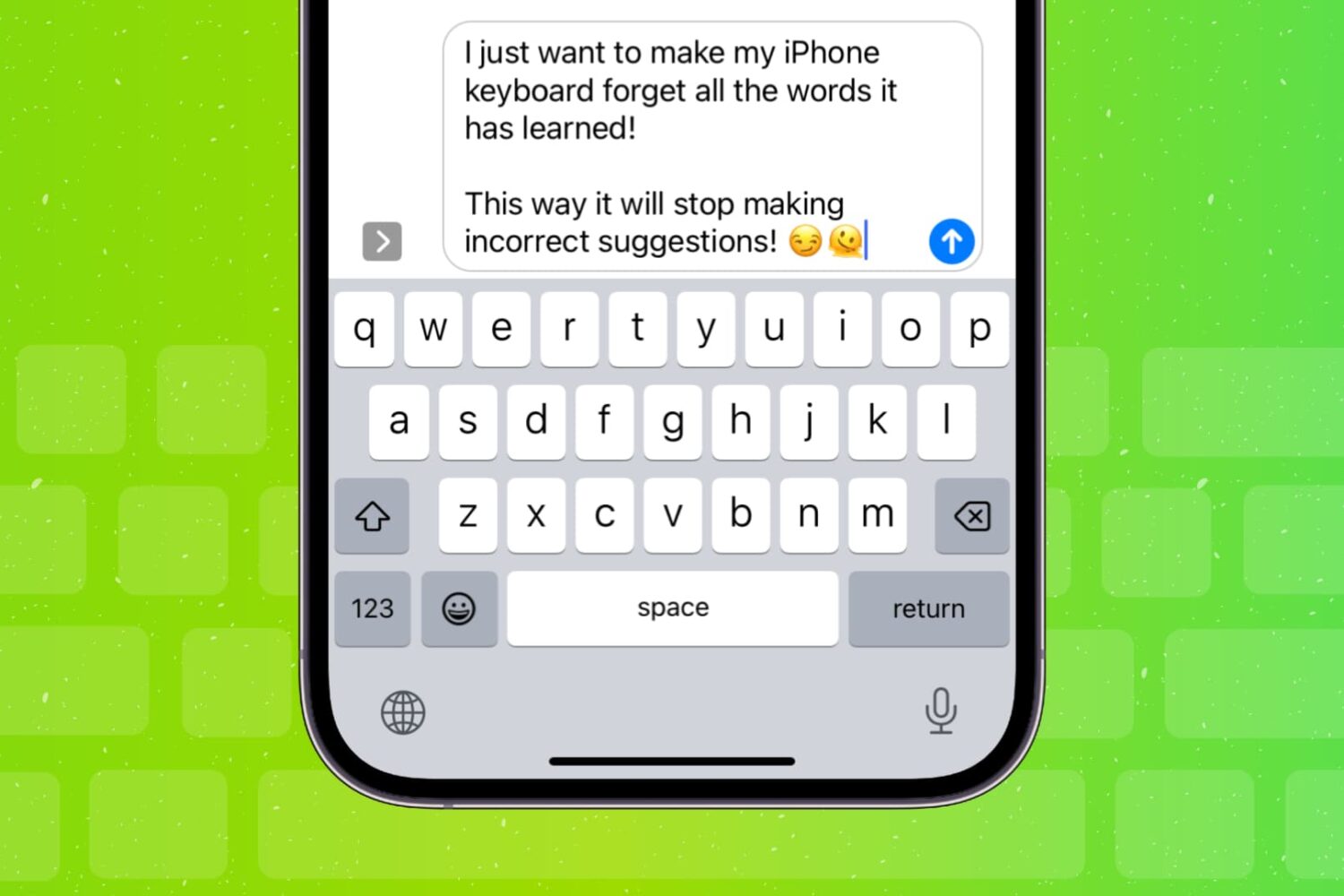
Learn how to clear your iPhone or iPad keyboard history and reset all the words it has learned for a fresh start.
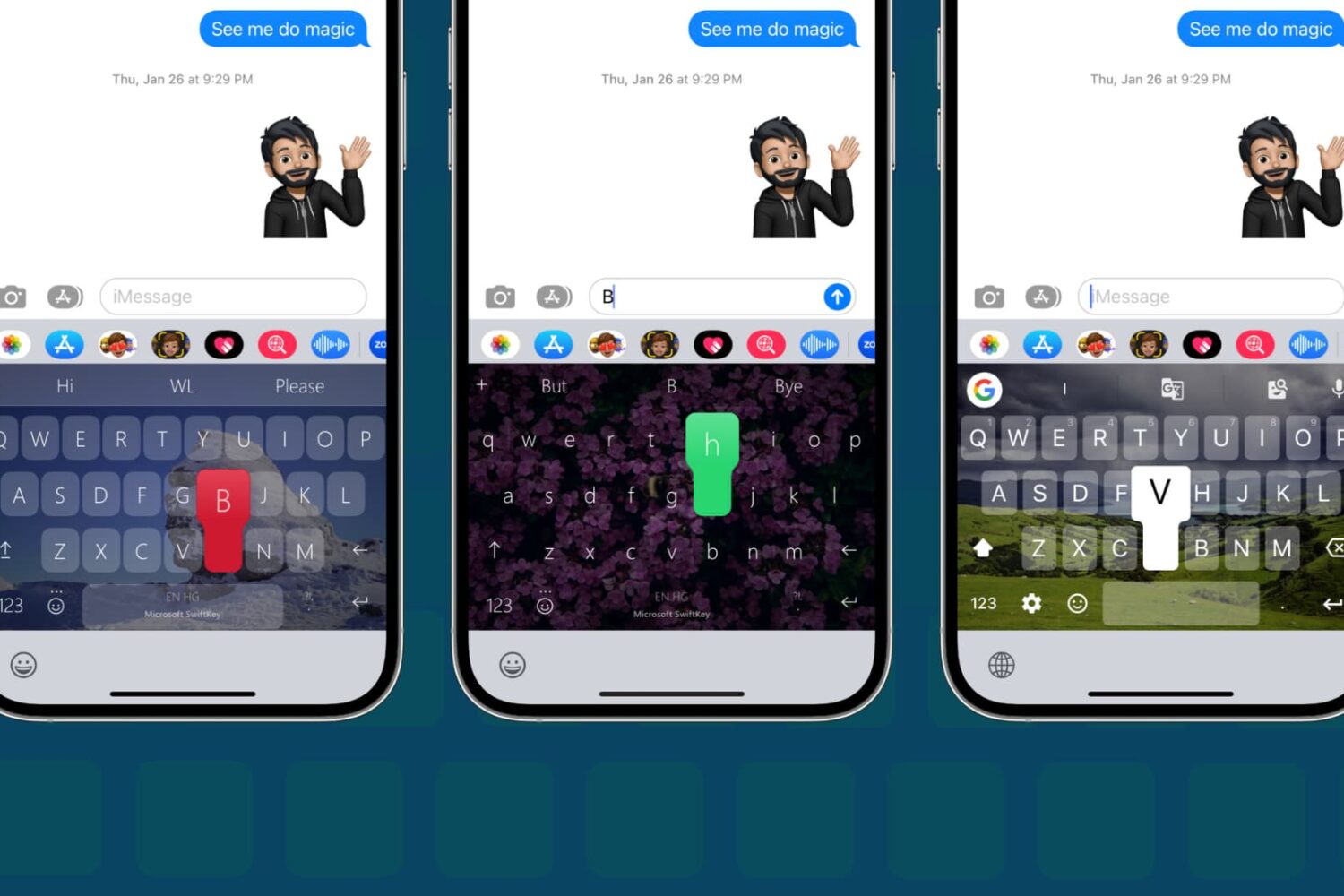
In this step-by-step tutorial, we show you how to change the default keyboard on your iPhone or iPad to a third-party option, such as SwiftKey or Gboard.
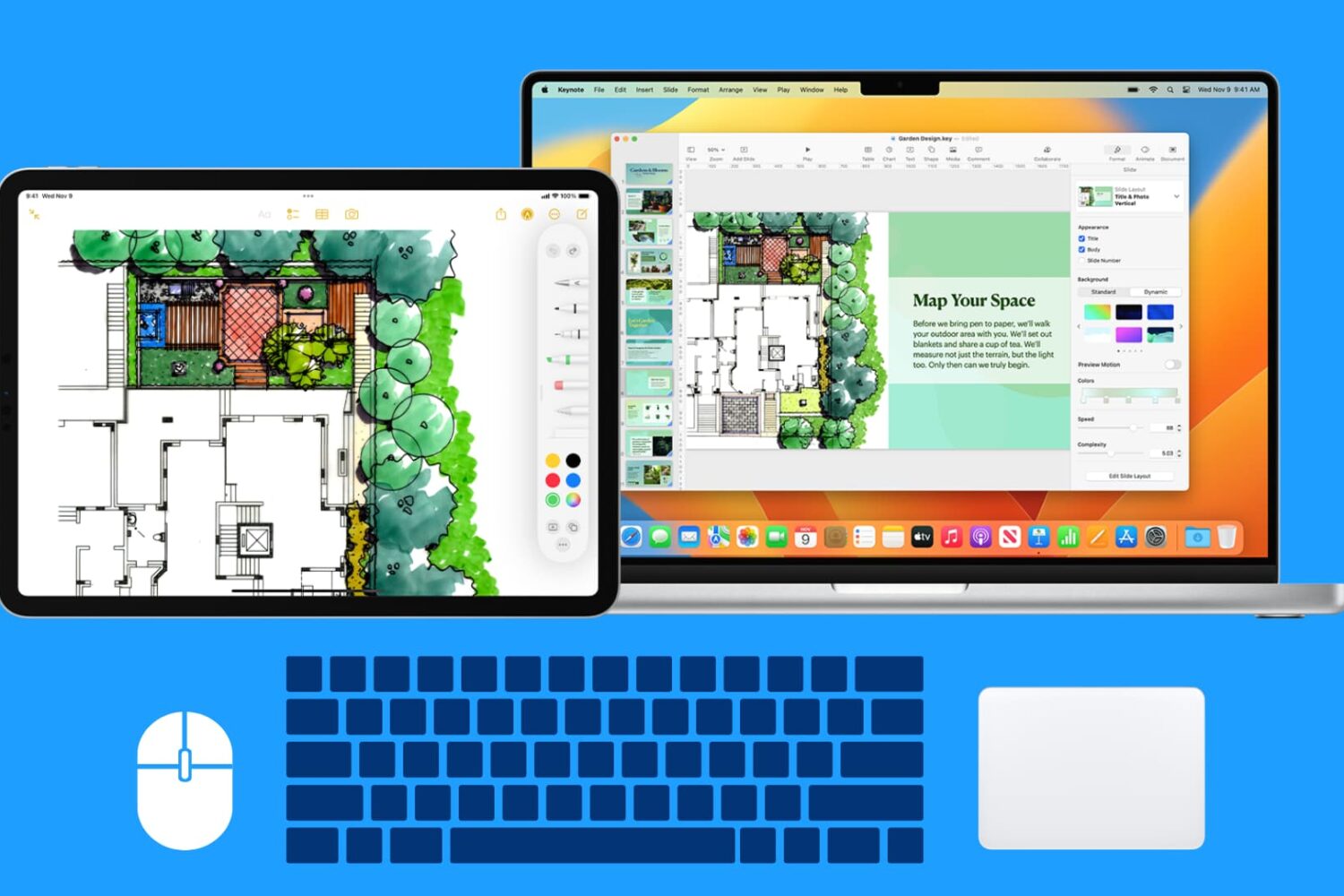
Learn how to use your Mac’s wireless or wired mouse, trackpad, and keyboard with your iPad at the same time, thanks to the Universal Control Continuity feature.
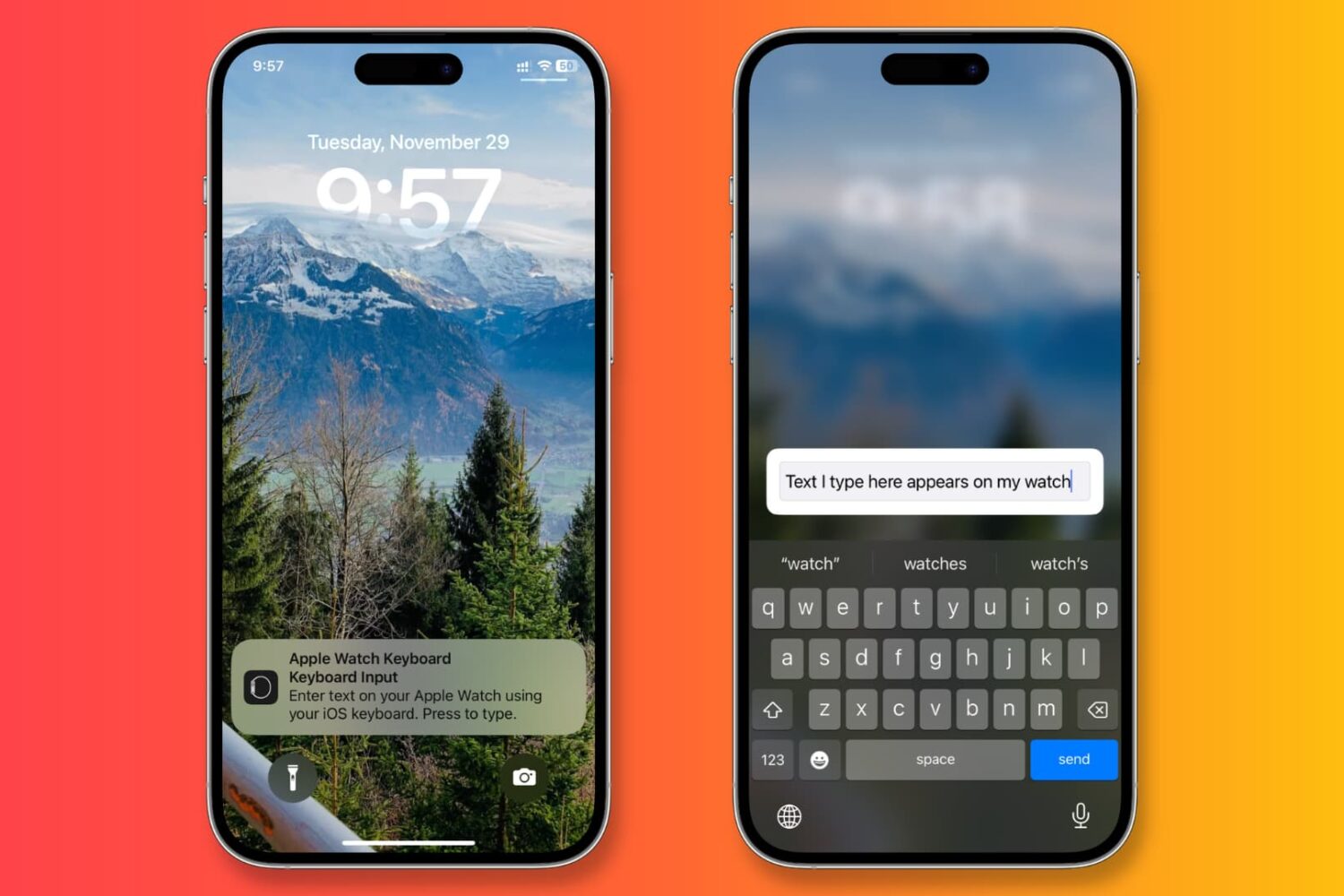
Learn how to stop receiving keyboard notifications on your iPhone or iPad whenever you select a text field on an Apple Watch or Apple TV.
A lot of our time using an iPhone consists of typing, and with that sentiment in mind, iDB curated a list of some of what we believe to be the best iOS 14-compatible jailbreak tweaks for typing.
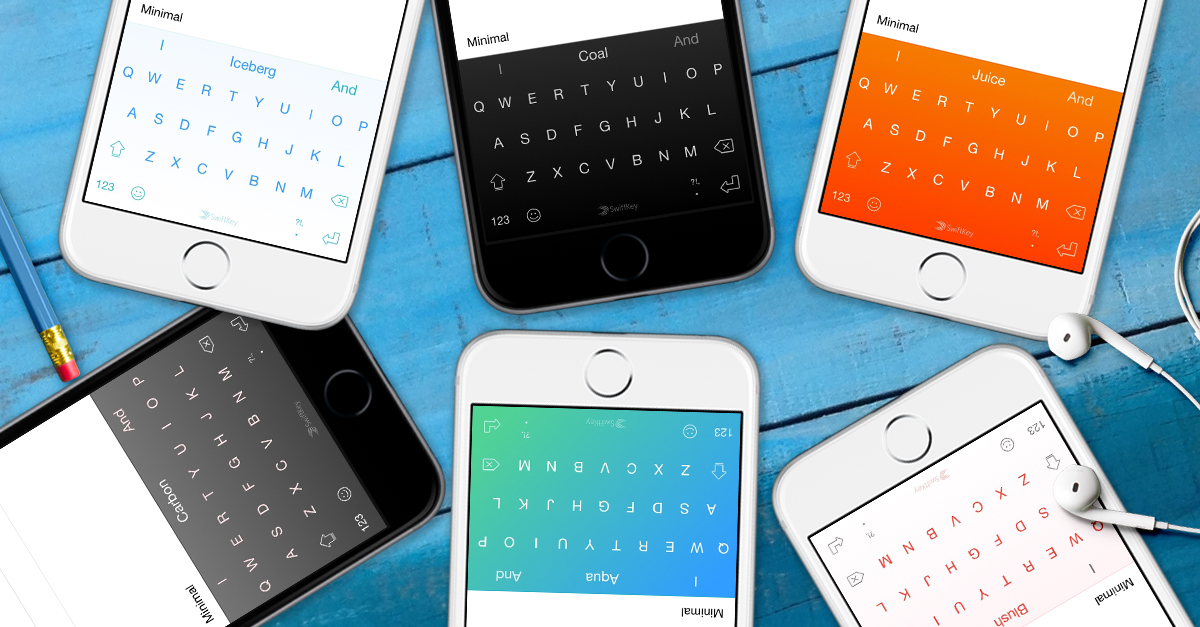
Microsoft has brought back SwiftKey, its predictive keyboard for iPhone and iPad with gestural typing, emoji prediction, themes and more.
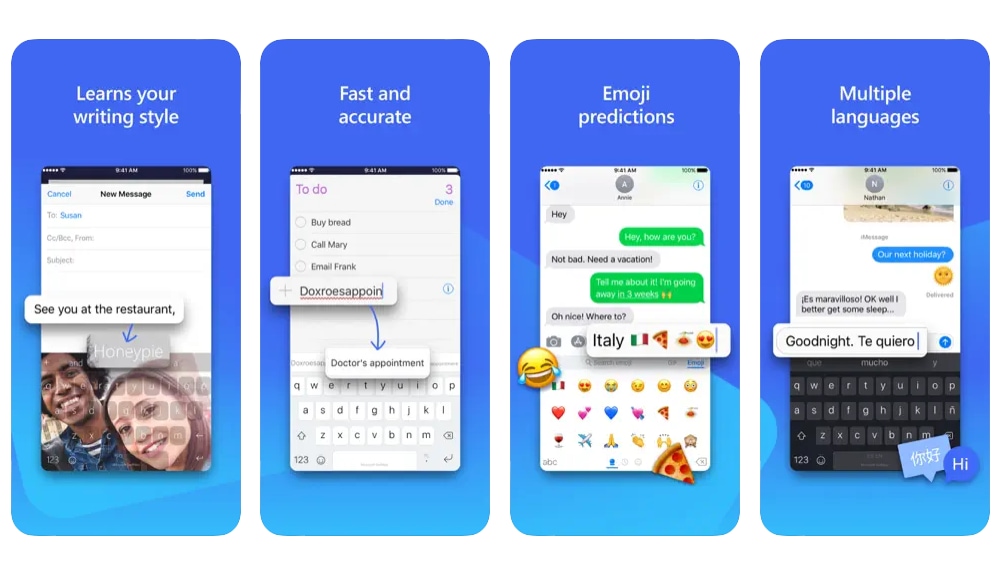
Microsoft will pull SwiftKey from Apple's App Store on October 5. Here's how to continue using the keyboard app on your iPhone and iPad after the cut-off date.
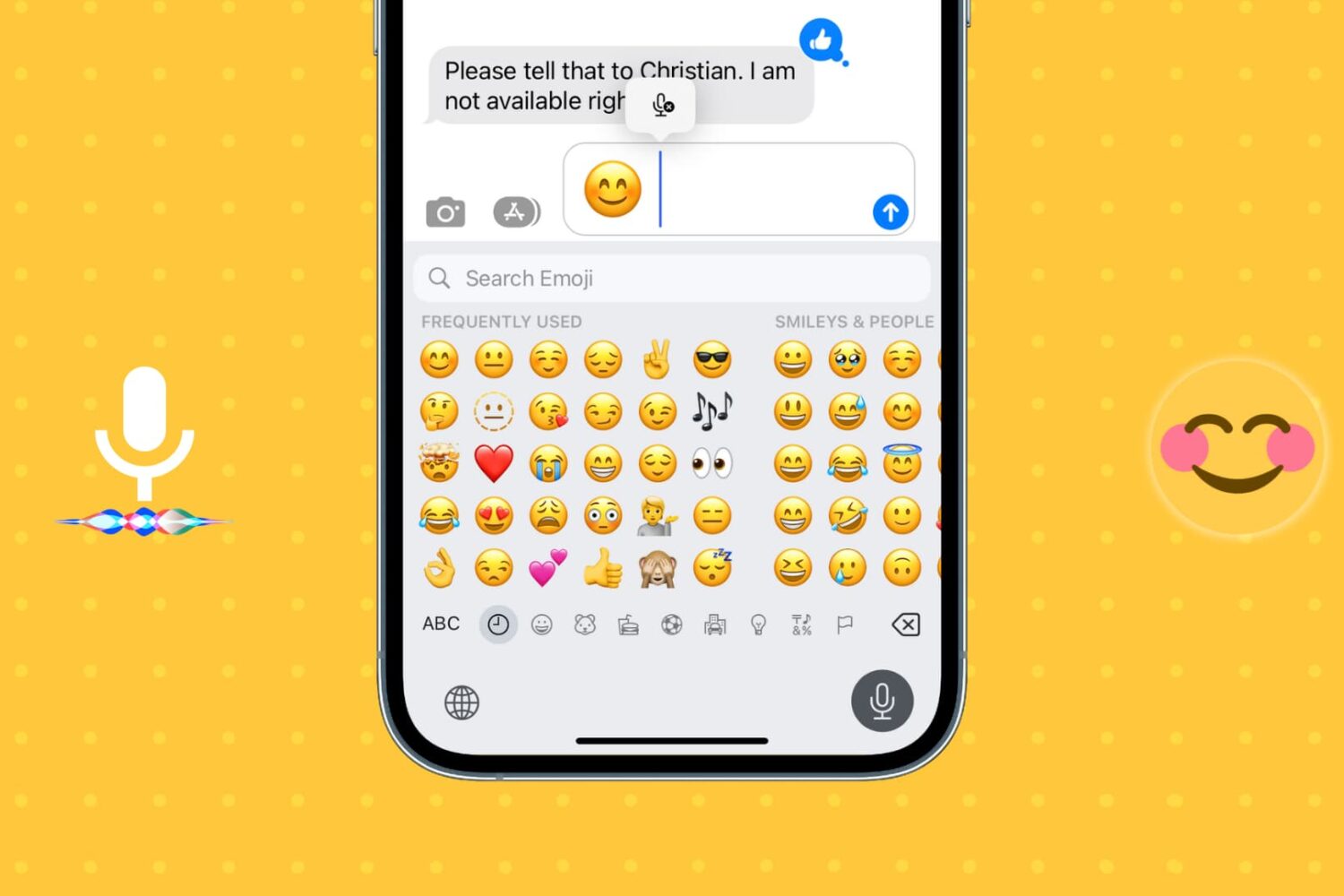
Learn how to insert emojis into your text via voice using Dictation or Siri so you can be more expressive without having to switch to the emoji pane of the on-screen keyboard.
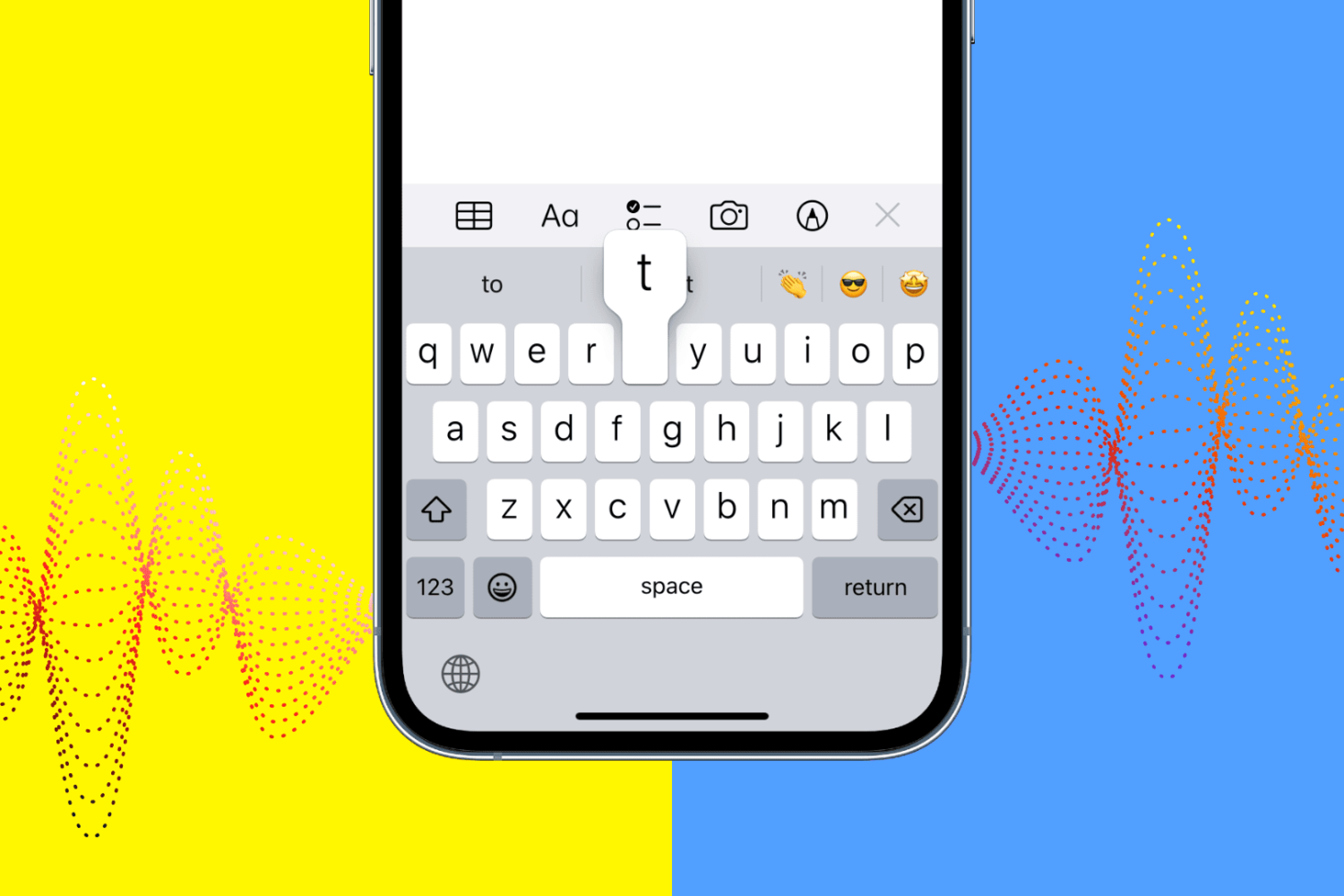
IOS 16 includes a new iPhone keyboard haptics feature, but Apple says using vibratory feedback when typing might affect your battery life.