iPod Touch

iOS 11’s volume slider no longer covers fullscreen videos

One of the most interesting changes in iOS 11 that hasn't been talked about at all during Monday's WWDC 2017 keynote is going to make a lot of you happy: the volume indicator on iOS 11 no longer obstructs the center of the screen obnoxiously.

As noted by users on Twitter, the redesigned slider only appears when playing video in fullscreen mode. In other words, the good ol' volume control centered on the screen isn't going anywhere, it's just that playing video in fullscreen mode replaces the standard volume control with an unobtrusive slider that sits in the top-right corner of the screen.

This is actually part of a bigger update for iOS 11's system video player.

The iOS 11 video player has controls for subtitles (including YouTube's auto-generated subtitles), AirPlay and more. Plus, it supports full keyboard control so you can control video playback with more than a dozen shortcuts via your physical wireless keyboard.

iOS 11's new minimalist volume slider does not appear in apps and on websites that implement their own custom video player. As an example, many video-streaming apps, including HBO NOW and Netflix, override the system video player and use a bespoke one.

Google's mobile YouTube app also recently updated its video player with a thin volume slider positioned unobtrusively at the very top of the currently playing video.

iOS 11 is compatible with all 64-bit iPhone, iPad and iPod touch devices. The software update will release as a free download to all customers this fall.

iOS 11 lets AirPods owners skip forwards and backwards between tracks with a double tap

The most common complaint about AirPods is their inability to change the currently playing song directly on the earphones, without invoking Siri. Well, YouTuber Appsolutely Tech has discovered that iOS 11 solves this customer pain point by adding the ability to skip forwards and backwards between tracks with a double tap.

On iOS 11, your AirPods settings include some handy new options for choosing a double-tap action separately for the left and right earbud.

TUTORIAL: Tips and tricks for using AirPods like a pro

You could, for example set your left AirPod to skip to the next track and your right AirPod to go to the next track. Or, you could leave Siri as the default action for one of your AirPods and set the other one to go to the next track when double-tapped.

Watch Appsolutely Tech's video below.

https://www.youtube.com/watch?v=VsQ9J1mwU78

Simply tap the “i” next to your AirPods in Settings → Bluetooth on your iOS 11 device.

You will see you can now set a different double-tap action for each of your AirPods:

Siri Play/Pause Next Track Previous Track Off

It's unclear if Apple might bring this new feature to iOS 10 via a future AirPods firmware update.

Hands-on with iOS 11’s highly customizable Control Center

A completely redesigned Control Center is one of the hallmarks of iOS 11. Having ditched card-based layout spanning multiple pages, Control Center has adopted a single-page design. Control Center on iOS 11 is realized as a full-screen scrollable overlay, a design that has allowed Apple to put many more useful controls at your fingertips than ever before.

It is highly customizable, too: you get to choose what appears in your Control Center!

For instance, you could opt for a pedestrian Control Center with a handful of the most commonly used shortcuts, like on iOS 10, or create a fully loaded Control Center that may contain as many as 18 additional toggles. Apple currently does not provide Control Center APIs, meaning third-party apps cannot ship their own Control Center toggles, for now.

iOS 11 Control Center highlights:

Control Center is more condensed You no longer have to swipe your way through multiple cards Everything is on a single, vertically scrollable page iOS 11 has eighteen additional toggles for Control Center You decide which toggles appear in your Control Center

Like before, Control Center is invoked by swiping up from the bottom of the screen.

A fully loaded Control Center on iOS 11.

As you can see for yourself, Control Center on iOS 11 is more condensed than before.

The refreshed design allows you to quickly toggle various settings on a single screen, no swiping between pages required whatsoever.

Additional toggles for Control Center can be added and re-ordered in Settings.

The entire Control Center can be scrolled vertically to reveal any controls that may not fit on a single page. To dismiss Control Center, swipe down or press the Home button.

To stop Control Center from appearing on your Lock screen for security reasons, slide the Control Center switch in Settings → Touch ID & Passcode to the OFF position. All in all, iOS 11's Control Center is completely different than it was before—and it's a change for the better.

To help you get quickly up to speed with everything Control Center on iOS 11 has to offer, we asked our prolific video editor Andrew O'Hara to put together a quick video walkthrough.

Watch his clip below, then read the rest of the article for additional information on other new features for Control Center on iOS 11.

https://www.youtube.com/watch?v=UGWjmt6UXJI

Subscribe to iDownloadBlog on YouTube

Many of Apple's own apps on iOS 11 include their own controls for Control Center.

Notes, for example, provides Control Center shortcuts for creating a new note, checklist, photo or sketch. Clock includes Control Center options for creating alarms and timers, and so forth.

Some of the most useful Control Center shortcuts let you quickly access iOS 11's new screen recording feature, set the Dynamic Text size, control your Apple TV without needing to launch Apple's Remote app and much, much more.

The following set of controls can be added to Control Center at any time:

Accessibility Shortcuts Alarm Apple TV Remote Calculator Camera Do Not Disturb While Driving Flashlight Guided Access Home Low Power Mode Magnifier Notes Screen Recording Stopwatch Text Size Timer Voice Memos Wallet

You can add these toggles to, or remove them from Control Center at any time, in Settings. To rearrange the order in which they appear, drag their handles around.

Keep in mind that these expanded Control Center controls are in addition to the standard toggles, some of which now come with additional switches and options.

The non-removable Control Center items include:

Network—Airplane Mode, Cellular Data, Wi-Fi, Bluetooth, AirDrop and Personal Hotspot. Now Playing—See what's playing, adjust playback volume, control speakers with multi-room support via AirPlay 2, scrub through your media, play or pause a song or go to the previous/next song. Brightness—Adjust the screen brightness, turn Night Shift on or off. Volume—Control your audio volume. Orientation Lock—Toggle Orientation Lock on or off. Night Shift—Toggle Night Shift on or off. AirPlay—Mirror the device's screen on your TV, select an AirPlay device.

As mentioned, these controls are persistent and cannot be removed from Control Center.

Some of the built-in controls will be familiar to you, but many will not.

That said, you're wholeheartedly encouraged to try pressing each toggle with 3D Touch to reveal additional options. For instance, pressing the Network control with 3D Touch expands it so you can choose additional controls, like Personal Hotspot and AirDrop switches.

Similarly, pressing the Now Playing reveals the scrubber and the volume slider. Unfortunately, if your device lacks 3D Touch you won't be able to access any of the additional options for Control Center toggles that provide them.

Apple could tweak Control Center's design as we get closer to iOS 11's release this fall.

While we're not expecting drastic changes in subsequent iOS 11 betas, Apple would be wise to add the ability to drag the toggles inside Control Center to rearrange them.

Bottom line: even in its current form, Control Center is now way more useful than it's ever been.

Everyone will have a chance to appreciate iOS 11's condensed, highly customizable Control Center as soon as iOS 11 releases for public consumption this fall.

iOS 11 is compatible with all 64-bit iPhone, iPad and iPod touch devices.

Share your thoughts on iOS 11's redesigned Control Center by posting a comment below.

90+ new features shipping with iOS 11 this Fall

Apple spent a lot of time demoing iOS 11 at the WWDC 2017 keynote, but in the interest of time, they were only able to show off some of the top features rather than everything that's new.

In this piece, we'll outline a number of new features that Apple didn't get a chance to show you at the keynote.

iOS can automatically uninstall apps that haven’t been used in a while

iOS 11 included many new features and enhancements, big and small alike.

For example, a revamped storage-management section became available in Settings. Speaking of which, users can appreciate another new feature that allows them to optionally have their device automatically uninstall apps that haven't been used in a while.

If you venture to Settings  → iTunes & App Store, you'll notice a new toggle at the bottom of the screen, labeled Offload Unused Apps. Setting that switch to the ON position shall prompt iOS to delete rarely used apps from your device in order to make more room for your photos, videos, documents and so forth.

iOS uses Siri intelligence to determine your usage of apps.

The feature's description notes that documents and data belonging to uninstalled apps will be kept on your device in case the app is reinstalled. “Reinstalling the app will place back your data, if the app is still available in the App Store,” notes Apple.

This feature is disabled by default.

Rightfully so, if I may add. Had Apple enabled it by default, novice users would've been stunned discovering iOS had deleted their apps for seemingly no apparent reason.

Hands-on with iOS 11’s overhauled Podcasts app

Apple's stock Podcasts app has undergone some visual changes in iOS 11. Functionally, a few things have moved around and some new features have been added.

For example, the Unplayed, My Podcasts, Featured, Top Charts and Search tabs lined up alongside the bottom of the interface have been replaced with a new and simpler tab layout: Listen Now, Library, Browse and Search.

Our resident video editor Andrew O'Hara has put together a quick video for you guys to see for yourselves Apple's new design for the Podcasts app on iOS 11.

Watch Andrew's video right below, then meet us in comments.

https://www.youtube.com/watch?v=LFsAlcnlmSo

Subscribe to iDownloadBlog on YouTube

The Listen Now tab combines podcasts you're subscribed to (previously in the My Podcasts tab), recently played episodes (previously in the Unplayed tab) and shows other people like.

Under the new Library tab, you can easily browse all of the audio and video shows you're subscribed to, as well as individual podcast episodes, ones that have been download to the device and the recently updated episodes of any shows you're following.

The Browse tab is your storefront to the Podcasts section on iTunes.

There, you can swipe through featured podcasts Apple's editors highlight at the top, access the full Featured section, see charts-topping audio and video shows, access the list of major podcast providers and browse all podcasts by category.

The Search tab now lets you choose between searching across podcasts in your library or all shows on iTunes. As evidenced by the screenshots, the redesigned app has adopted a bold font with much bolder headings and other visual cues borrowed from Apple Music on iOS 10.

Another feature iOS 11's Podcasts app has borrowed from Apple Music is a completely revamped mini-player that can be now pressed with 3D Touch to access quick shortcuts pertaining to the currently playing episode.

Other tidbits worth mentioning include larger artwork and other visual tweaks to match the look and feel of other apps inside of iOS 11, as shown on the screenshot top of post. The official Podcasts widget has remained unchanged.

For those wondering, Apple still does not provide Podcasts for Apple Watch.

How do you like these Podcasts app changes on iOS 11?

Let us know by posting a comment below.
Video: Top 6 WWDC 2017 announcements

Apple had a pretty big day at yesterday's Worldwide Developers Conference in San Jose, revealing a bunch of new or updated products and technologies that have set the stage for other important hardware announcements this fall.

If you didn't have the time to sit through the entire keynote talk and are wondering about the big takeaways, our video editor Andrew O'Hara has put together a short five-minute video highlighting the top six announcements Apple made during the WWDC 2017 keynote.

Andrew's main topics of interest include:

tvOS 11 with Amazon's Prime video-streaming app coming to Apple TV watchOS 11 with all the major improvements for workouts, notifications and more macOS High Sierra and core technologies aimed at AR/VR content creation iOS 11 with all of the improvements for your iPhone and iPad iPad Pro and iMac Pro changes and enhancements HomePod, Apple's high-end Siri-enabled speaker with hi-fi sound

And here's the video:

https://www.youtube.com/watch?v=QQBulSRR9Fc

Subscribe to iDownloadBlog on YouTube

What's your favorite WWDC 2017 announcement so far?

Post a comment below to let us know!

iOS 11 drops support for 32-bit apps

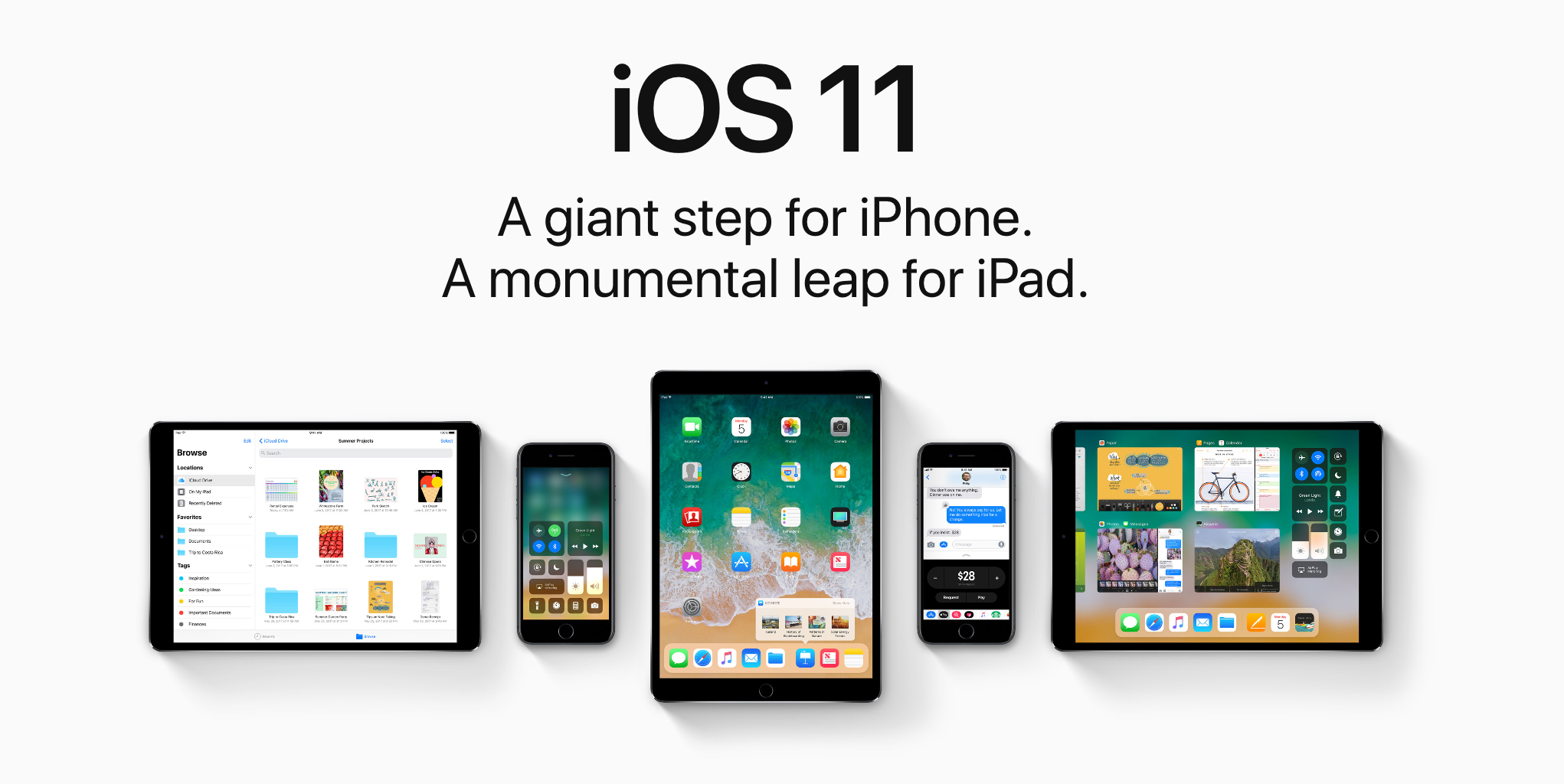
During Monday's keynote talk at the Worldwide Developers Conference, Apple introduced iOS 11, the next major software update for iPhone, iPad and iPod touch. As previously suspected, the mobile operating system has dropped support for legacy 32-bit apps.

Attempting to launch a 32-bit app on iOS 11 now yields a message, saying “The developer of this app needs to update it to work with iOS 11”. You can tap OK to dismiss the prompt or tap Learn More to open the full list of 32-bit-only apps that are currently installed on the device.

Apple's Clips app, for example, requires a 64-bit iOS device and the new Files app is optimized for 64-bit computing. Starting with iOS 10.3, Apple began naming and shaming legacy apps via a new App Compatibility section in Settings → General → About → Applications.

TUTORIAL: How to identify legacy 32-bit apps on your iOS device

Any previously installed 32-bit apps are no longer available for re-download through the App Store's Purchased tab. Moreover, 32-bit app no longer appear in App Store search.

The time is right to drop support for non-64-bit apps because running legacy 32-bit apps alongside 64-bit ones slows down the system as iOS has to load both 32-bit and 64-bit versions of the kernel and system frameworks in the RAM.

Devices with the Apple-designed A7 or newer chips are 64-bit, including the sixth-gen iPod touch and every iPhone and iPad from their respective iPhone 5s and iPad Air models onward.

In fact, iOS 11 itself won't run on a non-64-bit iPhone, iPad or iPod touch, meaning iPhone 5s, iPad Air and the sixth-generation iPod touch are now the entry-level devices for iOS 11.

Monument Valley 2 hits App Store

Monument Valley 2, the official sequel to UsTwo's surreal physics-based game of platforms and perspectives with a twist, is now officially available for download through App Store after being demoed during the WWDC keynote earlier this morning.

The game is priced at $4.99 and supports your iPhone, iPad and iPod touch.

Thankfully, it features no In-App Purchases whatsoever. Monument Valley 2 is packed to the gills with the artistic backdrops, visuals and gameplay mechanics that have made the original so popular with fans. Like before, the design is inspired by a mixture of architectural styles, artistic movements and personal influences.

In Monument Valley 2, you guide a mother named Ro and her child as they embark on a journey through magical architecture, discovering illusionary pathways and delightful puzzles as you learn the secrets of the Sacred Geometry, according to the app's description.

Check out my colleague Andrew's video hands-on with Monument Valley 2.

https://www.youtube.com/watch?v=3A1ySdcHDY8

Subscribe to iDownloadBlog on YouTube

The impossible world of Monument Valley 2 has you manipulating architecture to help guide Ro and her child on their way. This is a completely new and standalone adventure set in the Monument Valley universe, meaning you don’t need to have previously played Monument Valley to enjoy the sequel.

Augmenting the individually crafted levels with meditative puzzles, new interactions let you explore the changing dynamics between characters.

“Immerse yourself in uniquely melodic interactive soundscapes, tailored perfectly to every step of Ro and her child’s journey,” reads the description.

The original game was named Apple's Game of the Year 2014.

Buy Monument Valley 2 for $4.99 on App Store. It requires iOS 9 or later.

The original Monument Valley game currently sells for $3.99 on App Store.

Can your iPhone or iPad run iOS 11?

iOS 11 makes your iPhone and iPad more powerful, personal and intelligent than ever before. You might be wondering if you have the device requirements to install it. Fortunately, we're here to answer that question.

Apple promoting WWDC 2017 with themed Snapchat geofilters

With the live-streamed WWDC keynote almost upon us, Apple has now created a bespoke Snapchat geofilter to help promote this year's developers conference. The sponsored WWDC 2017-themed geofilter automatically appears for Snapchat users who find themselves near the McEnery Convention Center in San Jose.

As first noted by 9to5Mac, the filter is available when sharing photos or videos with other Snapchat users. Simply choose it from the list of Snapchat filters to have Apple's official WWDC 2017 banner design applied to your item. Again, this is a filter that uses geofencing so only people attending this year's developer conference will see it in Snapchat.

The same stickers can be found in iMessage via Apple's official WWDC app, as shown above.

Snapchat is available at no charge from App Store.

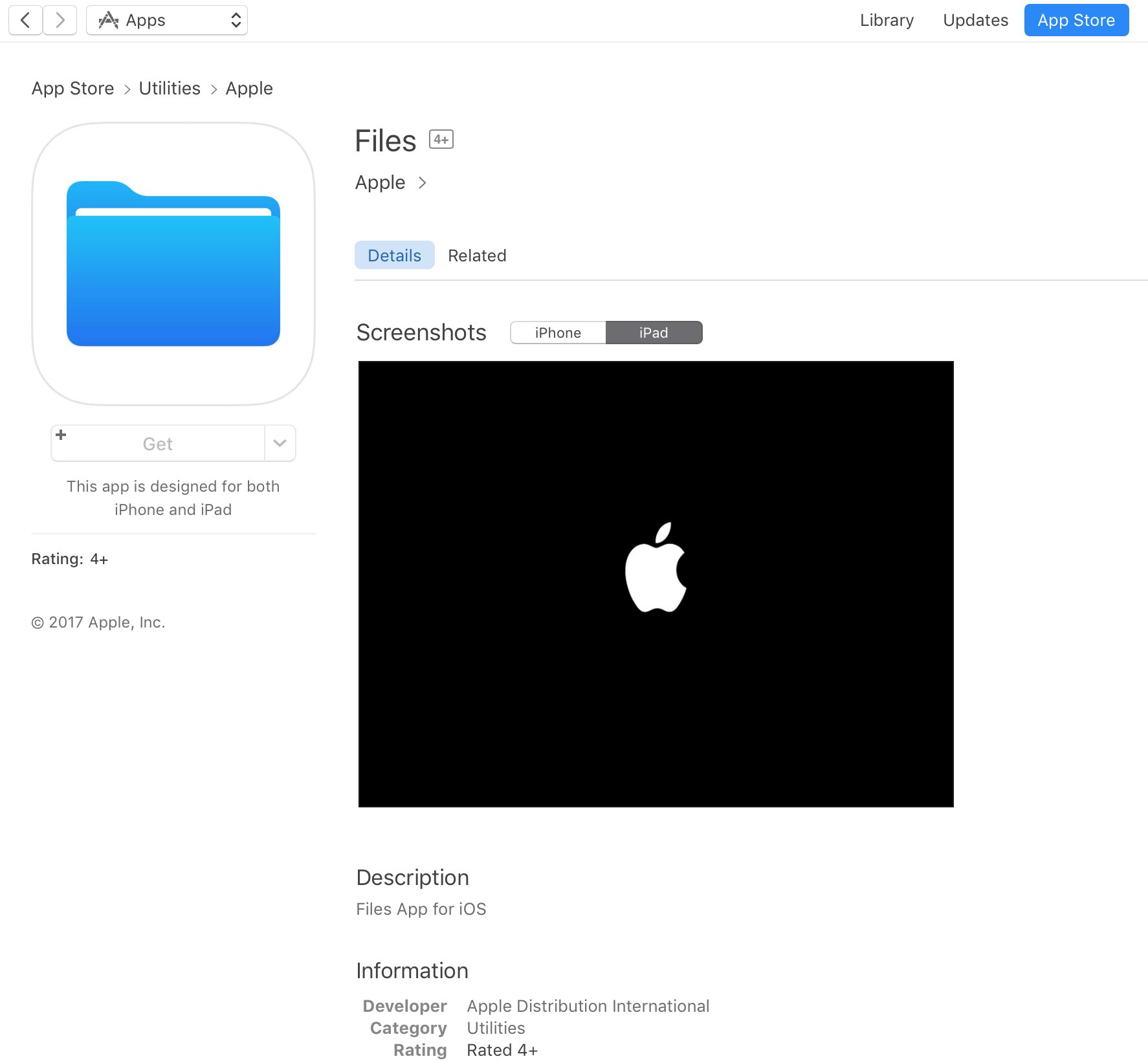
App Store placeholder listing for Apple Files app appears briefly ahead of WWDC keynote

A placeholder listing for a new Apple Files app has briefly appeared on App Store ahead of today's live-streamed WWDC keynote, as spotted by iOS developer Steven Troughton-Smith late Sunday. It's surfaced in the Utilities section of App Store and has since been removed.

No screenshots or the official description were provided.

The app requires iOS 11 and 64-bit support and is designed for both iPhone and iPad. It sports a blue file folder icon resembling the design for folder icons in macOS. It's entirely possible that the new Files app is really just a rebranded version of the existing iCloud Drive app.

It's unclear if the forthcoming app will be a new stock item in iOS 11 or an optional download. If I had to guess, I'd say it will likely come pre-installed with iOS 11. Since iOS 10, Apple has allowed users to hide most of the stock apps from their Home screen.

To help users easily re-install any removed stock apps, Apple has provided all of its first-party iOS apps that are removable as downloadable App Store items. iOS 11 will be previewed at WWDC later today along with tvOS 11, watchOS 4 and macOS 10.13.