iPad

From the latest news to the most comprehensive tutorials, learn how to get the most out of your iPad with our step-by-step guides and expert tips.

Duet Display brings even more desktop power to your iPad drawing experience

Duet Display, an app billed as the first solution to turn your Apple tablet into a second display and a high-performance drawing tablet for your Mac or Windows PC, was updated on App Store today with some new features.

The new Duet Display now lets you have the drawing experience on your iPad with the speedy rendering and sheer hardware power of a desktop.

The update brings out a number of enhancements and new customizations, including a customized pressure curve, advanced gesture support, a more fluid drawing experience, improved color quality and more.

Here are the key highlights in this release of Duet Display:

Customized pressure curve—You can now change the way macOS or Windows receives the data, allowing for a personalized drawing experience. Advanced gestures—We have added a lot of gestures to both standard and pro users. This should make drawing and using your iPad as the primary device much simpler. Line lead—To provide a faster drawing experience, we have spent some time making a line preview to predict where the Pencil is before macOS or Windows knows where it is. We plan to continue improving this to create an instant drawing experience. Touch Bar—We implemented Touch Bar support last Christmas. Pro users have really benefitted the most as they are using their iPad more than their computer, so it makes quick interactions much faster. We have improved the stability and speed of it, and many more apps support Touch Bar now. Improved color quality—We have improved rendering quality and speed for pro users under the Pixel Perfect setting, delivering a higher quality display in less time. We plan to continue improving performance as much as we can.

Duet Display works over a USB connection as wired connections are significantly faster and far more responsive than wireless solutions. The app's speedy rendering engine has a much lower latency than Apple's AirPlay technology.

Duet Display has proven to be very valuable to artists, designers and video editors as it essentially replaces a Wacom drawing tablet with your iPad Pro and Apple Pencil.

The app supports finger drawing, too.

Aside from drawing support, Duet Display can be used to turn your iPad into a second screen for your Mac or Windows PC. For instance, you could use your iPad Pro to keep tabs on your social media feeds while editing a document on your Mac's primary display.

The ability to turn a supported iOS device an external monitor for a Mac should be especially handy while you're traveling or if you cannot afford an eternal display for your computer.

Duet Display for iOS is a $19.99 value on App Store.

To celebrate today's update, the app is on sale today for $9.99.

A pro-level upgrade which unlocks the ability to use your Apple tablet as a drawing tablet for your computer costs an additional $19.99 per year as an in-app subscription.

Duet Display 2.0 for Mac or Windows is available directly from the official website.

How to redeem iTunes or Apple Music gift cards

If you don't set up one of the supported payment methods for your Apple ID, you won't be able to upgrade your iCloud storage or buy music, movies and TV shows from iTunes Store, apps from App Store and Mac App Store, books and audiobooks from iBooks Store and more.

That's where an iTunes or Apple Music gift card should come in handy.

Upon redeeming, the amount shown on the card is added to your Apple ID in the form of good-as-cash credit that can be used for each purchase you make in Apple's content stores.

In this tutorial, you'll learn about the types of gift cards Apple supports, how they should be used, as well as how to redeem your iTunes or Apple Music gift card and apply the credit toward an individual Apple Music membership or to top up your Apple ID balance.

About iTunes and Apple Music gift cards

iTunes gift cards and Apple Music gift cards can be purchased from Apple, PayPal, Amazon, eBay, Best Buy and a number of other retailers. iTunes gift cards typically come in $25, $50 and $100 denominations. Apple Music gift cards are currently available in $30 and $100 denominations for three or twelve months of service, respectively.

You can buy them in physical form for delivery via mail or opt for a digital gift card, in which case your redemption code will be delivered straight to your inbox.

The 16-digit redemption code is hidden underneath the label on the card's back.

The redemption code always starts with an “X”.

The redemption code may appear in different places on the back of your card.

Redeeming an iTunes gift card adds store credit to your Apple ID.

Store credit is used for each purchase you make in iTunes Store, App Store or iBooks Store until it's gone. iTunes billing system always uses your store credit first, as long as the value of the item that you're buying is less than or equal to the value of your credit balance.

If you don't have any store credit left, the payment method that you designate when you sign up for an Apple ID is charged for the entire purchase.

You can use your store credit to buy the following items:

Apps from App Store and Mac App Store In-App Purchases Songs, albums, movies, TV shows and more from iTunes Store Books and audiobooks from iBooks Store iCloud storage

Store credit cannot be used to purchase more gift cards or iTunes Gifts.

NOTE: Some purchases might require that you have a credit card on file, even if you're using your credit balance to make the purchase. For instance, you must have a credit card on file in order to use store credit to pay for your iCloud storage upgrades.

You cannot use store credits for:

App gifting—When you gift an app or media item to someone else the payment method on file is always billed for the entire purchase, not the store credit. Family Sharing—You cannot share your store credit with other family members.

Even if a Family Sharing member buys something and the family organizer has store credit on their account, the item cost is still billed to the organizer's payment method on file rather than being deducted from their store credit.

TUTORIAL: How to gift apps

If a Family Sharing member with a credit on their account buys something from Apple's content stores, the amount is billed to their own account unless there's a remainder, in which case it bills to the family organizer's payment method.

You can use the credit from your Apple Music gift card to:

Sign up for a new Apple Music membership Extend your Apple Music membership by the number of months shown on the card Credit the amount to your Apple ID, like an iTunes gift card

Read Apple's support document for more on how iTunes Store purchases are billed.

How to redeem iTunes or Apple Music gift cards on iPhone and iPad

1) Open iTunes Store, App Store or iBooks on your iOS device.

2) In iTunes Store, App Store or iBooks, tap the Featured tab, then scroll to the very bottom of the screen and tap the Redeem option.

3) Sign in with the Apple ID that you use for iTunes Store or Apple Music purchases.

Tip: You can quickly get to the redeem feature by visiting the link below on your Apple device:

To redeem an iTunes gift card, follow this link To redeem an Apple Music gift card, follow this link

TIP: If your device has 3D Touch, you can press the iTunes Store or App Store icon and select the Redeem option from the Quick Actions menu on your Home screen.

4) Choose whether you'd like to type in your code manually or have the card scanned:

Scan the redemption code—If you have a physical gift card with a box around the code, use this option to redeem it via your built-in camera. Tap Use Camera, then hold the back of the card up to your iPhone's camera until it scans the code. Only gift cards with a focus box around the redemption code are redeemable via a camera. This feature is not available in all countries and regions. Type in the redemption code manually—Tap the field labeled ”You can also enter your code manually”, then peel off the label on the back of the card and type in the redemption code or paste the code from your purchase confirmation email.

When you redeem an iTunes gift card, your updated store balance appears onscreen. An error message appears if you try to redeem a gift card that's already been used.

Upon redeeming an Apple Music gift card, you're given the choice between topping up your iTunes store credit or using the code toward an individual Apple Music membership.

This is what happens if you choose to use the code for your Apple Music membership:

Apple Music members—Applying the credit to your ongoing membership extends your date of renewal by the number of months shown on the card. Apple Music non-members—Applying the credit signs you up for a membership.

If you've never been an Apple Music member, you can still get your free three-month trial in addition to the number of months your Apple Music gift card card is worth.

5) In the upper-right corner, tap Done to finish the process.

If you'd like to redeem another iTunes or Apple Music gift card, tap Redeem Another Code.

TIP: If you received your gift card via email, click the Redeem Now link in the email.

To get information about your iTunes Store or Apple Music balance:

iTunes Store balance—You can find your store balance underneath your Apple ID at the bottom of the Featured tab in iTunes Store, App Store or iBooks on your iOS device. Apple Music balance—To view your Apple Music membership, go to Settings → [your name] → iTunes & App Store and tap your Apple ID at the top of the screen. Tap View Apple ID, then Subscriptions. From the list, choose the subscription that you want to see more information about.

Your account balance automatically updates in iTunes Store, App Store and iBooks Store after redeeming the card. If your store credit does not update automatically, sign out and back in on all of your devices for it to refresh properly.

How to redeem Apple Music gift card in iOS Music app

1) Open the Music app on your iOS device.

2) Switch to the For You tab at the bottom of the screen.

3) Tap your profile image in the upper-right corner.

4) Tap the Redeem option.

5) Use your iPhone to scan the redemption code on the back of the card or enter it manually, then tap Redeem to continue.

7) Tap Done when finished redeeming the code.

How to redeem Apple Music gift card on Android

1) Open the Apple Music app on your Android device.

You can download Apple Music for Android free from Google's Play Store.

2) Tap tap the Menu icon in the upper-left corner.

3) Tap your Apple ID.

4) Tap Redeem.

5) Enter the code from the back of the card, then tap Redeem again.

An error message will appear if you try to redeem a card that's already been used.

How to redeem iTunes or Apple Music gifts card on Mac and Windows PCs

1) Open iTunes on your Mac or Windows PC.

2) Choose Music, Movies, TV Shows or Apps from the popup menu near the top-left corner, then click the Store tab near the top of the screen.

3) Click the Redeem link under the Quick Links heading on the right side.

Tip: Alternatively, choose the Redeem option from iTunes' Account menu.

To get to the Redeem feature faster, visit the link below on your computer:

To redeem an iTunes gift card, follow this link To redeem an Apple Music gift card, follow this link

4) Enter the password for the Apple ID you use for iTunes Store purchases or your Apple Music membership, then press the Return or Enter key on your keyboard, or click the Sign In button.

5) Choose how you'd like to redeem the code on the card:

Scan the redemption code—Use this option to redeem a physical card via your Mac's built-in camera. Click the Use Camera button, then hold the back of the card up to the FaceTime camera until it scans and redeems the code. Only gift cards with a focus box around the code are redeemable via a camera. This feature is not available in all countries and regions. Type in the redemption code manually—Click inside the field labeled ”You can also enter your code manually,” then type in the redemption code from the back of the card or paste it from your purchase confirmation email.

6) Click Redeem to continue.

You'll be asked if you'd like to apply the credit toward your individual Apple Music membership.

If not, select the option Use Credit for iTunes or App Store to add the amount shown on the card to your Apple ID store balance like a regular iTunes gift card.

Your updated store balance appears onscreen.

7) Click Done to finish redeeming the card.

To redeem an iTunes gift card in iBooks or App Store on your Mac:

iBooks—Open the iBooks app from your Dock, Launcher, Spotlight or the Applications folder. In the upper-left corner, click the iBooks Store button, then click the Redeem link underneath the Quick Links heading on the right side. App Store—Open the App Store app from your Dock, Launcher, Spotlight or the Applications folder. Click the Featured tab at the top, then click the Redeem link underneath the Quick Links heading on the right side.

An error message appears if you try to redeem a card that's already been used.

Related tutorials

You may find the following how-tos useful:

How to gift iTunes or App Store credit on iPhone and iPad How to redeem iOS app promo codes How to redeem Apple TV app promo codes Redeeming iTunes gift cards with iPhone's camera Redeeming iTunes gift cards with Mac's camera That's all, folks!

If you have a question, post a comment below and we'll do our best to answer it. Please share this tutorial on social media and pass it along to the folks you support.

Submit your ideas regarding future coverage via tips@iDownloadBlog.com.

YouTube TV app gains AirPlay support

Google today updated its official YouTube TV app with support for AirPlay, an Apple technology that lets you play video streamed from your iPhone or iPad on a TV set through your Apple TV.

“Announcing AirPlay! There are a few bug fixes and minor improvements in this thing, too. But mostly AirPlay,” reads the changelog for YouTube TV on App Store.

Prior to today's update, YouTube TV only supported broadcasting content from the app to a television set via Google's Chromecast HDMI dongle.

Google launched its new streaming television service back in April 2017.

In exchange for $35 per month, cord-cutters can enjoy live TV streaming from Fox, ABC, CBS, NBC and other popular cable networks along with content from an additional 39 local broadcast networks and channels, like ESPN.

Some sports channels like Fox Soccer Plus, as well as premium networks such as Showtime, are available for an additional monthly charge. DVR with unlimited storage is included in the subscription at no additional charge.

https://www.youtube.com/watch?v=qediav063xQ

YouTube TV can be used with up to six accounts in a single household without needing to share passwords between family members.

YouTube TV is separate from the YouTube Red service, which costs ten bucks per month.

YouTube TV is currently limited to select cities, like Chicago, Los Angeles, New York City, Philadelphia and the San Francisco Bay Area.

For more information, visit tv.youtube.com/tv/availability.

You can try YouTube TV free for 30 days by signing up at tv.youtube.com.

Claimed cases for 10.5″ and 12.9″ iPad Pro suggest rear microphone and stereo speakers

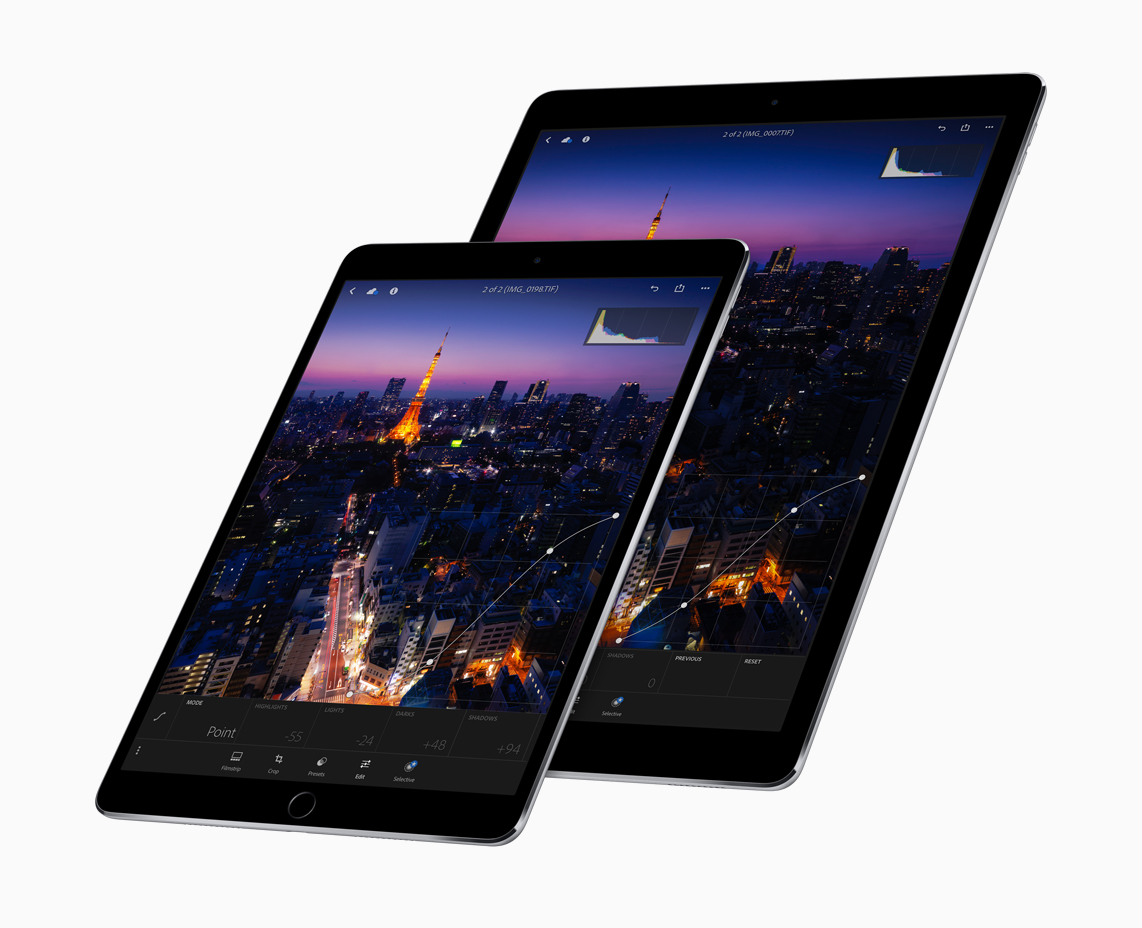
Cases for Apple's new 10.5-inch iPad Pro model and a next-generation 12.9-inch iPad Pro are circulating the web today, showing rear microphone holes like on the recently unveiled $329 iPad model and cutouts for stereo speakers. Made by a third-party vendor, the design of these cases is based on information allegedly obtained from Apple's contract manufacturer Foxconn.

The current-generation 12.9-inch iPad Pro features the microphone cutout on the right side of the device. The images depict four large cutouts for what appears to be stereo speakers, two at the top of the wooden case and two at the bottom of the device on both sides of the Lightning port.

The cases include cutouts for the 3.5mm headphone jack on both the 10.5-inch and 12.9-inch iPad Pro. Published by leakster Benjamin Geskin, the photos also indicate that there may not be new iPad mini models this year.

According to BGR, the iPad mini lineup has just been “sized out of its own category,” prompting the Cupertino company to stop updating the device and phase it out gradually due to its constantly decreasing sales.

The 10.5-inch iPad model is expected to feature narrower side bezels so that the 10.5-inch display could be fitted inside a body roughly the size of the current 9.7-inch iPad models.

Not Hotdog, GiftHead, Stigma, and other apps to check out this weekend

This week's edition of our Apps of the Week roundup includes a not-so-smart food identifying app, a personal shopper that is an expert at helping you pick out gifts, and a journaling app aimed at helping you improve your mood. And as usual, we have two great new games for you to check out this weekend.

Not Hotdog

If you're a fan of HBO's TV series Silicon Valley, you probably already know what this is. In last week's episode, budding entrepreneur Jian-Yang demonstrated an app called Seefood, which was supposed to be able to identify different foods using your phone's camera. Instead, all it was able to do was differentiate between hot dogs and non-hotdog items—thus, Not Hotdog was born. That's literally all the app does, but I got a little kick out of taking pictures of random things and sharing them with friends using the 'Not hotdog' caption. And you could too. Not Hotdog is available for free.

GiftHead

Here's a not-so-new app that you may not have known about. It's called GiftHead and it just received a huge update with a major redesign and support for 500 new stores. The app works like this: tell it who you're shopping for, what the occasion is and your preferred price range. Then pick a gift from the curated list of suggestions, and the app will point you to the right store. Rather shop online? The app can do that too. Other features include sale alerts, wish lists and gift reminders, so you'll never miss a birthday or anniversary again. GiftHead is available for free.

Stigma

Stigma is another not-so-new app that could be useful for folks that don't know about it. It's described as a "mental health" app, with a built-in journal, mood calendar, reminders and a word cloud that allows you to see the types of words you're using most in your journal entries. There's also a support network aspect, with PenPals (supportive peers), Support Groups, and a community you can share your journal entries with. Now the app itself is free, but there is a Pro service that starts at $2.99 per month with premium features like advanced analytics and longer journal entries. Stigma is available for free.

Old Man's Journey

Old Man’s Journey is a soul-searching puzzle adventure game about life’s precious moments, broken dreams, and changed plans. Immerse yourself in a visual narrative as you uncover stories of the old man’s life told through beautiful vignettes of his memories. Interact with the serene, whimsical environment as you solve playful puzzles and shape the landscape around you, growing the hills to create the old man’s path forward. Note that this game has won a ton of awards for its visuals and storytelling, but some of the iTunes reviews complain that the puzzles are too easy and the game is too short. We still think this is worth checking out. Old Man's Journey is available for $4.99.

Timber Tennis

From the makers of the hit Timberman comes Timber Tennis, essentially a unique take on the game Pong with a lumberjack twist. Take part in the annual Timber Tennis World Championship—beat all your old rivals by upgrading your skills, using super-shots and staying clear of other players' specials. Unlock a slew of characters and balls, and compete in local multiplayer against your friends. Note that this is a freemium title, with an in-app purchase to remove ads, and some of the early reviews complain that the ads are super intrusive. Even so, if this game is half as addictive as Timberman, it's worth checking out. Timber Tennis is available for free.

More apps to check out Microsoft refreshes OneNote apps with new design and accessibility features Apple’s free app of the week: Eggggg – The Platform Puker Things 3 is out with overhauled interface and multiple new features Hey Siri, make some room for Google Assistant on my iPhone Gmail for iOS now uses machine learning to provide smart replies Todoist gains 2-way Google Calendar integration, Dynamic Type support & more Instagram rolls out selfie filters, rewind option for videos, hashtag sticker & eraser brush

This tweak also clears app icon badges when clearing notifications from Notification Center

One of the pet peeves I’ve always had as an iOS user is that when I clear notifications from Notification Center, the badges remain on the Home screen app icons, requiring me to manually dismiss the badges after I already went through the process to dismiss the notification in Notification Center.

A new free jailbreak tweak dubbed Pigeon by iOS developer ridn eliminates this tedious problem by automatically updating the icon badge number after you cleared notifications via Notification Center.

iOS 11 concept imagines new productivity features for iPad

Apple is going to preview iOS 11 along with other OS updates at its annual developers conference next month and we fully expect the mobile operating system to include advances that should make the Apple tablet a better laptop replacement than it currently is.

In the meantime, Federico Viticci and Sam Beckett of MacStories have put together an incredibly detailed concept of iPad-specific features that could be part of iOS 11, including the Finder, a new Shelf feature, drag-and-drop available system-wide and other perks.

With the Shelf feature, you would be able to clip pretty much anything with a simple drag-and-drop gesture. Sitting above apps both in full-screen or Split View mode, it would reveal itself automatically when you're dragging an item towards the top of the screen.

The Shelf would display your previously saved items as thumbnail previews and you'd be able to drop an item on top of another item to create a folder in the Shelf.

“The idea behind the Shelf is to make it as effortless as possible to hold something for later without the cognitive load of deciding which app or extension should receive it right away.”

The Shelf would be paginated and local to each iPad.

You'd be permitted to drop almost anything in it: from text selections and images to phone numbers and even songs. Tapping an item in the Shelf would pull up a custom Quick Look preview with additional information and actions relevant to the selected item.

And here's the concept video.

https://www.youtube.com/watch?v=UyFUDQ5LLZw

Next up: file management.

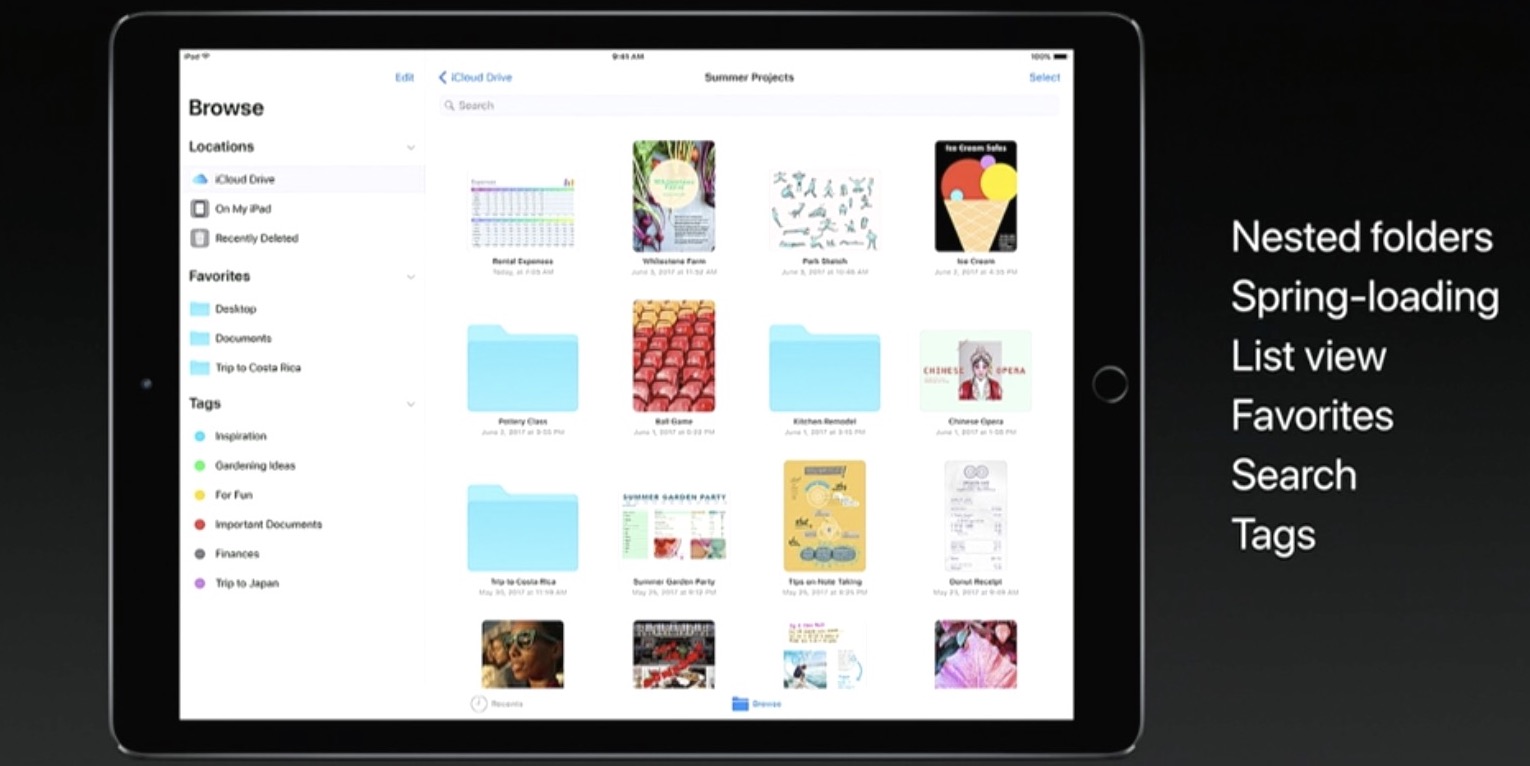
As you know, Apple currently offers the iCloud Drive app for browsing your iCloud files.

MacStories has envisioned a Finder for iOS because the argument that iPad doesn't need to expose its filesystem to the user “lost its validity when Apple introduced document providers in iOS 8 and the iCloud Drive app in iOS 9.”

Unlike Finder for macOS, its iOS counterpart would not expose system information beyond the actual files. You'd be able to browse your files in column and grid views, shared items via iCloud with full permission controls, apply tags, use the Versions feature and even take advantage of Siri integration to search across your files.

“All the pieces of the current system—iCloud Drive, the document picker and document providers—should be unified into a single Finder app and system-wide layer available everywhere,” said MacStories.

Instead of having files stored within app-specific folders on iCloud Drive, users would be able to create files in a top-level iCloud Drive view.

As a bonus, rather than list a bunch of installed document provider extensions in a popup, you'd get a full-blown Finder dialog to open files from any folder or app.

MacStories notes:

With a new set of APIs and user permissions, iOS 11 could allow apps to more easily open each other's documents in complex (but intuitive) workflows that aren't possible today.

And, obviously, automation could play a role in this down the road, opening the door to ideas such as folder-monitoring utilities and file automation either via Workflow or Hazel-like apps.

Finder for iOS would integrate with other features that MacStories has envisioned, such as the Shelf and system-wide drag-and-drop, but without the complexity of macOS.

But wouldn't drag-and-drop clash with iOS's standard gestures?

In a word, no. As MacStories explains:

Because drag-and-drop would be fully multitouch-enabled, it wouldn't block the iOS interface: another finger could be used to navigate in a different "drop area" of an app, or a user could keep dragging until the Split View app picker is shown and drop an item onto an app's icon, opening a contextual action menu.

App Store could be redesigned around Apple Music-inspired redesign, as show below.

Apple could even bring aspects of the watchOS interface to iOS and move beyond the static, inexpressive nature of its interface. “Touch-down states for icons and buttons would add useful context to iOS toolbar icons and menus as well,” reads the article.

A better Split View implementation is one of my favorite concepts proposed by MacStories for iOS 11. In addition to supporting drag-and-drop between the apps in Split View mode, you'd gain the ability to quickly select an app for Split View by choosing it from a Home screen like view complete with Spotlight integration for surfacing Split View-enabled apps.

Be sure to visit the MacStories concept for additional high-resolution mockups and detailed descriptions of other proposed enhancements, such as improvements to Notes and Control Center, better extension support in Safari and more.

Feel free to let us know your thoughts on this concept by posting a comment below.

Microsoft refreshes OneNote apps with new design and accessibility features

Software maker Microsoft on Friday rolled out new versions of its note-taking apps for iPhone, iPad, Apple Watch, Mac, Android, Windows 10 and the web. OneNote's interface has been tidied up and navigation improved in the latest release.

The app now includes new assistive features to help users with disabilities.


OneNote's revamped interface makes organizing your notes easier than before with an improved layout. You'll notice that the reworked interface puts your content front and center, with all of the notebooks, sections and pages moved to columns on the left side of the app.

This allows for efficient organization of your notebooks.

The company celebrated the redesigned OneNote launch with the following video.

https://www.youtube.com/watch?v=fmGVp76WyIU

The newly implemented accessibility features, available across iOS and macOS, let people with various disabilities efficiently navigate the app with screen readers, improved keyboard shortcuts and other assistive technologies.

And with the left-hand navigation controls, screen readers can easily navigate through the app.

OneNote is now available with a consistent experience across devices: with this update, says Microsoft, your experience will be the same regardless of what device you happen to be using.

The new redesign for OneNote is rolling out for Windows 10, Mac, iOS, Android and on the web over the coming weeks so check back later if it's not live yet.

OneNote for iPhone, iPad and Apple Watch is available free on App Store.

OneNote for Mac is available free on Mac App Store.

Apple boosts production of 10.5″ iPad Pro ahead of rumored WWDC reveal

Apple has boosted production of a rumored 10.5-inch iPad Pro model ahead of the tablet's supposed reveal at the company's annual pilgrimage for developers next month, Taiwanese trade publication DigiTimes said Friday.

The device's monthly shipment volume is now expected to grow to 600,000 units in July, up from around 500,000 units currently. The Cupertino company is hoping to achieve annual shipments of the new tablet in excess of five million units in 2017.

The 10.5-inch iPad Pro model reportedly entered mass production in March-April.

Watchers expect demand for the recently launched $329 iPad model “to pick up strongly” starting at the end of the quarter, reaching its peak in the next quarter when the device's monthly shipments could pass four million units in June and July, the market watchers noted.

As for the 12.9-inch iPad Pro model, Apple is expected to update its highest-resolution iOS device at some point this year, with some supply chain sources saying a second-generation 12.9-inch iPad Pro model could enter mass production in June.

“Sources from the upstream supply chain noted that Apple's inexpensive 9.7-inch iPad is expected to accelerate Apple's pace on phasing out the iPad mini 4 from the market,” as was rumored earlier this week.

https://www.youtube.com/watch?v=knJNtkRyO9E

Subscribe to iDownloadBlog on YouTube

Analyst Ming-Chi Kuo gave the 10.5-inch iPad Pro model 70-30 odds of being announced at Apple’s annual Worldwide Developers Conference next month.

In a recent note to clients, Kuo wrote that Apple’s engineers were able to squeeze a 10.5-inch display into a form factor similar to the existing 9.7-inch iPad models due to the narrower side bezels on the upcoming tablet.

“The newly designed 10.5-inch iPad Pro will have a similar form factor to the 9.7-inch model, but will feature a larger display thanks to narrow bezels,” said the analyst.

Kuo believes that the overhauled design of the device should help improve the user experience and boost traction in the corporate and commercial sectors.

Apple has reportedly commissioned Foxconn to assemble the 10.5-inch iPad Pro model.

General Interface Solution will be the sole supplier of touch panels for the device.

The same supplier provides 3D Touch components for existing iPhones and is said to have landed orders for the three times pricier 3D Touch parts for the OLED-based iPhone 8 model.

KGI forecast 10.5-inch iPad Pro shipments of five to six million units in fiscal 2017, accounting for fifteen percent of total fiscal 2017 iPad shipments.

Image: 9.7-inch iPad Pro with a 10.5-inch piece of paper overlaid via Dan Provost.

PresentPage lets you assign a default Control Center card

Control Center is one of the most useful interfaces you can use in iOS, as it provides you with quick access to toggles, shortcuts, and music playback options from anywhere.

If you ever find yourself using a specific Control Center card more frequently than the other and prefer the interface wouldn't remember the card you used last, then you’d probably like a new free jailbreak tweak called PresentPage by iOS developer Cole Cabral.

Things 3 is out with overhauled interface and multiple new features

German developer Cultured Code on Thursday released Things 3, a major new iteration of its powerful personal task manager for iPhone, Apple Watch, iPad and Mac. Things 3 brings out a beautiful timeless new design with delightful interactions and animations. Aside from the new look and feel, the refreshed app is packed to the gills with a host of new features.

Released as three separate apps (they've kept the current pricing), Things 3 is Cultured Code's first paid update for existing users since versions 1.0.

Here's what developers had to say about the app's gorgeous new UI:

The all-new Things comes with an all-new design. It's not just how it looks—but also how it works, and how it feels. The interactions are delightful. The animations are smooth. The content is more structured. The concepts are clearer.

Open a to-do and you'll immediately get a sense of how the new apps feel.

Nicely animated transitions expand the selected to-do into an empty white piece of paper. You can add additional details to your to-do, neatly tucked away in the corner until you need them.

“There are no distractions here, it’s just you and your thoughts,” said developers.

The choice is yours: you can create either a simple to-do that looks like text on a piece of paper or opt for a richer to-do which may include additional details such as tags, checklists (a new feature for to-dos in Things 3), a start date, a deadline and so forth.

Speaking of to-dos, Things 3 introduces an all-new Magic Plus Button.

Found in the corner of the screen, you can tap it to quickly add a new to-do or actually drag the button to a particular list in order to generate a to-do in a specific location. Plus, managing to-dos is now way easier than before with expanded support for gestures, like dragging and dropping, swiping, tapping to expand and more.

Seasoned Things users will be delighted to know that developers have implemented one of the most-requested features: time-based reminders. For those to-dos you absolutely cannot miss, adding a reminder will give you peace of mind.

While scheduling a to-do in Jump Start, click Add Reminder and set the time. There are three ways to set the time: manually, using the app's natural language parser (just type “Wed 8pm” or some such, and you're all set) or you can speak to Siri (“Remind me to call Seb at 5am.”)

Watch the promotional video for Things 3.

https://www.youtube.com/watch?v=2R6o5t0VK_A

Things 3 now supports headings to break up complex projects into sections.

And with the app's Magic Plus Button, you can create and place headings in new projects like a pro. The app's cleaner design extends to your Today and Upcoming sections which now combine calendar events and to-dos into one unified view with a timeline at the top, giving an outline of your schedule.

A new This Evening section is your at-a-glance overview of any to-dos that you won’t get to until later in the day, like things you can only do when you get home. The This Evening section is a handy way to keep these to-dos separate from the rest, in their own discrete list.

And to help you find a needle in the haystack, Things 3 now includes a Quick Find feature.

Just pull down on any list to reveal search, which can now find content across the entire app. Quick Find also includes handy shortcuts to your to-dos, lists, tags and more.

Type Travel, another new feature in Things 3, lets you navigation to any project, area or to-do in the app. On iPad, you can now swipe away the sidebar and focus on just the current list you’re working on, both in portrait and landscape orientations.

On your Mac, Things now has a Slim Mode which cuts out distractions so you can focus on the task at hand. To enter this mode, collapse the sidebar with a two-finger swipe. Slim Mode is especially great when you’re working in macOS's Split View multitasking mode.

You can even open multiple windows in Slim Mode and drag and drop items between them.

https://culturedcode.cachefly.net/things/videos/2017-05-03-allnewthings-when/video.mp4

Developers have completely rewritten core layers of the apps, which are now shared between macOS and iOS for increased reliability. The Apple Watch app has been updated as well (it now shows checklists and headings), there's a new structure for Areas in the iOS app and you can now import data from Wunderlist or OmniFocus into Things 3.

And with TouchBar support, owners of the new MacBook Pro can take advantage of convenient access to the app's most-used commands.

Things is fully integrated with all the latest iOS technologies: Apple Watch, Calendars, Siri, Reminders, Today Widget, Quick Actions, Action Extension, Handoff and Notifications.

The apps all stay updated via Things Cloud, which is the push sync service that Cultured Code custom-built for the app. Unfortunately, iCloud syncing is not supported in Things.

For the complete overview of what's new in the app, visit the official Things website.

Things 3 for iPhone and Apple Watch is $9.99 on App Store.

Things 3 for iPad is $19.99 on App Store.

Things 3 for Mac is $49.99 on Mac App Store.

To celebrate the launch of Things 3, all apps are 20 percent off until next Thursday, May 25.

A 14-day trial of Things for Mac is available via the Cultured Code website.