iOS

TimeMover offers creative tools for moving and rotating your Lock screen clock

Depending on what kind of wallpaper you’re using on your Lock screen, a new jailbreak tweak dubbed TimeMover by iOS developer NeinZedd9 can help you re-orient your Lock screen clock to better match it.

Whether you want to move the time up or down or side-to-side slightly, or rotate it to follow the lines or effects appearing in your wallpaper, TimeMover has an intuitive tap and drag-based user interface for fine-tuning your Lock screen clock to match your unique setup.

AppLocker lets you secure apps with a password

AppLocker by iOS developer Ori Kadosh, is one of the most popular app security jailbreak tweaks in Cydia, and it has been updated this week with full support for iOS 10.

AppLocker lets you create a password that you will use to access your apps; it's requested every time you launch an app, and if you can’t provide it, you can't use the app.

QuickTrust makes it easier to trust sideloaded app certificates

Depending on how advanced of an iOS user you are, you may sideload apps from time to time.

In many circumstances, sideloading third-party apps via Impactor or Xcode involves trusting a certificate – a process you should be familiar with if you've jailbroken with Yalu102 or Pangu for iOS 9 – but iOS doesn’t make the trusting process easy or straightforward out of the box.

Here to fix that problem is a new free jailbreak tweak called QuickTrust by iOS developer 1GamerDev, which adds a “Trust” button directly to the certificate pop-up alert, as shown above.

Have iPhone automatically answer incoming calls on your behalf

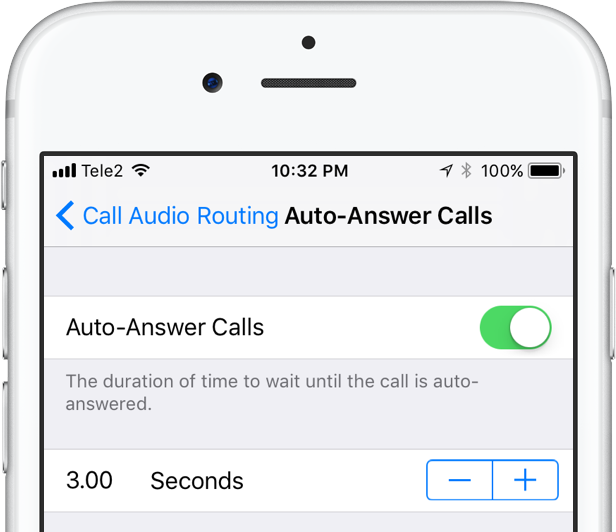
Many iOS 11 features seemed to be inspired by the jailbreak community. Among them, a brand new call audio routing option in accessibility settings that allows you to set your iPhone to automatically answer incoming calls on your behalf, should you wish so.

This optional feature supports regular calls via your carrier's mobile network, as well as Wi-Fi calls, FaceTime audio and video calls and any VoIP calls originating from third-party apps that use Apple's CallKit framework, such as WhatsApp, Skype, Viber and more.

To enable this feature, go to Settings → Accessibility → Touch → Call Audio Routing.

There, you'll see the call routing options which include settings like Bluetooth headsets, the iPhone speaker and more. These options are also available on prior iOS editions. But look at the bottom and you'll see a brand new menu, labeled Auto-Answer Calls.

Tapping it takes you to a new screen where you can enable or disable the feature and set the duration of time your iPhone will wait when a call comes in before it's auto-answered for you.

This handy new option, as I already mentioned, is nowhere to be found in iOS 10 or earlier.

I can see myself using Auto-Answer Calls a lot, not just while jogging with my AirPods or working out with my PowerBeats in my ears but also in other situations when interacting with the phone may be impractical, like driving a car or swimming with my Apple Watch on.

How do you like this nifty feature? Will you be using this auto-answer call setting, and why?

Do let us know by posting a comment below!

TUTORIAL: How to set your iPhone to automatically answer calls
iOS 11 brings lossless FLAC audio playback to iPhone and iPad

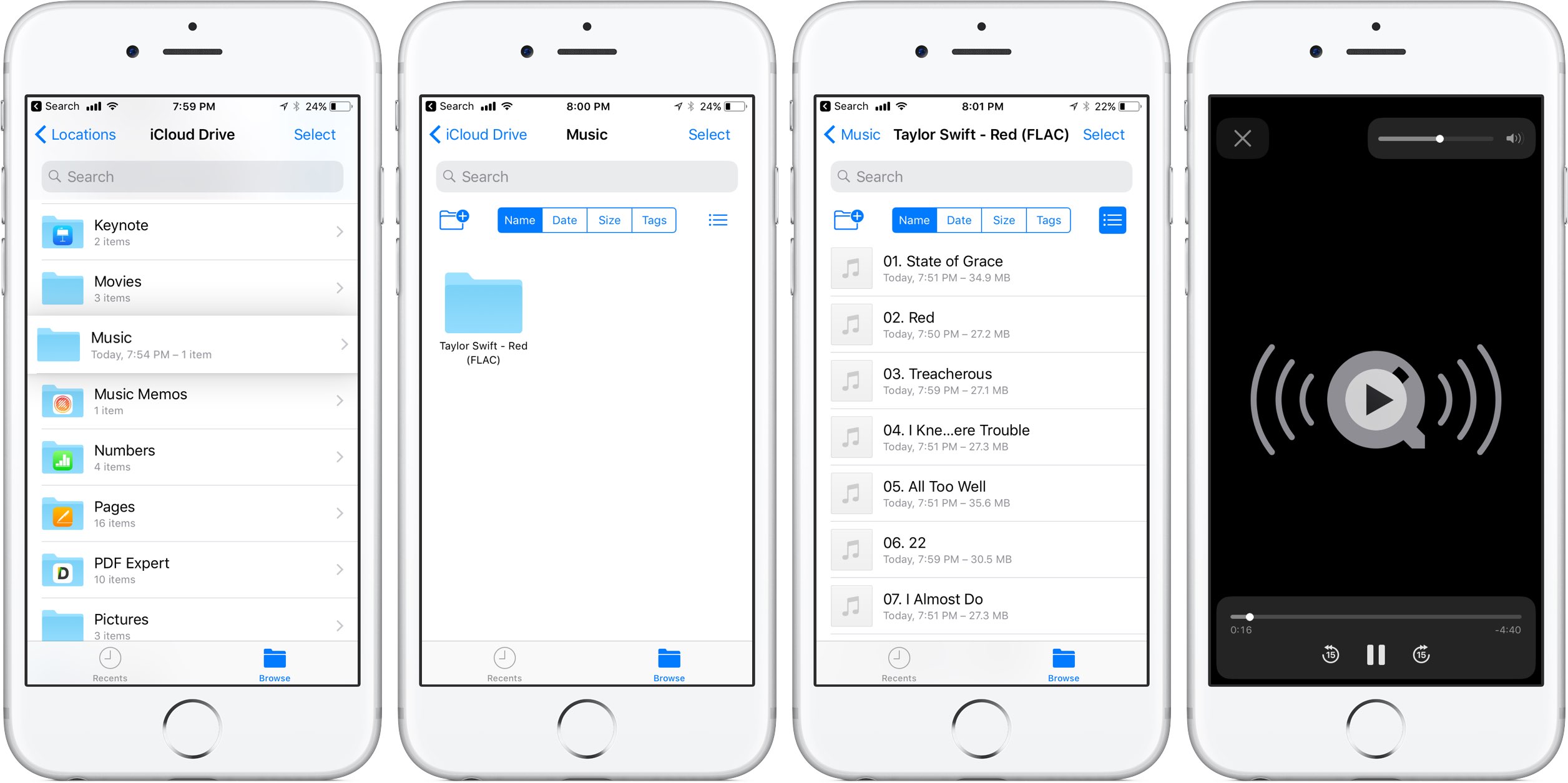
iOS 11 reportedly brings native support for lossless audio encoded in the popular FLAC format to iPhone, iPad and iPod touch. As discovered by Reddit users, Apple has included full playback support for FLAC audio files on iOS 11. iTunes and iOS 10 currently lack built-in support for the FLAC codec, though people can use a third-party app to enjoy FLAC audio.

At this stage, only the new Files app has support for lossless playback of FLAC-encoded audio files. Of course, things could change in subsequent beats as Apple continues to refine iOS 11 ahead of its fall release, at which point iTunes could be updated with full playback support for the popular format.

As things currently stand, any FLAC files synced to an iOS device through iCloud Drive, Dropbox or Box can be played from within the Files app. FLAC files are currently unsupported via the Music app on iOS 11.

For what it's worth, I tried sending an FLAC audio file to my iOS 11-enabled iPhone through AirDrop, to no avail. My iPhone didn't know what to do with the file, putting up the standard prompt offering to download an app from App Store.

No matter how you look at it, this is a big win for music lovers and audiophiles.

The FLAC format bring the full quality of the original recording. FLAC, or Free Lossless Audio Codec, features lossless compression of digital audio which can reduce the size of the audio file to between 50 percent and 60 percent of its original size, without degrading audio quality of the original.

iOS 10 currently supports the AAC, Protected AAC, HE-AAC, MP3, MP3 VBR, Dolby Digital (AC-3), Dolby Digital Plus (E-AC-3), Audible (formats 2, 3, 4, Audible Enhanced Audio, AAX and AAX+), Apple Lossless, AIFF and WAV audio formats.

The ability to play lossless FLAC audio on an iPhone, iPad or iPod touch with iOS 11 could also signify that HomePod, Apple's upcoming smart speaker, may support high-quality FLAC audio.

AirPods Next/Previous track controls also work on iOS 10

One of the little things in iOS 11 includes the ability to set up the AirPods double-tap action to skip forwards and backwards between tracks, cancelling the need to invoke Siri to change songs. As iDownloadBlog reader Harshit Yadav has discovered and shared with us, you can also get this next/previous track control functionality to work on your iPhone, iPad or iPod touch with iOS 10, here's how.

First of all, your AirPods must be running the firmware version 3.7.2 or later, which enables you to customize double taps independently for both the earbuds. To find out your AirPods current firmware version, go to Settings → General → About → AirPods on your iPhone.

Your AirPods must be connected to your iPhone to appear there.

TUTORIAL: How to install software updates for your AirPods

To ensure your AirPods have the latest available firmware, put both the earbuds inside their charging case, then close the case and connect it to a charger or a USB port on your computer. Your iPhone must be paired with your AirPods and connected to Wi-Fi in order for the firmware to download and install.

With the 3.7.2 firmware installed on your AirPods, do the following:

1) Connect your AirPods to an iOS device running iOS 11. This is very important that your AirPods be connected to an iOS 11 device. If not, the option to customize Left and Right ear will not appear.

2) Go to Settings → Bluetooth on your iOS 11 device.

3) Tap the “i” next to your AirPods.

4) Tap Left underneath the Double Tap on AirPod heading, then choose Previous Track from the list of double-tap actions for your left earbud.

5) Tap Right underneath the Double Tap on AirPod heading, then choose Next Track from the list of double-tap actions for your right earbud.

6) Close out the Settings app and play some music to verify that double-tapping either AirPod takes you to the next or previous track.

7) You're done.

With your AirPods updated to the firmware version 3.7.2 and the double-tap action set to next/previous track, you can now pair them back to an iOS 10 device and they will continue to work.

It's important to note that attempting to change your AirPods settings on iOS 10 will overwrite any changes made on your iOS 11 device, meaning you'll loose the next/previous track functionality.

Let us know in the comment section below how it went for you.

Add powerful Spotify features to the Now Playing interface with Apace

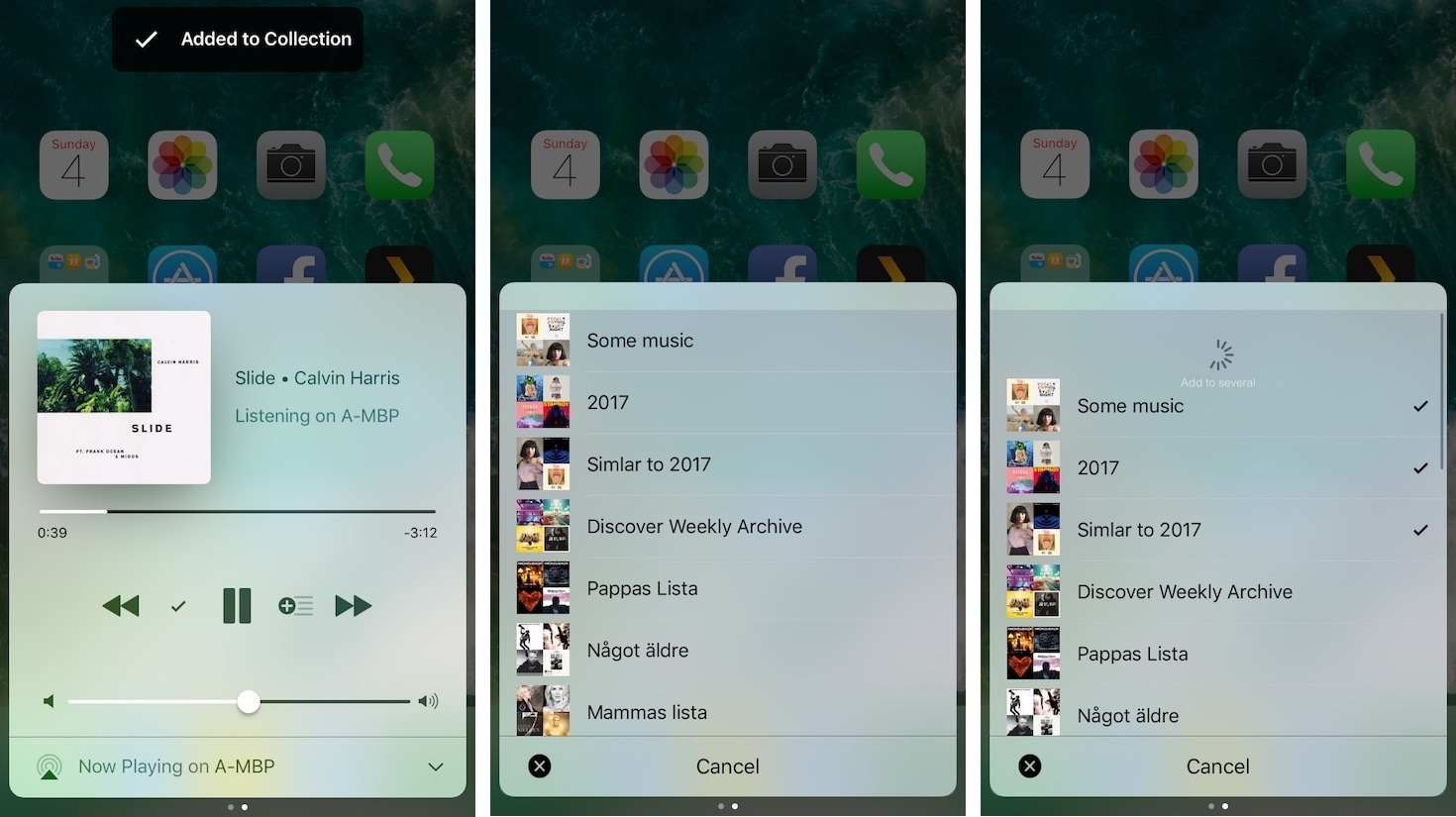
Spotify users rocking jailbroken iOS 10 devices are going to feel right at home with a new jailbreak tweak release dubbed Apace by iOS developer Andreas Henriksson.

This tweak is a replacement for the popular iOS 9-only tweak dubbed Quickify and lets you add Now Playing music to existing Spotify music playlists or collections right from Control Center or the Lock screen.

SkipME provides useful auto-skipping features for your music

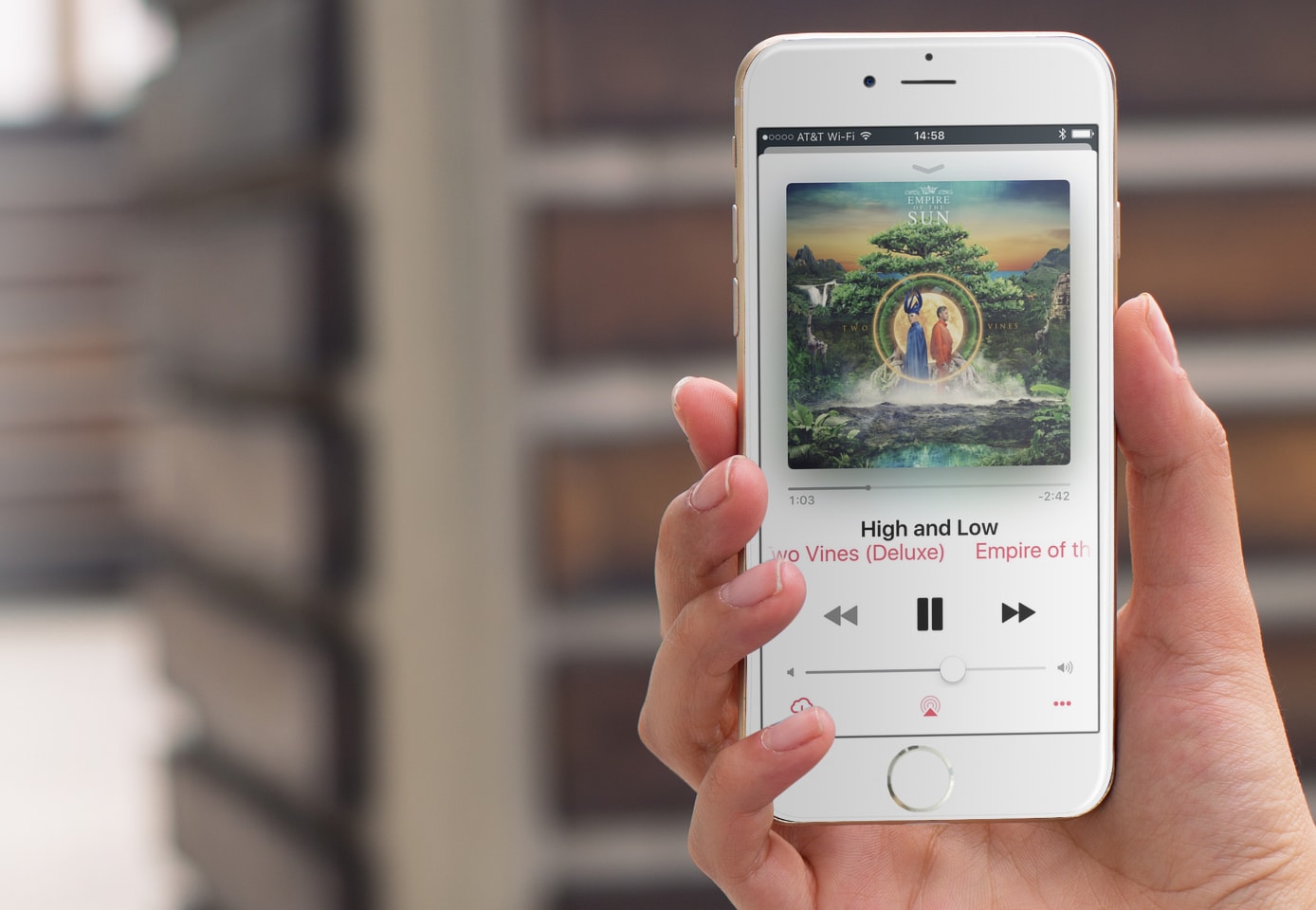
Have you ever tried to play a music collection or playlist from your iPhone or iPad only to find that some of the music wouldn’t be appropriate for the current circumstances?

A new free jailbreak tweak dubbed SkipME by iOS developer candoizo lets you filter certain music from your listening experience to tune your entertainment for certain moods or for sensitive audiences.

LastLocked puts the last time your device was locked on the Lock screen

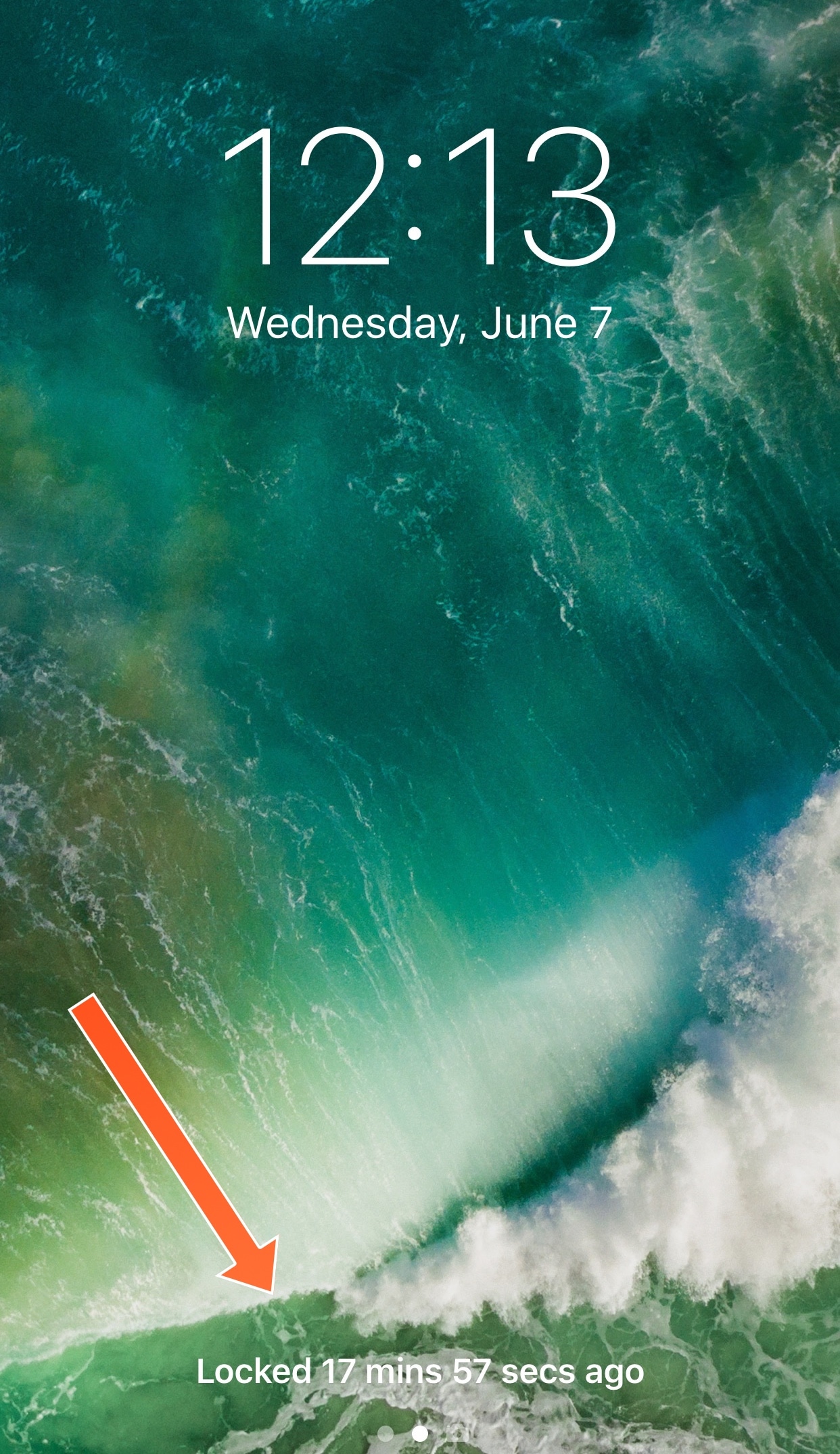
In April, we showed you a tweak dubbed LastTimeUnlocked that replaced the ‘press home to unlock’ text on the Lock screen with an indicator of when your device was most recently unlocked, and now a new free jailbreak tweak called LastLocked by iOS developer NeinZedd9 is taking on the opposite end of the spectrum.

Rather than displaying when your device was last unlocked, LastLocked displays the last time your device was most-recently locked.

Hands-on with iOS 11’s one-handed QuickType keyboard

As previously suspected, and officially announced at the Worldwide Developers Conference, iOS 11 provides a new keyboard feature making it easier to type in one-handed mode, whether you're a right or left-handed user. It works on both 4.7 and 5.5-inch iPhones and is easily invoked at any time via the keyboard's Emoji key.

Andrew O'Hara put together a short video demonstration of this feature in action. Watch it embedded below, then read the rest of the article before meeting us in comments.

https://www.youtube.com/watch?v=nq0xDpcCGKA

Subscribe to iDownloadBlog on YouTube

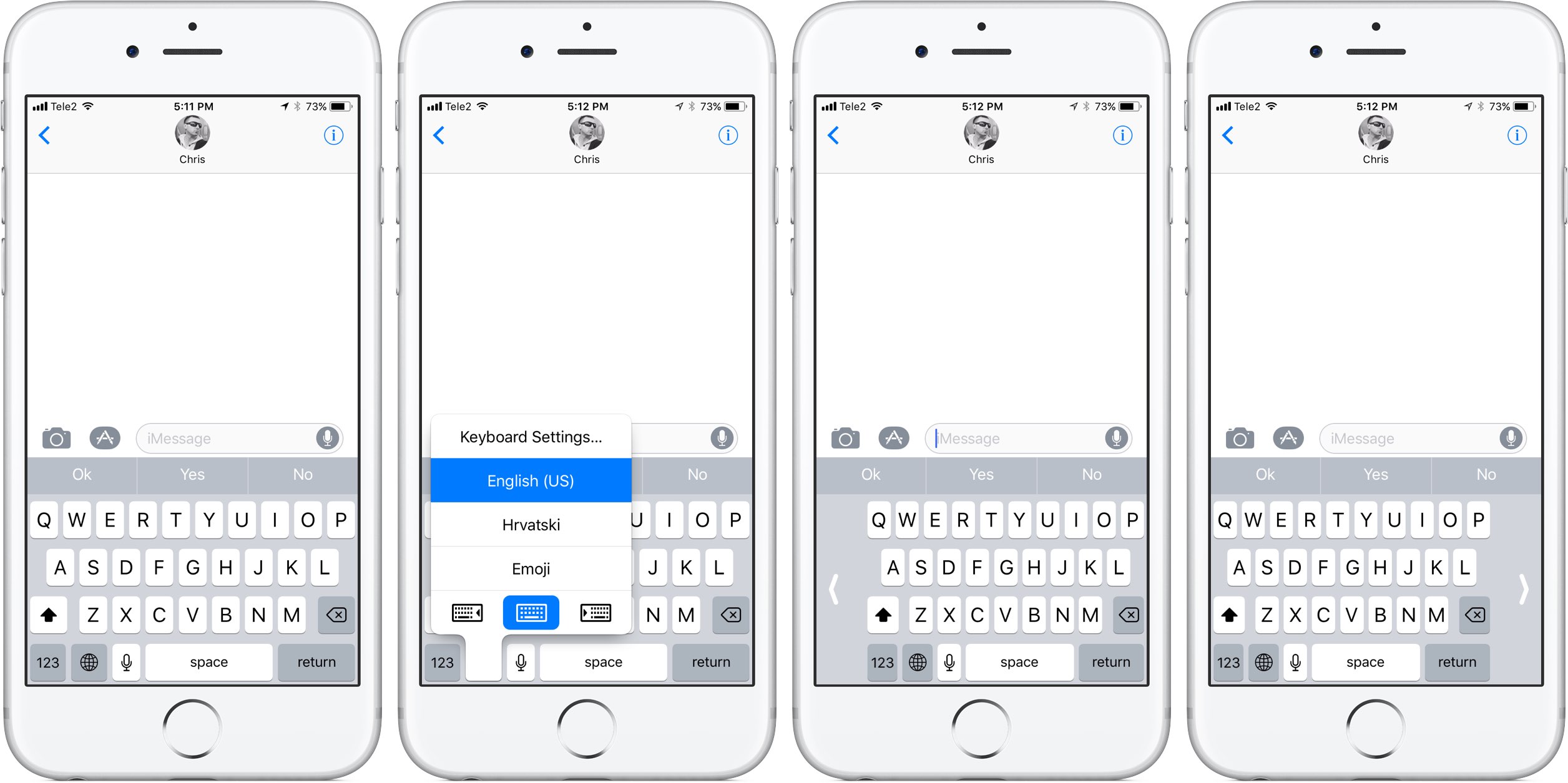
To activate this  keyboard mode, tap and hold the Emoji key on the keyboard.

You'll notice a trio of new icons lined up alongside the bottom of the menu. These icons let you move the entire keyboard either fully to the left or to the right of the screen so that typing with a single thumb is easier.

The keyboard shrinks exactly to the width of the keyboard on a four-inch iPhone.

To return to the normal-size keyboard, tap the Emoji key again, then hit the middle icon at the bottom of the menu. Alternatively, tap the arrow on either side of the keyboard to quickly get back to the normal layout.

What are your thoughts on iOS 11's new one-handed keyboard? Do you think you'll be using it on your iPhone when iOS 11 drops? Share in the comments section below!

Video: watch iOS 11 Messages new “Echo” and “Spotlight” fullscreen effects in action

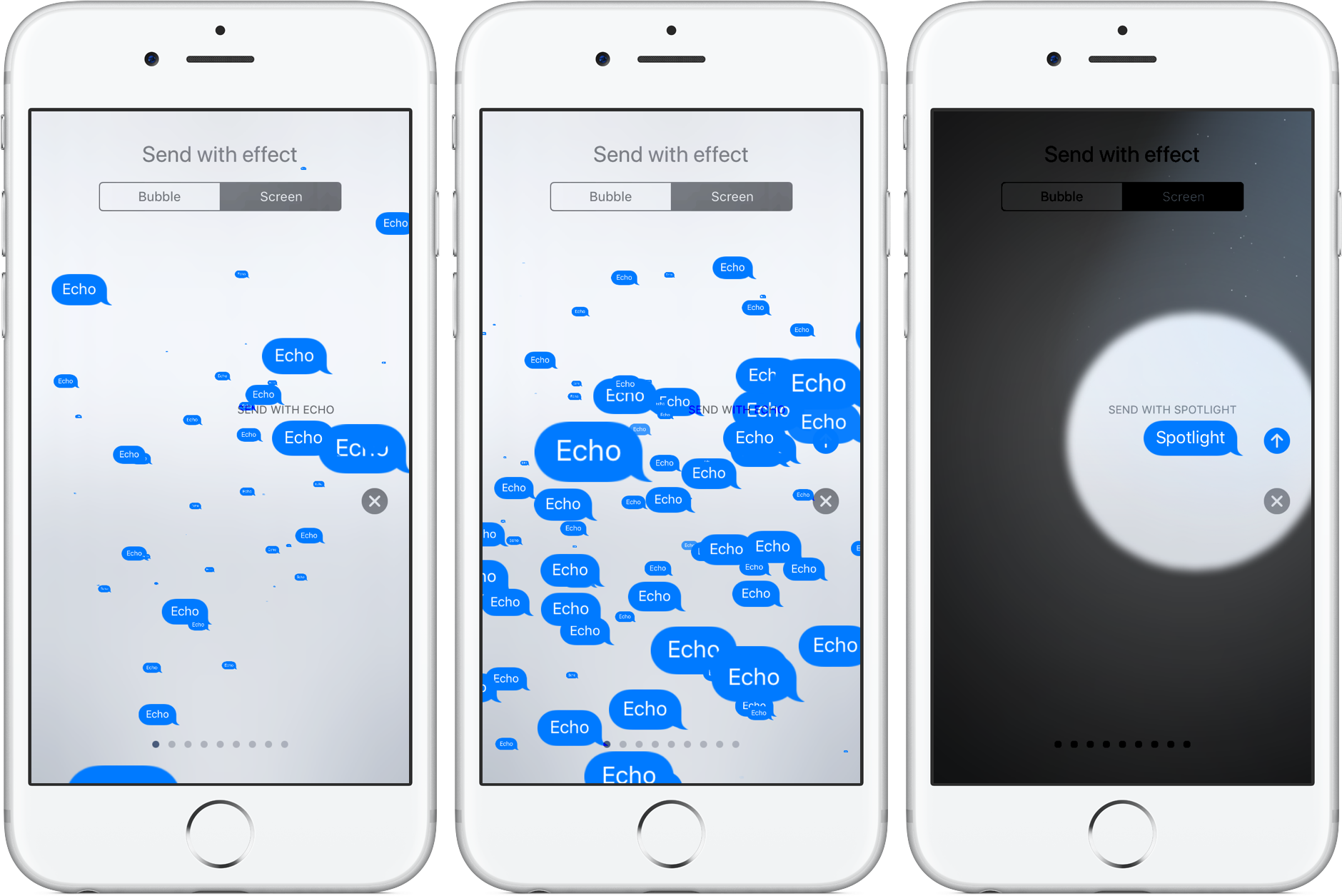
Apple's expressive Messages app gained some interesting fullscreen effects with last year's release of iOS 10. With iOS 11, Apple is bringing a pair of brand new effects to the built-in messaging app, called “Echo” and “Spotlight”.

The two new effects are in addition to the existing ones: Balloons, Celebration, Confetti, Love, Lasers, Fireworks and Shooting Star. To use these effects, press the Send button in Messages with 3D Touch, then tap the Screen tab at the top to swipe through real-time effect previews.

Echo, as the title suggests, multiplies your text all over the screen. Spotlight puts a large spotlight on your chat bubble to emphasize your text.

Watch the new Messages effect in action.

https://www.youtube.com/watch?v=Ur08nXULKvo

Subscribe to iDownloadBlog on YouTube.

As for the so-called bubble effects, no new ones have been added in iOS 11. iOS 10 currently includes five different bubble effects: Slam, Loud, Gentle and Invisible Ink.

How do you like the two fancy new effects in Messages for iOS 11?

Let us know by posting a comment below.

Safari Plus brings powerful customization options to Safari

Safari is the stock web browser on the iOS platform, and love it or hate it, the jailbreak community has come up with countless ways to customize it for the better.

One of the latest releases to benefit the Safari web browser is a jailbreak tweak dubbed Safari Plus by iOS developer opa334. This tweak brings a host of new configuration options so you can customize Safari any way you see fit.